How To Set Up a Proxy on Windows 10 & 11
Secure your PC connectivity. Configure Decodo’s 115M+ residential IPs at the system level to manage digital privacy, verify ads, and access global content across all Windows applications.
14-day money-back option

125M+
ethically-sourced IPs
<0.5s
average response time
99.92%
success rate
7-day
free trial
99.99%
uptime
Trusted by:







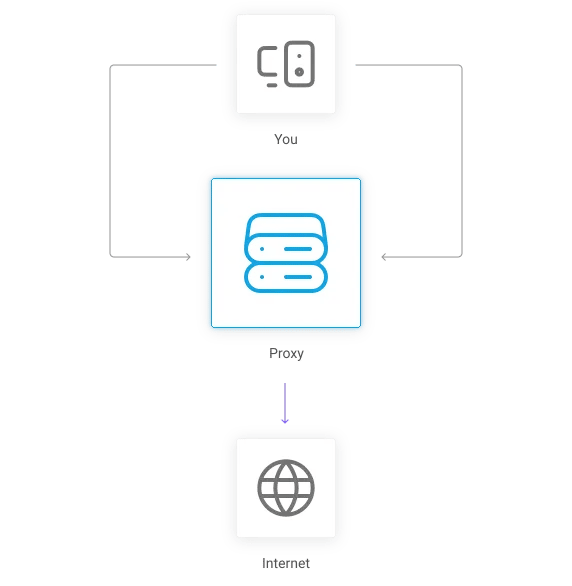
What is a Windows proxy server?
A Windows proxy server configuration routes all internet traffic from your PC – including Edge, Chrome, and system updates – through an intermediary server. Instead of connecting directly to websites with your local IP, your device uses a residential proxy to mask your identity and location. This allows you to simulate a user from any country directly from your desktop.

Configuration requirements
Before you start, ensure you have:
- A PC running Windows 10 or 11
- An active internet connection
- Decodo proxy credentials (username, password, host, and port)
Step-by-step Windows proxy setup

Step 1: Get proxy credentials
- Log in to the Decodo dashboard.
- Navigate to Residential.
- Choose your target location (e.g., "USA").
- Copy the proxy address (gate.decodo.com), port (7000), username, and password.
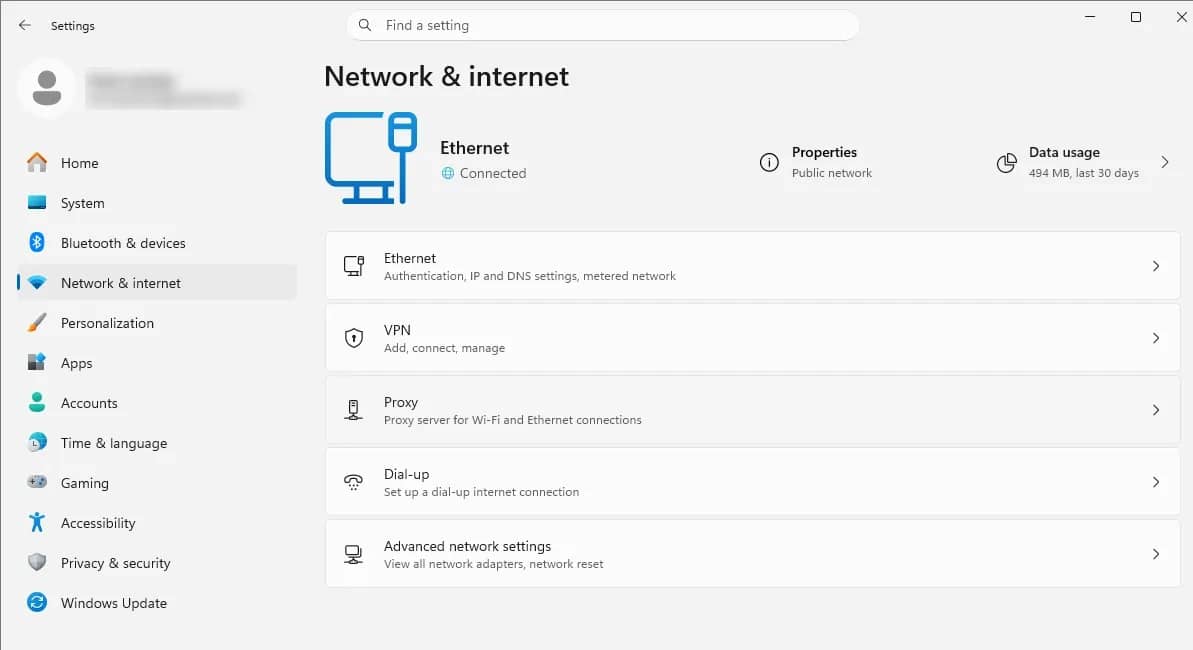
Step 2: Open network settings
- Open the Start menu.
- Search for Settings and open them. You can also use the Win + I shortcut.
- Click Network & Internet.
- Go to the Proxy tab on the left-hand sidebar.
Step 3: Configure proxy settings
Option 1: Automatic proxy setup
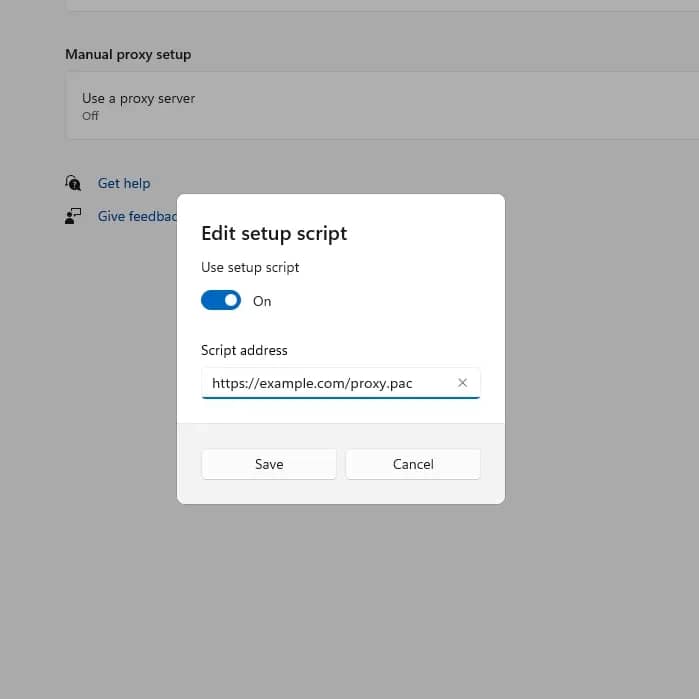
- To use an automatic proxy setup through a script, find the Automatic proxy setup section in the Proxy menu.
- Toggle Automatically detect settings. This enables the system to use the Web Proxy Auto-Discovery Protocol (WPAD) to detect and configure proxy settings on your network automatically. The feature is primarily used by companies to allow computers to access internal networks.
- If you have a direct link to a Proxy-Auto Config (PAC) file, toggle Use setup script.
- Provide the PAC file URL in the Script address field. This file contains rules for how the system should handle web requests and which proxy servers to use.
- Click Save.
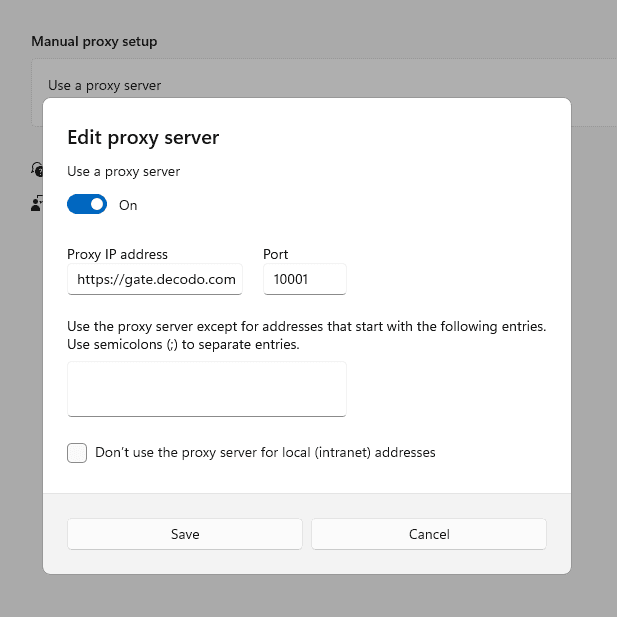
Option 2: Manual proxy setup
- Scroll down to Manual proxy setup.
- Toggle Use a proxy server.
- Enter the Address and Port of the proxy. These proxies must be in HTTP or HTTPS format only. For SOCKS5 proxies, read the section below.
- Make exceptions for certain websites (optional). In the text box below, enter web addresses for which a proxy server shouldn't be used, separated by a semicolon (;).
- Decide if the proxy should be used for internal addresses. It ensures that addresses within your private or corporate network bypass the proxy server and are handled directly. This prevents unnecessary routing of internal traffic through the proxy.
- Click Save.
Step 4: Authenticate & verify
- Open Microsoft Edge, Chrome, or another browser of your choice.
- A system dialogue will appear asking for a username and password. Enter your Decodo credentials.
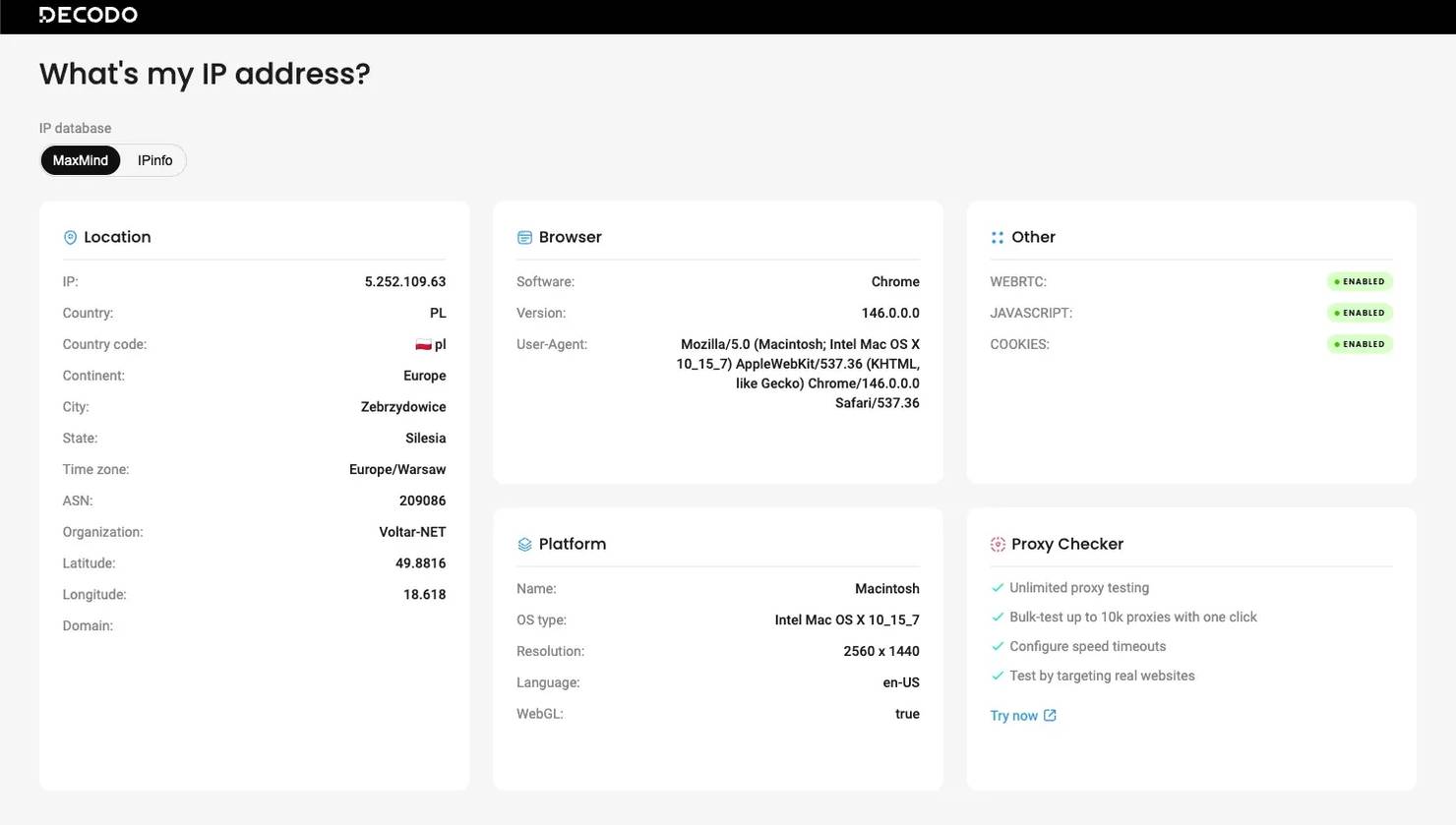
- Visit ip.decodo.com to verify your new IP address and location.
SOCKS5 configuration
Windows 10 & 11 don't support SOCKS5 natively; therefore, you must choose a different method. Here are a few options:
1. Use a web browser with SOCKS5 support. For example, Mozilla Firefox allows you to configure proxy connections with SOCKS5.
2. Use a third-party tool. Various applications allow you to route all or selected application traffic through a SOCKS5 proxy.
3. Use command-line tools. You can use cURL, which supports SOCKS5 proxies directly.
Legacy settings
If you need to work with legacy software or settings that require the SOCKS4 (not SOCKS5) protocol or broader configuration, you can use legacy settings.
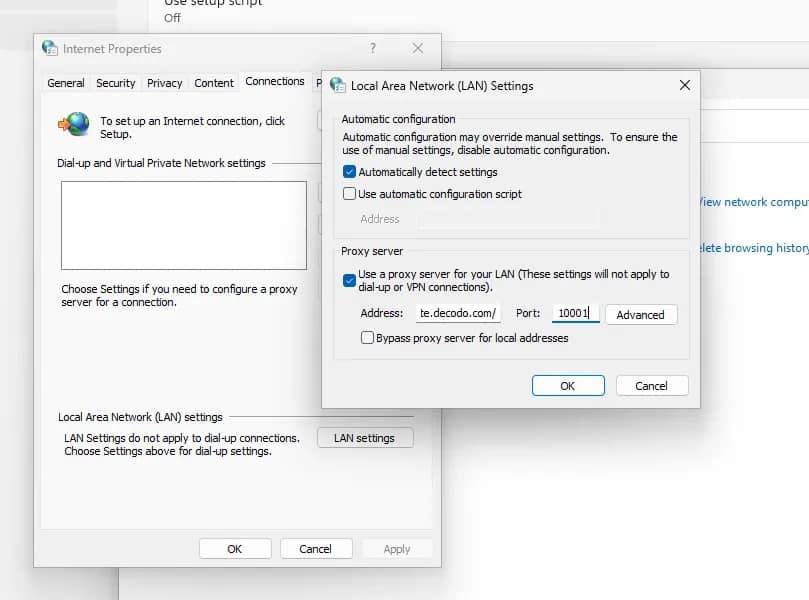
- Open the Start menu.
- Search for Control Panel and open it.
- Click Network and Internet.
- Click Internet Options.
- Open the Connections tab.
- Click LAN settings.
- Enable Use a proxy server for your LAN.
- Enter the proxy Address and Port information in plain format. If needed, you may also enable Bypass proxy server for local addresses.
- For further configuration, click Advanced.
- In the Servers section, modify the proxy address to use for each type (HTTP, Secure, FTP, and Socks). Keep in mind that Socks here stands for the SOCKS4 protocol.
- In the Exceptions section, enter web addresses for which a proxy server shouldn't be used, separated by a semicolon (;).
- Click OK to close each window and save your changes.
Troubleshooting Windows connection issues
Facing issues? Here are some solutions to the most popular problems.

Connection fails
Make sure your proxy settings are correct and match the server’s details. Check for any typos in the IP address or port number provided by your provider. A single mistake will prevent Windows from establishing a handshake with the remote server.

Incorrect settings
Verify the proxy configuration in your Windows settings and make adjustments. Ensure that Use a proxy server is toggled on if you're using a manual setup. If you're on a corporate network, you might need to toggle on Automatically detect settings instead.

Server timeouts
Restart your proxy server or device to reconnect and improve stability. Power cycle your router or restart the proxy software client to refresh the connection. Timeouts often happen when the local network stack becomes unresponsive or the proxy server itself is overloaded.

Inability to access websites
Clear your browser’s cache or try a different proxy to access restricted sites. Go to your browser settings and delete your browsing history and Cached images and files to remove old, broken routing data. If a site is still blocked, the proxy IP itself may be blacklisted by that specific website. In such cases, ensure to use reliable, clean proxies instead of free, unverified ones.

Proxy authentication issues
Double-check your login credentials for the proxy server and update them if necessary. Re-enter your username and password, as Windows may not always prompt you when a password expires. Ensure there are no extra spaces at the beginning or end of your credentials when copying and pasting.

Slow connection speeds
Switch to a different proxy or clear your cache to improve connection speed. Try connecting to a proxy server that is geographically closer to your actual location to reduce latency. Heavy encryption or high traffic on a shared proxy can also cause significant slowdowns.
Why use Decodo residential proxies on Windows

System-wide privacy
Protect your identity across every application. From web browsers to background update services, routing through a residential proxy ensures your real IP remains hidden from external servers.

Global market
Switch your PC's location to any of 195+ countries in seconds. Verify how your website, ads, or software appear to users in Germany, Brazil, or Japan without leaving your desk.

Seamless application testing
Test localization and geo-dependent features in your Windows apps. By changing the system IP, you simulate a real user environment for comprehensive quality assurance.
Watch the Windows proxy setup guide
Follow our quick visual walkthrough to navigate Windows 10 & 11 network settings and configure your proxy connection in under 2 minutes.
Affordable plans for Windows users
Pick a plan that suits you. Get ahead with unblockable and stable proxies.
With each residential proxy plan, you access:

115M+ ethically-sourced IPs in 195+ locations
HTTP(S) & SOCKS5 support
Continent, country, state, city, ZIP code, and ASN-level targeting
Rotating and sticky session options
<0.5s avg. response time
99.92% success rate
99.99% uptime
Seamless integration with scraping tools and bots
24/7 tech support
14-day money-back
SSL Secure Payment
Your information is protected by 256-bit SSL

Other mobile and browser configurations
Explore setup guides for other operating systems and connection tools.

Google Chrome guide – proxy setup for the Chrome browser only.

Firefox guide – proxy setup for Mozilla Firefox (supports SOCKS5 natively).

FoxyProxy extension – quick extension-based management.
What people are saying about us
We're thrilled to have the support of our 135K+ clients and the industry's best.

Attentive service
The professional expertise of the Decodo solution has significantly boosted our business growth while enhancing overall efficiency and effectiveness.
N
Novabeyond
Easy to get things done
Decodo provides great service with a simple setup and friendly support team.
R
RoiDynamic
A key to our work
Decodo enables us to develop and test applications in varied environments while supporting precise data collection for research and audience profiling.
C
Cybereg






Frequently asked questions
How to disable proxy settings in Windows?
To disable proxy settings in Windows, go to Settings > Network & Internet > Proxy and toggle off the Use a proxy server option under Manual proxy setup. You can also uncheck Automatically detect settings if needed.
Where are the proxy settings on Windows?
Proxy settings in Windows are in Settings > Network & Internet > Proxy. In this section, you can manage both manual and automatic proxy configurations.
What is proxy configuration?
Proxy configuration is the process of setting up a proxy server by entering endpoint and port information.
How to set up a SOCKS5 proxy?
To set up a SOCKS5 proxy on Windows, use a third-party tool like Proxifier or configure it in an application that supports SOCKS5 (Firefox or torrent clients). Enter the proxy server’s IP address, port, and credentials (if required) in the tool or app’s proxy settings. For a system-wide setup, tools like Proxifier or SSH tunneling are necessary, as Windows does not natively support SOCKS5 in its proxy settings.
Secure Your PC Connections
Experience privacy and global access across your entire Windows operating system.
14-day money-back option