How to Set up Residential Proxies for Apify
Learn how to set up residential proxies on Apify.
14-day money-back option
Learn how to set up residential proxies on Apify.
14-day money-back option
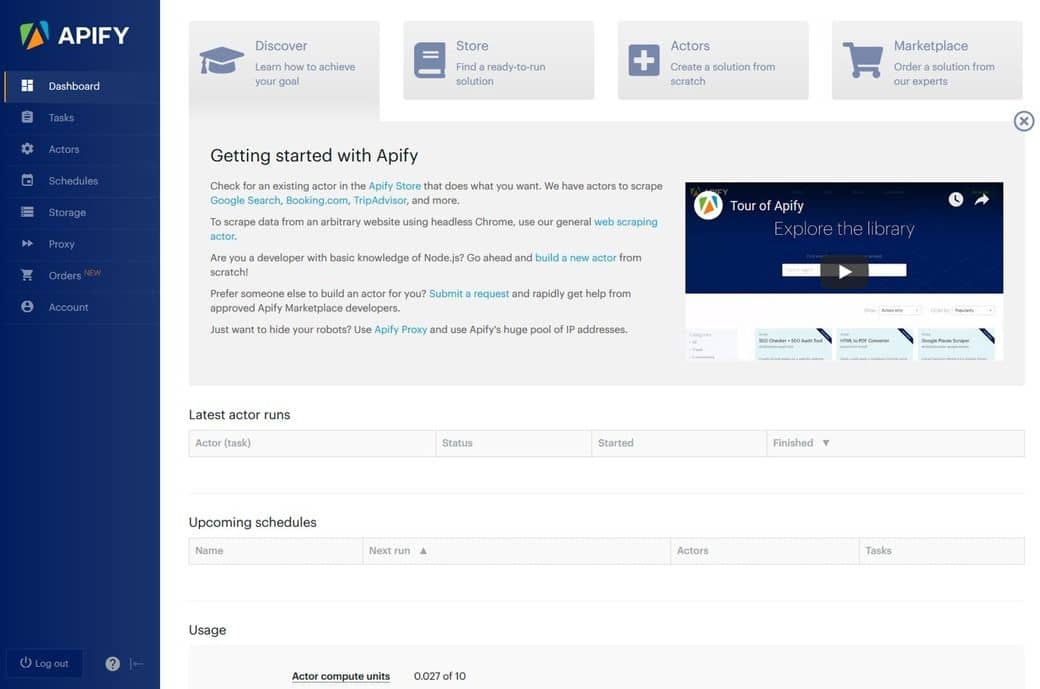
1. Open Apify dashboard.
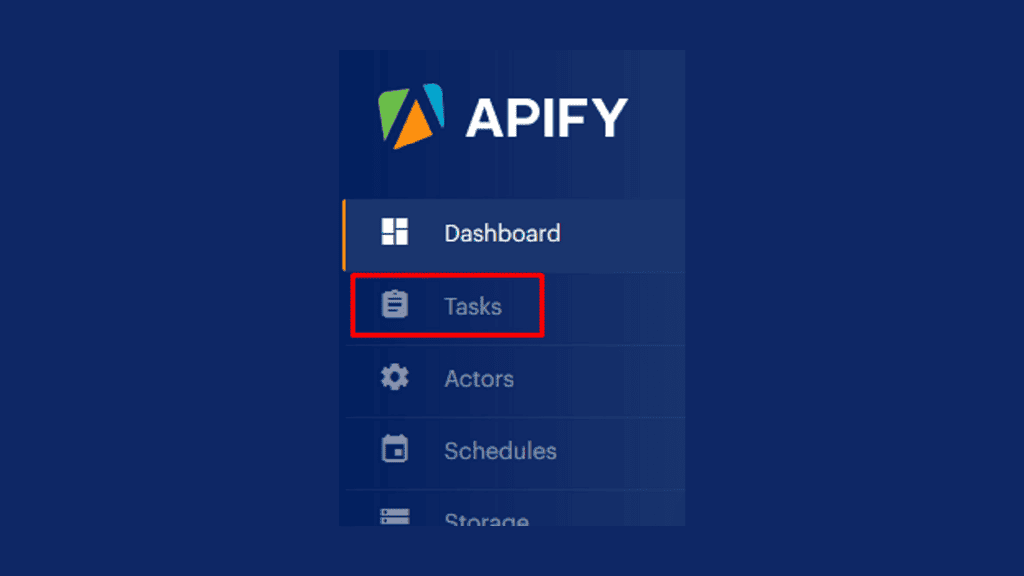
2. Select your crawler by going into the Tasks section.
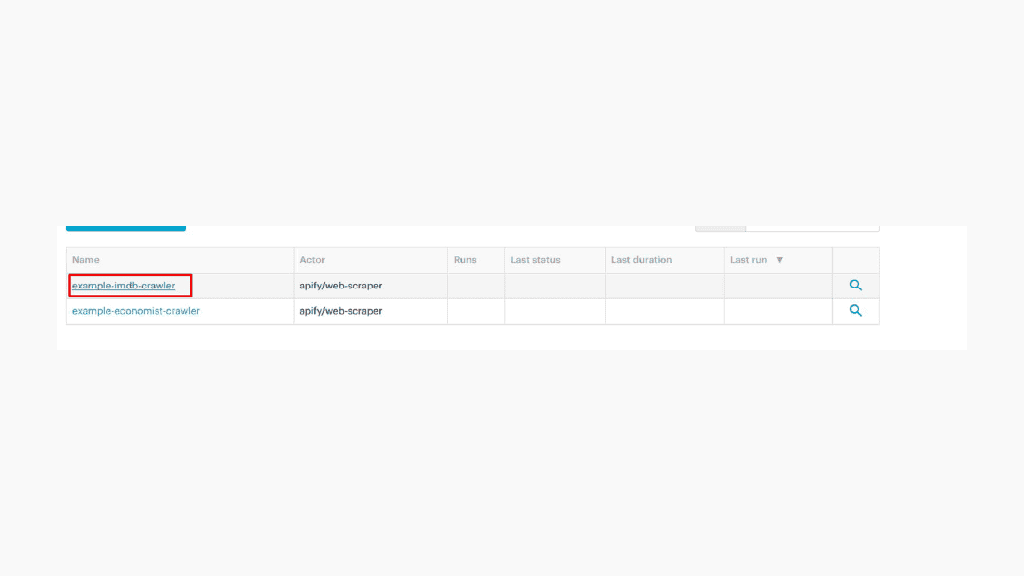
3. Scroll down to the Proxy configuration and select Custom proxies.
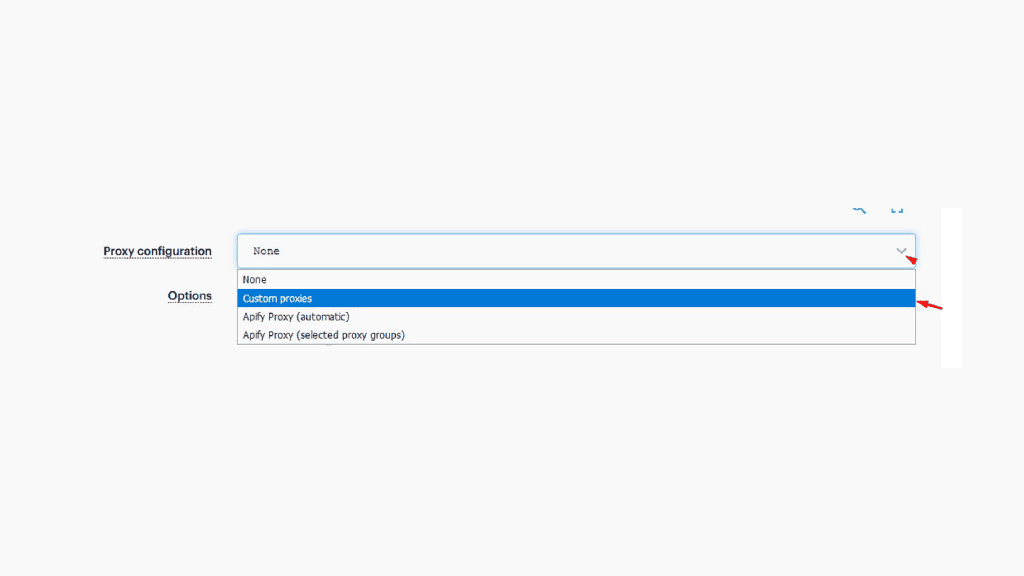
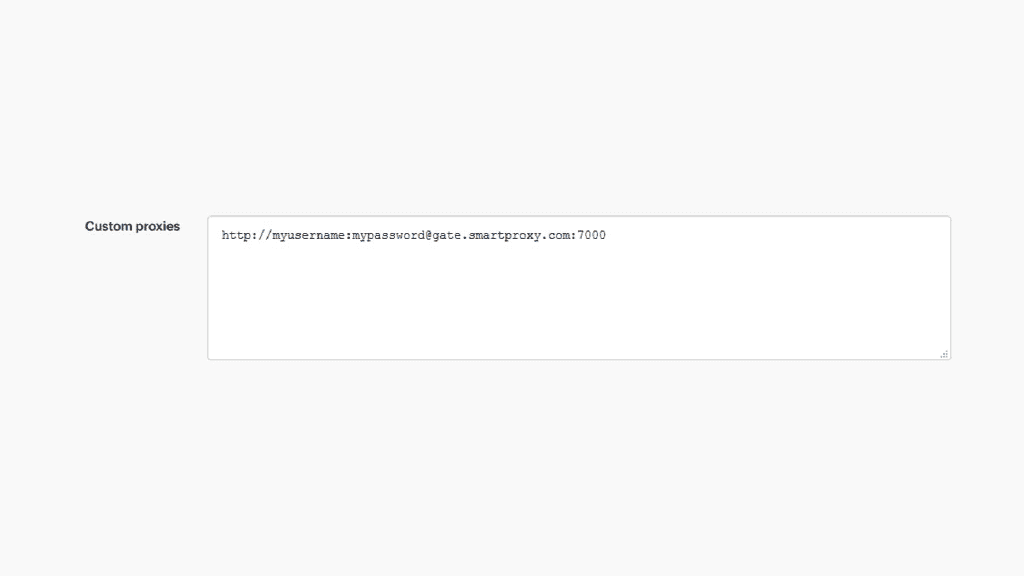
4. In the text box, type in your preferred endpoint with your authentication credentials.
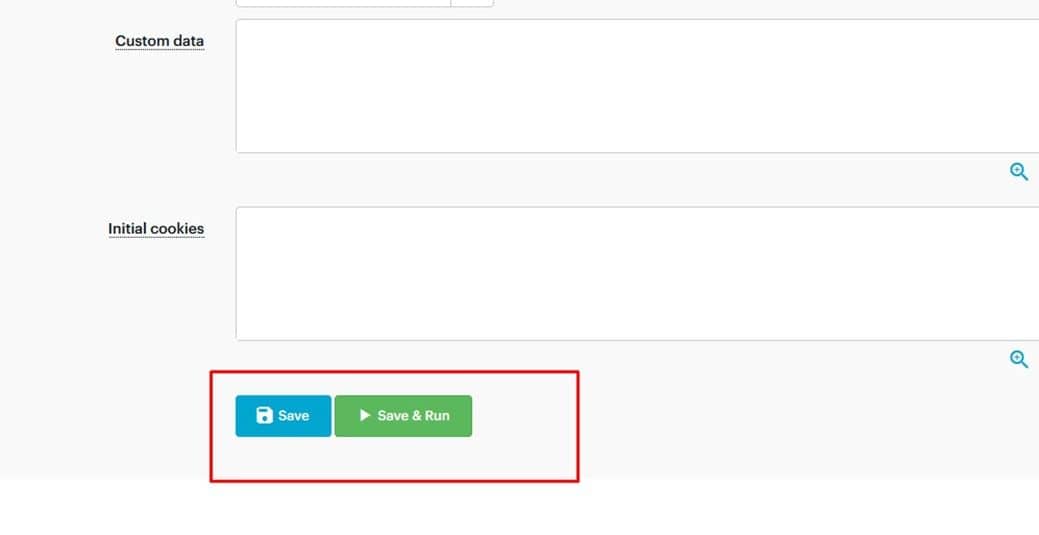
5. Hit the Save button at the bottom of the website to save your connection settings. If everything is configured, click on the Save & Run button to ensure that everything is working correctly.
That’s it, you’re good to go!
Need more detailed instructions? We've got you covered, head to our help center.

Never get flagged
Avoid getting detected by using our vast pool of residential exit nodes.

Unlimited connections
Use any shoe bot with an unlimited number of connections, threads, and countries at once.

City and Country level targeting
Use residential IPs from as many countries or cities as you like. Change locations as often as needed.