Google Sheets Web Scraping: An Ultimate Guide for 2026
Google Sheets is a powerful data management tool, but few people know it can also pull data directly from the web without a single line of code. Using built-in import functions, you can scrape website content, parse tables, and pull live feeds straight into your spreadsheet. In this guide, you'll learn how to use IMPORTXML for XPath-based data extraction, IMPORTHTML for grabbing tables and lists, IMPORTFEED for RSS and Atom content, IMPORTDATA for CSV files, and IMPORTRANGE to link scraped data across spreadsheets. We'll also cover Google Apps Script for automation, common errors and how to fix them, and when to reach for a dedicated scraping tool instead.

Zilvinas Tamulis
Last updated: Mar 30, 2026
6 min read

TL;DR
- Google Sheets has built-in import functions that let you scrape web data directly into a spreadsheet – no coding required.
- IMPORTXML is the most versatile function, using XPath queries to extract specific elements from any HTML or XML page.
- IMPORTHTML pulls entire tables or lists from a webpage with a single formula – just specify the URL and table index.
- IMPORTFEED retrieves RSS and Atom feed data (titles, dates, summaries) straight into your cells.
- IMPORTDATA handles CSV and TSV files hosted online, importing them as structured spreadsheet data.
- IMPORTRANGE connects spreadsheets together, letting you pull scraped data from one sheet into another for centralized analysis.
- Google Apps Script extends Sheets with custom JavaScript code for automation, scheduling, and more complex scraping workflows.
- The main limitations are no request customization (headers, cookies, proxies), no JavaScript rendering, and rate limits imposed by both target sites and Google itself.
- For anything beyond small-scale projects, Decodo's Web Scraping API handles dynamic content, anti-bot measures, and proxy rotation where Sheets' built-in functions fall short.
Why use Google Sheets for web scraping?
Google Sheets is a non-standard tool for web scraping, and you may be wondering why you should even give it a shot. Let’s explore a few reasons that make it such a hidden gem.
No coding required
If you’ve just found out that Python isn’t just a name for a snake and want to scrape information from the web, you’ve probably run into the issue of having to learn a programming language to build scripts. It can be daunting to dive into a completely new subject or simply something you don’t have time for. We understand – in today’s fast-paced world, efficiency is key, and Google Sheets offers just that.
To scrape data with Google Sheets, you don’t need any knowledge of snakes or why the Java island has a script named after it. Through simple functions such as IMPORTXML, you’ll only need to give it a few parameters to get the data you want from a website. You can do any further processing of that data as you would normally in a Google Sheet through functions or filters.
If you’re looking for something more streamlined, we urge you to check out Decodo's Web Scraping API. It’s a powerful scraping tool with a network of 125M+ proxies, task scheduling, and other advanced features to ensure your data-collecting activities remain efficient and anonymous.
Integration with Google services
Google offers an extensive workspace for your team that makes it easy to collaborate and work together all in one place. Services such as Gmail, Docs, Forms, Calendar, Meet, Drive, and many more can be accessed with one Google account. The best part? They all work together simultaneously and offer many cross-functional features, meaning that information and data in one service can easily be shared with another one.
Google Sheets is a part of the gang that’s easy to work with. For example, you can scrape the web, process the information, and then save all of that information in your Google Drive for safekeeping. The possibilities are endless, and the things you can do are as sweet as caramel pastries.
User-friendly interface
Google Sheets has a user-friendly interface designed to be intuitive and accessible. It features a clean and simple layout with consistent icons, a toolbar at the top, and a spreadsheet grid at the bottom. This makes it easy to navigate and always find the necessary tools. Features such as conditional formatting and autocomplete are also integral in everyday use that simplify complex tasks and can save you many headaches regarding data management and web scraping.
Automation with Google Apps Script
Take your Google Sheets game to a whole new level by integrating it with Apps Script. This tool allows you to write your own JavaScript code that easily integrates with every other Google service. You can use it to automate tasks, import and export data, create custom functions, automatically create and update visual charts, get email notifications for changes in data, and so much more. If you ever felt Google Sheets were missing a feature or two that you can’t live without, grab your building hammer and start creating something new!
Cloud-based storage
Did your colleague go on a holiday on the other side of the world and forget to share the spreadsheet file with the rest of the team? You wouldn’t have to worry about this if you were using Google services. All files created with Google Sheets are automatically saved in your Google Drive, so they won’t go missing or accidentally get lost in case of hardware failure. Sharing these files is also a piece of cake, as it simply requires you to send someone a link, and they’ll have access to it. You can even customize what the person can do with it, whether you want them to be a viewer or a collaborator who can work on the Sheet with you.
Real-time collaboration
Web scraping is rarely a one-person job. You might need a colleague to review the data, a team lead to validate the XPath queries, or an analyst to start working with the results as soon as they come in. Google Sheets lets multiple people view and edit the same spreadsheet simultaneously – no passing files back and forth, no version conflicts. Everyone sees changes as they happen, can leave comments on specific cells, and gets a full revision history in case something breaks. For scraping projects that involve coordination across roles or departments, this alone makes Sheets a compelling workspace.
Get the Latest AI News, Features, and Deals First
Get updates that matter – product releases, special offers, great reads, and early access to new features delivered right to your inbox.
How do you scrape data from a website into Google Sheets?
Using ImportXML in Google Sheets
If scraping data from the web with Google Sheets was magic, the IMPORTXML function would be the wand you couldn’t cast the spell without. It’s the key element when it comes to web scraping and one of the few methods that makes it possible to do so. Let’s explore what it is, how it can be used, and try to scrape web pages within Google Sheets.
What is IMPORTXML?
IMPORTXML is a function in Google Sheets that allows you to import structured data from XML, HTML, CSV, TSV, RSS documents, and other data types on the web. It retrieves information from a specified URL and XPath query and places it into a cell in the spreadsheet.
How does IMPORTXML work?
IMPORTXML works like most other Google Sheets functions – it has to be declared in a cell with up to 3 parameters. Here’s the syntax for writing an IMPORTXML function:
The parameters used are as follows:
- url – the target website URL you want to scrape data from.
- xpath_query – the XPath query that points to the data you want to extract. You’ll learn what this means in just a bit.
- locale – the language and region to use when parsing data. This is useful when a website offers different content based on region.
Remember that each parameter must be written in quotation marks ("") for it to work! Here’s an example:
What is XPath?
XPath stands for XML Path Language. It’s a core component in the IMPORTXML function that helps find exactly what you need by using a path-like syntax to find nodes (elements, attributes, text, and more) within an XML, HTML, or other supported document type.
To fully grasp how to write an XPath expression, you need to understand the different kinds of relationships nodes can have with each other. Here are the five main ones:
- Children – all nodes that are below another one.
- Parents – nodes that have one or several children under them.
- Siblings – nodes that share the same parent node.
- Descendants – all nodes that are below the current node, including children and everything under them.
- Ancestors – all nodes that are above the current node, including parents and everything above them.
The table below lists a few key syntax options when building an XPath:
Syntax
Description
Example
Explanation
/node
A double forward slash selects a descendant node under the parent node regardless of where they are
body//div
Selects a <div> element located anywhere under the <body> tag
//node
A double forward slash selects a descendant node under the parent node regardless of where they are
body//div
Selects a <div> element located anywhere under the <body> tag
[x]
The two square brackets are called predicates. They link to a specific node based on the parameters inside it
body/div[2]
Selects the 2nd <div> element directly under the <body> tag
@
The at sign selects attributes
//@class
Selects all nodes that have the class attribute
Take this HTML code as an example:
If you want to write an XPath to the list item that contains the word Datacenter, you’ll have to write the following:
This XPath goes from the very top of the document, which is the <html> tag, and descends downwards. Since the <body> tag is the only child of it, simply use a single forward slash to refer to it. Same thing with <div> and <ul>; they’re both unique children of the previous node. For the <li> tag, add a predicate with an index of 2 to select the 2nd node since there’s more than one <li> under <ul>.
Alternatively, shorten it to //li[2]/text(). It will select any descendant node from the top <html>. As there are no other <li> items in the entire HTML document, it’s perfectly fine to skip the unnecessary information, skip the hassle, and make your XPath more readable.
Another example task is selecting all <li> nodes with the list-item attribute:
Here, instead of picking just one <li> with an index, select all of the items. Inside the predicate, specify that it should select all nodes with a class attribute with the list-item value.
XPath is a very rich expression language featuring 200+ functions for all sorts of purposes, ranging from simple to complex. For a more in-depth look into all the possible methods and ways XPath can be used, check out the W3Schools tutorial or refer to the devhints.io cheatsheet.
How to build a Google Sheets web scraper
Now that you’ve learned how XPath works, you should know how to use it with the IMPORTXML function. Let’s try to build our first Google Sheets web scraper.
Step 1: Start with a fresh Google Sheet
To get started, you’ll need a Google account to use Sheets and other services. Create an account or log in, then open a new Google Sheet.
Step 2: Find the content you need to scrape
For this example, we’ll use a sample website, quotes.toscrape.com, which is perfect for testing web scraping stuff.
Alternatively, you can use a real website of your choice, but keep in mind that IMPORTXML counts as an automated request. Many sites implement anti-bot measures specifically designed to block this kind of traffic – rate limiting that throttles repeated requests, CAPTCHAs that require human interaction, and IP blocking that cuts off access entirely. Since Google Sheets offers no way to customize request headers, rotate IPs, or handle CAPTCHAs, you'll see empty results or errors with no clear explanation. For sites with stricter defenses, a tool like Decodo's Web Scraping API can handle these obstacles on your behalf, returning clean data that you can then import into your spreadsheet.
Step 3: Find The XPath
To find the XPath of the content you want to scrape, you’ll have to look at the HTML structure of the page through tools such as Google Chrome’s DevTools (right-click anywhere on a page and click Inspect). Find where your desired element is located in the HTML and use the knowledge from earlier to build the path to it. If you feel like cheating, simply right-click the content and then Copy → Copy full XPath. Here, we’ll simply take one of the quotes from the sample website.

Step 4: Extract the data into Google Sheets
Return to your Google Sheets document. Select a cell you want to extract the data to and write the following function:
Here, you use only two parameters – the website URL and the XPath to the content you want to get. Click Enter, and voila, you’ve got the desired quote from the website!
![Google Sheets cell containing =IMPORTXML("https://quotes.toscrape.com/", "/html/body/div[1]/div[2]/div[1]/div[2]/span[1]/text()") in a spreadsheet grid](https://decodo.com/cdn-cgi/image/width=1480,quality=70,format=auto/https://images.decodo.com/2_GOOGLE_SHEETS_SCRAPING_c32423c31b/2_GOOGLE_SHEETS_SCRAPING_c32423c31b.png)

Simple improvements
IMPORTXML works as any other spreadsheet function; therefore, if you want, you can improve the sheet for more efficient web scraping with a few simple tweaks. For example, you can write the website URL in a separate cell and then re-use it by simply linking to that cell in a function. Let’s do that with another simple task – import all quotes from the website’s front page and write the name of the author next to each of them.
Begin by writing the website URL in an empty cell (make it pretty if you feel fancy):
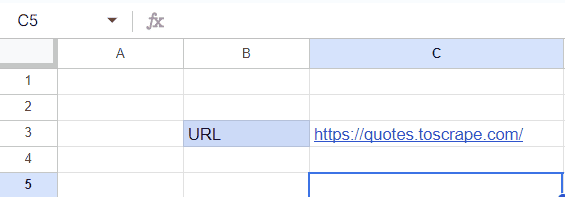
Then, let’s find the XPath for all of the quotes. This time, you can’t just right-click and copy the path, as there are multiple quotes to target. Instead, write an XPath that gets all of the <span> tags on the page with a class name text:
Similarly, you can see that the author name is located under <small> tags with the class name author:
Put both of these XPaths in their own cells so they can be referenced in a function.
![Google Sheets showing URL https://quotes.toscrape.com/, Quotes XPath //span[@class='text'], Author XPath //small[@class='author']](https://decodo.com/cdn-cgi/image/width=1280,quality=70,format=auto/https://images.decodo.com/5_GOOGLE_SHEETS_SCRAPING_8082a908be/5_GOOGLE_SHEETS_SCRAPING_8082a908be.png)
Finally, write two IMPORTXML functions and point them to the cells that contain the URL and XPath values (in this case, cells C3, C4, and C5).
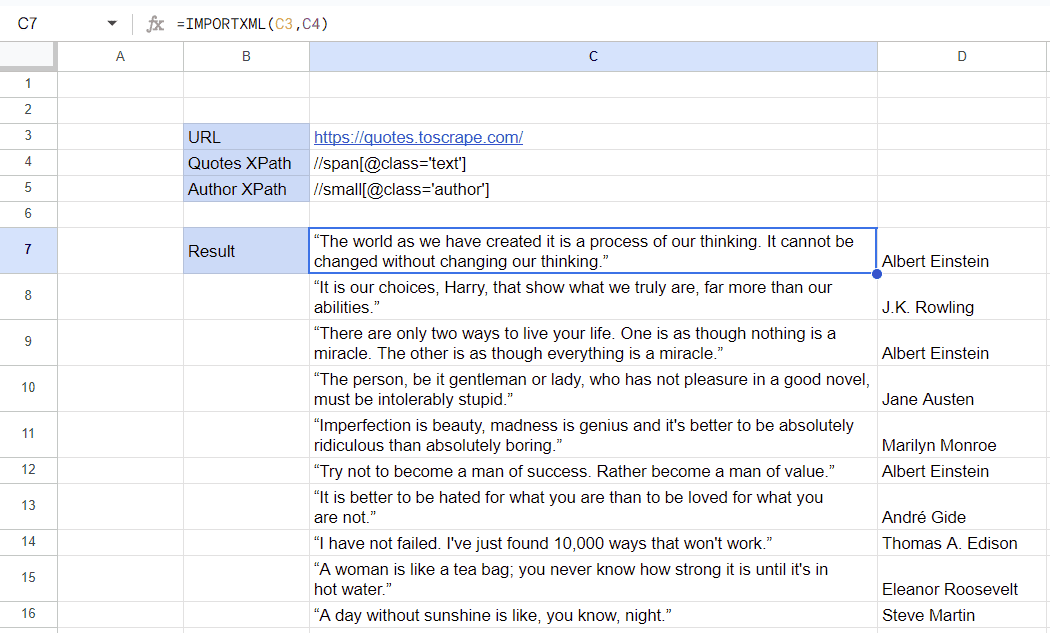
Each value will be vertically printed in its own cell. That’s all! Since the data is already in a Google Sheets document, you can easily analyze, filter, share, or perform any other actions.
Other useful functions
IMPORTXML is only one of a few import functions available on Google Sheets. A few more are very useful to know and might come in handy for specific tasks:
- IMPORTHTML – used to import data from tables or lists within an HTML document. Compared to IMPORTXML, it’s more limited in what it can scrape; however, it doesn’t require the user to write an XPath. You simply need to write the table number or list index.
- IMPORTFEED – used to retrieve and parse data from RSS or Atom feeds, making it easy to incorporate dynamic content from feeds into your spreadsheet.
- IMPORTDATA – used to import data from CSV files from a given URL.
IMPORTRANGE – used to pull data from one Google Sheets spreadsheet into another. While it doesn't scrape external websites directly, it's invaluable for organizing scraping workflows. You can dedicate one spreadsheet to raw data collection (running your IMPORTXML and IMPORTHTML functions) and use IMPORTRANGE in a separate spreadsheet to pull that data in for analysis, reporting, or sharing – without touching the original source. This keeps your scraping logic and your processed data cleanly separated. It also means you can give colleagues access to the results without exposing your XPath queries or source URLs.
The first time you use IMPORTRANGE with a new spreadsheet, Google will ask you to grant access. Once approved, the connection persists and the data updates automatically. One thing to note is that IMPORTRANGE inherits the refresh rate of the source sheet, so if your IMPORTXML functions in the source sheet are subject to Google's caching delays, those delays carry over.
As you can see, each of the import functions serves a specific purpose based on what you need to get from the web. While most information is commonly found in HTML documents, the value of information found in RSS, Atom, and CSV feeds and file types shouldn’t be underestimated.
How do you import a table from a website into Google Sheets?
Tables are everyone’s favorite way of listing information on the internet. It’s clean, concise, and easy for the user to read. Unfortunately, it’s not as simple to scrape with functions such as IMPORTXML, as you’d have to write an XPath for every single element in that table. What if there was a better way?
IMPORTHTML is the best method for importing large lists or table data from a web page. Its simple syntax only requires three simple parameters – the website URL, the indication of whether you want to scrape a table or list, and the index number.
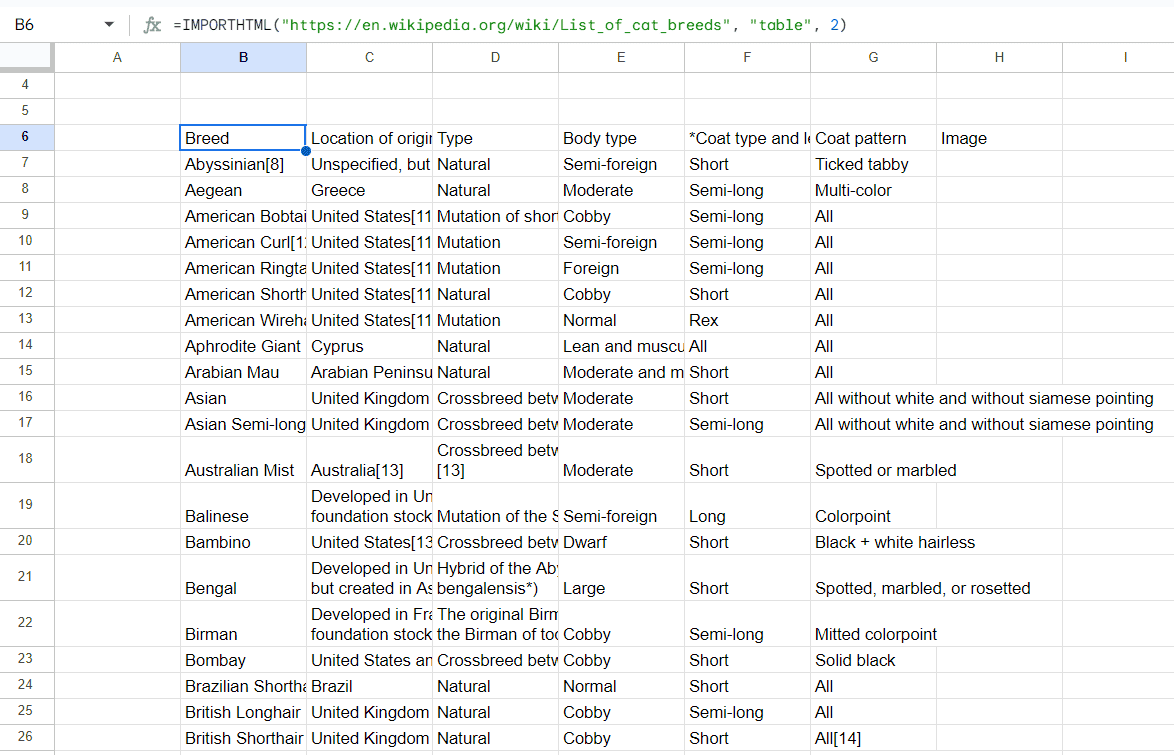
Let’s say you want to import the information from a table from the following Wikipedia page. All you need to do is write this function in your Google Sheets spreadsheet:
Here, the parameters simply indicate that the function should go to the URL and find the table with an index of 2. How do you know the index number, though? Simply count the number of <table> elements from the top of the HTML document. The first one will have an index of 1, the second will be 2, and so on.
The result is a clean and formatted table with all the information from the web page. This is a much easier way to import a large set of data than using XPaths and can be done in just a matter of seconds.
Keep in mind that IMPORTHTML only works with static HTML tables – content that exists in the page source when it first loads. Tables generated dynamically by JavaScript won't return any data, because Google Sheets fetches the raw HTML without executing scripts. If you're getting empty results from a page where you can clearly see a table in your browser, this is likely the reason. For JS-rendered tables, you'll need an alternative approach, such as Decodo's Web Scraping API, which renders JavaScript before returning the page content, giving you the fully loaded table data that you can then import into your spreadsheet.
How do you import data from XML feeds into Google Sheets?
An XML (eXtensible Markup Language) feed, often called an RSS (Rich Site Summary) feed or Atom feed, is a structured data format used to publish frequently updated content such as news articles, blog posts, or other types of information. XML feeds are crucial in providing a standardized way for websites to share dynamic content.
Why not use Google Sheets to get the latest scoop right in your spreadsheet? IMPORTFEED is a function created exactly for this purpose, so let’s see how it can be used to get information from the New York Times website’s Technology section.
Let’s remember the structure:
And set real values:
Here, we gave it a URL of the RSS feed and told it to retrieve all items (titles, descriptions, authors, dates, etc.). The next option for headers is set to FALSE, so it doesn’t return any column headers as an extra row in the result. Finally, retrieve only the 5 most recent items, but this can be changed to include more or less, depending on preference.
That’s it! Once again, you can draw a comparison between this function and IMPORTXML and see that even though IMPORTXML is the most well-rounded function that can fit every need, it still doesn’t beat IMPORTHTML or IMPORTFEED in terms of convenience when it comes to tables or XML feeds.
What are the pros and cons of using import functions?
Here are some of the most notable benefits of using import functions:
- Ease of use – Google Sheets functions are relatively easy to understand and only require a few parameters. It’s a great way to get started with web scraping.
- Spreadsheet flexibility – if you’ve worked with spreadsheets before, you’ll know exactly what you can and can’t do. Google Sheet formulas, user-friendly interface, and various features make it a breeze to work with data, whether sorting, filtering, or analysis.
- No code required – many web scraping tools will require you to have coding knowledge to write your scripts. Google Sheets doesn’t need coding experience to create something powerful besides knowing how to use XPath.
- Integration with Google Services – since Google Sheets is part of a massive Google Service ecosystem, the results can be re-used across many applications such as Docs, Calendar, Forms, and others.
- Integration with Google Apps Script – if you’re familiar with coding with JavaScript, you can expand any limitations of Google Sheets by writing your code. Apps Script can perform many automation tasks or help you build the necessary tools and features.
However, here are a few reasons why import functions might fall short in some areas:
- Limited to its environment – import functions can only be used within Google Sheets, and it might be difficult to expand them further. While there are many features available that can get the job done, they are complex and require a lot of extra effort that could be otherwise used to build your custom scripts.
- No request customization – many web scraping tools offer features on how requests are made to a web server. These include a user agent, custom headers, cookies, location data, and other fingerprinting options, something that import requests can’t do. These are important when trying to circumvent any geo-restrictions or access content based on the type of platform, device, or cookies.
- Can’t handle dynamic content – many modern web pages nowadays use JavaScript to render dynamic content, meaning that the first request might yield no results, as the content you’re looking for hasn’t been rendered yet. You’ll need to use headless browsers built with tools like Selenium to get what you want.
- XPath usage – if this is your first time dealing with XPath, you might find it challenging to understand. While it’s a powerful and flexible expression language, it can be challenging to pick up and learn all the possible ways to write paths. Some longer paths might feel unintuitive or hard to read, even for an experienced user.
- Can’t prevent rate-limiting or blocking – making too many automated requests will often lead to a rate-limitation or IP block as web pages employ policies that prevent excessive web scraping activities. A standard solution is to use proxy services; however, neither import functions nor Google Sheets can set up proxies for your requests.
In short, while Google Sheets offers many unique features that make your life easier, there are some limitations to it. If you’re looking for the best experience while gathering web data, we urge you to try the Decodo Web Scraping API. It’s a tool without limits, featuring an easy-to-use interface, handling dynamic content, and, most importantly, proxy integration to make sure your web scraping activities remain private and avoid the risk of IP bans or rate limitations.

Need more than spreadsheet scraping?
Decodo's Web Scraping API handles JavaScript rendering, anti-bot bypassing, and proxy rotation – delivering clean, structured data that you can import straight into Google Sheets or anywhere else.
Common errors and troubleshooting
Google Sheets import functions don't always give helpful error messages. Here are the most common issues and how to fix them:
- "Array result was not expanded because it would overwrite data." Your function is trying to output multiple rows or columns, but there's already content in the cells where the results need to go. Clear the cells below and beside your formula to give it room to expand.
- "Result too large." The XPath query is returning more data than Google Sheets can handle in one operation. Narrow your query to target a smaller, more specific set of elements, or split the scraping across multiple functions that each pull a subset of the data.
- "Resource at URL not found." The URL is either invalid, the page has moved, or the site is blocking Google Sheets' requests. Double-check the URL in your browser first. If it loads fine there but fails in Sheets, the site is likely rejecting automated requests.
- "This function is not allowed to reference a cell with NOW(), RAND(), or RANDBETWEEN()." Google Sheets doesn't let import functions reference cells that contain volatile functions. These functions recalculate constantly, which would trigger endless re-fetching. Use a static value instead, or paste the volatile result as a plain value in a separate cell and reference that.
- "Could not fetch URL." This is the catch-all error. The target site may be temporarily down, actively blocking requests, or behind authentication. Try again after a few minutes. If the error persists, the site's anti-bot measures are likely the cause – Decodo's Web Scraping API can fetch the content on your behalf and return it in a format you can work with.
A note on data freshness
Google Sheets doesn't re-run import functions in real time. Results are cached and refreshed roughly every one to two hours, though the exact interval is controlled by Google and can vary. There's no built-in way to force an immediate refresh. A common workaround is to slightly modify the formula (adding and removing a parameter, for example), which triggers a recalculation. For workflows that depend on up-to-date data, Google Apps Script can automate this by periodically rewriting your import formulas on a set schedule, forcing Sheets to fetch fresh results at intervals you define.
Wrapping up
While Google Sheets isn’t the first choice for many when it comes to web scraping, it’s a tool that shouldn’t be underestimated. It’s an excellent solution for beginners, small-scale projects, or building a basic web scraper. The rich infrastructure of Google is the main benefit of using it, but it does fall short in customizability or freedom in what you can do with your web requests. All in all, it’s a hidden gem in the web scraping world that can definitely shine in its own unique way.

Outgrowing Google Sheets?
When import functions hit their limits, Decodo's Web Scraping API picks up where Sheets leaves off – scraping dynamic content, rotating proxies, and delivering data at any scale.
About the author

Zilvinas Tamulis
Technical Copywriter
A technical writer with over 4 years of experience, Žilvinas blends his studies in Multimedia & Computer Design with practical expertise in creating user manuals, guides, and technical documentation. His work includes developing web projects used by hundreds daily, drawing from hands-on experience with JavaScript, PHP, and Python.
Connect with Žilvinas via LinkedIn
All information on Decodo Blog is provided on an as is basis and for informational purposes only. We make no representation and disclaim all liability with respect to your use of any information contained on Decodo Blog or any third-party websites that may belinked therein.