How to Configure Proxy Server Settings on iPhone and iPad

Set up an iPhone proxy in minutes and browse with greater privacy. This quick guide shows how to configure proxies on iOS over Wi-Fi, helping you route traffic securely and stay in control online.

14-day money-back option

125M+

ethically-sourced IPs

195+

locations

24/7

tech support

99.99%

uptime

HTTP & HTTPS

support

Trusted by:

Incogni-logo
Convergence-logo
Infoprice-logo
RTMP-logo
GobbleCube-logo
Roidynamic-logo
Insites-logo
Osint-logo
ExoClick-logo
Adsecure-logo
NovaBeyond-logo
hehemobi-logo
Concentric colored semicircular arcs nesting into a pointed teardrop shape on a white background

What is an iPhone proxy?

An iPhone proxy is a server that sits between your iOS device and the internet, forwarding your requests under a different IP. Unlike a VPN, which encrypts the full tunnel, a proxy operates at the HTTP layer, making it a lightweight and highly configurable option for routing mobile traffic. Because iOS limits proxy configuration to Wi-Fi connections, Decodo's residential and mobile IP pools are purpose-built to deliver stable, location-accurate routing within that constraint.

Central circle emitting colored and black radial lines in a symmetrical starburst on white background

What does an iPhone proxy do?

An iPhone proxy replaces your device's public IP with one from a proxy provider's pool, controlling which IP destination servers see. It intercepts outbound HTTP and HTTPS requests from your iPhone's browser, applies the configured proxy credentials, and routes the traffic through a chosen endpoint – it could be in a specific continent, country, state, or city. The destination server responds to the proxy IP, not your original address.

How to set up a proxy on an iPhone or iPad?

  1. Open your iPhone Settings.
  2. Select Wi-Fi.
  3. Tap the info icon on the right side of the network you are connected to.
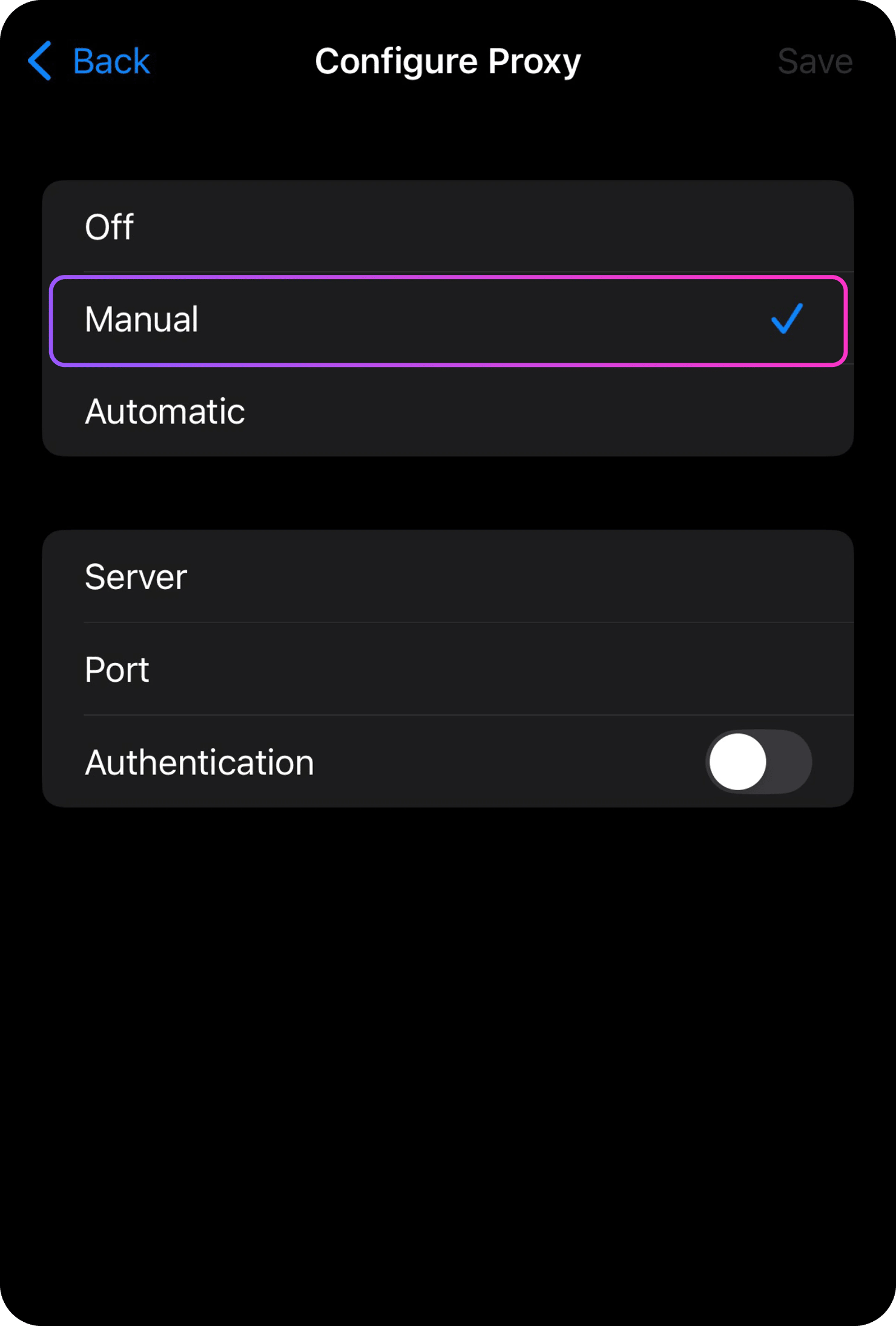
  4. Scroll down to the HTTP PROXY section and choose Configure Proxy.
  5. Tap on Manual configuration.
  6. Provide your proxy details – server and port.
  7. Check if your HTTP proxy works here.


Note: You can also automatically configure your iPhone proxy. Choose the Automatic configuration option – you'll see a field to enter the web address (URL) of the proxy auto-config script. Type in the address and tap Save. Your device will then use the script to activate the proxy server.

Configure Proxy screen showing Manual selected with options Off, Manual, Automatic, and fields Server, Port, Authentication

Setting up a residential proxy on iPhone and iPad

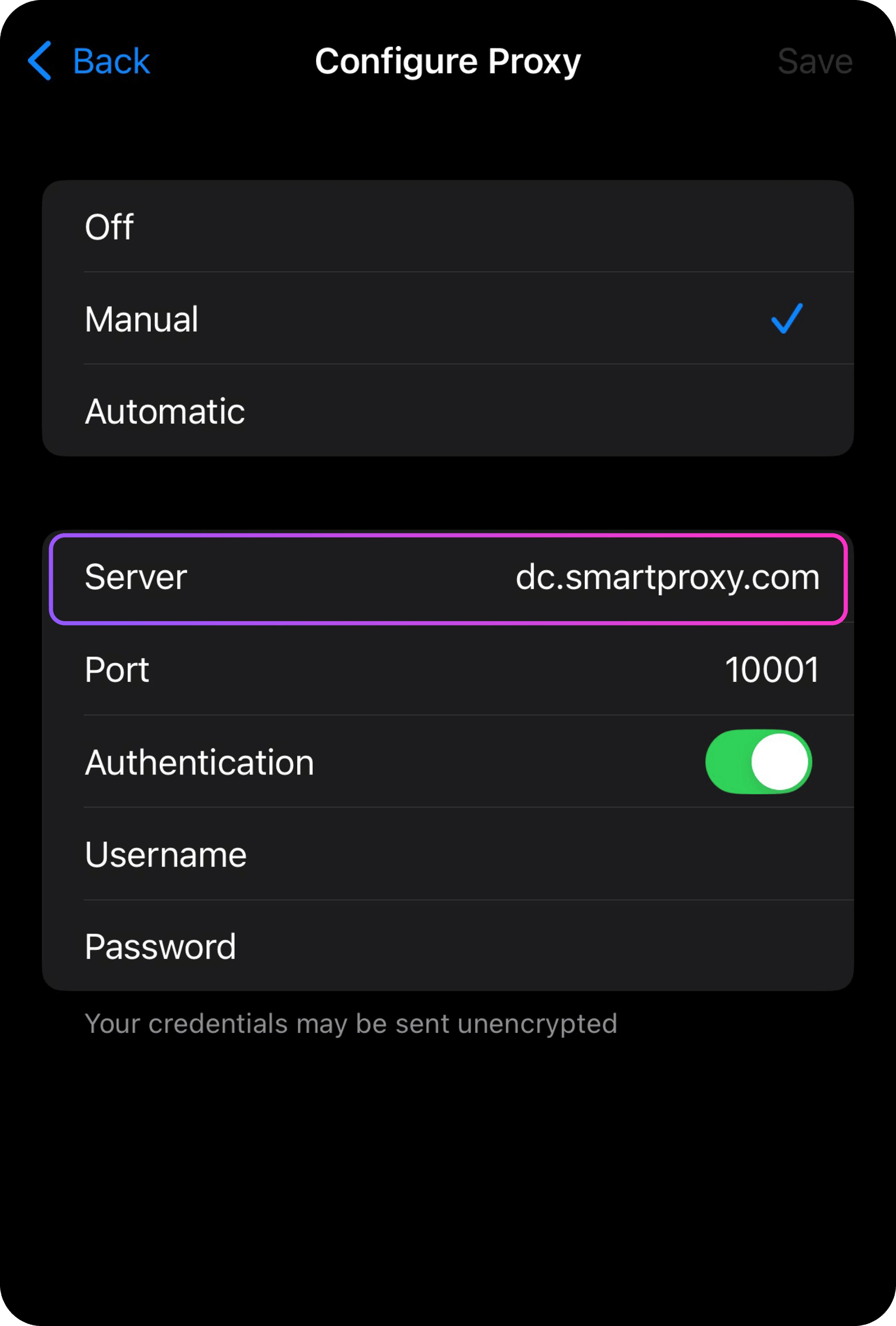
If you've chosen Decodo as your residential proxy service provider, follow this example to edit your proxy details:

Server: us.decodo.com

Port: 10001

This will let you connect through our US proxy servers. You can also try gate.decodo.com with the 7000 port to reach the whole 115M+ residential IP pool.

Toggle Authentication if your network IP isn't whitelisted in the dashboard, and add your username and password.

Configure Proxy screen showing Server dc.smartproxy.com, Port 10001, Authentication on, Manual selected

Setting up a datacenter proxy on iPhone and iPad

If you're using a datacenter proxy server, try the dc.decodo.com endpoint to reach a massive list of 500K+ datacenter IPs. Need a US proxy server address? Simply add -country-us to your username and you're ready to go! Example:

Server: dc.decodo.com

Port: 10001

Username: user-gedtx31gar-country-us

Using private proxy servers? No problem – the steps remain the same. And for the dedicated datacenter proxy server and its port, find them on our dashboard on the left menu (Dedicated Datacenter > Proxy setup). Note that this setup works only for HTTP(S) proxies.

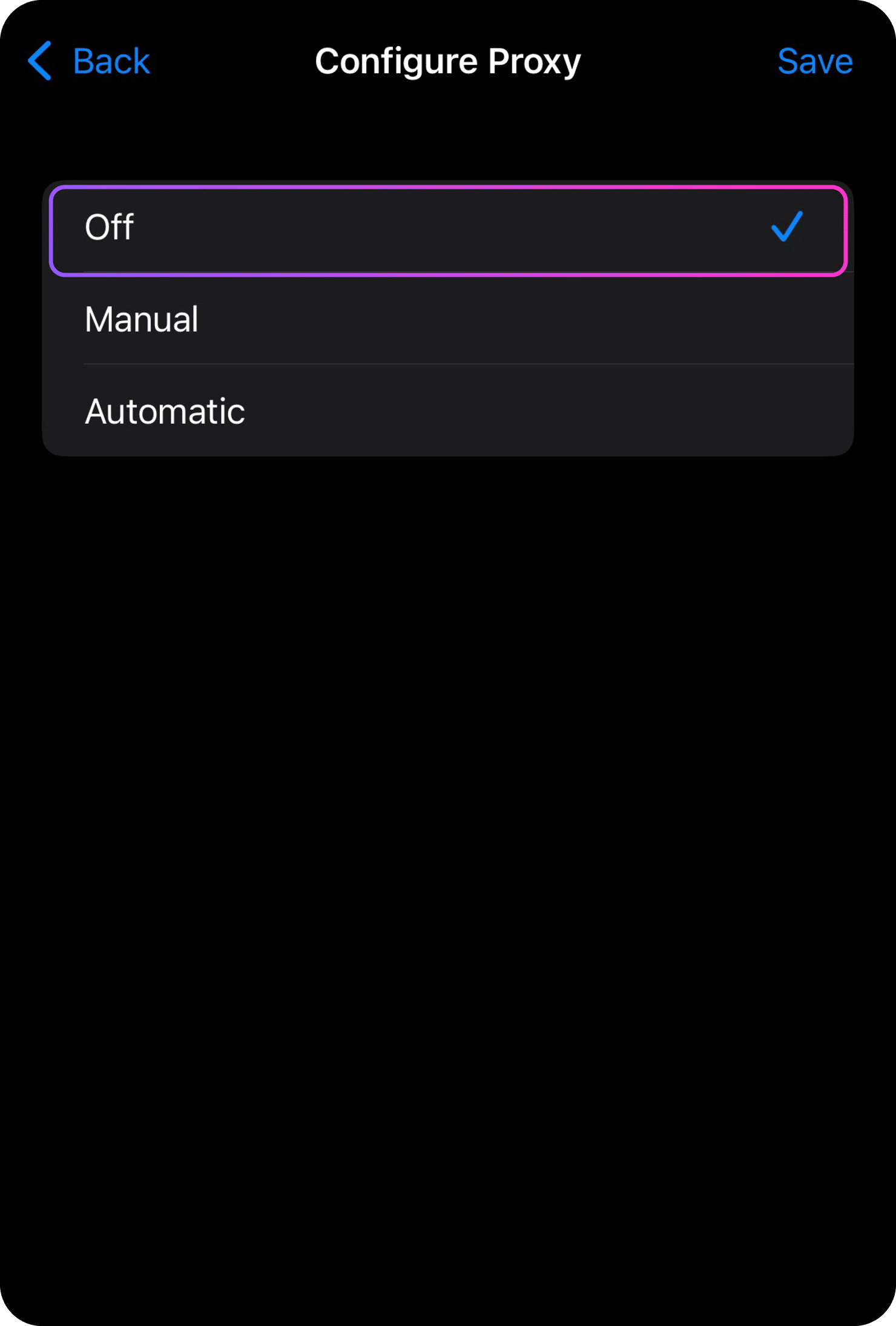
Configure Proxy menu showing 'Off' selected (checkmark) with options 'Manual' and 'Automatic' on dark iOS settings screen

How to turn off a proxy server on iPhone and iPad?

If you’re done with proxying and want to stop using a proxy server, go to your iPhone or iPad proxy settings by navigating to Settings > Wi-Fi > your current network > Configure Proxy and tap Off.

What is HTTP PROXY on iPhone and iPad?

HTTP PROXY on an iPhone or iPad is a configuration option within the device’s Wi-Fi settings that allows you to route your internet traffic through a proxy server. An HTTP proxy can filter and control internet traffic, helping to block suspicious activities and enforce security policies. It can inspect files and data before they reach a device, and prevent users from uploading unauthorized or potentially harmful files to a web server. For example, if a user tries to upload a file that the proxy deems unsafe or not allowed, the proxy can block that action.

Why Decodo is the best value proxy provider

Unlimited connections & threads

Run unlimited threads and connections without bandwidth restrictions, so you can scale your workloads freely.

Advanced targeting

Use Decodo’s vast IP pool for geo-targeting from as many countries or cities as you like. Change locations as often as needed.

24/7 tech support

Get 24/7 online tech support via LiveChat. Some say our proxy gurus solve problems in seconds! See it for yourself.

Sticky and rotating sessions

Hold a single IP for custom session durations with sticky sessions, or switch IPs per request with rotating proxies.

14-day money-back

Enjoy maximum performance without any pressure. If you're not impressed in 14 days, we'll refund you (terms apply).

HTTP and HTTPS support

Get full support for both HTTP and HTTPS traffic, matching iOS's native proxy protocol constraints.

Choose a plan that scales with your traffic needs

Choose flexible plans built to support everything from light usage to high-volume proxy traffic.

3 GB

$3.75

/GB

Total:$11.25+ VAT billed monthly

10 GB

$3.5

/GB

Total:$35+ VAT billed monthly

25 GB

POPULAR

$3.25

/GB

Total:$81.25+ VAT billed monthly

50 GB

$3.0

/GB

Total:$150+ VAT billed monthly

100 GB

$2.75

/GB

Total:$275+ VAT billed monthly

Pay as you go

$4.0

/GB

Total:$4+ VAT

With each plan, you access:

115M+ ethically-sourced IPs

HTTP(S) & SOCKS5 support

<0.5s average response time

99.92% success rate

Unlimited threads & concurrent sessions

Country, state, city ASN & ZIP code targeting

Rotating and sticky sessions

#1 response time in the market

Free 24/7 tech support

14-day money-back

SSL Secure Payment

Your information is protected by 256-bit SSL

Explore other mobile and browser configurations

Android system setup

Follow a step-by-step guide to configure native proxy settings on your Android device and connect securely through your preferred proxy server.

Learn more

Shadowrocket Integration

Learn how to use third-party proxy clients to enable SOCKS5 support and rule-based routing for mobile devices.

Learn more

Google Chrome Guide

Learn how to set up Decodo proxies directly in Chrome for targeted web verification, testing, and browsing without affecting other apps or system-wide settings.

Learn more

Here’s what people are saying about Decodo

Join 135K+ users and the industry's best who rely on our proxies and Web Scraping API.

Attentive service

The professional expertise of the Decodo solution has significantly boosted our business growth while enhancing overall efficiency and effectiveness.

Easy to get things done

Decodo provides great service with a simple setup and friendly support team.

A key to our work

Decodo enables us to develop and test applications in varied environments while supporting precise data collection for research and audience profiling.

Decodo-best-usability-award-2025-by-G2

Best Usability 2025

Awarded for the ease of use and fastest time to value for proxy and scraping solutions.

Decodo-Highest-User-Adoption-2025-award-by-G2

Best User Adoption 2025

Praised for the seamless onboarding experience and impactful engagement efforts.

Decodo-best-value-by-Proxyway-2025-award

Best Value 2025

Recognized for the 5th year in a row for top-tier proxy and scraping solutions.

Frequently asked questions

How to find your proxy server address on iPhone?

To check the IP of the proxy server you're using, simply visit a website designed to display this information. If you’re using Decodo’s proxies, you can find this information on our What's my IP address? page.

How to change your IP on iPhone?

To change your IP on an iPhone, you can do so by disconnecting and reconnecting to your Wi-Fi network. Go to the Settings app, select Wi-Fi, and tap on your connected network. Then, choose Forget This Network and reconnect by entering the password. Alternatively, you can turn Airplane Mode on and off or use a virtual private network (VPN) app to mask your IP. For enhanced security, you can mask your connection with residential proxies.

How to turn off proxy on iPhone?

To turn off a proxy on an iPhone, go to the Settings app and select Wi-Fi. Tap on the connected Wi-Fi network, and in the next screen, set the HTTP Proxy option to Off. This will disable the proxy settings for the selected network.

Where are the network settings on iPhone?

To access Network settings on an iPhone, open the Settings app and scroll down to find the Wi-Fi or Cellular option, depending on the network you want to configure. For Wi-Fi settings, tap on the Wi-Fi option, and you'll see a list of available networks. Tap the network you’re connected to, and you can adjust various settings, including the network's IP configuration. If you're looking for Cellular settings, simply select Cellular in the main Settings menu to manage your cellular data and related configurations.

What is an iPhone proxy server?

A proxy server is like a middleman between your iOS device and the internet. It lets you bypass location blocks, hide your IP, and strengthen your online security. And if you ever wondered if you can use a proxy server on your iPhone, then yes!

What is the best proxy server for iPhone?

Not all proxy services are equal. Don't settle for just any proxy provider – doing research before committing can protect your wallet and peace of mind. Make sure you pick a reputable provider with a solid reputation for keeping your info safe and private. And no, you don't need extensive research for proxy servers, and do the whole research yourself – Proxyway has been doing it for you for years. Besides, they awarded Decodo the best value provider.

How do I get SOCKS5 on my iPhone?

Unfortunately, iOS doesn’t natively support setting up a SOCKS5 proxy through the settings. To use a SOCKS5 proxy on an iPhone, you will need to use a third-party app or browser extension that supports it, or use a VPN service that offers the SOCKS5 protocol.

Should "Configure Proxy" be on or off on iPhone?

Keep the proxy server on if you want to hide your IP and browse anonymously. If you’re not using it, you can turn it off. And if you want to frequently change your IP on your iPhone, you can keep the proxy turned on.

How to use a proxy server on an iPad?

The formula is the same as using a proxy server on an iPhone. Just head to Settings, choose Wi-Fi, press on your current network, scroll down to HTTP proxy, select Configure proxy, and press Manual. Then, your task is to fill in your proxy server and port information and turn on the authentication if your IP isn't whitelisted.

Proxies for iPhone and iPad

Change your iPhone and iPad IPs with industry-leading proxies.

14-day money-back option

© 2018-2026 decodo.com (formerly smartproxy.com). All Rights Reserved