XPath Using Text: How to Select Elements by Text Value
HTML structure shifts constantly, but the visible text on a page tends to remain more stable. That stability is what makes text-based selectors useful in web scraping. This guide covers the core functions you need to work with text in XPath: text(), contains(), starts-with(), normalize-space(), and translate(), including where each one breaks and how to combine them to build selectors that survive page updates.

Lukas Mikelionis
Last updated: May 15, 2026
10 min read
TL;DR
- text() selects only the direct text node children of an element and skips anything inside nested tags.
- . (dot) returns the full string value of an element, including all descendant text, making it more robust for mixed content.
- contains() and starts-with() handle partial matching when exact text values aren’t reliable.
- normalize-space() normalizes XML whitespace (spaces, tabs, newlines), but doesn’t affect non-breaking spaces (\u00A0).
- translate() enables case-insensitive matching by converting characters manually when built-in case functions are unavailable.
- Text-based selectors are most resilient when combined with structural navigation and attribute predicates.
How XPath text selection works: text() vs. the dot operator
Before anything else, you need to understand how XPath actually reads text inside an element. The difference between text() and the dot operator (.) is where that starts.
text() is a node selector. It targets the direct text node children of an element, meaning the text that sits immediately inside the tag, not text inside any nested child elements.
So, given this HTML:
The expression //div/text() returns "Price: " only. The $49 sits inside <span>, which is a child element rather than a text node of the div, so it isn’t included.
The dot operator (.) represents the element’s full string value, that is, the combined text of the element and all its descendants. //div[contains(., 'Price')] matches the div above because the span’s content is included in the comparison.
When you're parsing HTML and XML documents, this distinction shows up well. A button that reads "Add to cart" might have its text split across an inner <span> for styling purposes. text() would return nothing useful, while . would return the full visible string.
Here's a direct comparison:
Selector
What it returns
Best for
Limitation
text()
Direct text nodes only
Clean, flat elements with no nested tags
Returns partial results when content is split across child elements
.
Full string value including all descendants
Elements with nested inline tags
May include extra whitespace from child elements
normalize-space(.)
Full string value with normalized whitespace
Comparisons where spacing is inconsistent
Does not remove \u00A0 non-breaking spaces
The practical rule is use text() when you know the element is flat and simple. Use . when the element might have inline children like <strong>, <span>, or <em> wrapping parts of the text.
Selecting elements by exact text match
The basic syntax for an exact text match is:
Let’s see an example with Hacker News. We’ll grab the first 5 titles from the page:
Running this returns the first 5 post titles exactly as they appear on the page:

Which matches what's live on Hacker News at the time of writing:
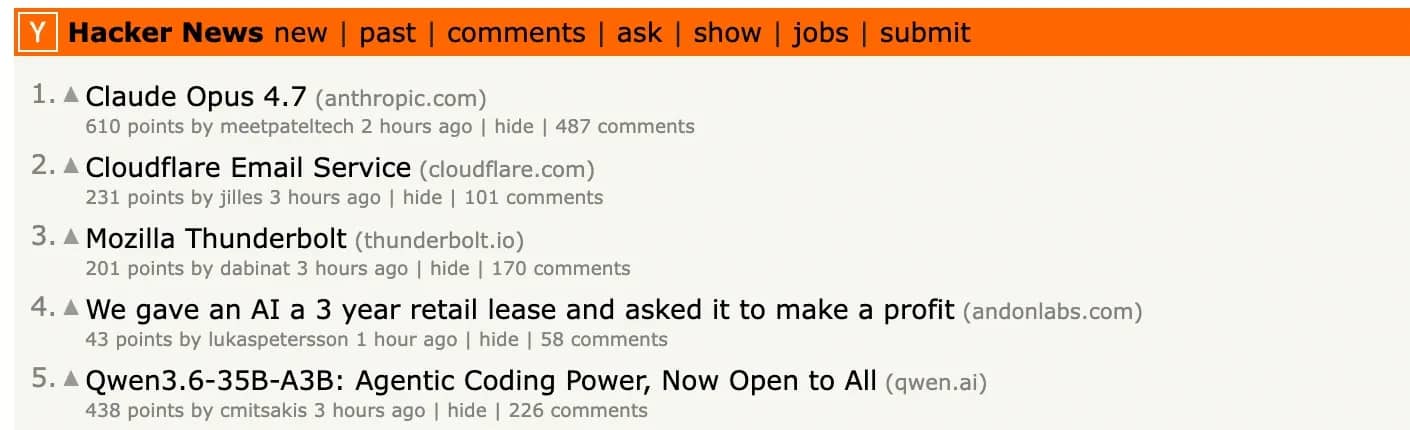
The .strip() and normalize-space() pairing is what makes this reliable. Without them, trailing whitespace or newlines in the raw text node can break the match even when the title is clearly there.
Exact matching is best for known, stable text like navigation labels or button text. For anything that might vary, partial matching is more practical.
Selecting elements by partial text with contains() and starts-with()
Exact matching breaks the moment the text has any dynamic suffix or value that changes over time. This is where contains() comes in.
This returns any element whose direct text node includes the substring anywhere within it.
Comment counts on Hacker News are a good example. While the number updates constantly, the word "comment" is always there.
Here's that in practice, pulling every comment count link from the front page:
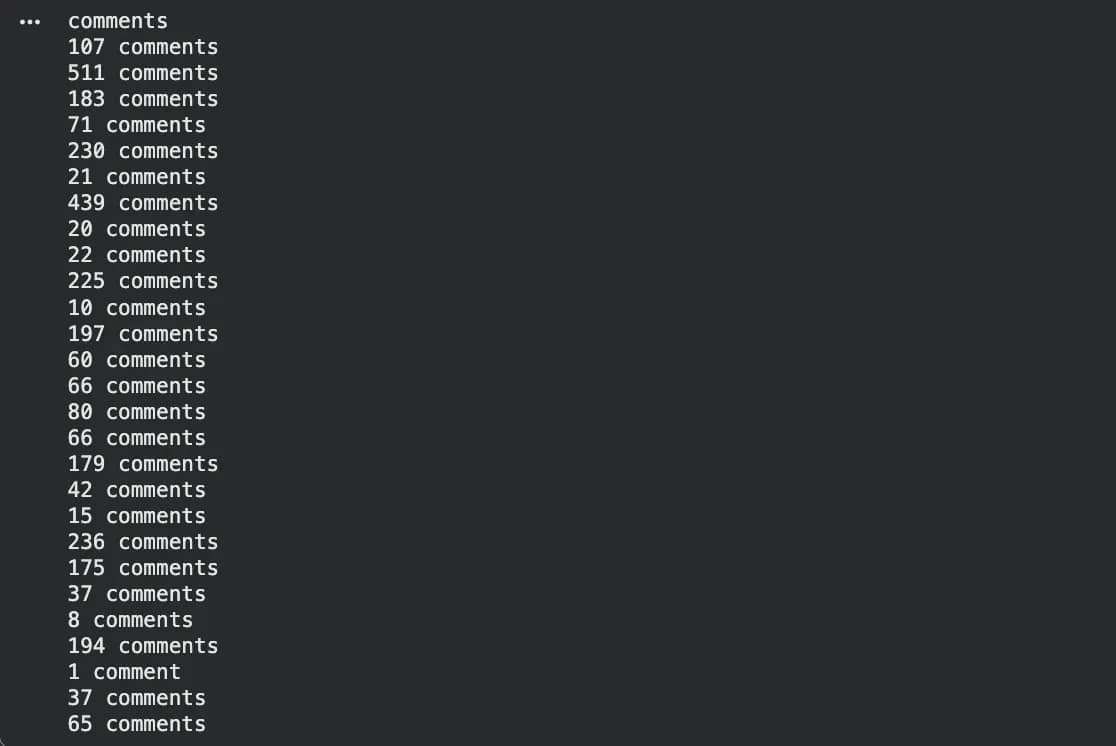
The counts keep shifting as people post, but the selector stays stable because it's anchored to the word "comment" rather than the number in front of it.
starts-with() works on the same principle, but anchors to the beginning of the string:
Here's the same approach applied to Hacker News, returning any post whose title starts with "Show HN”:

Both "Show HN" posts on the page are returned, regardless of what follows.

One important note: contains(text(), 'value') and contains(., 'value') behave differently on elements with nested children. The first checks direct text nodes only, while the second checks the full string value including descendants. When visible text spans multiple nested tags, contains(text(), ...) will miss it. Use contains(., ...) when you're not sure whether the element is flat.
Case-insensitive text matching with translate()
XPath text matching is case-sensitive by default. That means contains(text(), 'string') won't match a title written as "STRING". Instead, it’ll return an empty list.
This matters when scraping pages where text casing varies across regions, page updates, or user-generated content.
XPath 2.0 has a built-in lower-case() function that handles this cleanly, but lxml uses XPath 1.0, which has no such function. The workaround is translate().
translate() works by replacing characters one by one. You give it three arguments: the string to check, the characters to replace, and what to replace them with:
For every uppercase A it finds, it replaces it with a lowercase a. For every B, a lowercase b, and so on for every letter. The result is a fully lowercased version of the string, but only inside the comparison.
Back to the Hacker News example:

All "Claude" posts are returned regardless of how the casing appears on the page.
There’s something to keep in mind though. translate() runs on every node in your search scope, so on a large DOM it can get expensive. Narrow the scope to a specific container before applying it.
If you're weighing XPath against CSS selectors for your scraping setup more broadly, see XPath vs. CSS selectors for a full breakdown of when each makes sense.
Handling whitespace, special characters, and HTML entities
Some of the functions covered so far assume the text on the page is clean. In practice, it rarely is. Here's what to watch out for.
Non-breaking spaces. normalize-space() handles regular whitespace (spaces, tabs, newlines) but does not strip non-breaking spaces (\u00A0, the HTML ). These are common in scraped pages and invisible to the eye. If your exact match keeps failing despite the text looking correct, this is usually why.
The fix is combining translate() with normalize-space() to replace the non-breaking space with a regular space before comparing:
HTML entities. After parsing, HTML entities are decoded into their actual characters. & becomes & in the DOM, < becomes <. Match the decoded character, not the entity:
Quotes in string literals. XPath string literals can use either single or double quotes. If your target string contains a single quote, wrap the literal in double quotes, and vice versa:
If the string contains both, use concat():
Zero-width spaces. \u200B is an invisible character common in copy-pasted or CMS-generated content. It doesn't show up visually but breaks exact matches. If normalize-space() doesn't solve a persistent failure, check for it using repr() in Python:
Unicode and emoji. Python 3 and lxml handle UTF-8 natively, so emoji and special symbols can usually be matched directly in XPath strings without special escaping.

Start collecting data at scale
Decodo's Web Scraping API handles JavaScript rendering, IP rotation, and anti-bot bypassing automatically, delivering clean HTML, JSON, XHR, PNG, or Markdown so you can focus on extraction.
Matching text in attributes vs inner text
Not all the data you want is in the visible text. Things like alt (image descriptions), title (hover text), aria-label (accessibility labels), data-* (custom data), and href (link URLs) store values inside attributes rather than inside the element itself.
In other words, the text you need isn’t between the tags, rather it’s attached to the element as a property.
The difference in syntax is straightforward: instead of looking at the text inside the element (text() or .), you look at the value stored on the element using @attribute_name.
All the same functions, contains(), starts-with(), normalize-space(), and translate(), work the same way on attributes as they do on text.
Where this becomes useful is combining both. For example, finding a "next page" link using both its label and its URL pattern:
The above reads as: “Find a link where the visible text includes ‘More’, and the URL contains ‘p=’.”
Attributes are often more stable than visible text. Labels can change due to design or localisation, but attributes like aria-label or data-testid usually change only when the code changes. When both are available, prefer the attribute. If you're using Beautiful Soup instead, the same concepts apply, the syntax just looks different.
Combining text predicates with structural and positional selectors
Text predicates become more useful when combined with structure. This is how you build selectors that are both precise and resilient.
Position + text. Get the first table cell containing a price:
Note: XPath indices are 1-based, not 0-based. [1] selects the first match, not the second.
Following-sibling axis. Find a table that appears after a specific heading:
This reads as: “Find a <table> that comes immediately after an <h3> containing ‘Top Stories’.”
Parent traversal. Find the container element of a label:
This moves one level up: “Find the parent of the span that contains ‘Score’.”
Multi-condition predicates. Find a product listing that contains an "In Stock" indicator:
This combines:
- an attribute condition (@class='item')
- a nested text condition (.//span[...])
To see how these work in practice, we’ll use Books to Scrape, a demo e-commerce site designed specifically for scraping.
We’ll run this code:
Which returns the following results.

On the main website, it looks like this.
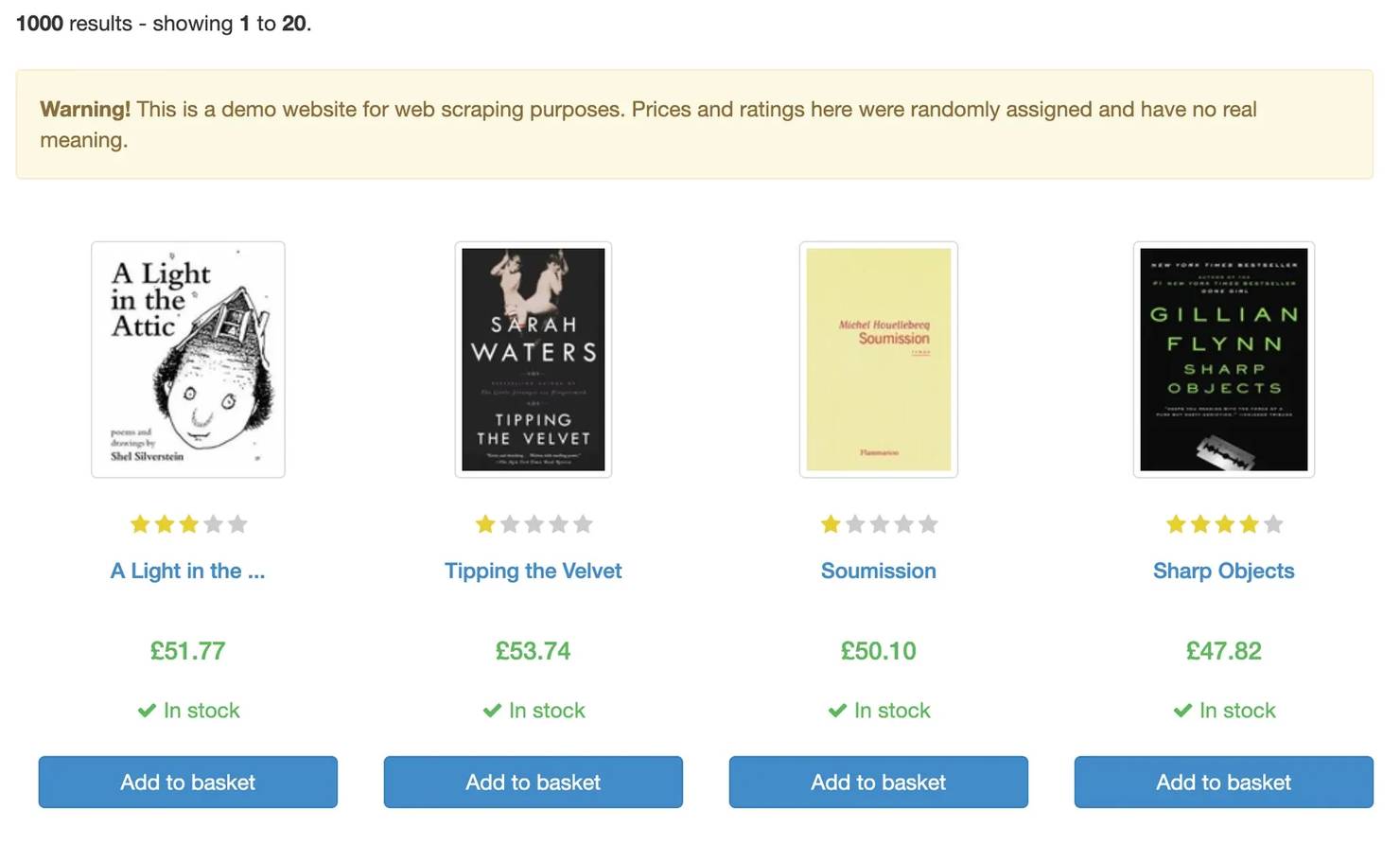
Each dictionary represents a single product on the page:
- title comes from the link’s title attribute (<a title="...">)
- price is extracted from the visible text inside <p class="price_color">
- in_stock is determined by checking whether the product contains text like “In stock”
This works because the selector combines:
- structure (//article[@class="product_pod"]) to define each product
- attributes (@title) to reliably get the name
- text matching (contains(., "In stock")) to detect availability
Together, this lets you move through the page in a predictable way and extract clean, structured data from the HTML layout.
Writing stable XPath text selectors for web scraping
Performance and reliability are different concerns, but they tend to lead to the same practices. Here are a few to keep in mind.
Narrow the scope first. //*[contains(text(), 'value')] scans every element in the document. Start from a known container, such as an id, a stable class, or a predictable structural position, then apply your text condition. This reduces the number of nodes XPath has to evaluate and avoids unintended matches.
Prefer attributes over text when possible. Attributes like data-testid, aria-label, or structured data fields tend to change less often than visible text. Use text-based selectors when no stable attribute exists.
Use contains() for dynamic text. Values like “15 comments” change constantly, so exact matches become brittle. contains(., 'comment') survives that change, while an exact match does not.
Compile XPath expressions in lxml for repeated use. If you're applying the same query across multiple documents, compile it once:
This avoids repeated parsing of the same XPath and keeps your code more efficient when processing many pages.
Test selectors in browser devtools first. Chrome and Firefox both support the $x() function in the console:
Getting a selector right here takes seconds, whereas debugging it after hundreds of requests is much slower.
Alongside that, be aware of how the page is rendered. If the content is loaded with JavaScript, the text might not exist in the initial HTML at all. Check “View Page Source” to confirm. If it’s missing, you’ll need a headless browser or a rendering API.
For cases where you don’t want to manage rendering, IP rotation, or blocking yourself, tools like Decodo’s Web Scraping API return fully rendered HTML, so your XPath logic can stay focused on extraction rather than page execution.
Common errors and how to debug XPath text queries
Even well-formed XPath expressions can fail for a small set of predictable reasons, and knowing where to look usually resolves the issue quickly.
“No elements found” when the text is clearly visible. This is usually caused by hidden whitespaces, text rendered by JavaScript after a page load, text split across nested elements so text() only sees part of it, or simple case mismatches. Start by switching from text() to normalize-space(.), which handles most of these cases. If that doesn’t help, check whether the content is rendered after loading, and then inspect the raw text with repr() in Python to surface invisible characters.
text() returning partial content. This happens when the element contains nested tags like <strong>, <em>, or <span>. In those cases, text() only returns the direct text nodes rather than the full string. Switching to . or normalize-space(.) ensures the full visible text is captured.
Case mismatch. XPath is case-sensitive, so “Submit” and “submit” are treated as different values. If your selector returns nothing, check the exact casing in devtools and either match it precisely or use translate() to normalise it.
JavaScript-rendered content. If the text is not present in the initial HTML response, no XPath expression will find it. Confirm this by checking “View Page Source” in the browser. If the content is missing, you need a headless browser or a rendering API. Tools like Playwright handle this natively. When you want to avoid managing rendering, IP rotation, or blocking, Decodo Site Unblocker can handle both rendering and unblocking and return HTML ready for extraction.
XPath index confusion. Another common issue comes from indexing. XPath indices are 1-based, so (//td)[1] returns the first <td> in the document, while (//td)[0] returns nothing. If positional selectors return unexpected results, this is often the cause.
Debugging workflow. When a selector fails, simplify first. Start with the simplest possible expression and confirm it returns results, then add predicates one at a time. Test each step using $x() in the browser console before running it in Python. If a query that previously worked stops returning results after a site update, monitoring for empty results can surface the issue earlier than waiting for downstream data gaps.
Final thoughts
Text-based XPath selection becomes most useful when the surrounding HTML is unstable. Class names change, structures shift, and IDs get regenerated, but visible text tends to remain consistent. That makes it a reliable anchor when other signals start to drift.
The functions covered here work together as a complete toolkit. Use text() when the element is flat, . when content is nested, contains() and starts-with() for partial matches, normalize-space() to handle inconsistent spacing, and translate() when case needs to be normalised. On their own, each solves a narrow problem. Combined with structural navigation and attribute predicates, they produce selectors that hold up even as the page evolves.
Alongside extraction, there is a separate layer to consider. Rendering, proxy rotation, and anti-bot handling are infrastructure concerns rather than selector problems. Tools like Decodo’s Web Scraping API handle that layer by returning fully rendered HTML, so your XPath logic can stay focused on extracting the data you need.

Build scrapers that stay undetected
Gain access to infrastructure to scrape at any scale without interruption with 125M+ IPs across 195+ locations and a Web Scraping API rated top for cost efficiency.
About the author

Lukas Mikelionis
Senior Account Manager
Lukas is a seasoned enterprise sales professional with extensive experience in the SaaS industry. Throughout his career, he has built strong relationships with Fortune 500 technology companies, developing a deep understanding of complex enterprise needs and strategic account management.
Connect with Lukas via LinkedIn.
All information on Decodo Blog is provided on an as is basis and for informational purposes only. We make no representation and disclaim all liability with respect to your use of any information contained on Decodo Blog or any third-party websites that may belinked therein.