Playwright XPath: How to Locate and Interact With Elements
If you're building a Playwright scraper and not using XPath, you're probably leaving your most precise location strategy on the table. Think of the DOM as a tree of nodes, and an XPath expression as the specific zip code to reach any node. In this article, we'll explain Playwright XPath fundamentals, how to construct expressions, and how to interact with elements, including real-world examples.

Vilius Sakutis
Last updated: May 13, 2026
20 min read
TL;DR
- To find an element by XPath in Playwright, pass the expression to page.locator(), for example page.locator("xpath=//h1").
- You can locate elements with XPath in Playwright by passing your expression to the page.locator() method, then interact with them using Playwright actions (click(), fill(), etc.) like any other locator.
- Prioritize expressions that describe an element, such as its attributes (data-testid, aria-*, name, etc.) or content, rather than its position in the DOM. Avoid hashed classes and absolute paths, and always test your expression in the browser console before adding it to production code.
- When scraping complex HTML, prefer Playwright's role or text-based selectors when possible and only use XPath if CSS selectors aren't enough.
What is XPath?
XPath (XML Path Language) is a query language for traversing the DOM and selecting nodes. Just as a GPS uses coordinates to pinpoint a location, XPath uses path notation to navigate the hierarchical tree structure of a document.
Even though XPath has its roots in XML, it generally operates on a tree of nodes, regardless of the source code. So, once a raw file is parsed into a standard tree structure, such as the browser DOM, XPath can navigate it, whether the underlying markup is XML or HTML.
Why is XPath still relevant in 2026?
We know that XPath was designed for a world in which XML was the primary web data-sharing format. Yet, with the continuous growth of the modern web (HTML5 and CSS3), no alternative navigates the DOM as precisely and flexibly as XPath does. Think of XPath as the firefighting department. Most people need a fire extinguisher, but when you need to control a large fire, the fire department is the only solution.
Another reason XPath is still relevant is its usefulness in data extraction projects. Scraping workflows need stable attribute matching more than testing workflows. Testers mostly work with known HTML attributes or, when collaborating, can request simpler IDs and classes that are suitable for basic CSS or Playwright's role-based selectors.
In web scraping, you're often working with complex HTML where IDs and classes are mostly obfuscated or hashed. In these cases, the most stable anchors are the content and page structure, where XPath is flexible, and CSS selectors tend to fall short.
XPath fundamentals: Syntax, expressions, and axes
Before writing any Playwright selectors, it's important to understand the building blocks of an XPath query: syntax, axes, and all that constitutes an expression.
Syntax defines the rules of the language, and axes typify the relationships between nodes. Once you grasp how each "block" works, you can create stable expressions or selector systems for any complex HTML.
Syntax basics
Here are the key syntax components you'll actually use:
1. Path separators. These specify the relationship between different levels of a document. Think of them as the skeleton of any XPath expression. They control where the search begins and how far it reaches within a set of nodes.
Below are the core path separators:
- A single forward slash (/) instructs the engine to step exactly one level down. It's a strict separator that doesn't search through descendants. For example, if there's a <div> wrapper between a <ul> and an <li>, the expression below fails:
- A double forward slash (//) searches from the current node down through all descendants, the entire subtree, including intermediate nested levels. Here's an example that instructs the script to find every table cell (<td>) inside each table element on the page:
- A dot (.) searches inside a selected node. It can be likened to the self() method in Python, which refers to the current instance of an object; the dot separator looks inside the context node (current working node). This example finds every h2 within the context node:
- Double dots (..) move one level up to the parent element:
This expression selects the parent of any span in the document.
2. Tag and attribute selectors. As seen in the examples above, you add a tag name after a path separator to select all elements of that type at that position. For attributes, the @ symbol accesses an attribute directly.
3. Predicates. These are expressions used to filter a set of nodes based on specific conditions, such as attributes, index position, text content, counts, or any such combinations. They're always in square brackets and placed immediately after the node to be filtered. Below are common types of predicates and examples:
- Attribute predicates can be used to target <div> elements with a data-testid attribute:
- Position predicates can be used to target the first <div>, the last <div>, or the first 2 <div> elements respectively:
- Compound predicates can be used to target elements that meet multiple conditions at once. In the example below, the expression selects <article> elements with a data-testid attribute that also contain a price value greater than 30:
4. Text functions. These are used to locate elements based on their text content. Common XPath text functions include:
- text() – every component in the DOM tree is its own node, including the text inside an element. text() selects the text node of an element and allows you to match or compare it. Note that text() only selects the direct text of an element. If your <h3> contains a <span>, text() may return an empty string, or your expression breaks. The example below retrieves all <h3> elements with text "Final Distribution" and the text content of each <li>:
- contains() – takes 2 arguments (string or element you want to search within, and the substring you want to retrieve). This function returns true when the second argument exists anywhere inside the first. This example selects paragraphs with the phrase "privacy policy":
- starts-with() – checks if an attribute or text begins with a specific string (prefix). The expression below only selects the input element if the ID begins with "field-":
- normalize-space() – HTML text content often includes whitespaces; leading, trailing, or line breaks introduced by code indentation, styling, etc. normalize-space() strips all of that before comparing. It's mostly used when selecting or matching text nodes. This example selects every table cell that includes the text 'Total":
Absolute vs. relative path
The same XPath expression can be addressed in 2 completely different ways: absolute or relative paths.
An absolute path starts at the document root (/) and navigates sequentially through every node between the root and the target element. Any change in any element or intermediate wrapper in that sequence results in a broken expression:
Since a relative path describes the target element by its traits (tags, text, attributes) rather than its position, it starts from any matching node in the document tree. Web scrapers often use relative paths because they're less likely to be affected by minor DOM changes:
Axes
Axes are the mechanisms XPath uses to navigate node relationships relative to the context node. It allows you to move upwards, sideways, or even combine directions in a single expression. The syntax is axisname::nodetest. Here are the core XPath axes:
Axis
Selects
Example
child::
Direct children of the context node
//ul/child::li
parent::
Direct parent of context node
//span/parent::div
ancestor::
All ancestor nodes (parent, grandparent, etc)
//input/ancestor::form
ancestor-or-self::
Ancestor nodes, including the context node
//span/ancestor-or-self::*
descendant::
All descendant nodes at any depth
//div/descendant::a
descendant-or-self::
Descendant nodes, including the context node
//div/descendant-or-self::*
following-sibling::
All sibling nodes after the context node
//h2/following-sibling::p
preceding-sibling::
All sibling nodes before the context node
//li[3]/preceding-sibling::li
following::
All nodes after the context node in the document
//h1/following::p[1]
preceding::
All nodes before the context node in the document
//p[3]/preceding::h2
self::
The context node itself
//div/self::div
attribute::
Attributes of the context node
//a/attribute::href
Identifying and constructing XPath expressions
There are 3 ways to arrive at an XPath expression when scraping with Playwright: 1) let the browser automation tool record one, 2) get one from your browser dev tools, or 3) write it by hand. The first 2 are quick solutions, but they don't generate production-ready XPath expressions. Let's explore each method in detail.
Browser DevTools approach
To generate an XPath expression using the DevTools:
- Navigate to the page in a Chrome browser.
- Right-click on the target element
- Choose Inspect from the context menu to open the Chrome Developer Tools and display the Elements tab with the selected node highlighted.
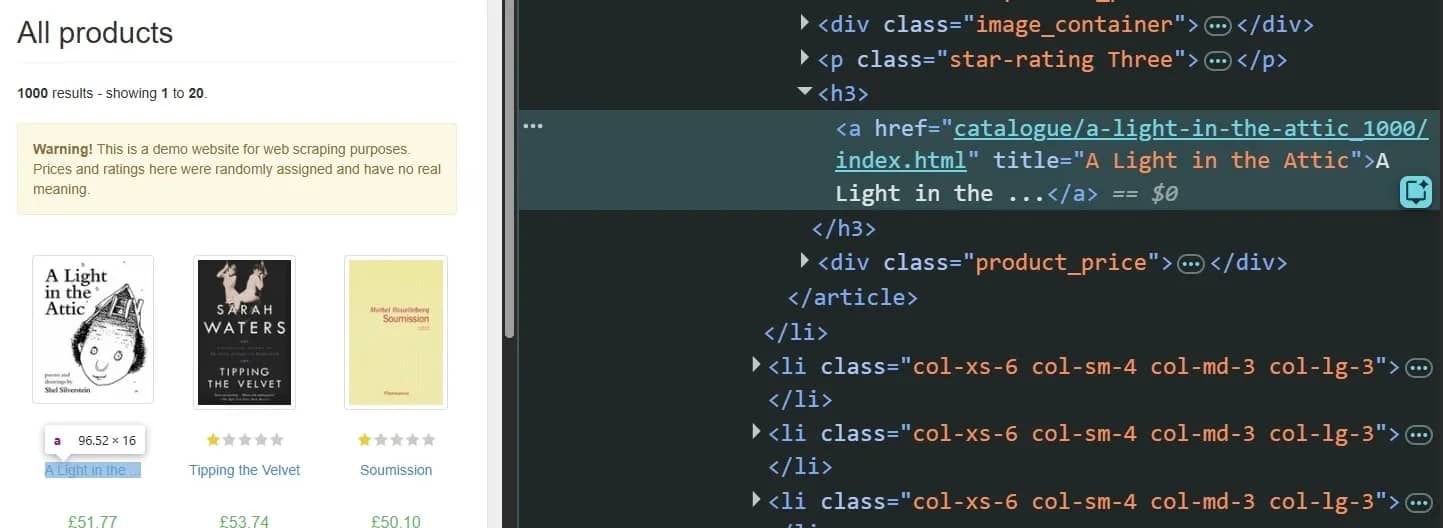
4. Right-click on the highlighted HTML and choose Copy > Copy XPath or Copy full XPath.
Copy XPath generates an expression based on the shortest stable path it can construct. If the element, or any of its parents or ancestors, has a usable attribute, the path starts there. This path is often shorter and more readable compared to a full XPath:
Copy full XPath creates an absolute path, tracing the target element from the document root (/html):
Regardless, your DevTools-generated XPath is rarely production-ready. The browser simply generates a path based on what's available in the document tree. It knows nothing about class names or IDs that are regenerated in every build, and is often too specific or leans heavily on positional indexes. Any minor layout change can break this path.
Playwright codegen and inspector
Playwright's codegen and inspector are designed to automatically build tests in real time by recording user interactions. This ability also makes them useful in generating locators.
To try it, run the codegen command below:
This will open 2 windows. The first is a browser window that navigates to the specified URL:
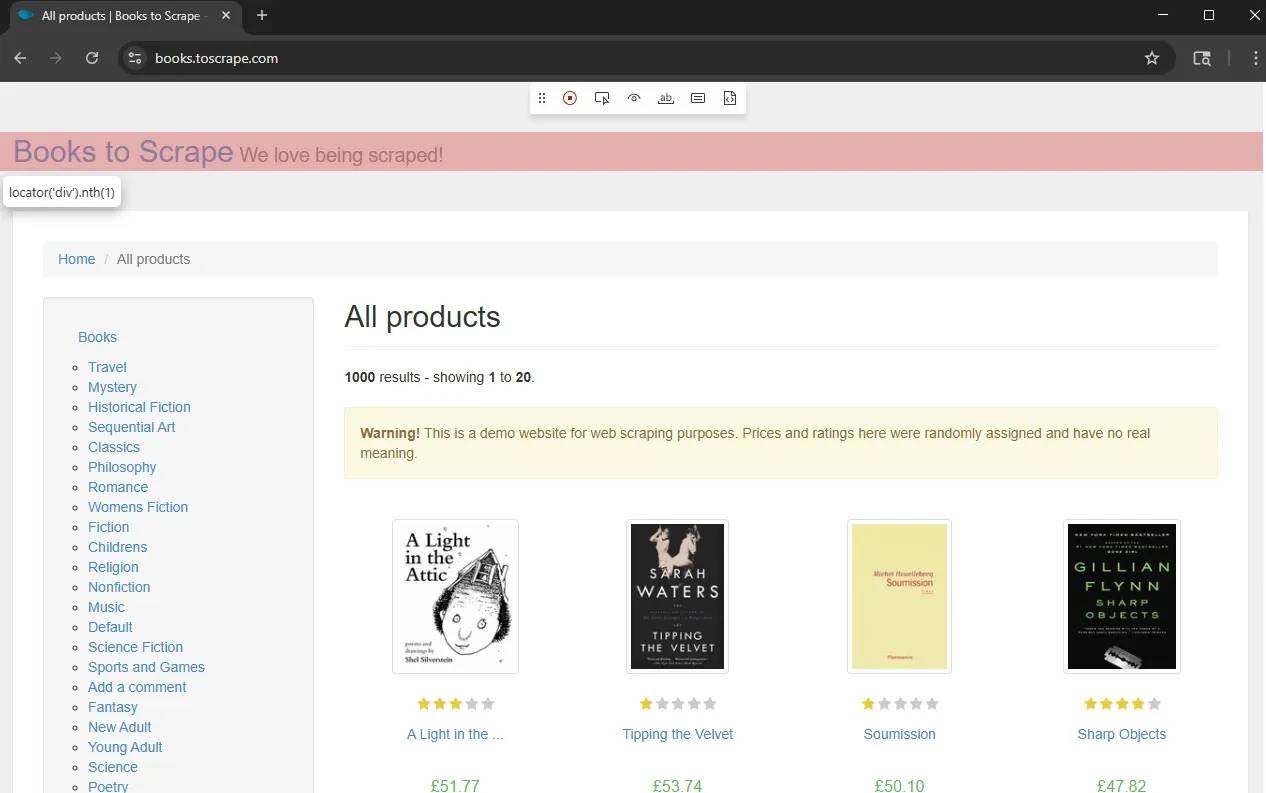
And the second one is the Playwright inspector, which records your interactions:
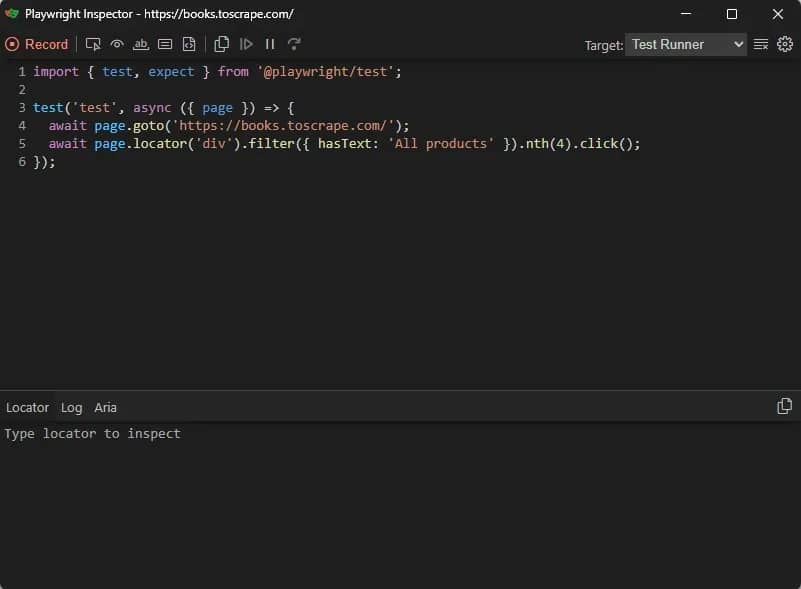
Click the Pick Locator button, then click on your target element. The code for that locator will appear in the locator box in the Playwright Inspector window.
However, Playwright doesn't exclusively generate XPath selectors by default. It's designed to prioritize user-facing locators, such as getByRole or getByText, and will only generate XPath if it's the only possible selector for that element.
That said, you can still generate and verify XPath selectors using these Playwright tools, but you'll have to force it. That means manually editing the locator box with your XPath syntax and using Playwright codegen to verify.
You can also use the codegen browser's DevTools, as described in the first approach, to retrieve an expression, then paste it into the locator box to verify. If the selector works, Playwright will highlight the matching element on the live page. Remember that auto-generated expressions are not reliable, so it's important to refine the XPath selector before using it in your production code. In the next section, we'll show you how to write resilient XPaths, and you can use that knowledge to refine a DevTools expression.
Playwright Inspector also allows you to test your expression live by entering your new XPath selector in the locator box. If the element remains highlighted in the live browser window, your refined XPath works.
Hand-writing resilient XPath
A resilient XPath should survive minor website changes, including layout and web copy updates. It should describe what a target element is (role, label, identifier, etc), rather than relying on its position in the document tree. Below are a few measures to help you create resilient XPath expressions.
Target semantic attributes over hashed class names
A classic rule of thumb for building resilient XPath expressions is to avoid hashed class names. In modern frameworks like React and Svelte, these hashes are often generated automatically during the build process. That means an XPath targeting a hashed class name might work today but fail tomorrow, even if the UI is virtually unchanged.
If you encounter hashed class names, target semantic attributes, such as data-testid, aria-*, name, and role. These attributes are often added for automation and rarely change between builds.
For example, instead of:
Use:
Use contains() and normalize-space() for text-based matching
HTML text content isn't always as clean as they appear in your browser. Developers often leave whitespaces, mainly from code indentation, dynamic values, or styling. An XPath that targets an exact text match without handling whitespaces could break silently.
Use normalize-space() when doing exact text matching to strip whitespaces and target the actual text content.
When the visible text has a stable core but variable surrounding content, use contains() with normalize-space().
Below is a sample expression targeting a button label that includes a dynamic count: "Add to cart (3)":
Prefer predicates over positional indexes
Positional indexes track an element's position in the document tree. When layout changes, the index can either point to the wrong element or break. For example, if you're targeting a price column, which is currently the third <td>, using the expression below:
If a new column is added before price, the XPath above will now target the new column instead of price.
Conversely, data attributes, like in the expression below, will survive a column reordering.
Remember to always test XPath in your console before adding to your code. You can do so using the $x() shorthand.
Using XPath with Playwright's Locator API
Playwright provides the locator API as the primary way to execute XPath queries and interact with page elements. This API, through the page.locator() method, treats XPath as a first-class citizen, meaning it works like other selector types and supports the same features, including auto-waiting, retries, and chaining.
Playwright also provides 2 options for using XPath with the locator API:
- Pass your expression as a string directly into the page.locator() method. This works because Playwright inspects the first characters of the selector string to decide how to parse it. If it begins with double forward slashes, a single dot, or double dots, then the string is automatically treated as an XPath:
- Use the xpath= prefix, which is more explicit. Instead of relying on Playwright to automatically detect XPath syntax from the beginning of the selector string, this approach clearly tells Playwright to interpret the expression as XPath, which can make the code easier to read and maintain:
Both options are equivalent and would mostly yield the same result. However, there are cases where the xpath= prefix is mandatory: for example, when an expression starts with a single forward slash or those wrapped in parentheses for grouping. Playwright doesn't auto-detect those as XPath and may parse them as CSS, which can lead to a confusing error. If you must lead with parentheses or a single forward slash, or anything other than double forward slashes and double dots, the prefix is required.
XPath also benefits from Playwright's auto-waiting feature via the locator API. By design, locators resolve to a live element only when an action runs. Calling the page.locator() method only creates and returns a description of a selector. Nothing happens until you call an action method, such as .textContent() on the locator.
Even then, Playwright does not immediately evaluate the XPath and execute the action. It waits for a sequence of conditions to be true (element ready). These conditions are retried until the target element is actionable or the retry timeout is exceeded.
Here are the conditions an element must meet to be considered actionable:
- Attached. The element must exist in the DOM
- Visible. It must not be hidden (display: none or visibility: hidden must return false)
- Stable. The element's position must remain unchanged between animation frames
- Enabled. Interactive elements must not have the disabled attribute
- Receives events. The element must not be covered by another element, such as an overlay or pop-up
Keep in mind that this auto-waiting only exists when resolving to a single unambiguous target. If your locator matches multiple elements, Playwright throws an error immediately because it cannot determine which element you intend to interact with. This is called strict mode, and it's on by default.
To avoid this error, make your locator more precise. You can use more specific attributes, names, or roles to disambiguate your selector. Playwright also provides a few other methods that narrow down an ambiguous locator to a single element:
- .first() targets the first matching element
- .last() targets the last matching element
- .nth(n) targets the nth matching element, starting from 0
If matching multiple elements is required, use the .all() method to capture all matches and return an array of locator objects. For debugging, assertions, and sanity checks, the .count() method lets you verify that you're targeting the correct number of elements.
That said, you can also match multiple elements using XPath's pipe operator (|), as long as only one exists at runtime. Here's an example:
This operator is particularly useful for "wait for success or error" patterns where Playwright reacts to whichever state is true.
If you'd like a Playwright scraping refresher, check out this Playwright web scraping tutorial.
Interacting with elements selected by XPath
Once your XPath resolves to a precise element, you'll want to do something with it. In Playwright, XPath locators support the same interaction methods as the more familiar CSS and role-based selectors.
Here are the most common interactions you can execute once your target element is actionable. Each example uses books.toscrape.com as the target webpage.
Reading data
Playwright locators provide multiple methods for reading data, each returning different values and suited to a specific use case:
.textContent() returns the entire text string inside the target element, including hidden text, whitespaces, and line breaks:
This script:
- Launches a Chromium browser, opens a new page, and navigates to the target webpage.
- Selects the first book's title link using the XPath expression.
- Retrieves its text content using textContent().
Output:
- .innerText() returns exactly what you see on the page. If there's a CSS styling (for example, display: none), innerText() respects it. It also collapses whitespaces, but all these actions before returning the result make it slower than textContent().
Here's the innerText() method on the same target element as before:
Output:
This returns the same output as the textContent() example because that's what's visible on the webpage. If the ellipses had a display: none attribute, the output here wouldn't include them.
- .inputValue() reads the current value of an <input> element, not its default or placeholder text. Since there's no input element on the sample target page, the example below assumes a search field with its name attribute set to q:
- getAttribute('name') returns the string value of any HTML attribute on the matched element, or null if the attribute is absent. It's the standard way to extract links, custom metadata, accessibility labels, or any other structured value attached to an element.
The product title on the sample target page has a title attribute; here's an example retrieving its value:
Output:
- .evaluate(node =>) is a method passing the matched DOM node into a JavaScript function that runs inside the browser context. It returns whatever the nested function returns. This is mostly useful for complex multi-field extractions using a single expression:
Instead of making multiple Playwright calls to retrieve data from multiple elements, this script grabs the DOM element at once using evaluate(node =>...) and extracts the title, price, rating, and in-stock status of the first book.
Output:
User interactions
Scraping often requires user input to access content. Here are the most common interactions and how to initiate them.
- Clicking elements. Playwright's click() function simulates a full pointer event or a basic click on an element. It also accepts arguments that let you initiate different click variations, including button (right-click, shift + click, etc.), modifiers, delay, and position.
Here's an example showing multiple click variations:
- Filling form inputs. Playwright provides two methods for filling form inputs: .fill() and .type().
.fill() clears the field's current value and sets it to the provided string in a single operation. It doesn't simulate keystroke-by-keystroke input. On the other hand, .type() is an older method that simulates individual keystrokes with optional delays between them. When web scraping, .fill() is almost always the preferred option:
- Hovering. Some websites load parts of their data only when the user hovers over a viewport area. Using Playwright's hover() function, you can hover the container to display and retrieve the content.
- Keyboard input. The press(key) function simulates a keydown and keyup sequence for the specified key. If no locator is defined, the key fires on whatever currently holds focus.
Scrolling and screenshot
Some scraping scenarios require you to scroll to access content, and some web structure only displays data when the corresponding elements enter the viewport. In these cases, the .scrollIntoViewIfNeeded() method allows you to simulate the required interaction before acting on the target elements.
.scrollIntoViewIfNeeded() scrolls the page only if the element isn't already fully visible in the viewport. This is preferable to unconditional scroll-based methods for scraping because it adapts to the viewport's height and current scroll position.
You can also use XPath-based infinite-scroll patterns. Locate a sentinel element near the bottom of the current content, scroll it into view to trigger the load event, wait for new content to appear, and repeat until no more content loads.
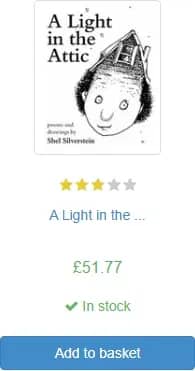
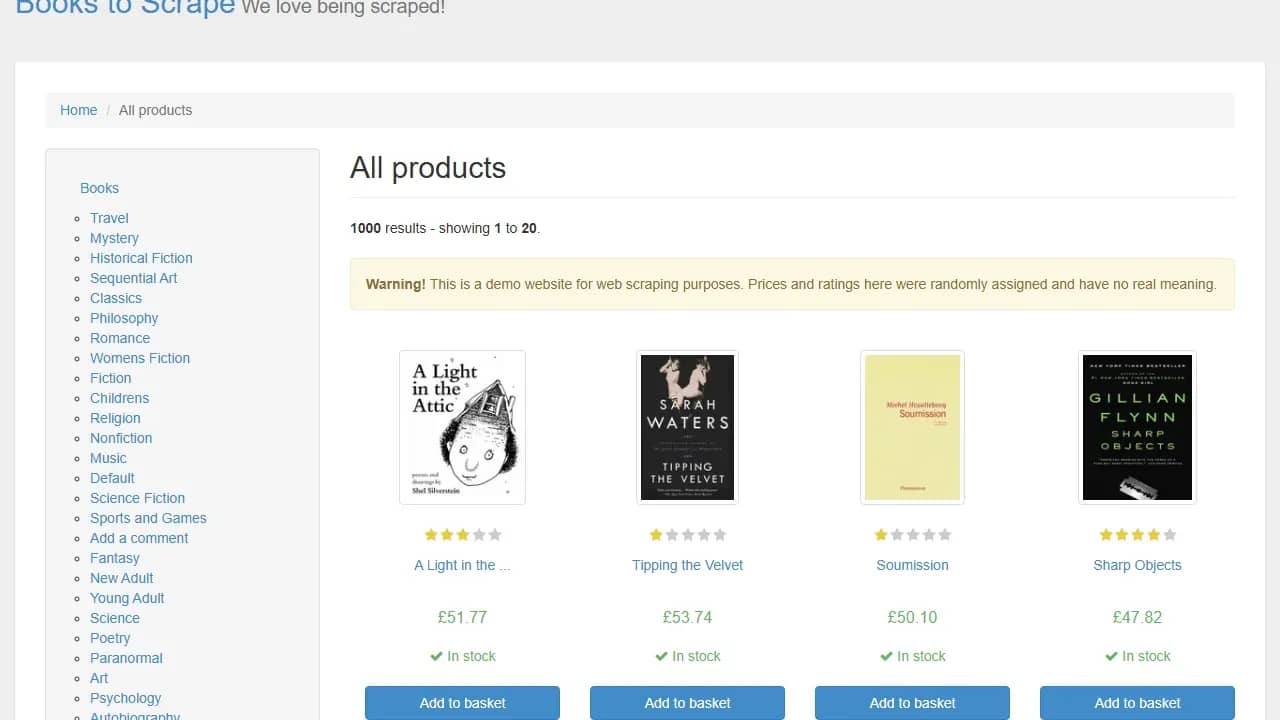
If you require a screenshot of a specific element, call the screenshot() method on the elements locator object. You can also capture the current visible window and the full page using page.screenshot() and setting fullpage: true.
Here's an example, showing all 3 screenshot cases:
Output of the first book card:
Output of the current visible window:
If you'd like to learn more about headless browsers, check out our headless browser guide.
Practical XPath examples in Playwright
Example 1: Automated login with XPath
Form inputs on most sites lack stable ID attributes and carry hashed names generated by modern frameworks. The only attributes that developers reliably include on every input are functional ones: name, type, placeholder, and aria-label. You can target these directly using XPath. Here's an example:
[login_form.js]
This script:
- Launches a Chrome browser, opens a new page, and navigates to https://quotes.toscrape.com/login, a public static environment for practicing form automation.
- Targets and creates a locator object for the form fields and the login button, using name and type attributes.
- Enters the username and password into the form fields and submits the form by using the fill() and click() action on the corresponding locator objects.
- Verifies success by checking for the presence of the logout link (a post-login element)
Example 2: Data extraction from a product listing
books.toscrape.com displays 20 product cards per page across 50 pages. Each card is an <article> element containing title, price, and availability (in stock or out of stock). This example extracts these 3 fields from every card and writes the result to a JSON file:
[books.js]
This script:
- Navigates to https://books.toscrape.com/catalogue/page-1.html from a Chrome browser.
- Loops through each page, using the infinite while() loop that continues until there's no Next button.
- For each page, it locates all product cards, counts the number of cards, loops through each card, and extracts the title, price, rating, and availability.
- Writes the result (all extracted books' details) to books.json.
The output is a JSON file containing the title, price, and availability of all the books on the page:
Practical tips
- Always anchor relative XPath inside a loop with a leading dot; without it, the selector searches the entire document rather than the current card.
- Wrap optional field extractions (ratings, discount badges) in try/catch blocks, returning null on failure.
- Log the count of matched cards per page to catch silent selector drift before it corrupts the dataset.
XPath vs. CSS selectors in Playwright: when to use which
While this article describes XPath as the most precise tool for navigating an HTML document, neither CSS selectors nor XPath is universally better. They solve different problems, and the best web scrapers use each where there's a real advantage rather than making a strict choice.
Where XPath clearly wins
- Text-based matching. CSS has no native way to match an element by its text content. XPath has multiple methods for this one purpose: text(), contains(), starts-with(), and normalize-space().
- Parent and ancestor traversal. CSS selectors traditionally only move downward through the DOM, while XPath can also move upward and sideways between related nodes. CSS :has() partially closes this gap, but support and reliability can still vary across environments.
- Combining conditions across axes. XPath, in a single expression, can combine relationships in multiple directions, while there's currently no CSS selector that can combine descendant conditions with sibling conditions in the same expression.
- The pipe operator for OR matching in a single selector. XPath's union operator (|) waits for whichever of two paths resolves. While CSS can group selectors using commas, it doesn't have the same single-wait semantics in Playwright.
Where CSS usually wins
- Readability. For simple attribute and class matching, CSS selectors are shorter and easier to read than their XPath equivalents, which are often verbose with symbols.
- Speed. XPath's axes traversal and function calls often incur additional overhead. While this is mostly negligible for a single-element match, during high-volume iterations across thousands of nodes, XPath's overhead is noticeable, and CSS is meaningfully faster.
- Shadow DOM. CSS selectors can pierce shadow DOM elements and access their content, while XPath can't cross the shadow root boundary.
Hybrid approach
The best scraping projects aren't strictly CSS or XPath; they use selectors that best fit the projects' needs. If the element has a role, text, or label, Playwright's role and text locators should be your first choice. For basic attribute/class matching, use CSS. Only use XPath when the structure requires it; for example, ancestor traversal and waiting for either outcome (pipe operator).
For more details on the difference between the two, check out our comprehensive guide on choosing the right selectors for web scraping: XPath vs. CSS.
Best practices and common mistakes
Efficiency in production isn't always how fast your code executes, but how often you have to debug, fix, and ship updates. To build a truly scalable scraping system, you must adopt a disciplined approach in element selection.
Selector design
Keep the following points in mind when creating your XPath expressions:
- Always prioritize relative XPath over absolute.
- Target stable attributes, such as data-*, aria-*, and name before classes. Using hashed classes isn't recommended, as they rotate between deploys.
- Avoid positional indexes except when working with guaranteed stable targets.
- Prefer normalize-space() over text() when targeting a text node to handle whitespaces.
Shadow DOM awareness
Some modern web applications manage complex interfaces by isolating internal components, using a shadow DOM. This web technology allows developers to attach a somewhat hidden DOM tree to an element. The problem is that XPath can't pierce a shadow DOM. It can see the host element but can't go beyond that.
A workaround for such cases is to use a CSS selector to access the shadow DOM, then use XPath for sub-selection within the shadow DOM's tree if needed.
You can detect a shadow root by inspecting the target site in a browser. Open the developer tools and search the Elements panel for a @shadow-root marker. If you find one nested in an element, the content inside that boundary is invisible to XPath.
Strict mode surprises
Playwright's strict mode only fires at action time. That means an expression that seems fine in development can trigger a strict mode error in production if an action is metered to more elements than expected.
Always use .count() to verify that your selector matches the expected number of elements and handle accordingly.
Waiting and timing
The most common timing mistake in Playwright scraping is using page.waitForTimeout() with an arbitrary sleep value as a safety buffer. Sleep wastes time when the page is fast and fails when it's slow. It's best to rely on Playwright's auto-waiting feature and only use .waitFor() when the default attached state isn't enough (e.g., for hidden overlays, animated transitions).
Avoiding detection when scraping at scale
A perfectly written XPath expression fails just as quickly, if not faster, as a broken one when a server has advanced anti-scraping technology and returns a CAPTCHA page or outrightly blocks your requests. Getting blocked is a common web scraping challenge that can result from several factors, including hammering a single IP with obvious automation patterns.
It's good practice to rotate between IP addresses, use realistic headers, and include delays between requests. These measures can help your scraper fly under the radar.
You can handle all of this automatically with Decodo residential proxies, a solution that handles rotation and geo-targeting.
For targets with aggressive anti-bot protections, Decodo Site Unblocker handles TLS fingerprinting, CAPTCHA solving, and JavaScript rendering transparently. Teams that do not want to maintain Playwright selectors long-term can offload to Decodo Web Scraping API, which returns parsed data, relieving you of the DOM work.
Final thoughts
XPath remains one of the most precise tools for navigating the hierarchical document tree structure, especially when working with complex HTML (e.g., obfuscated classes, deep DOM nesting). However, the key is in applying it correctly. Combining XPath with Playwright's Locator API makes it safer and more predictable, thanks to auto-waiting features and strict mode.
Keep in mind that anti-scraping solutions don't care about the resilience of your XPath expression. If you're flagged as an automated user, you'll get blocked immediately. To avoid that, consider incorporating Decodo's proxies or Web Scraping API. It will allow you to focus on your data rather than worrying about the tedious process of bypassing anti-bot solutions.

Scraping shouldn't be this hard
Replace proxy configs, retry logic, and fingerprint workarounds with a single API call that returns clean data.
About the author

Vilius Sakutis
Performance Marketing Team Lead
Vilius leads performance marketing initiatives with expertize rooted in affiliates and SaaS marketing strategies. Armed with a Master's in International Marketing and Management, he combines academic insight with hands-on experience to drive measurable results in digital marketing campaigns.
Connect with Vilius via LinkedIn
All information on Decodo Blog is provided on an as is basis and for informational purposes only. We make no representation and disclaim all liability with respect to your use of any information contained on Decodo Blog or any third-party websites that may belinked therein.