Lightpanda Browser Tutorial: Web Scraping With Proxies
The Lightpanda browser is an open-source headless browser built from scratch for automation. It runs JavaScript pages with less memory than headless Chrome, which matters when you scrape at scale. This guide runs Lightpanda from Python with Playwright and routes it through Decodo residential proxies. Then it tests what still gets blocked on 9 protected sites.

Paulius Minialga
Last updated: Oct 26, 2026
13 min read

TL;DR
- Lightpanda is an open-source headless browser that runs JavaScript without rendering, so it works for scraping, not screenshots.
- In Playwright, replace launch() with connect_over_cdp() to a Lightpanda CDPServer.
- Pass --http-proxy at startup and run 1 process per sticky session.
- With every browser on the same residential proxies, Chrome with a desktop user agent loaded 7 of 9 protected pages. Lightpanda loaded 5, more than default headless Chrome at 3.
- HTTP clients loaded 6 of 9 protected pages without a browser. The Decodo Web Data API returned the 2 that blocked every setup.
What is the Lightpanda browser?
Lightpanda is an open-source headless browser written in Zig, not based on Chromium. It runs JavaScript with V8 and skips graphical rendering, which saves time and memory.
Playwright and Puppeteer control it over the Chrome DevTools Protocol (CDP), and Selenium connects over WebDriver BiDi.
Lightpanda published its first stable version, 1.0, on October 2, 2026. At release, the team's Web Platform Tests (WPT) results put Lightpanda's passed subtests at about 80% of Chrome's. It also enforces CORS by default and includes a Model Context Protocol (MCP) server for AI agents.
The table compares what matters for scraping in Lightpanda and headless Chrome. The memory row comes from a Nike product listing, measured on an Apple Silicon Mac:
Attribute
Lightpanda 1.0
Headless Chrome
Engine
Written in Zig, V8 for JavaScript
Chromium (Blink and V8)
Graphical rendering
None
Full layout and paint
Memory, 8 parallel sessions
About 600MB for 8 processes
About 1.9GB for 8 contexts, counting some shared memory twice
Screenshots
Text layout only, no styling
Pixel-accurate
Automation protocols
CDP, WebDriver BiDi
CDP, WebDriver BiDi
Proxy setup
--http-proxy at startup, 1 per process
Proxy option at launch
User agent
Lightpanda/1.0 by default. Custom strings work, but not other browsers' user agents
Any string you set
Set up Lightpanda in Python
You need Python 3.10 or later, uv or pip, and a plan for Decodo residential proxies. If you're new to scraping, start with this guide to web scraping with Python. Install the package for scripts, or run the Docker image for a long-running server.
Install the Lightpanda Python package
Create a project and add both packages with uv, or run pip install lightpanda playwright if you use pip:
The lightpanda package bundles the browser binary and adds CDPServer. As a context manager, it starts a Lightpanda server and exposes the WebSocket endpoint as ws_endpoint. Skip playwright install, because Playwright connects to Lightpanda instead of launching Chromium.
The code uses Python 3.14, Lightpanda 1.0.1, the lightpanda package 1.0.1, and Playwright 1.64.0. The behavior described here matches these versions. Pin both packages in production, because version 1.0 renamed flags and changed defaults:
The 1.0.1 wheels support macOS and Linux with glibc 2.35 or newer. On Windows, run Lightpanda under WSL.
Get your proxy credentials. The quick start shows where to find your proxy credentials in the Decodo dashboard. Open Residential, then Proxy setup, and copy the username in the Authentication field and the password:
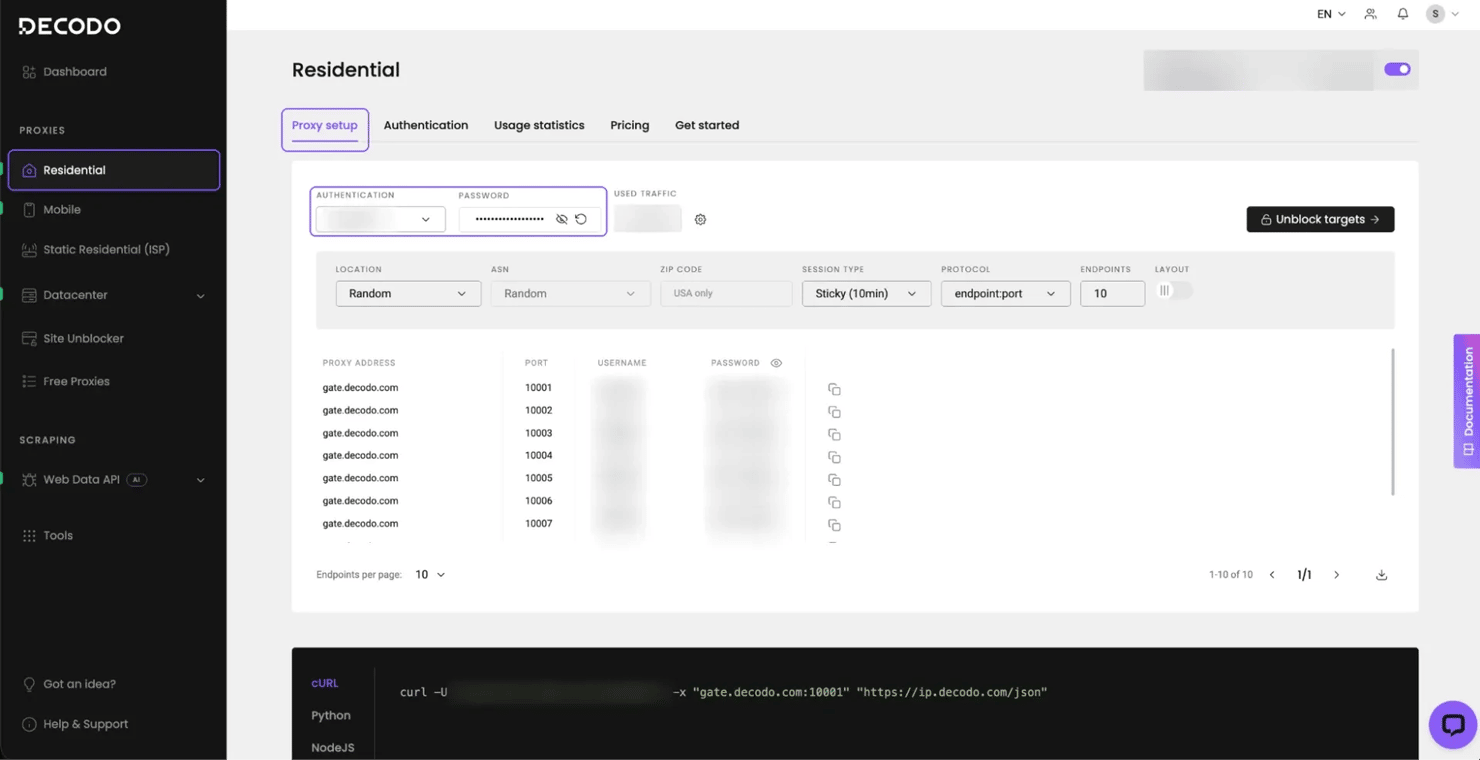
You only need the username and password from this page. The scripts use port 7000 and set the location and session in the username. The dashboard shows the username without the user- prefix. Paste it as shown, and the scripts add the prefix and targeting options:
Run the Lightpanda Docker image
The lightpanda/browser image runs lightpanda serve by default. To add the proxy flag, pass the full serve command after the image name:
The container already runs the Lightpanda server with the proxy flag. So instead of starting a server with CDPServer, your scripts connect to the container's address. Save this as connect_docker.py:
For the other scripts, replace their CDPServer block with this call. Then move their server flags, such as the proxy URL, into the docker run command. The server also exposes Prometheus metrics at /metrics, so you can monitor page loads and errors.
Connect Playwright to Lightpanda
In a Lightpanda Playwright setup, Playwright is the client, and Lightpanda is the browser underneath. Start a CDPServer and replace launch() with connect_over_cdp(), and most of your code stays standard Playwright scraping code. Save this as connect.py. It loads Decodo's IP checker, which reports the browser it detects:
Run the script with uv run connect.py to use the project's packages.
It prints:
Call connect_over_cdp() again for each browser context you need, because each connection holds only 1 context. By default, a Lightpanda 1.0.1 server accepts up to 16 connections. For asyncio code, the package also has AsyncCDPServer, which works with Playwright's async_playwright().
How to set up a Lightpanda proxy
Lightpanda takes the proxy as a startup flag, --http-proxy, and sends every request from that process through it. Without a proxy, every request uses your server's IP. Sites can rate-limit that IP, and you only see content for your location.
Save this as rotating_ip.py. It uses the rotating endpoint with US targeting and checks the exit IP twice:
Both page loads in 1 run used the same IP, because Lightpanda reuses its proxy connection for the same hostname. The first run printed:
Running it again started a new process and got a new US IP:
Lightpanda also sends its own usage telemetry through this proxy by default. To keep it off your proxy traffic, export LIGHTPANDA_DISABLE_TELEMETRY=true in your shell. The Docker command already passes it with -e.
Lightpanda's proxy guide also shows a per-context proxy. For HTTPS pages in 1.0.1, use the startup flag, because the per-context option returns CouldntConnect. A wrong password returns the same error. To find the cause, check your credentials with curl, which prints your exit IP when they work:
Rotate IPs or keep sticky sessions
The rotating endpoint gives every new connection a new IP from the pool. Lightpanda opens 1 connection per hostname, so 1 page load can use several IPs. Sites can link a cookie to 1 IP, so paginated results and multi-page flows work best on a sticky session.
A session ID in the username keeps the same IP for up to sessionduration minutes. The custom sticky sessions page lists the durations you can set. This username requests a US IP and a 10-minute session:
With a sticky username, every connection from that page load uses the same IP.
All CDP connections to 1 server share its proxy username. To get a new IP for the same site, start a new process. For sticky sessions, run 1 process or container per session. A process starts in about 58ms and uses 17MB when idle on an Apple Silicon Mac.
Running 1 process per session still used less memory than Chrome. On a Nike listing, 8 Lightpanda processes together used about 600MB, compared with about 1.9GB for Chrome with 8 contexts. Total CPU time on the same Mac was about 5 seconds for Lightpanda and 8 to 9 seconds for Chrome. Chrome's figure counts some shared memory twice, so the real gap is smaller.
Save this as sticky_sessions.py. It runs 4 sticky sessions in parallel:
Within the session duration, rerunning with the same session IDs returned the same IPs. One run printed:

Fast browser, clean IPs
Route Lightpanda through 115M+ residential IPs across 195+ countries.
Run the full scraping script
Hotel prices are core data for travel price comparison. Booking.com responds to a plain HTTP request with a JavaScript challenge, so its prices need a browser.
The script reads the first results page for Paris, for a stay 30 days from today, sorted by price. Decodo's state-level targeting picks a New York IP, so the IP location matches the browser's time zone. Anti-bot checks can compare the two. The script saves every hotel to hotels.json:
Save it as lightpanda_hotels.py and run it:
Expect a page of hotels in price order, usually 15 to 25, depending on the page size Booking.com serves. The output looks like this:
The script writes hotels.json to the folder you ran it from.
Booking.com ignored the offset parameter in both Lightpanda and Chrome, so each search returned 1 page. To collect more hotels, split the search with Booking.com's per-night price filter, such as nflt=price=USD-150-250-1. In 3 test runs, splitting collected 54 to 69 different hotels, against 15 to 25 from 1 search. Decodo also has a Booking.com scraper if you don't want to maintain selectors like these.
Verify the data, not only the page
A page can load normally and still give your scraper wrong prices. Unlike a crash, nothing raises an error. Depending on location, Booking.com shows some visitors a per-night price before the total price, and both use the same data-testid. On these New York cards, the first price element is per night, and the last is the total price.
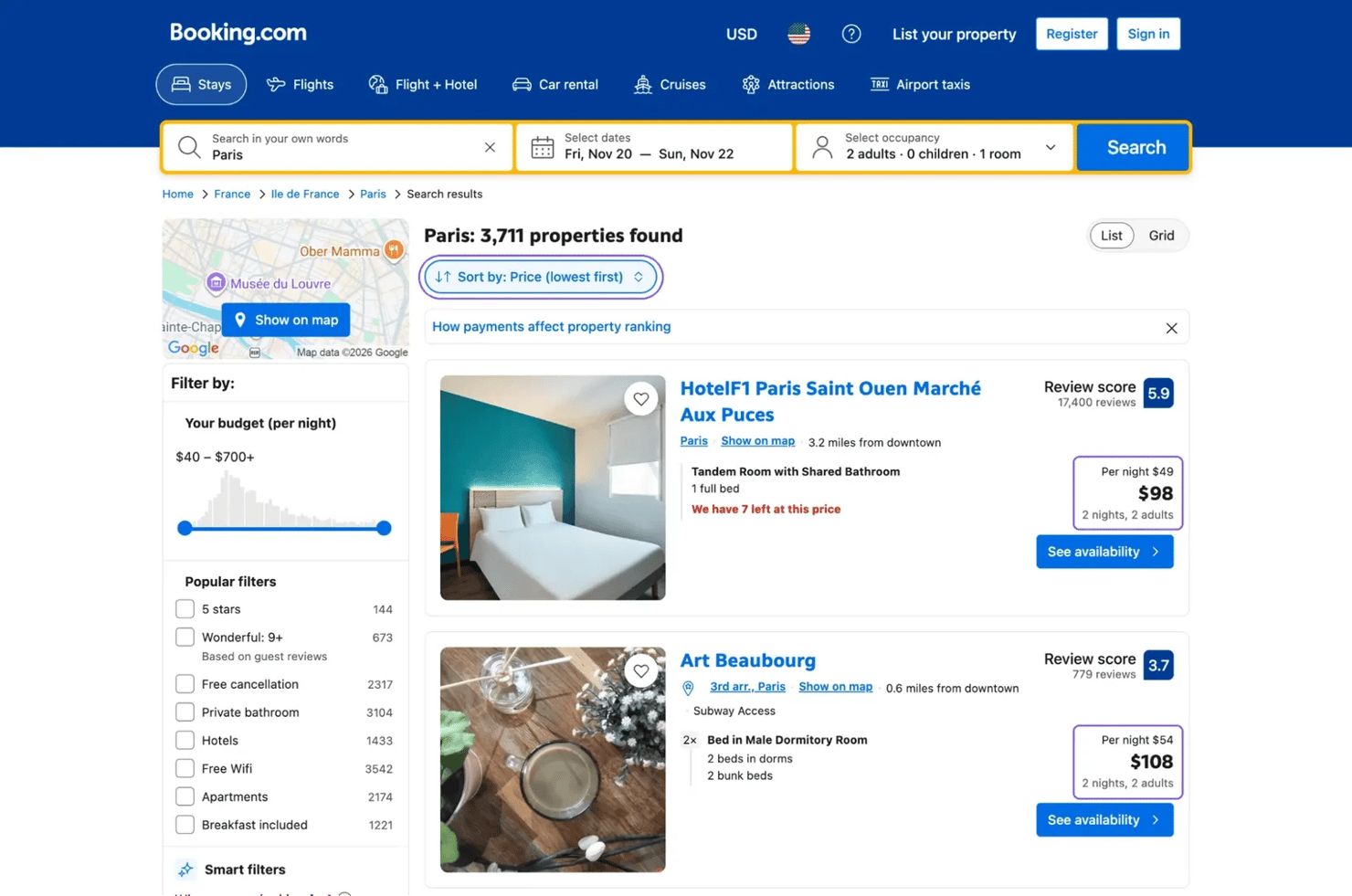
These are the same 2 hotels the sample output shows at $98 and $108. The script reads the last price element, so it stores the total price in both layouts.
The default ranking also changes by browser, so Lightpanda and Chrome on the same IP can see different hotels. The script sorts by price to keep runs comparable.
Does Lightpanda get blocked on protected sites?
Some protected sites block Lightpanda, because their anti-bot systems check the browser, not only the IP. With all setups on the same residential proxies, Chrome with a desktop user agent loaded 7 of 9 protected pages. Lightpanda loaded 5, and default headless Chrome loaded 3 (Amazon, Best Buy, and Nike). So the browser caused the difference.
To keep the comparison fair, each setup loaded every public page 3 times, each time on a new US IP. A page counts as loaded when its content appeared in at least 2 of the 3 tries. The test used Lightpanda 1.0.1 and standard Chrome 156, not builds modified to avoid detection. Every failed result in the table below happened in all 3 tries:
Page (anti-bot service)
Plain HTTP
Lightpanda
Chrome with a desktop user agent
What made it load
Amazon product page
Loaded
Loaded 2 of 3
Loaded
No special setup
Walmart search (HUMAN Security)
Loaded
Loaded
Loaded
Residential IPs
Zillow listings (HUMAN Security)
Loaded
Loaded
Loaded
Residential IPs
Booking.com search (AWS WAF)
Challenge page
Loaded
Loaded 2 of 3
Residential IPs and JavaScript
Nike listing (Akamai)
Loaded
Loaded
Loaded
No special setup
Indeed search (Cloudflare)
Blocked (403)
Challenge page
Loaded
Residential IPs and a browser's TLS fingerprint
Best Buy search (Akamai)
Loaded
No content served
Loaded
Plain HTTP or Chrome
Etsy search (DataDome)
Blocked (403)
Blocked (403)
Blocked (403)
The Web Data API
Google search results
No results
Rate-limited (429)
No results
The Web Data API
Nike and Amazon also loaded on datacenter proxies, so you can match the IP type to each target. Lightpanda got the same results on mobile proxies as on residential ones.
On Best Buy, Lightpanda's user agent alone didn't trigger the block. A plain HTTP request with the same user agent loaded the page.
For Etsy and Google, use the Web Data API, which includes proxies, JavaScript rendering, and anti-bot handling. It returned Etsy listings, and its search endpoint returned Google's organic results as JSON.
Check whether the page needs a browser
Not every page with dynamic content needs a browser. urllib, Python's standard HTTP library, loaded 5 of 9 pages with a Chrome user agent through the same proxies. On Walmart, the products were in embedded JSON, and a request used about 1MB against 3.5 to 3.9MB through Lightpanda. Because residential traffic is billed per GB, lighter requests let your plan cover more pages.
Some sites also check the TLS handshake, and urllib sends one that sites recognize as Python. On Indeed, urllib got a 403 every time. The open-source curl_cffi library matches a real browser's handshake instead.
Install it with uv add curl_cffi, then save this as tls_profiles.py:
The Chrome profile found the job list on all 3 tries, and the Safari profile on 2 of 3. One run printed:
No single profile worked on every site, so try more than one. Amazon showed the Chrome profile a CAPTCHA page but loaded with Safari, and Zillow did the opposite. With urllib first and the curl_cffi Chrome profile second, 6 of 9 pages loaded without a browser.
These low-volume runs show which setup loads each page. Repeat the test on your own public targets, without logging in, at the request rate you plan to run.
Add a Chrome fallback for stricter pages
For JavaScript pages that expect a mainstream browser, install Playwright's Chromium with uv run playwright install --with-deps chromium. The --with-deps flag installs the system libraries Linux servers need.
Then launch Chrome with the proxy, a desktop user agent, and 1 extra flag. The desktop user agent replaces the default one, which includes HeadlessChrome. The flag blocks Chrome's WebRTC traffic outside the proxy, so WebRTC doesn't leak your real IP. Save this as chrome_fallback.py, which uses Indeed as the test page:
On Indeed, the script printed:
Pick the simplest setup for each target
The table shows the simplest setup that loaded each page:
What the target does
Simplest setup that loaded it
Test pages
Serves the data in the HTML
urllib
Amazon, Walmart, Zillow, Nike, Best Buy
Also checks the TLS handshake
curl_cffi with a browser profile
Indeed
Needs JavaScript
Lightpanda with a sticky session
Booking.com
Needs JavaScript and expects a mainstream browser
Chrome with a desktop user agent
None of the 9. Use it for JavaScript pages that block Lightpanda
Blocked every setup in this test
Web Data API
Etsy, Google
Record which setup works for each target. Retest it when the success rate drops, because sites change their anti-bot checks without notice. To avoid maintaining this list yourself, use the Web Data API, which handles proxies and rendering in a single request.
Fix common errors
If a script fails, find its error message in this table:
Error
Cause
Fix
No pyproject.toml found
uv add ran outside a uv project
Run uv init first
ModuleNotFoundError for lightpanda or curl_cffi
The script ran with the system Python, or the package isn't installed
Run it with uv run, and uv add any missing package
407 Proxy Authentication Required
The username or password doesn't match the Proxy setup values
Copy both again from Proxy setup, or follow the 407 error guide
CouldntConnect on HTTPS pages
Lightpanda 1.0.1's per-context proxy option, or a wrong password
Pass --http-proxy at startup and check the credentials with curl
CouldntResolveProxy
The password has characters such as @ or : that break the proxy URL
Percent-encode the password, as the scripts do with quote()
Chrome fails with libglib-2.0.so.0 missing
The Linux server lacks Chrome's system libraries
Run uv run playwright install --with-deps chromium
A second new_context() call fails
Each connection holds 1 browser context
Call connect_over_cdp() again for each browser context
A timeout and a page titled Just a moment...
The site served a challenge page to that session
Rerun the script, which starts a new session
A 200 status, but your data is missing
The site served a challenge page with a 200, or the page layout changed
Check for an element that only the real page has, not only the status code
For proxy response codes not listed here, see the residential proxy response codes.
Lightpanda limitations to plan for
Check the release notes for each new version, and plan for these limits in 1.0.1:
- Screenshots – they show a text layout without styling. Use Chrome for visual checks.
- Web platform coverage – Lightpanda supports a subset of Chrome's features, so keep Chrome for pages that need more.
- Browser fingerprint – Lightpanda has its own browser fingerprint, so some sites block it, as Indeed and Best Buy did. Both loaded without a browser, Indeed with curl_cffi and Best Buy with urllib.
- Proxy per process – the proxy is set at startup, and per-context proxy settings fail on HTTPS in 1.0.1. Run 1 process or container per sticky session.
- CORS on by default – a cross-origin fetch() inside page.evaluate() needs the server's CORS headers, as in any browser.
- AGPL-3.0 license – the bundled binary is AGPL-3.0. Ask your legal team before you run a modified build as a service.
Is Lightpanda production-ready?
It's ready to test in production for pages that don't need screenshots. Every script here ran unchanged on macOS and in a python:3.14-slim Docker container. Move a small part of your traffic to Lightpanda first, and keep a Chrome fallback. On Lightpanda Cloud, its hosted browser service, you can add Decodo as your own proxy for residential IPs.
Final thoughts
The Lightpanda browser runs JavaScript pages with less memory than Chrome, and it's ready to test in production. With the right setup per site, Decodo residential proxies and the Web Data API returned data for all 9 pages. Start with an HTTP client, use Lightpanda for JavaScript pages, and keep Chrome for screenshots and as a fallback. If you build AI agents, read AI browser automation with Browser-use next. To run these scripts on your own targets, start with residential proxies.

The pages are fighting back?
Hand the stubborn ones to Web Data API, which handles proxies and anti-bot bypass for you.
About the author

Paulius Minialga
Developer Advocate
Paulius came to developer advocacy from fullstack development — Next.js, React, TypeScript, and Node.js, with C and C++ foundations from Codam Amsterdam. He writes less application code these days, and more of the examples other people copy.
At Decodo he works on the part of the product developers actually touch — testing endpoints and passing the results back to engineering, reviewing code samples, and rewriting the documentation that doesn't survive contact with a real use case.
All information on Decodo Blog is provided on an as is basis and for informational purposes only. We make no representation and disclaim all liability with respect to your use of any information contained on Decodo Blog or any third-party websites that may belinked therein.