Web Scraping in Dify: A No-Code Guide
Dify is an open-source platform for building LLM apps and AI workflows visually. It gives teams a drag-and-drop canvas for chaining LLMs, tools, and APIs into complete AI workflows. Modern AI apps need fresh, structured web data, but most teams don't want to write and maintain Python scrapers. In this article, you'll learn how to build a no‑code Dify workflow and switch to a managed Web Scraping API when basic plugins aren't enough.

Lukas Mikelionis
Last updated: May 27, 2026
12 min read
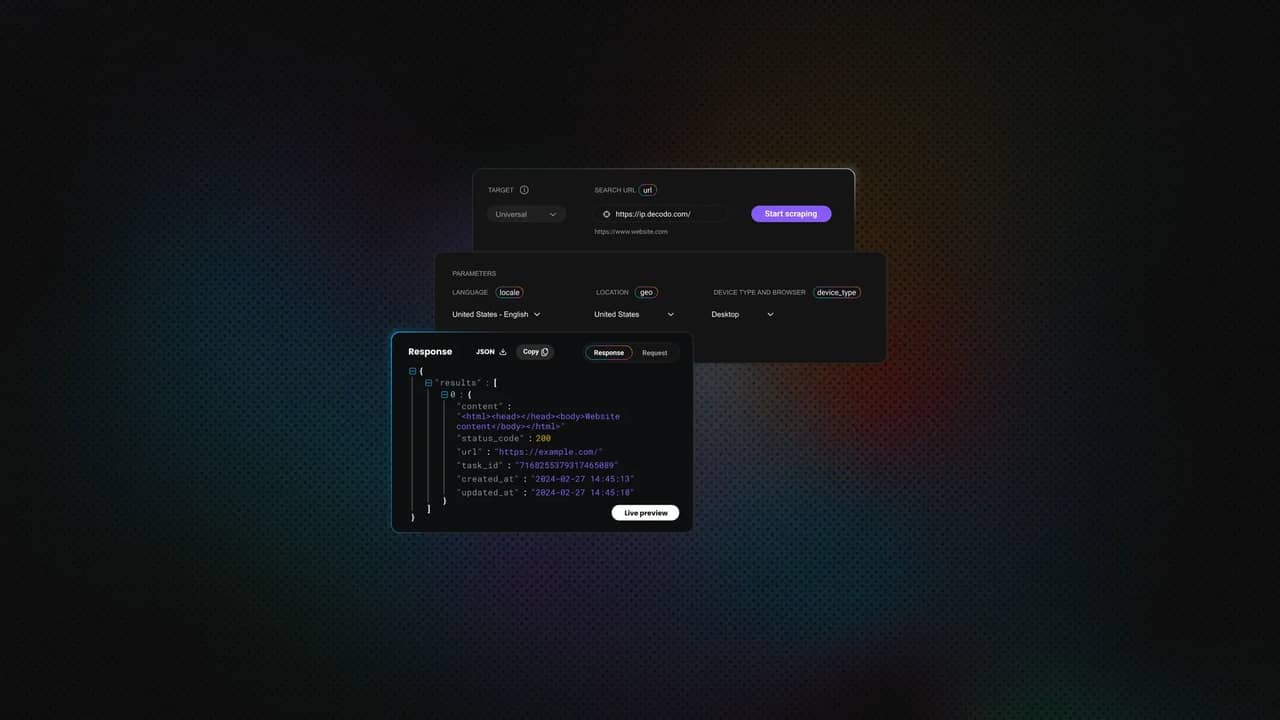
TL;DR: web scraping in Dify in 5 steps
- Create a blank Dify Workflow, add a start node, and define a target_url variable so the workflow can accept a page URL at runtime.
- Add an HTTP Request node, set it to POST and point it to Decodo's Web Scraping API endpoint:
https://scraper-api.decodo.com/v2/scrape. - Configure the request with your Basic Auth token and a JSON payload that sends the target_url to the Web Scraping API.
- Add an LLM node to extract structured fields from the scraped response, such as event name, date, location, and source URL.
- Add an Output node, run the workflow in Dify's trace view, then publish it as an API or reusable tool for other AI workflows.
What is Dify?
Dify is an open‑source, user-friendly LLM app development platform (LLMOps) for building chatbots, agentic workflows, and visual automations on top of any major LLM provider. It gives teams the core pieces for building, publishing, testing, and monitoring LLM apps in one workspace.
Dify is also model-agnostic, so teams can connect proprietary models like Claude or use open-source alternatives without rebuilding the workflow.
For web scraping, these four Dify building blocks are the most relevant:
- Workflows. Visual, node-based automations that pass data from one step to another. This is where you can connect a URL input, a scraper node, an LLM node, and a final output.
- Model-agnostic LLM nodes. Model steps that can use different providers depending on cost, speed, or accuracy needs. This helps teams test extraction, summarization, and classification prompts without locking the workflow to one model.
- Tools. HTTP requests, plugins, custom APIs, workflow tools, and MCP tools that let LLM apps call external services.
- Knowledge bases. Vector-indexed datasets that scraped content can feed into for retrieval-augmented generation, also known as RAG.
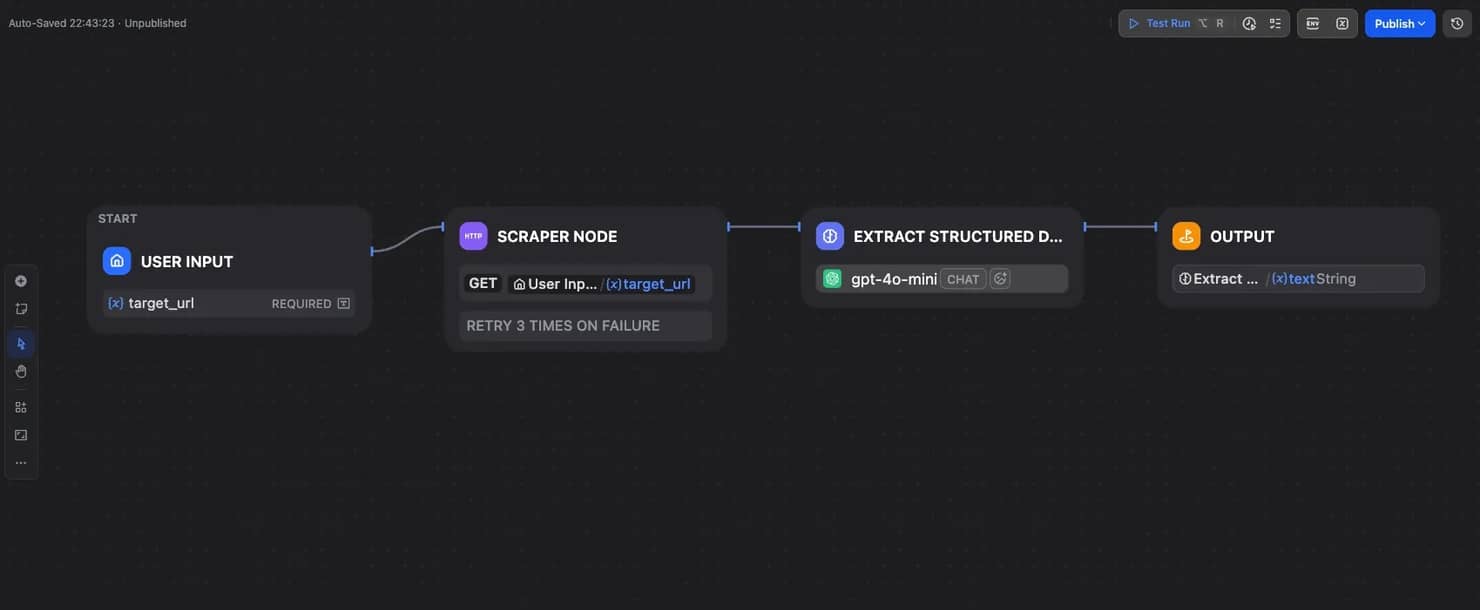
Instead of building a scraper in Python and then separately sending the result to an LLM, Dify keeps the full flow on the same canvas. A scraper node feeds an LLM node, and an End node returns the structured output.
If you've used n8n for web scraping workflows, the canvas will feel familiar. However, n8n is a general‑purpose automation tool that connects to hundreds of SaaS apps, while Dify is purpose-built for LLM orchestration. Its nodes, variables, and debug traces are designed around prompt inputs, model outputs, and token costs.
If you want to compare Dify with a more code-first setup, check out our guide to end-to-end AI workflows with LangChain and Web Scraping API.
Why use web scraping in Dify?
Any team looking into web scraping in Dify probably already knows the basics of scraping. So naturally, what matters is not the scraping itself, but what Dify adds around it. Compared to a standalone script, Dify gives teams a more structured, flexible, and reusable way to work with scraped data.
Key benefits include:
- Faster iteration. You can change prompts, output schemas, and node logic visually.
- Easier collaboration. Developers can configure the scraping tool, while PMs, analysts, or content teams can adjust the URL input, prompt, or output schema without writing code.
- Easier debugging. Dify's run history shows scraper calls, LLM outputs, token usage, and failed nodes in one trace. That's easier to inspect than a traditional coding pipeline.
- Built-in scheduling and API exposure. A scraper-plus-LLM workflow can run on a schedule or be published as an API endpoint for other apps to call.
- Cost transparency. Each run makes it easier to track both scraping usage and LLM token spend in the same workflow view.
If you want to compare this with another AI automation setup, see our guide on AI agent orchestration with n8n and MCP.
Web scraping plugins available in Dify
Dify's Plugin Marketplace offers several plugins capable of handling the scraping layer of your workflow. The best option simply depends on how clean the target page is, its anti-bot capabilities, and how much control you need.
Let's go over a few popular plugins:
- Firecrawl plugin. Converts any URL into clean Markdown. A strong default for content-heavy pages and RAG ingestion, but with less control over headers and proxies.
- Jina Reader. The fastest setup, with a free tier for quick testing. It works well for public docs and blogs, but not for harder targets. A useful trick is to prefix a URL with r.jina.ai/ to get LLM-ready Markdown. For example, instead of https://www.python.org/events/python-events/, use https://r.jina.ai/http://www.python.org/events/python-events/ as your target URL.
- ScrapeGraph plugin. A more LLM-driven option that can turn URLs into Markdown or structured JSON. For a closer look, read our ScrapeGraph AI review.
- Custom tool via HTTP Request node. This is the most flexible route. Dify's HTTP Request node lets you call any scraping API directly, including Decodo's Web Scraping API, when you need JavaScript rendering, geo-targeting, session control, or automatic proxy rotation.
As a rule of thumb, start with Jina Reader for public content. The moment you hit a 403, a CAPTCHA, or a JavaScript-rendered target, switch to a managed Web Scraping API as a custom tool. For another no-code angle, see a no-code web scraper with Playwright MCP.
How to set up web scraping in Dify: step-by-step
Time to build a simple Dify workflow that connects to Decodo's Web Scraping API and passes the scraped page content into an LLM.
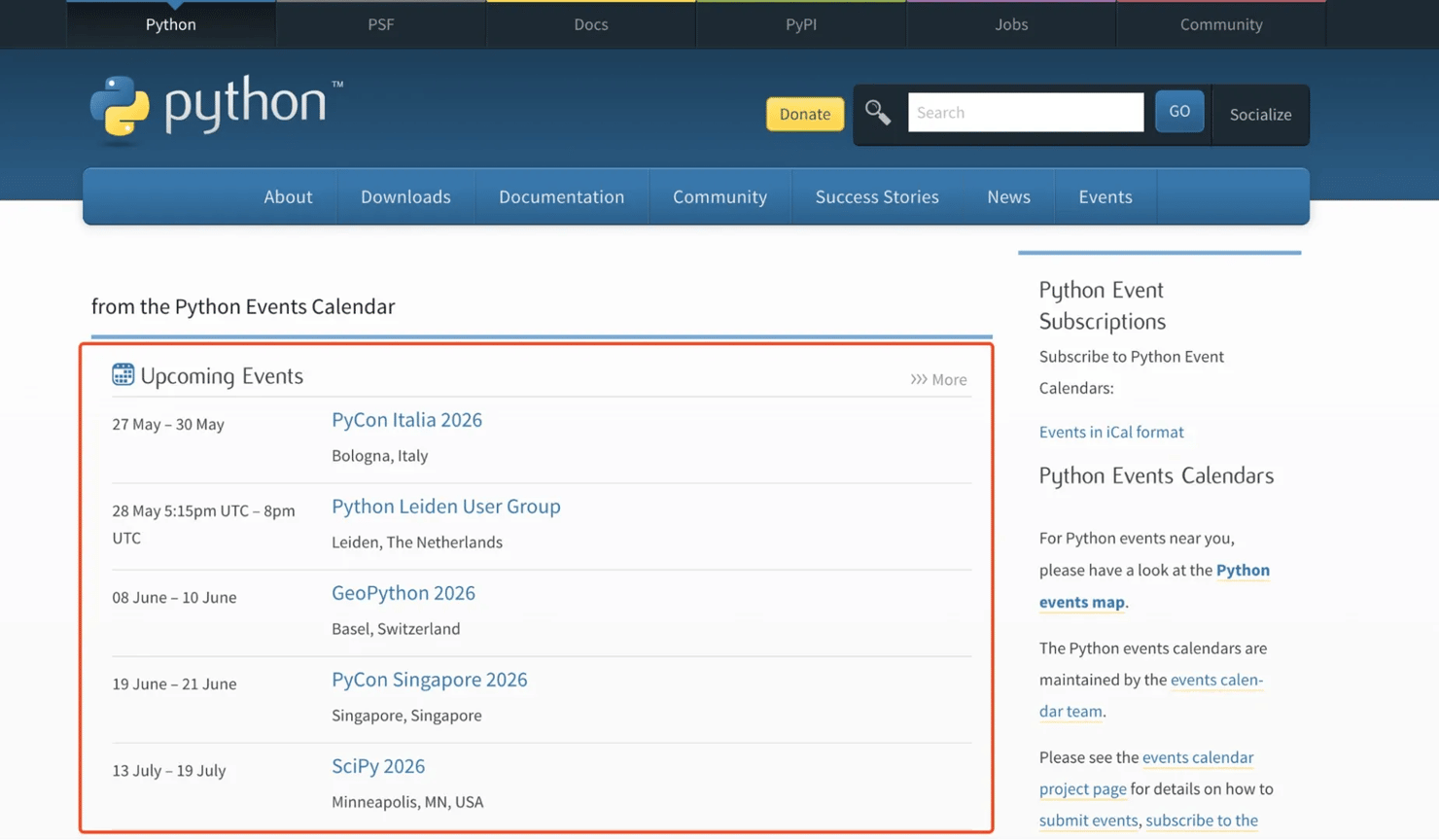
The goal is to scrape the public Python events page. The workflow will fetch the page through Decodo, pass the result into an LLM node, and return structured event data.
You'll build a four-stage workflow:
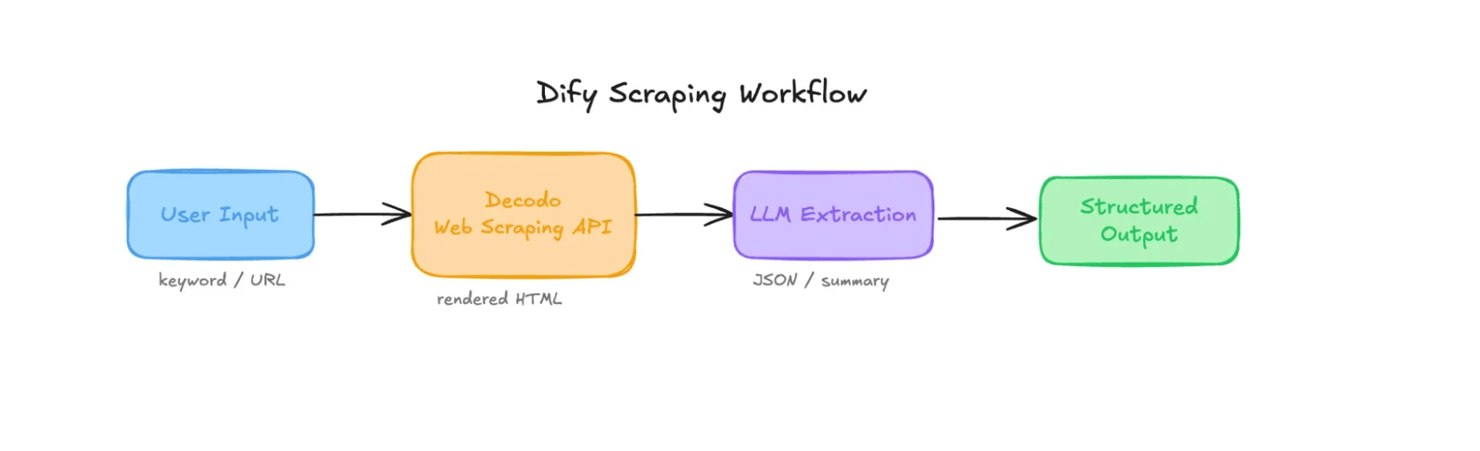
Each node has a clear job. The User Input node collects the target URL, the HTTP Request node sends it to Decodo, the LLM node extracts structured fields, and the Output node returns the final result.
This AI scraping process is visual from start to finish. You'll connect the nodes in a simple flow and won't have to write a scraper from scratch.
Requirements
To follow along, you'll need the following:
- Dify account. A free account is enough for testing.
- Decodo account. Get a Web Scraping API subscription or free plan and retrieve your basic authentication token from the dashboard.
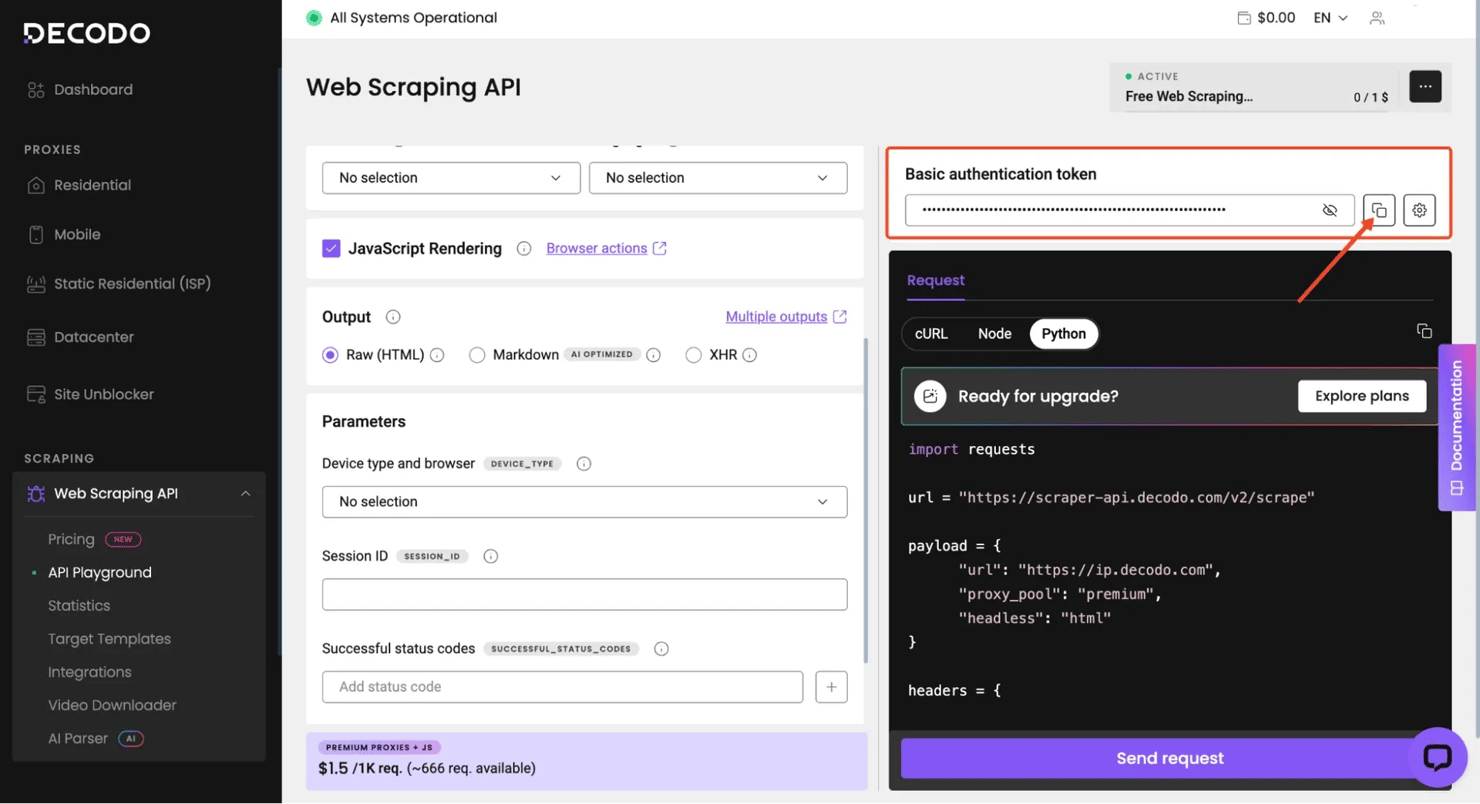
If you don't have these yet, create the accounts first and keep your Decodo token ready. If you're self-hosting Dify, make sure your version supports workflows, the Plugin Marketplace, and HTTP Request nodes.

Step 1: Create a new workflow
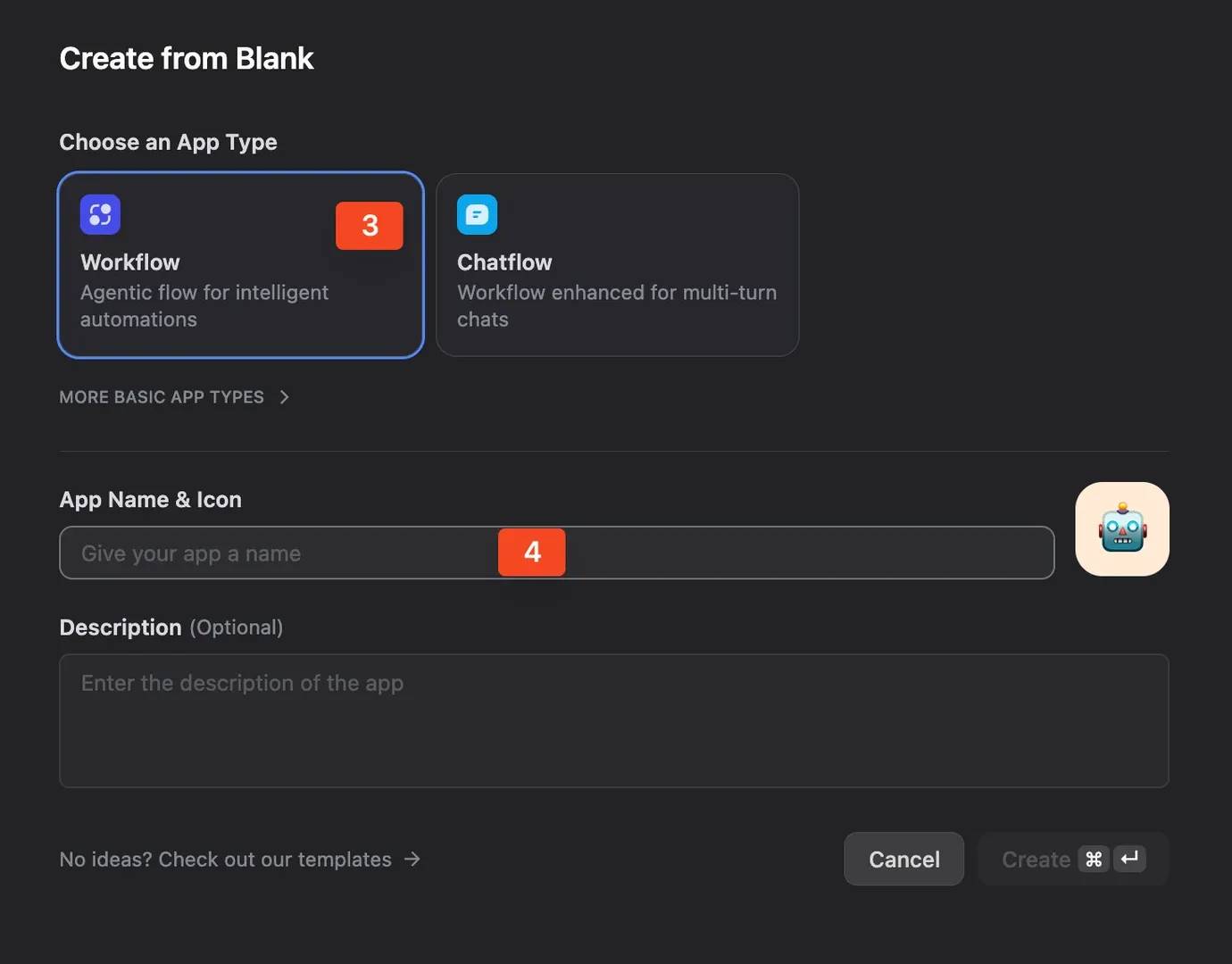
Log in to your Dify workspace and create a new app. Choose Workflow instead of Chatflow.
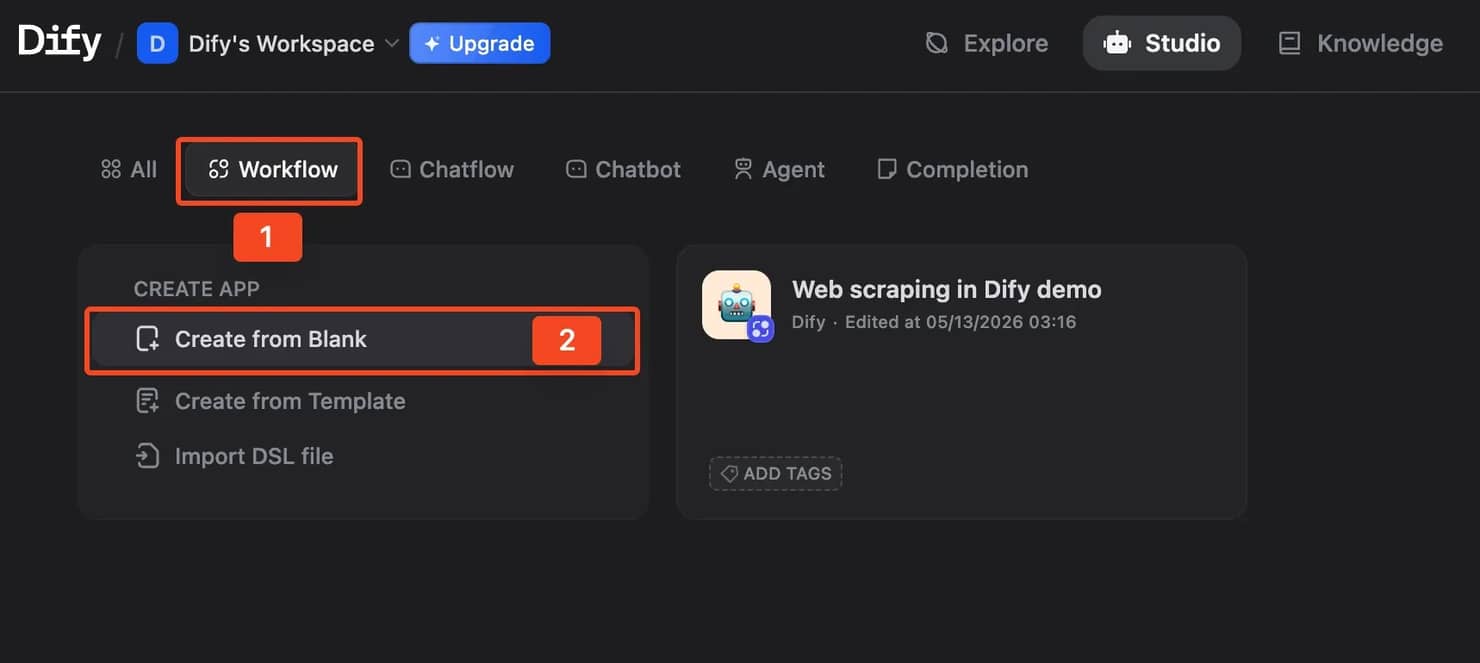
A Workflow is the better option here because it gives you a predictable input-output pipeline. That makes it easier to expose the scraper as an API later, reuse it in another Dify app, or trigger it from an external automation tool.
Name it something simple, such as Web scraping in Dify demo.
Step 2: Configure the Start node
Open the Start node and add a new input variable.
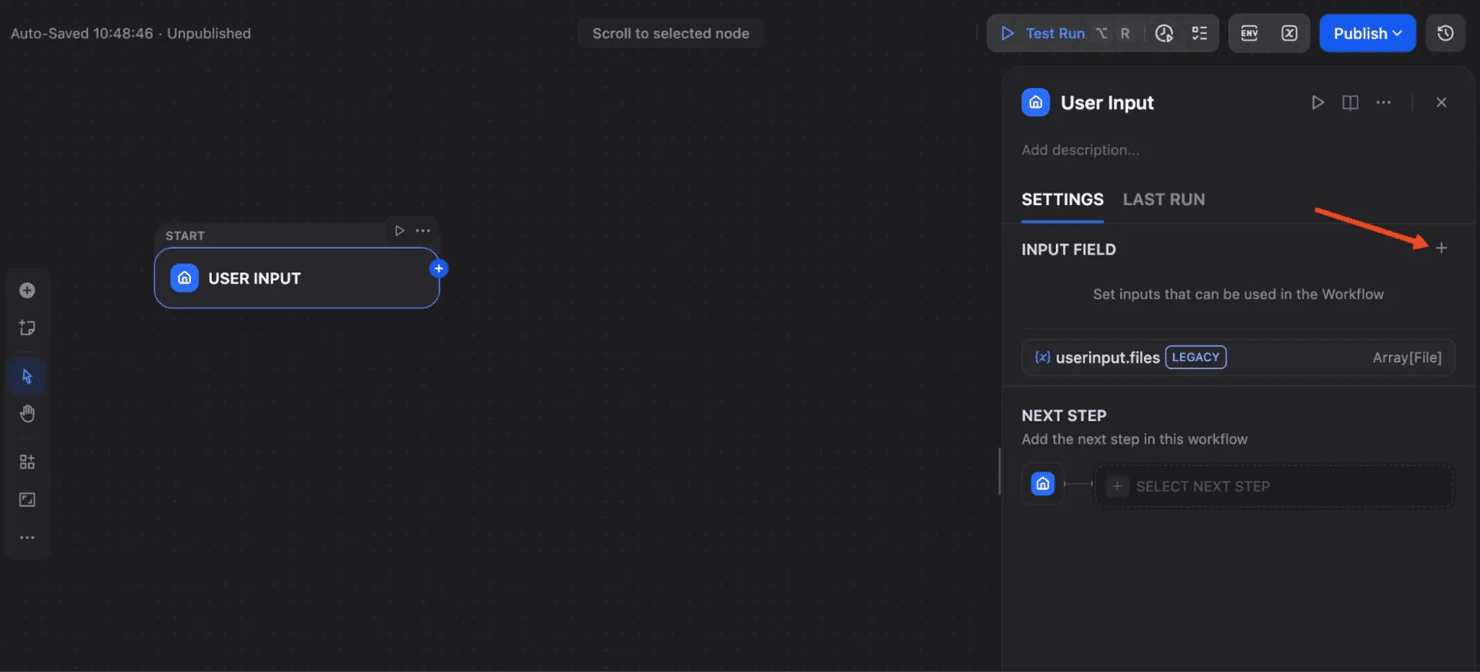
In the right panel, add a new input field:
- Field type: Short Text
- Variable name: target_url
- Label name: Target URL
- Default value: https://www.python.org/events/python-events/
- Required: enabled
This lets the workflow accept a target page at runtime. You can keep the Python events page as the default URL for testing, then replace it later with any supported target.
Step 3: Add the HTTP Request node
Click the plus icon after the User Input node and add an HTTP Request node. Rename it to Decodo Web Scraping API.
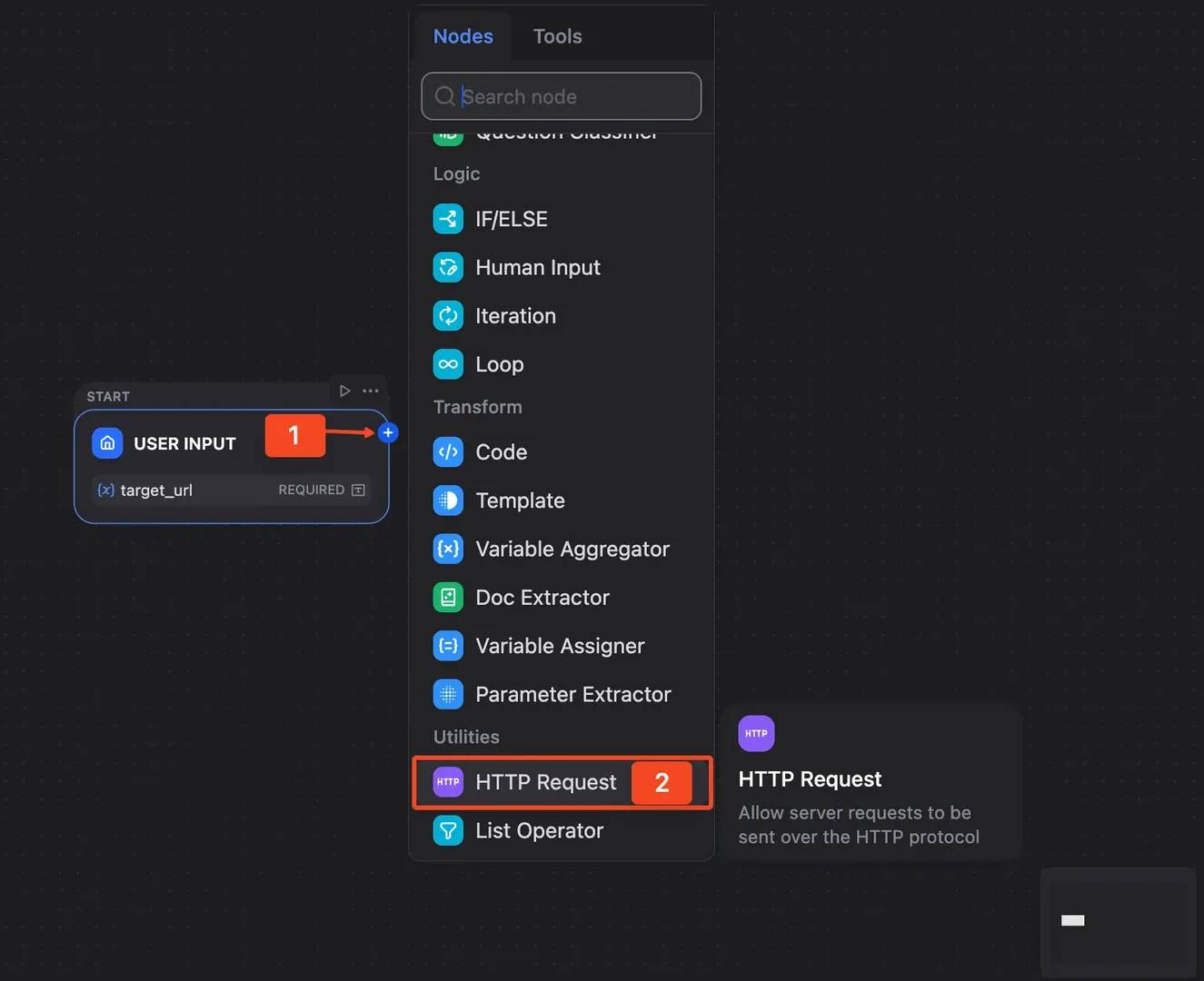
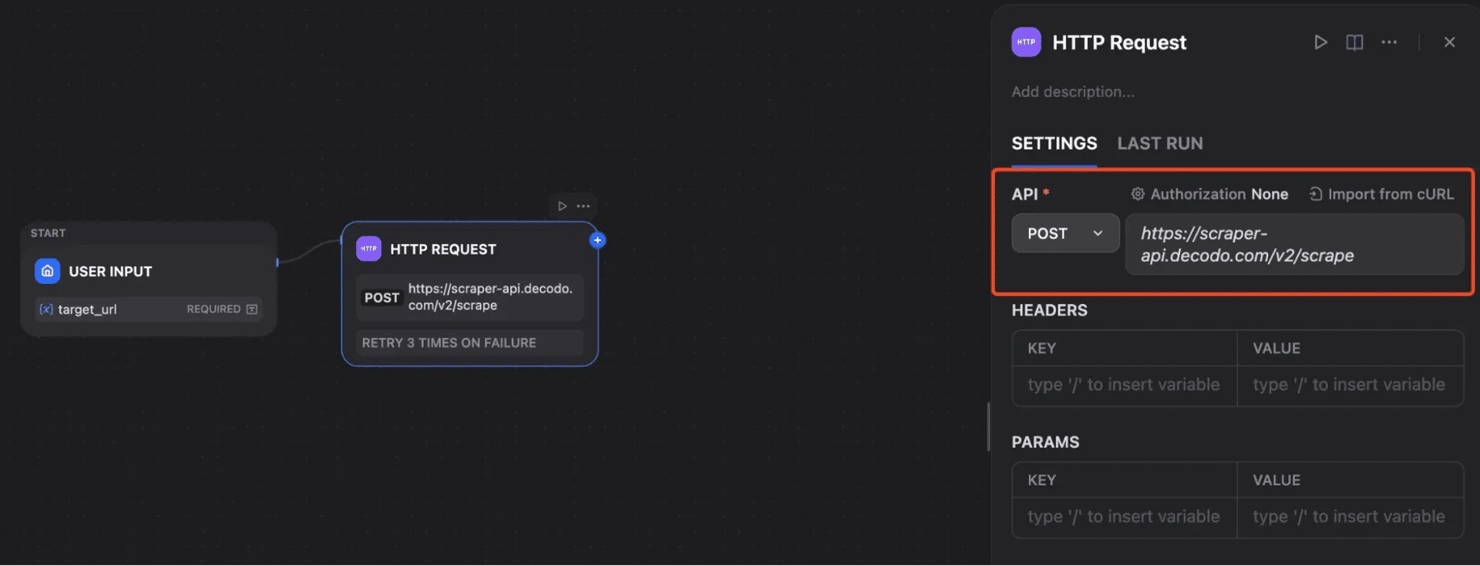
Set the method to POST and use this endpoint: https://scraper-api.decodo.com/v2/scrape. This node is where Dify calls Decodo.
Step 4: Configure the Decodo request
Then configure the request by adding the required headers:
- Accept: application/json
- Content-Type: application/json
- Authorization: Basic YOUR_DECODO_AUTH_TOKEN
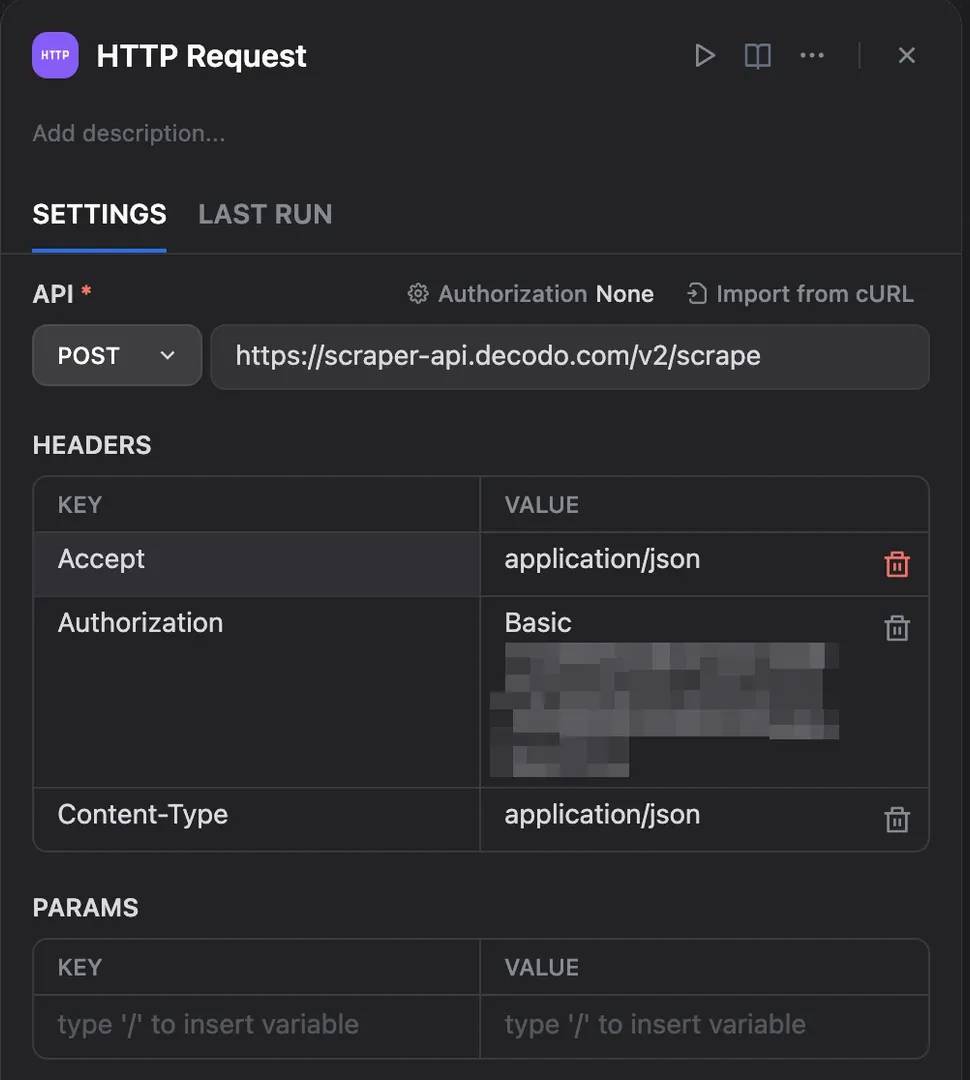
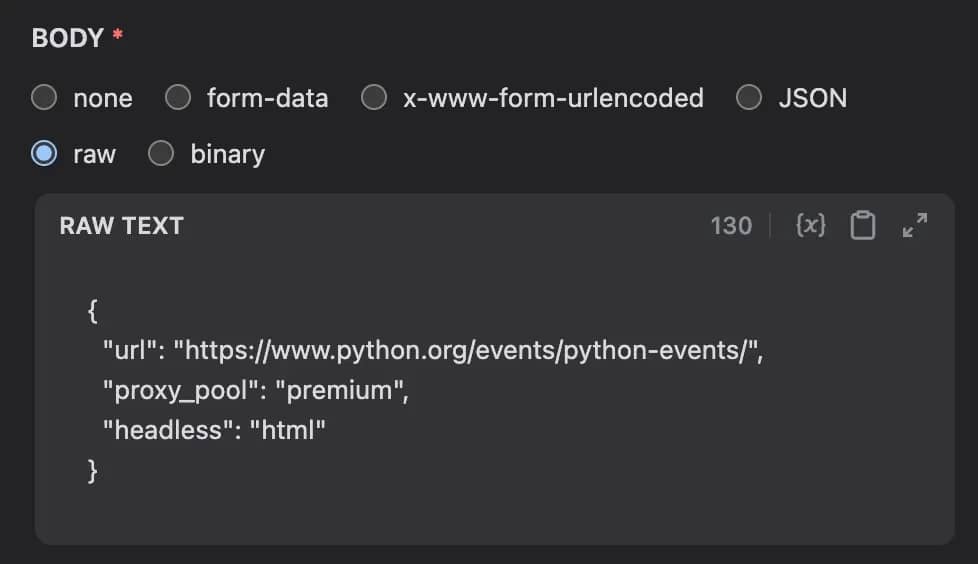
In the HTTP Request node, add the JSON payload that Dify will send to Decodo. Use this structure:
{ "url": "{{target_url}}", "proxy_pool": "premium", "headless": "html" }
Here's what each field does:
- url tells Decodo which page to scrape. Bind this to the Start node's target_url variable.
- proxy_pool sets the proxy pool used for the request.
- Setting headless to html tells Decodo to return the page HTML after rendering.
Run the workflow in Preview mode. After the run finishes, open the HTTP Request node output. You should see a JSON response from Decodo containing the scraped page result.
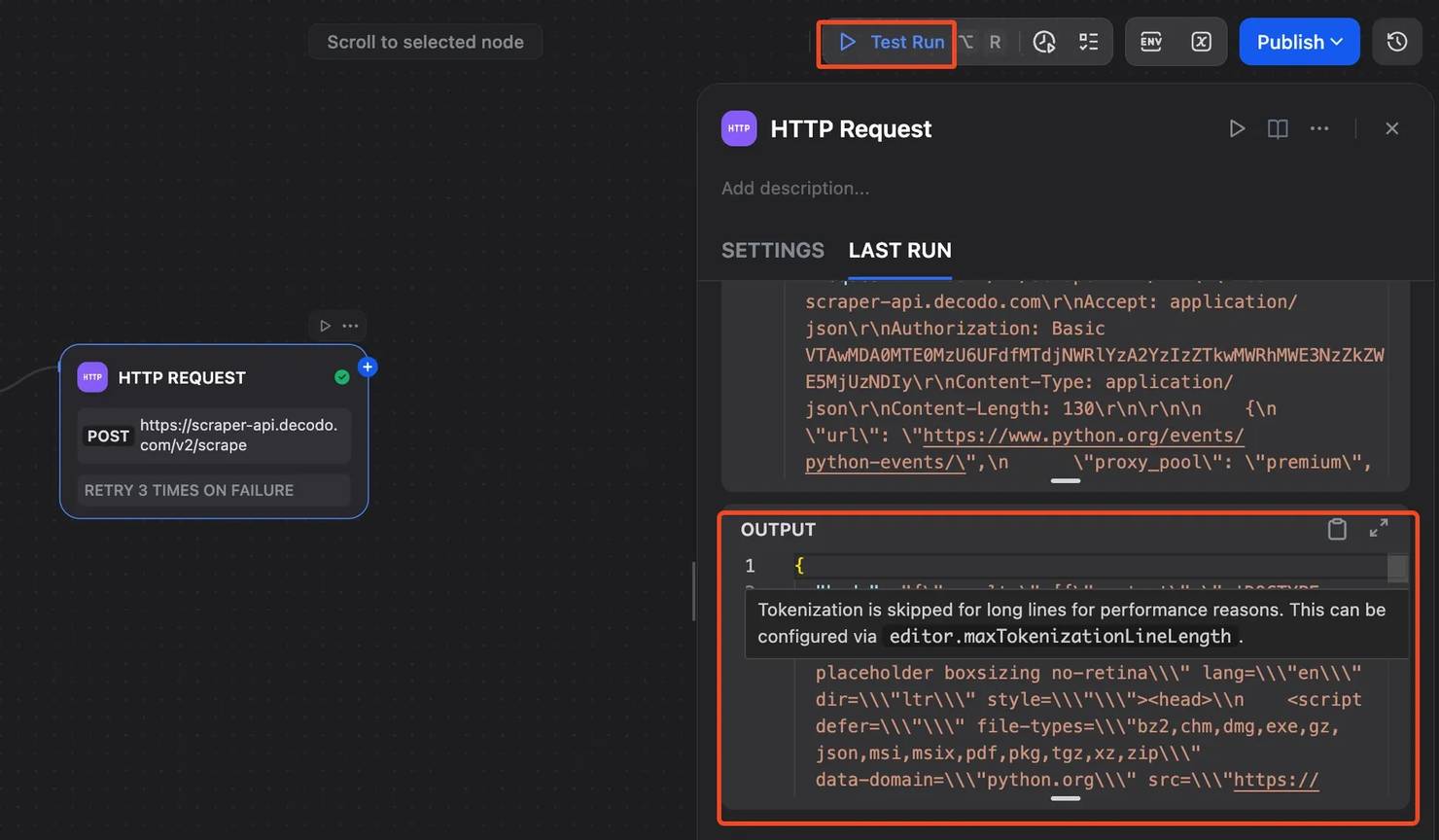
At this stage, don't worry if the output looks too long or messy. Raw HTML often does. The next step is where the LLM turns that page content into structured data.
If the request fails, check these things first:
- The Decodo API token is valid.
- The authorization header starts with Basic.
Step 5: Add the LLM extraction node
Click the plus icon after the HTTP Request node and add an LLM node. Rename it to Extract structured data and choose your model (GPT‑4o or Claude Sonnet work well).
No need to worry about adding an API key for now as Dify provides new accounts with free LLM credits.
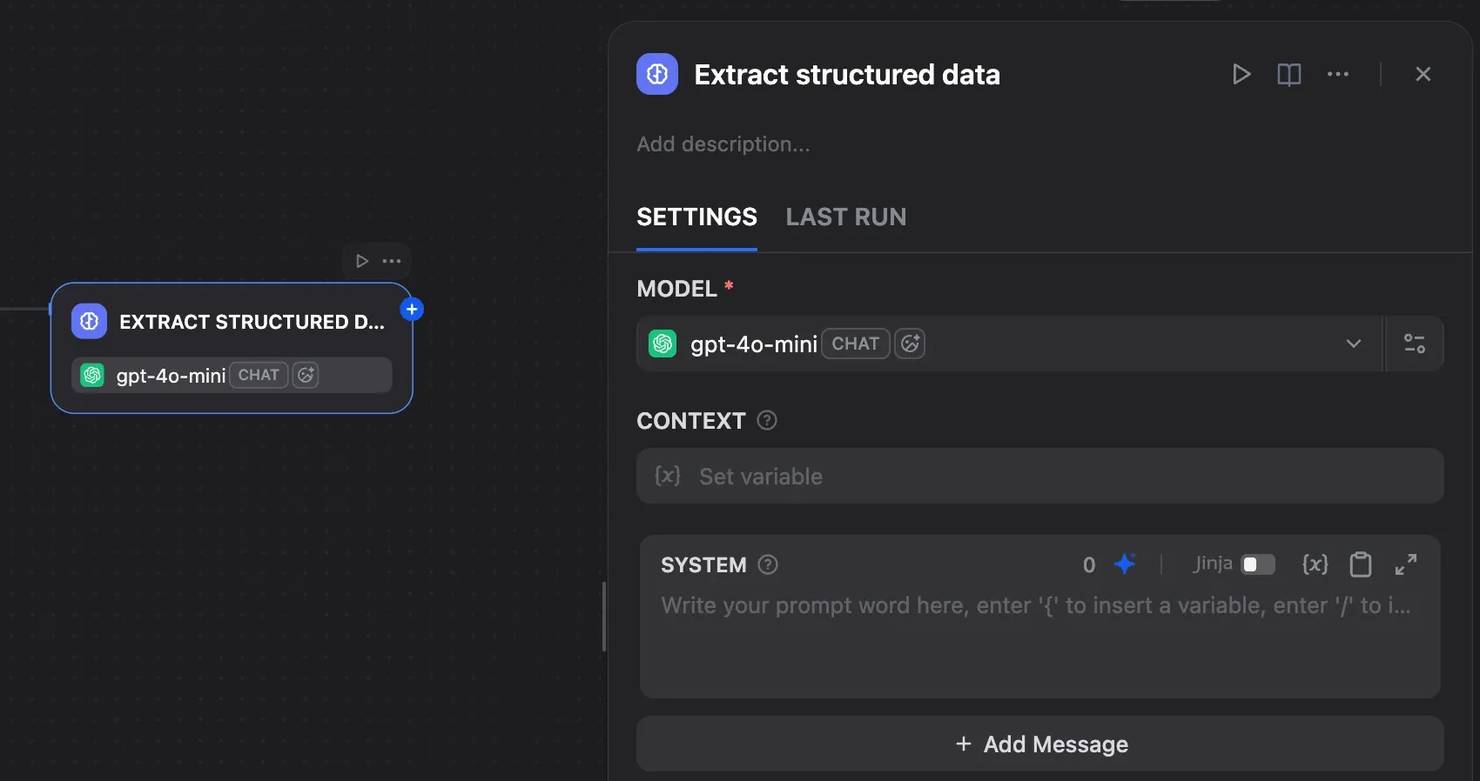
Set the LLM context to the response body from the HTTP Request node. This may appear as Decodo Web Scraping API → body
![body highlighted in DECODO WEB SCRAPING API context panel, showing CONTEXT header, status_code Number and files Array[File]](https://decodo.com/cdn-cgi/image/width=1480,quality=70,format=auto/https://images.decodo.com/web_scraping_in_dify_14_png_ccc182a5be/web_scraping_in_dify_14_png_ccc182a5be.webp)
Then, add a prompt that tells the model exactly what to extract. Use a prompt like this:
Asking the model to focus on results[0].content keeps it away from the page navigation, scripts, styles, and footer. Asking for JSON only also makes the output easier to map in the End node and easier to consume from an API.
Step 6: Add the Output node
Click the plus icon after the LLM node and add an Output node.
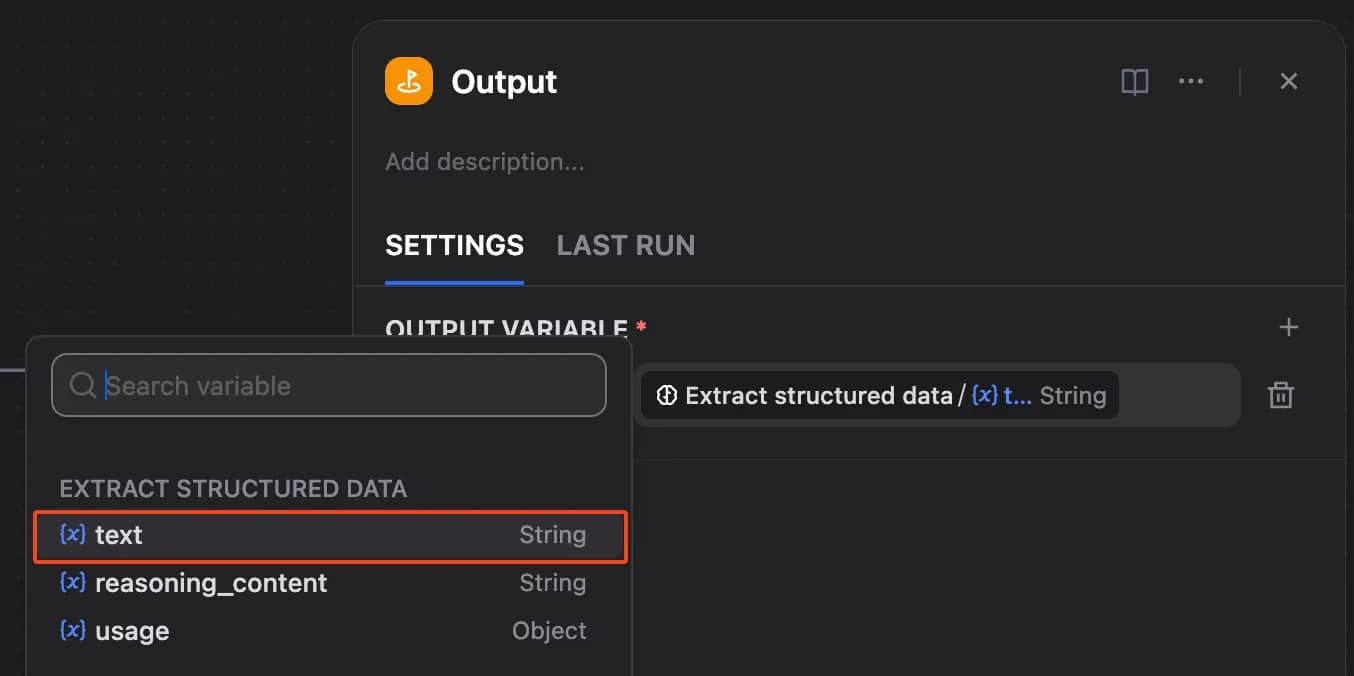
Create one output variable:
- Variable name: result
- Value: the LLM node response (Extract structured data → text)
This makes the final JSON available in the test run result and, later, through the workflow API.
Step 7: Run a test
Click Test Run and use the default URL. When the run is complete, open the Tracing tab and check each node in order.
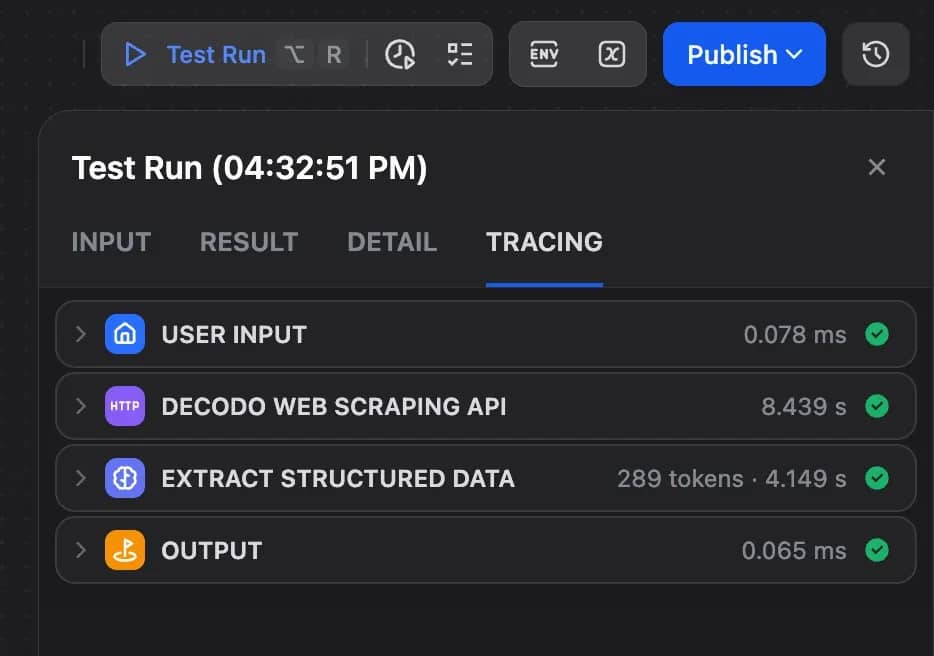
- User Input should show the target_url value.
- HTTP Request should return a successful response from Decodo, usually with a 200 status code.
- LLM node should receive the scraped page content from the HTTP Request node.
- Output should return the final structured JSON.
The expected output should look similar to this:
If the result is empty or inaccurate, start debugging from the HTTP Request node. If the response is missing, check the API URL, headers, authorization token, and JSON body.
Step 8: Publish the workflow
Once the workflow works, click Publish. You can publish it as an API or use it as a tool inside another Dify app.
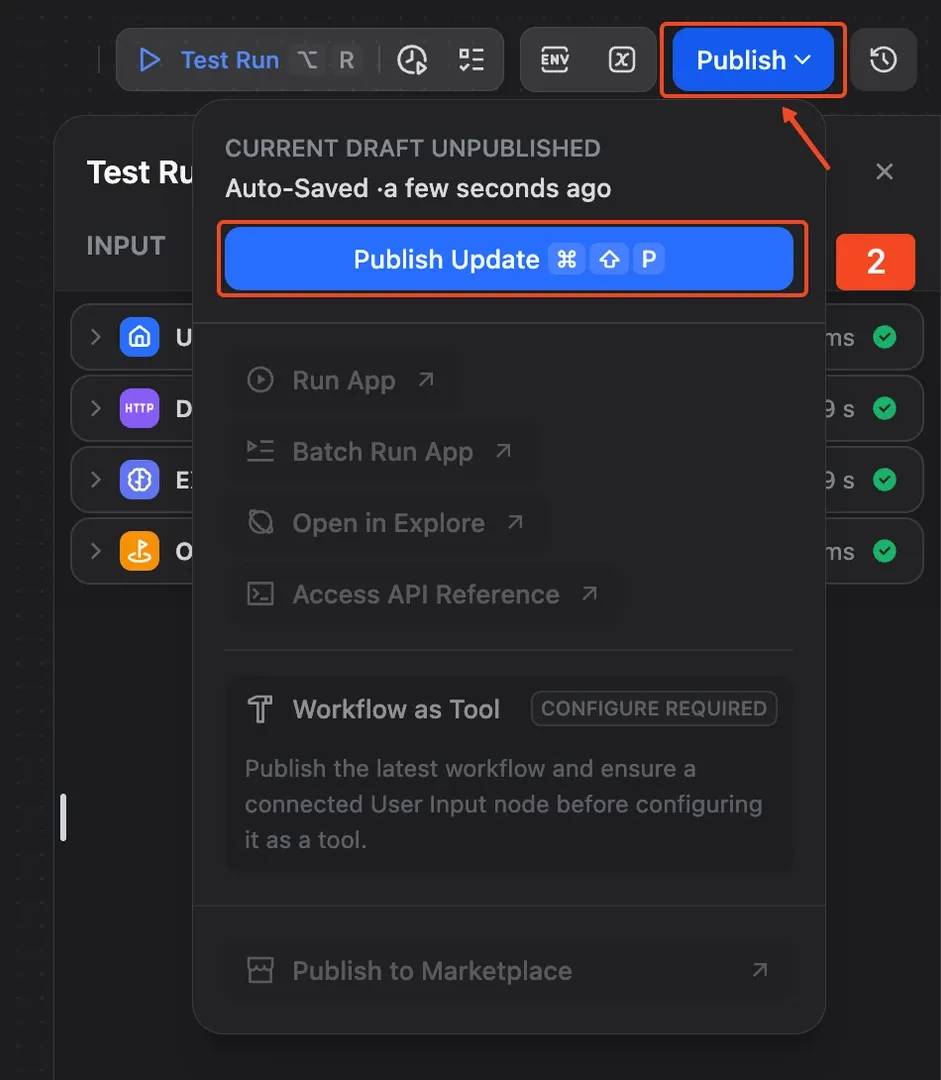
This turns your Dify setup into a reusable scraping workflow that other apps can call with a different target_url.
If you're comparing Dify with another visual workflow tool, check out Decodo's guide to building n8n web scraping workflows.
Managing API credentials and security in Dify
When you move a scraping workflow into production, how you store, scope, and rotate credentials matters as much as the flow itself. Dify encrypts all secrets at rest, but you still control where those secrets live, who can see them, and what happens if a key leaks.
Dify can store plugin credentials at the workspace or workflow level. Workspace-level credentials are useful for shared internal tools because multiple workflows can reuse the same setup. Workflow-level credentials are better when a workflow is isolated.
Here are some best practices to help keep your setup safer:
Choose the right credential scope
Use workspace-level credentials for internal workflows and workflow-level credentials for isolated projects.
Rotate keys regularly
Replace scraping API keys every 60 to 90 days, and always rotate them after a team member with access leaves.
Avoid hardcoding secrets
Don't paste API keys into prompts, Code nodes, notes, or request bodies that may appear in traces or workflow exports. Use credential fields or secured request headers instead.
Check the trust model
On Dify Cloud, secrets live on Dify's infrastructure. On self-hosted Dify, you control the environment, but you're also responsible for backups, access control, and secret storage.
Building no-code and low-code web scraping workflows in Dify
Dify gives you a few ways to take action inside your web scraping workflows, especially when scraped output needs cleaning before it reaches the LLM or when the workflow needs to branch at some point.
Let's have a look at some of them:
Low-code workflow
Sometimes the scraper output needs shaping before the LLM sees it, such as deduplicating URLs, filtering empty entries, or restructuring JSON.
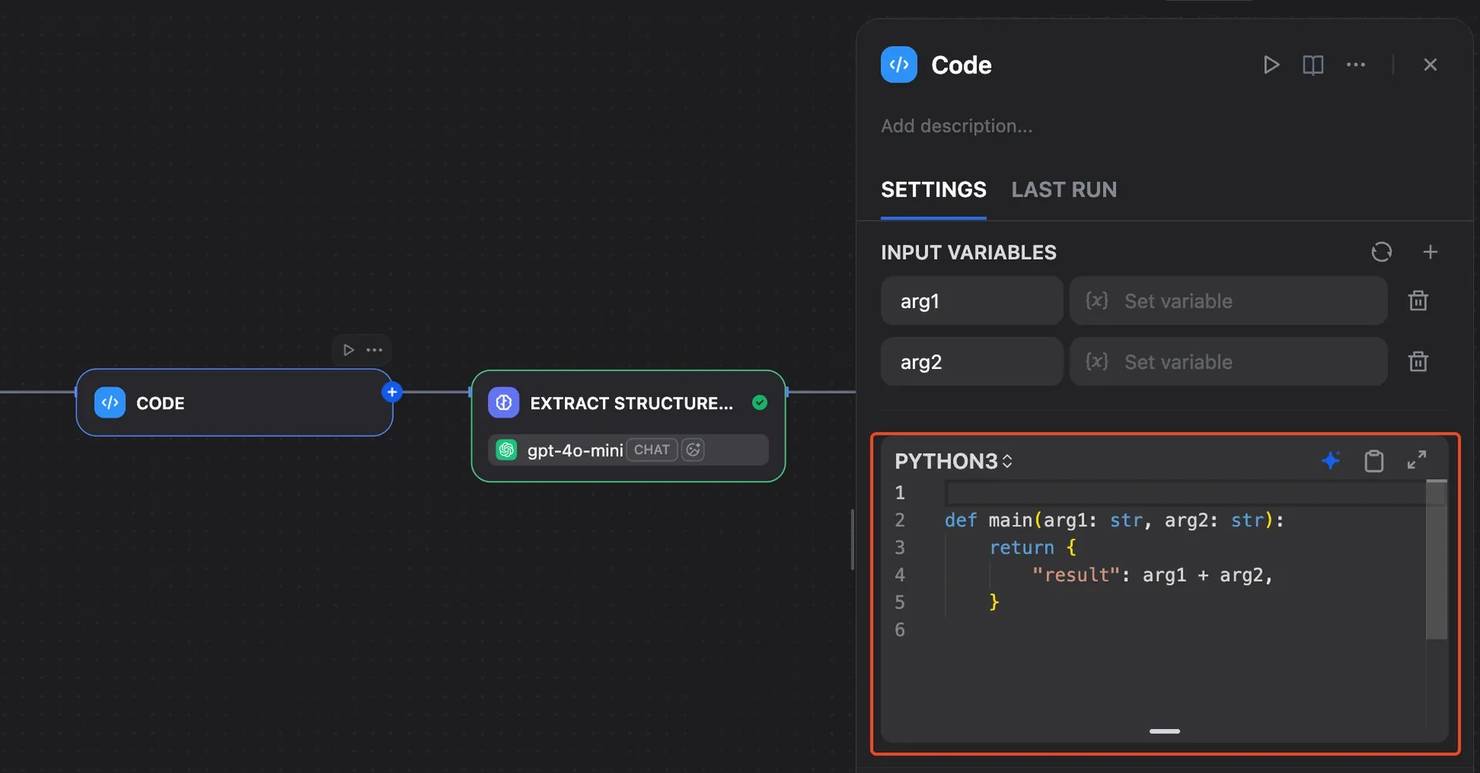
In that case, drop a Code node between the scraper and LLM. Dify supports Python and Node.js for this.
Conditional logic with IF/ELSE
Use an IF/ELSE node to check for common failure signals, such as an empty response, a failed HTTP status, or blank Markdown.
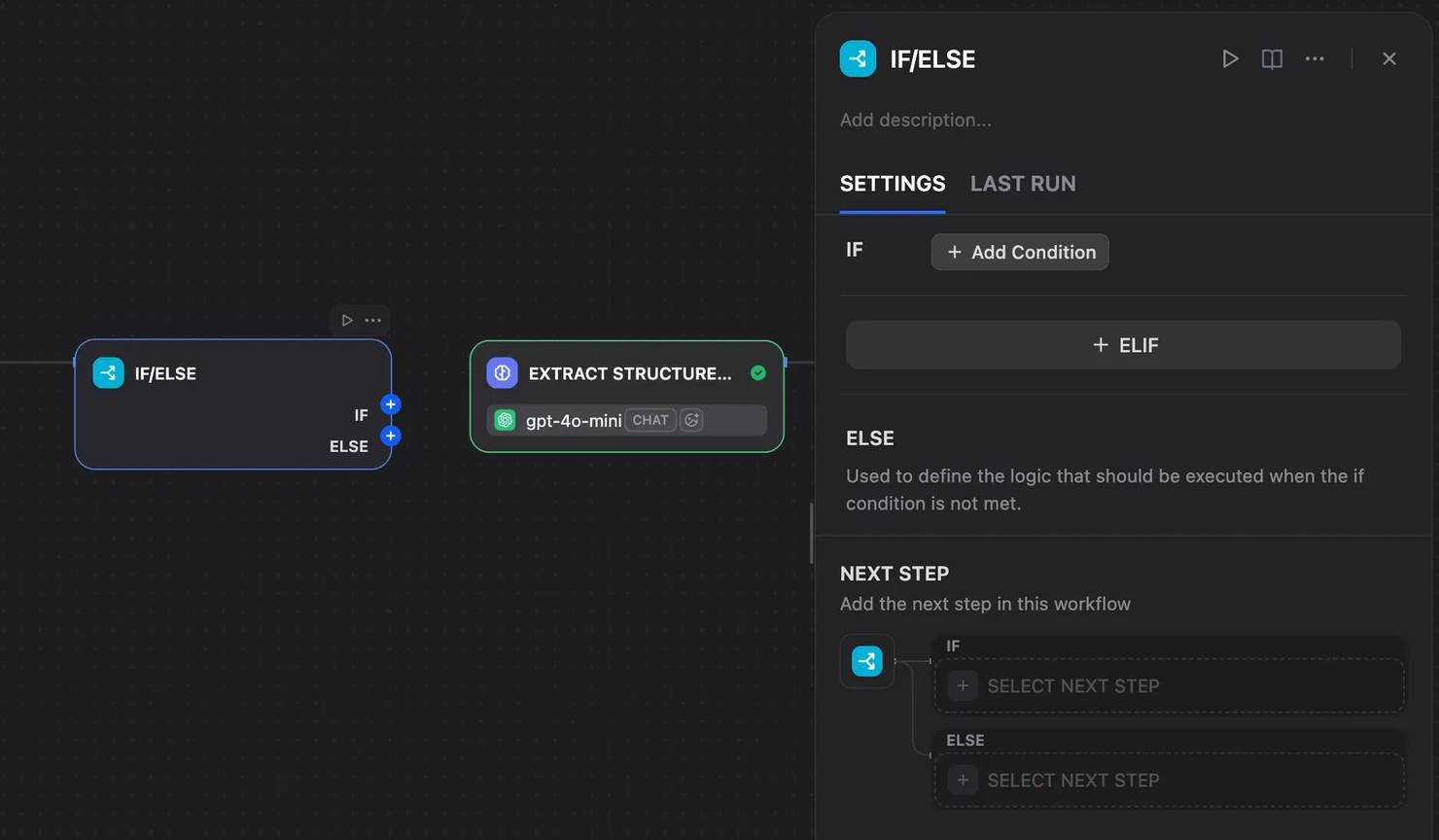
If the first scraper fails, route the workflow to a fallback plugin or a managed Web Scraping API.
Iteration node for paginated targets
Use an Iteration node when the target spans multiple pages. For example, you can loop through a list of category URLs, scrape each one, and collect the results into a single output.
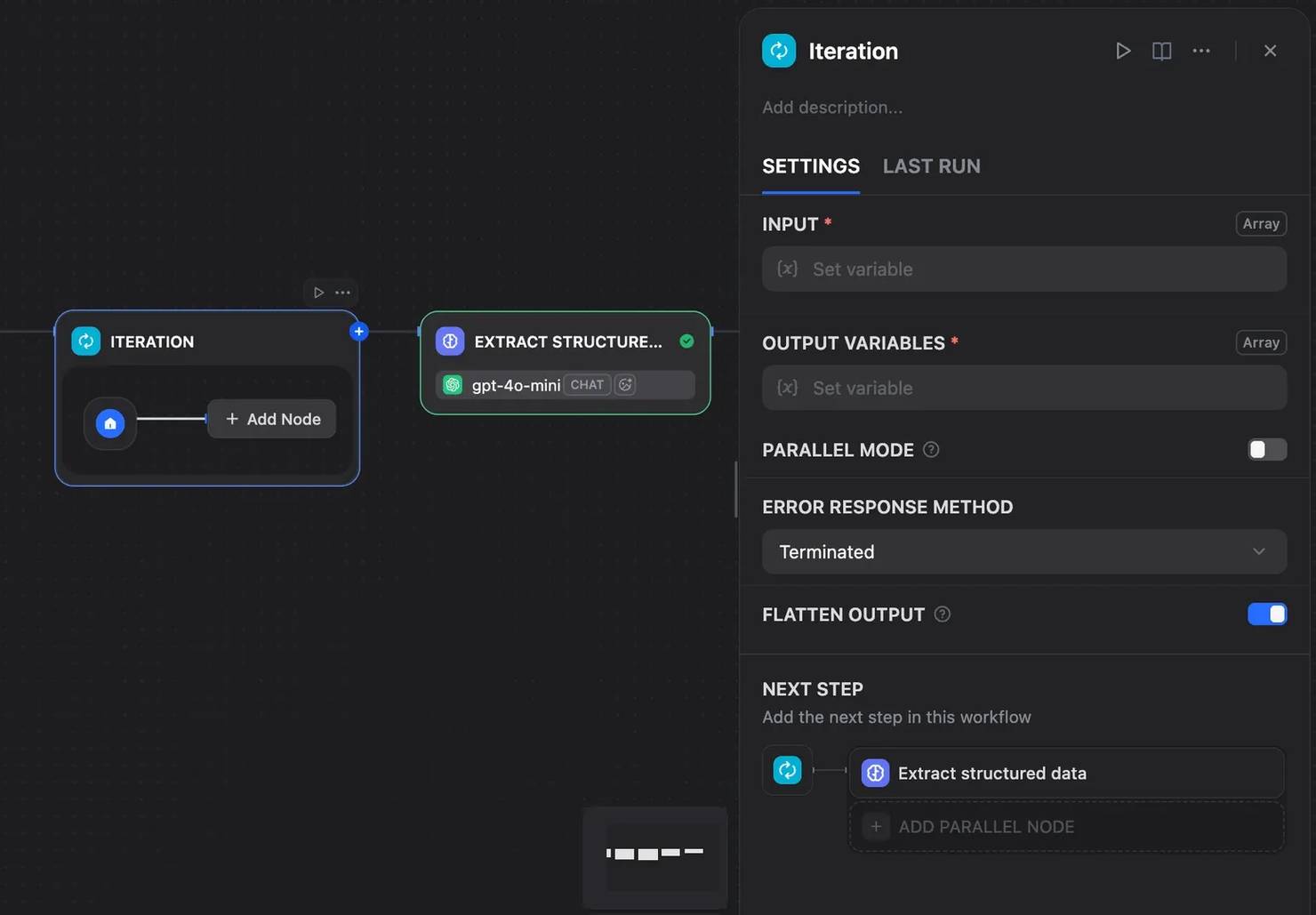
If RAG is your end goal, see our guide on how to build a production-ready RAG with LlamaIndex.
Real-world use cases for web scraping in Dify
Conference and event intelligence
Teams can scrape public event pages, such as the Python events page, to track upcoming conferences, meetups, and technical events. A Dify workflow can run weekly, scrape the event page, and pass the result into an LLM node to extract event titles, dates, locations, topics, and links.
The output can be returned as structured JSON or written into a Knowledge Base, where an internal assistant can answer questions like, “Which Python or infrastructure events are coming up next month?”
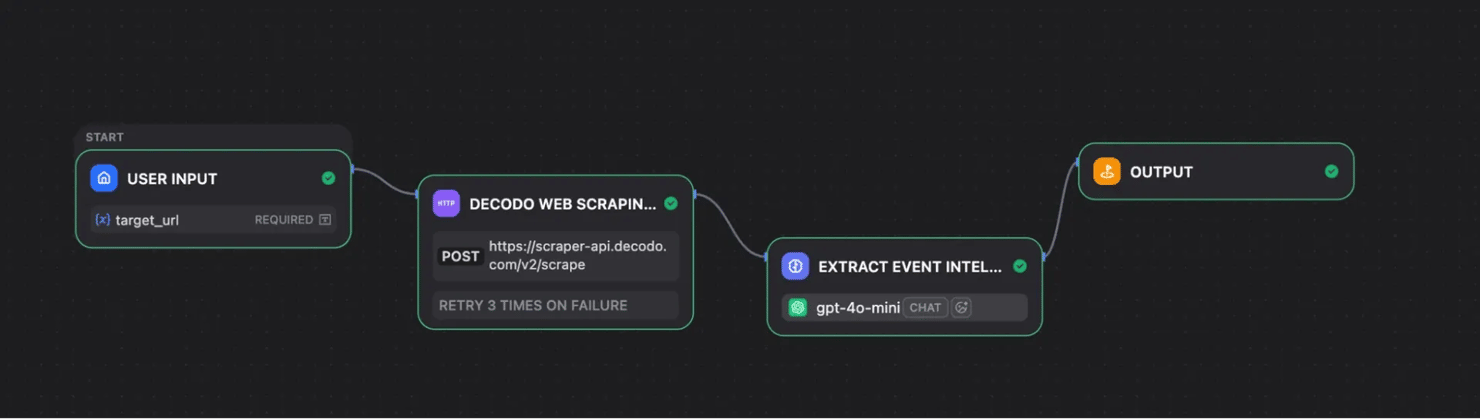
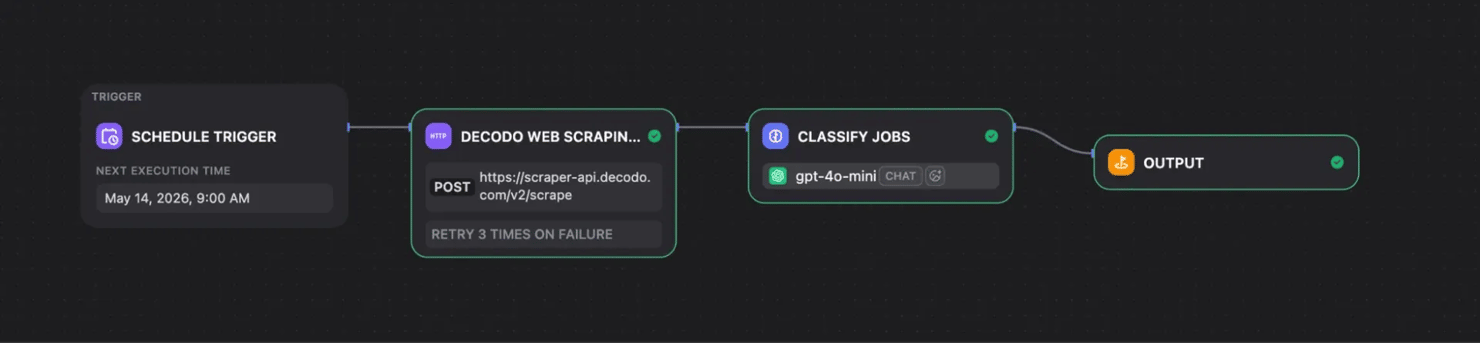
Job market signal tracking
For hiring and market research, Dify can monitor a public job board weekly. The workflow can scrape new listings, then use an LLM to classify each role by stack, seniority, location, and role type.
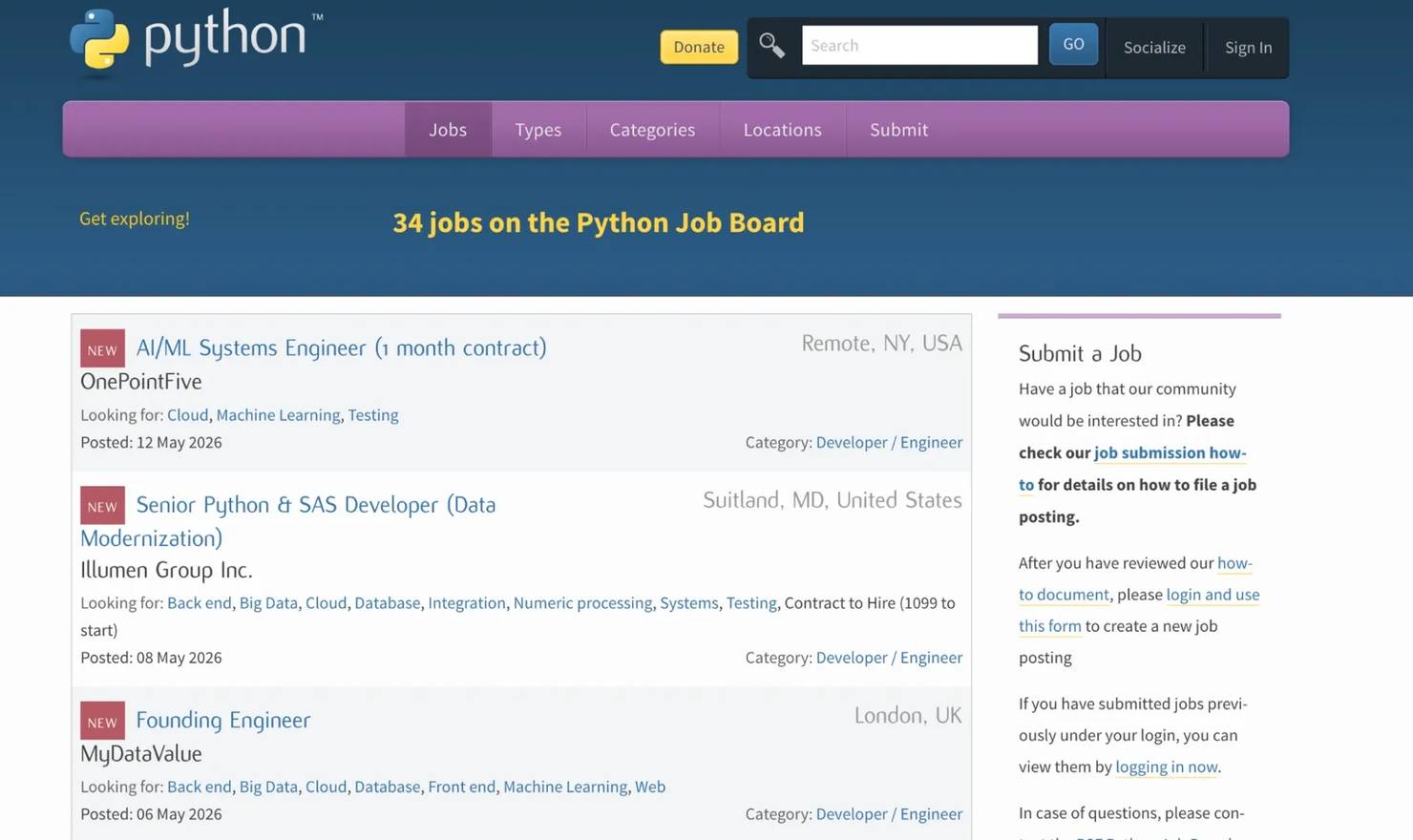
This makes it easier to spot hiring patterns without manually checking the page every week. For example, the output can summarize whether Python roles are leaning more toward backend engineering, machine learning, DevOps, or data roles.
Local regulation tracking
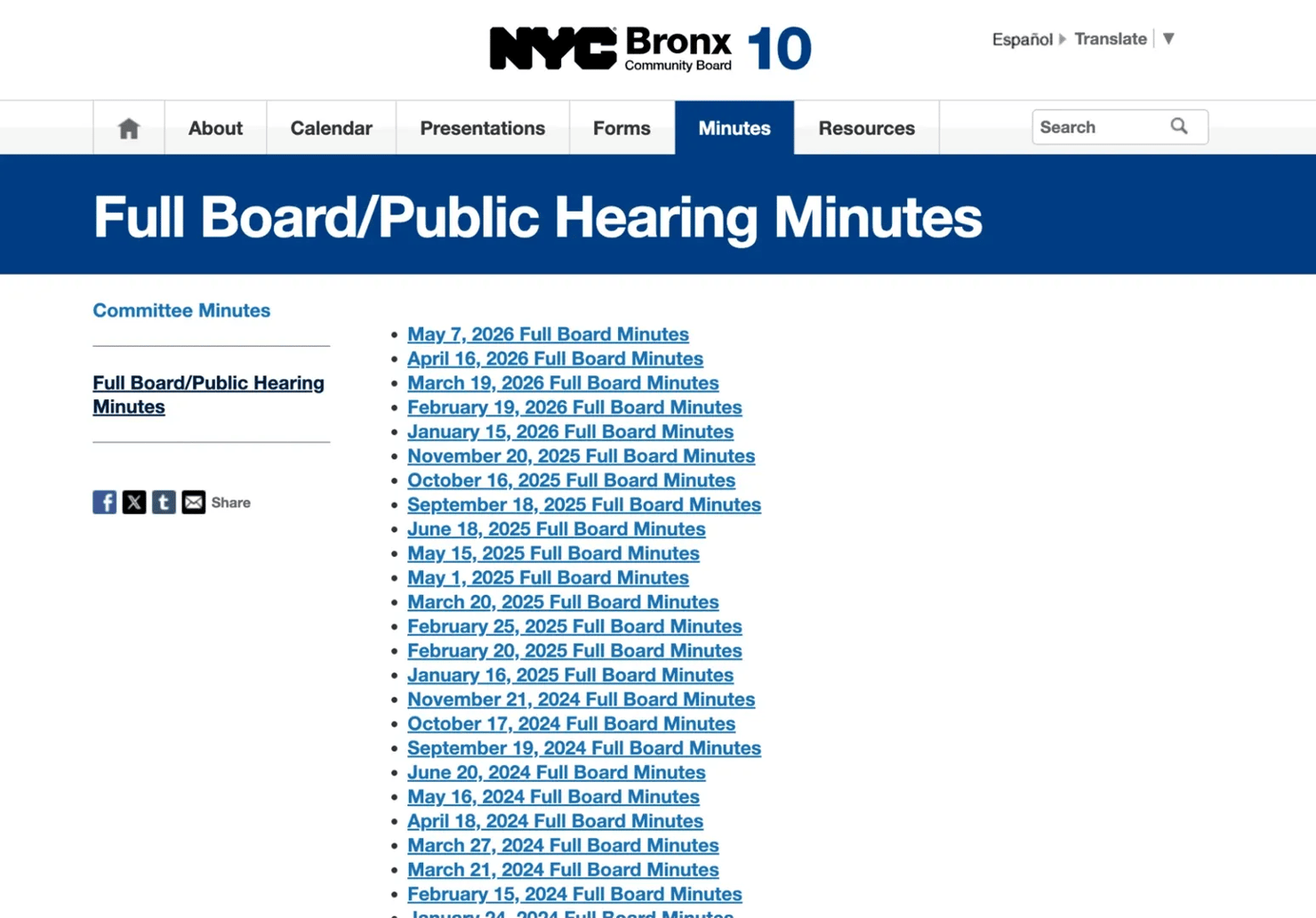
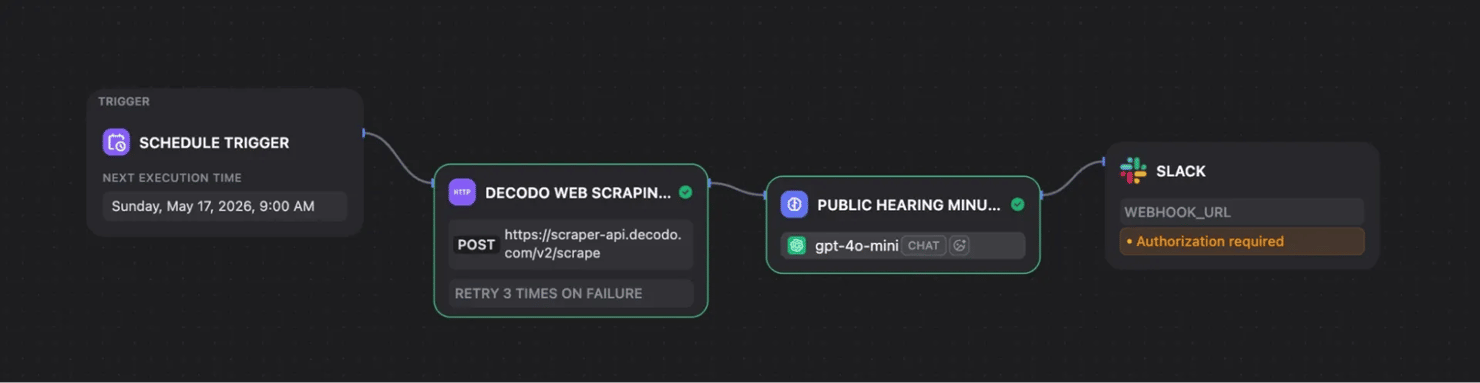
Dify can also monitor public meeting pages, scrape the latest meeting minutes, and ask the LLM to flag items related to zoning, public hearings, permits, or community development.
In this setup, the final output can be sent to Slack so the right team sees relevant updates without checking the page manually. The Slack message can include a summary, the category of the update, and the source link.
Troubleshooting web scraping in Dify
Most scraping failures in Dify come down to a handful of root causes. The fastest way to debug is to open the run trace and check where the workflow first breaks.
![SCRAPER NODE showing "GET @User input [x]target_url" and "RETRY 3 TIMES ON FAILURE", connected to CODE; Test Run TRACING shows "TypeError: unsupported operand type(s) for +: 'NoneType' and 'NoneType'"](https://decodo.com/cdn-cgi/image/width=1480,quality=70,format=auto/https://images.decodo.com/web_scraping_in_dify_26_png_a06e85c798/web_scraping_in_dify_26_png_a06e85c798.webp)
Let's look at some common troubleshooting tips:
Empty Markdown output
The target may be a JavaScript-rendered single-page app, so the scraper is only seeing empty HTML. Switch to a tool that supports headless rendering, like a scraper plugin or Decodo Web Scraping API.
HTTP 403, 429, or Cloudflare challenge page
Your target is likely detecting automation, or bot detection is triggered by your IP, missing headers, or request pattern. To fix this, rotate User-Agents and IPs or route the request through a Web Scraping API with proxy rotation so your requests look organic.
Plugin authentication errors
Check that the API key is stored in the plugin credential field or secure header, not inside a prompt. Test the same request with curl outside Dify, and confirm that everything works as expected.
Malformed JSON from the LLM node
Tighten the prompt with an explicit schema, lower the model temperature, and tell the model to return valid JSON only. If the output still breaks, use a Parameter Extractor node or a Code node to validate the result before passing it forward.
Workflow timeout
Long scrapes can exceed Dify's per-node timeout. Split the job into smaller batches with an Iteration node, reduce the target page size, or move long-running collections to a managed API that can handle heavier scraping tasks.
Where to get help
Start with Dify GitHub Discussions, the Dify Discord, the plugin's official support channel from its Dify Marketplace page, and your scraping provider's docs. To learn more about blocked requests and rate limits, check out our guide on how to bypass web scraping prevention.
Final thoughts
In this article, you learned how to use Dify to build a no-code web scraping workflow. Dify is a strong LLM-focused alternative to general automation tools like n8n, especially for teams building AI workflows with live web data. If that sounds like your setup, try the Decodo Web Scraping API today and unlock a more reliable way to collect production-ready web data.

Skip the boilerplate
Decodo's Web Scraping API handles proxies, CAPTCHAs, and anti-bot detection so your code stays short and your requests actually land.
About the author

Lukas Mikelionis
Senior Account Manager
Lukas is a seasoned enterprise sales professional with extensive experience in the SaaS industry. Throughout his career, he has built strong relationships with Fortune 500 technology companies, developing a deep understanding of complex enterprise needs and strategic account management.
Connect with Lukas via LinkedIn.
All information on Decodo Blog is provided on an as is basis and for informational purposes only. We make no representation and disclaim all liability with respect to your use of any information contained on Decodo Blog or any third-party websites that may belinked therein.