How To Use ScrapeGraph AI for Web Scraping in 2026
Web scraping used to mean extracting data with CSS selectors, and then rebuilding your scraper every time a target changes its layout. Here's the good news: ScrapeGraph AI takes a new approach as it uses LLMs to extract data from websites based on meaning, so you can describe what you need in natural language while the library handles the rest for you. In this guide, you'll learn how ScrapeGraph AI works and how to configure it to export structured datasets in the right formats. The tools we'll use are Python, ScrapeGraph AI, and Decodo proxies.

Kipras Kalzanauskas
Last updated: Apr 30, 2026
20 min read

TL;DR
- ScrapeGraph AI is a Python scraping library that uses LLMs to extract structured data from websites and local files based on meaning, not fixed selectors.
- It works well for messy, semi-structured, or frequently changing pages where selector-based scrapers are harder to maintain.
- You can use different graphs for different tasks, including SmartScraperGraph for single pages, SmartScraperMultiGraph for multiple URLs, and JSONScraperGraph for local JSON files.
- ScrapeGraph AI supports both hosted and local models, including OpenAI, Groq, Gemini, and Ollama-based setups.
- For live targets, Playwright handles JavaScript rendering, while Decodo residential proxies help reduce blocks, support geo-targeting, and make large-scale scraping more reliable.
- It can also process local data formats like JSON, XML, CSV, and Markdown, which makes it useful for post-processing API responses and exported datasets.
- Once extracted, the output can be validated with Pydantic and saved in formats like JSON or CSV for downstream use.
What is ScrapeGraph AI, and why use it?
ScrapeGraph AI is a powerful Python scraping library that uses Large Language Models (LLMs) to extract structured data from websites and documents.
It's designed to be user-friendly and efficient, as users can simply specify the information they need instead of manually defining selectors, and ScrapeGraph AI handles the rest.
ScrapeGraph AI does this by working from meaning rather than fixed page patterns. This makes it useful when page structures are inconsistent or likely to change over time. It can also automate the creation of scraping pipelines from user prompts, which reduces the need for manual coding. If you want to compare it with similar tools, see our roundup of the best AI data collection tools.
Lastly, it's compatible with multiple LLM providers like OpenAI, Claude, and Gemini, as well as local models through Ollama. It also supports both single-page and multi-page scraping, making it flexible enough for a range of data extraction workflows.
Key features
- Multi-LLM support. Works with OpenAI, Anthropic, Google Gemini, Groq, Mistral, DeepSeek, and local models via Ollama. That's 20+ providers and counting.
- Multiple document formats. Beyond HTML, it can also extract from JSON, XML, CSV, Markdown, and PDFs.
- Graph-based architecture. Each stage of the scraping pipeline is a node in a directed graph, which makes it easier to swap components, reuse steps, or build custom flows.
- Developer-friendly workflow. You describe the output you want, and the library builds much of the extraction flow around that prompt, reducing setup friction.
When to use ScrapeGraph AI vs. traditional scraping
Approach
Best for
Why
ScrapeGraph AI
Unstructured, semi-structured, or frequently changing targets
It extracts by meaning, so it's easier to maintain when layouts shift
Traditional scraping
Stable, high-volume, simple extractions
Selectors are faster, more predictable, and more cost-efficient for fixed page structures
Understanding ScrapeGraph AI's architecture
The name "ScrapeGraph" comes from the library's graph-based pipeline architecture. Every scraping operation runs as a directed graph, where each node handles one task, and data moves from node to node until you get a structured result.
This design makes the library more modular and easier to follow. Instead of treating scraping as one large process, ScrapeGraph AI breaks it into smaller steps that can be reused, adjusted, or extended when needed.
The core pipeline stages
A typical SmartScraperGraph run moves through 5 stages:
- Content acquisition. Fetch the page from a URL or load a local file. For web pages, Playwright spins up a headless browser in the background and renders JavaScript before passing the content downstream.
- Preprocessing and chunking. Raw HTML is cleaned and split into smaller chunks that fit within the LLM's context window. This is how the library handles large pages without running into token limits.
- LLM analysis. The chunks and your prompt go to the configured LLM. The model interprets what's on the page and matches it against what you're asking for.
- Intelligent extraction. The LLM pulls the fields you requested based on meaning rather than fixed markup or selectors.
- Result formatting: Output is structured as a dictionary, JSON, or whatever shape you specified in the prompt.
LLM integration
ScrapeGraph AI supports multiple LLM providers, allowing you to pick the model that best fits your needs and budget. It also handles the complexities of token limits, prompt engineering, and response parsing, making it easy to apply these powerful LLMs without bogging users with technical details.
Embedding models
For larger pages, ScrapeGraph AI uses an embedding model to chunk content semantically rather than just splitting by character count. Chunks that are topically similar stay together, which improves extraction accuracy.
To learn more about how modern AI systems process and structure web content, read our blog on how AI processes data.
Prerequisites and installation
Before you start, make sure you've got a few basics in place. You should be comfortable writing simple Python scripts and running commands in your terminal. Let's quickly run down a few extra things you need to follow along:
- A basic understanding of Python
- Python 3.10 or newer. You can confirm your version with python --version
- pip package manager – comes with most Python installations
- An OpenAI API key, or a machine that can run a local LLM through Ollama
- At least 8 GB of RAM for smaller local models, plus enough disk space for model files.
Install ScrapeGraph AI
Start with a clean virtual environment to keep dependencies isolated:
On Windows:
If you like to keep your Python projects organized, you can also create a new environment with Poetry and add scrapegraphai as a dependency in that environment. However, this is optional.
Next, proceed to install the ScrapeGraph AI library:
ScrapeGraph AI now requires Python 3.10+ in current releases. Some older tutorials still mention Python 3.9, but that is no longer accurate for recent versions.
Installing ScrapeGraph AI also installs Playwright, a tool for automating browsers that powers ScrapeGraph AI's web scraping abilities. We've covered Playwright more thoroughly in a previous blog post.
If this is your first time using Playwright, there's an extra step. Run this command to download the necessary browser binaries:
Local LLM setup with Ollama
If you want to run ScrapeGraph AI locally, Ollama is the easiest way to get started. It handles downloading and serving local models so that ScrapeGraph AI can connect to them through a local endpoint.
If you're looking to save some extra money, this is a smart call because every ScrapeGraph AI extraction is an LLM call, and API bills add up fast at scale. Running locally means you pay for electricity instead of tokens.
Here's how to install Ollama:
- Visit the official Ollama website.
- Select the version that matches your operating system.
- Follow the installation guide on their website.
Once the install is complete, run ollama, and you should see its version along with an interactive prompt.
Installing Ollama doesn't automatically include a language model. You'll need to select and pull one separately.
Choosing a model
The right model depends on your hardware and the kind of extraction you want to run. Here are some solid options:
- LLaMA is a good general-purpose option
- Mistral works well for many scraping and text-heavy tasks
- Phi can be a lighter choice for precise tasks
- Gemma can be useful for multilingual work
Understanding parameter counts
You'll see model names like llama3:8b or llama3:70b. The 'B' stands for billions of parameters, which refers to the number of parameters in the model. More parameters usually mean better reasoning and language understanding, but it also means higher memory and storage requirements.
For reference, LLaMA 8B needs at least 8GB of RAM and around 4.9GB of disk space. LLaMA 70B is significantly larger at 40GB and requires over 32GB of RAM to run smoothly.
Note that bigger isn't always better. It's more about balancing the model to your task and your hardware. For this guide, LLaMA 8B is a safe starting point unless you're running a high-spec machine with plenty of disk space.
Pulling and running the model
In your terminal, download Llama 3.1 along with an embedding model ScrapeGraph AI will use for semantic chunking:
We use llama3.1 here instead of llama3 because the 8B version has a 128K context window rather than 8K. That means it can keep much more page content in working memory at once, which is useful for larger documents, longer prompts, and extraction tasks that need more context.
The download may take a few minutes, depending on your connection. Once it's done, verify the setup by running the model:
You should see an interactive prompt. Type something like "introduce yourself" to confirm the model responds, then type /bye to exit.
If you get a response, it means everything is working as expected. Finally, start serving the model so that ScrapeGraph AI can reach it:
This spins up a local Ollama instance at 127.0.0.1:11434. Keep the terminal window open while you work. If the port is already in use, Ollama may have started automatically after installation, so check your running processes before troubleshooting further.
Cloud LLM setup
If you'd rather skip the local setup, you can point ScrapeGraph AI at a cloud LLM provider. OpenAI is the most common choice, but ScrapeGraph AI also supports Anthropic, Google Gemini, Azure OpenAI, and Groq out of the box.
For OpenAI, generate an API key from your OpenAI dashboard and keep it handy:
For other providers, use the corresponding variable (ANTHROPIC_API_KEY, GOOGLE_API_KEY, etc.).
Configuring and using scraping pipelines
After installation, you'll need to configure ScapeGraph AI to use your preferred LLM provider. The library supports various providers, including the popular ones like OpenAI, Google Gemini, and Anthropic Claude, and local models through Ollama. Once that is in place, you can choose the pipeline that matches your task.
ScrapeGraph AI comes with several built-in graphs, each designed for a specific use case. Instead of forcing every job into one workflow, you pick the graph that matches your input type and output goal.
Graph
Best for
SmartScraperGraph
Scraping a single web page
SmartScraperMultiGraph
Extracting data from multiple URLs with one prompt
JSONScraperGraph
Working with JSON files or JSON content
XMLScraperGraph
Extracting from XML
SearchGraph
Searching the web, then extracting from the top results
ScriptCreatorGraph
Generating reusable Python extraction scripts
SpeechGraph
Turning extracted content into audio
For most use cases, SmartScraperGraph is the starting point. It's the main graph for single-page scraping and the one you'll likely use most often.
Basic usage example
ScrapeGraph AI provides an intuitive API that makes it easy to extract data from websites. You tell it what to extract, provide the source, and pass a config object that defines the model settings. The library then handles the technical details of finding and extracting that information.
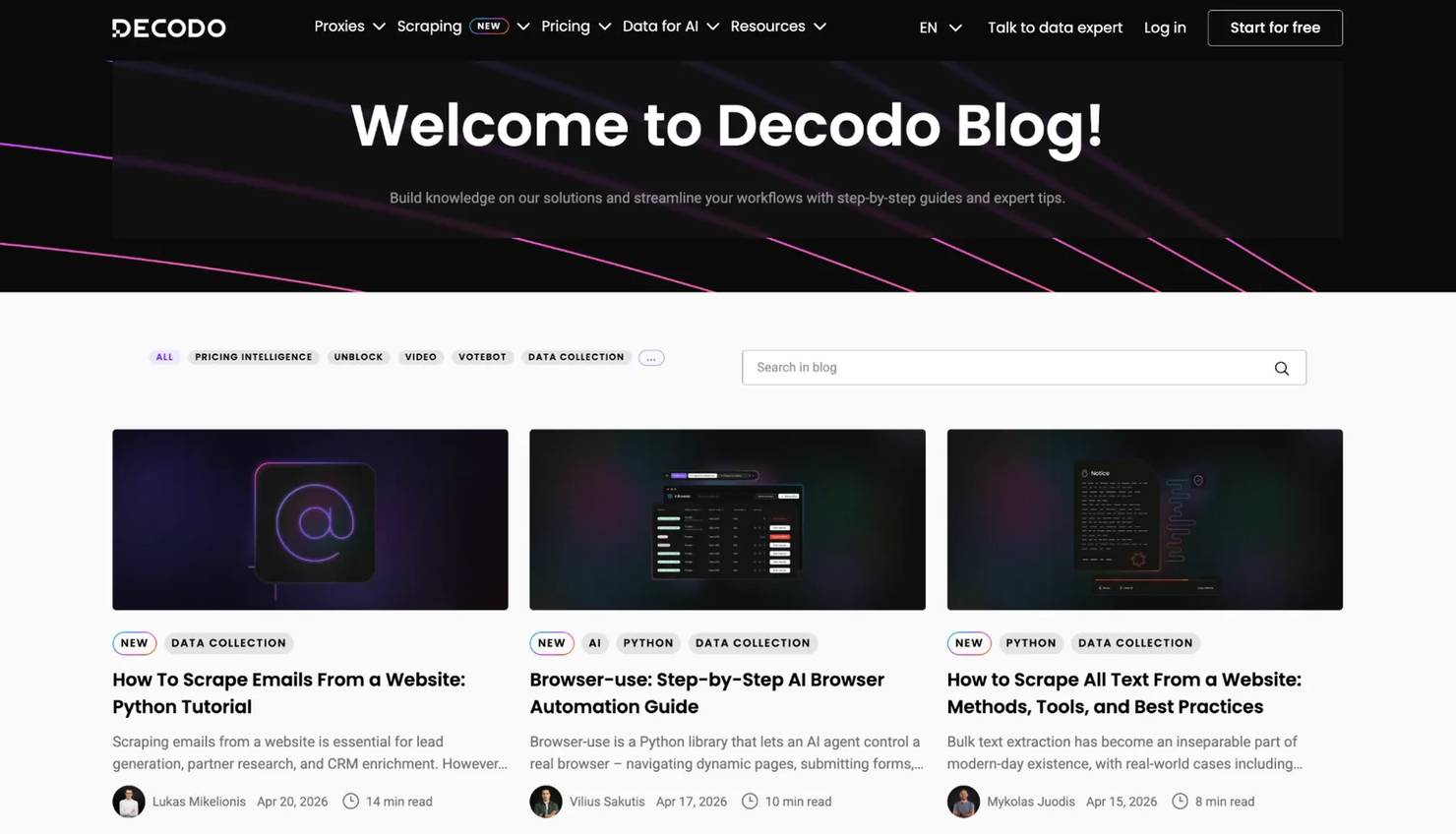
For a quick demo, we'll use SmartScraperGraph to scrape recent blog titles and publication dates from the Decodo blog.
Declaring imports
Start by importing the graph class you need:
The graph_config dictionary
Every pipeline takes a graph_config dict with at least an LLM block. A simple config looks like this:
The model key uses a provider/model format. Setting temperature to 0 keeps the output more deterministic, which is what you usually want for scraping tasks. If you're extracting product prices, dates, or structured fields, randomness isn't your friend.
The other two args are straightforward:
- verbose helps you inspect what the pipeline is doing
- headless runs the browser without opening a visible window
Instantiating the scraper
This is where the prompt does the magic that selectors used to do. Instead of telling the scraper where every field sits in the markup, you describe the data you want.
Pass your prompt, source URL, and config into the SmartScraperGraph object:
Running a pipeline
Every graph follows the same pattern – create the graph, run it, and collect the result. This is the full script:
The result is a Python dictionary shaped by your prompt:
If you ask for headlines and dates, that's what the graph returns. If you ask for titles, authors, summaries, and links, the output will follow that structure instead.
Prompt engineering tips
With ScrapeGraph AI, the prompt is the new selector. If you give it a vague prompt, it won't return the best output, so it helps to be precise about both the fields and the format.
Here are some handy tips:
- Be explicit about structure. For example, "Return a JSON array of objects, each with title, author, published_at, and summary fields."
- Specify types when they matter. For example, ask for prices as numbers without currency symbols, or availability as a boolean.
- List the fields clearly
- Add fallback instructions. If some pages may not contain every field, tell the model to return null for missing values.
Knowing this, a better prompt for our task would have been:
That gives you cleaner and more predictable output than a shorter prompt like "Extract blog post details."
Extracting data from JSON and local files
ScrapeGraph AI isn't limited to websites. It can also process local JSON, XML, CSV, and Markdown files, which makes it useful for post-processing API responses, cleaning exported datasets, or normalizing stored content before you save or analyze it further.
If you want to go deeper into output handling after extraction, see our guide on how to save scraped data.
A working JSONScraperGraph example
For this example, we're going to extract some data from a JSON file using JSONScraperGraph. Create a local catalog.json file in your Python project.
You can use any JSON data for this task or simply copy and paste this sample data below:
This sample JSON contains structured product data, including prices, availability, manufacturer details, and user reviews. It's readable enough on its own, but pulling out useful data manually still takes time.
But with JSONScraperGraph, you can simply describe the output you want and let the graph handle the extraction.
This script does 3 things. It loads the local JSON file, passes it to JSONScraperGraph, and asks the model to return a smaller, cleaner dataset.
In this case, we're extracting the product name, price, availability and the average review rating for each item.
When the script finishes running, you'll get back a Python dictionary with exactly the fields you asked for:
Notice how you never told the LLM where the review data lives in the nested structure or how to calculate an average.
You just described what you wanted, and the model worked out the rest. The same pattern applies to other formats, too. Swap JSONScraperGraph for XMLScraperGraph or CSVScraperGraph, and the rest of your code stays identical.
Scraping web pages
Now it's time for a proper live target. Wikipedia's Current Events portal publishes an ongoing daily record of major news stories grouped by category, with source publications cited in parentheses.
Each day's block contains multiple categories, each category holds several news items, and each item ends with one or more news outlets.
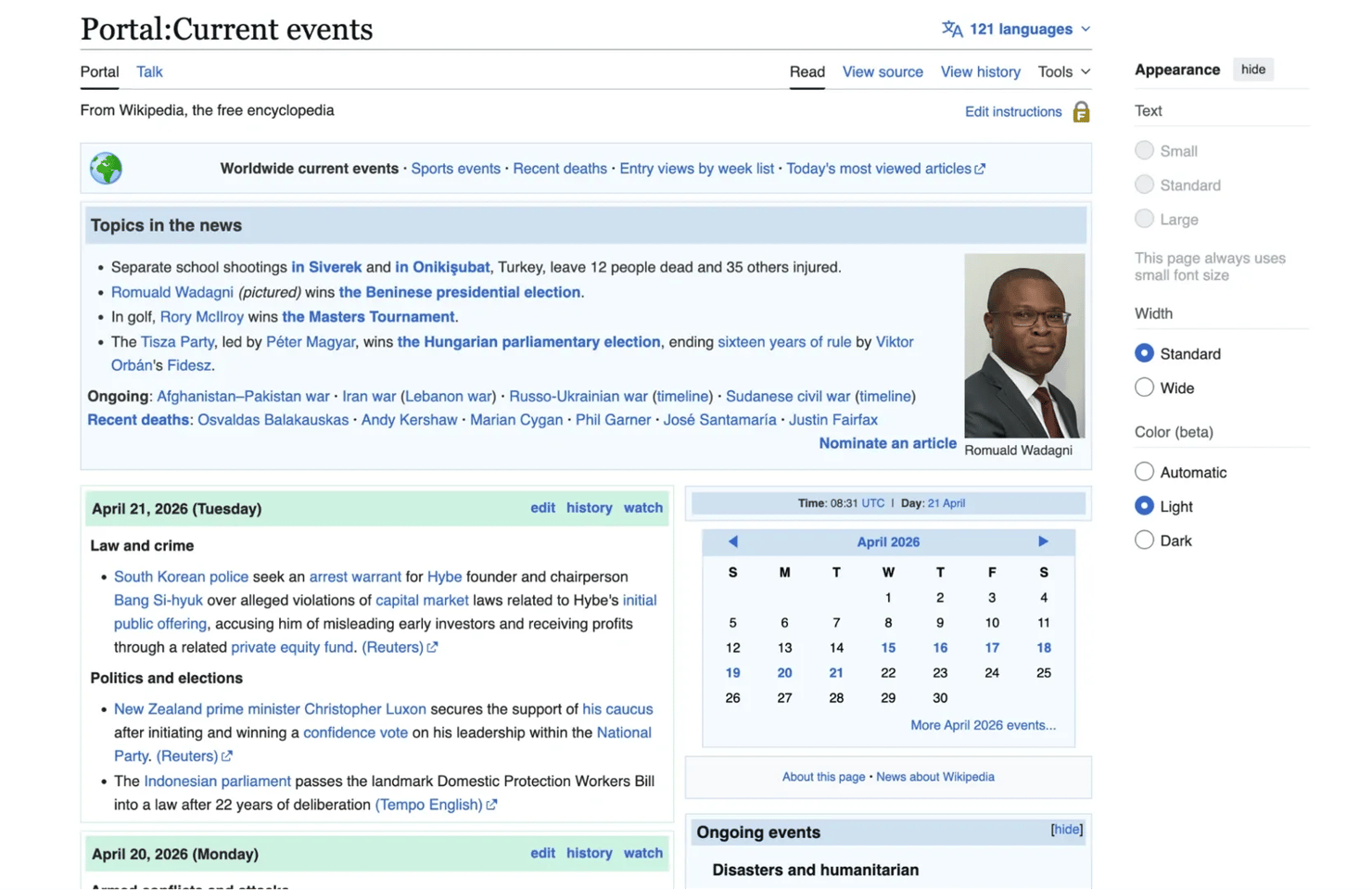
Notice how structurally, a lot is going on in the page. The content is grouped by date, divided into categories, and written as natural-language bullet points rather than clean table rows or fixed card layouts.
That's where LLM-based extraction becomes useful. Instead of relying on selectors that may change, you can describe the fields you want and let the model work from meaning.
For this task, we'll use SmartScraperGraph, keeping the main configuration the same as before:
What you'll get back is a list of objects with date, category, summary, and sources fields, all parsed out of natural-language text:
See how easy it is to extract structured data from messy, sentence-based content without having to map every nested list, heading, and citation pattern by hand.
If the page layout changes later, you're much less exposed than you would be with a selector-based parser.
Handling dynamic and JavaScript-heavy sites
Some websites load content only after the initial page render. In those cases, Playwright does the heavy lifting. Because SmartScraperGraph runs with browser automation under the hood, it can work with JavaScript-heavy pages and single-page apps more reliably than a simple request-based scraper.
If a page loads content slowly or asynchronously, you can tune the browser behavior with loader_kwargs:
The timeout value is in seconds, and wait_until: "networkidle" tells Playwright to wait until there are no active network requests before handing the page off to the LLM. This is often enough to catch slow-loading content that a default fetch would miss.
For a deeper look at dynamic rendering, see how to scrape websites with dynamic content and our guide on Playwright web scraping.
Using proxies with ScrapeGraph AI
Scraping without proxies works fine for small tests, but the moment you need to scale up, proxies become an integral part of your setup. They help reduce rate limits, lower the chance of IP-based blocks, and let you access location-specific versions of a page.
As each request already costs more than a simple HTTP call, it makes sense to protect that request with more reliable infrastructure instead of risking wasted runs.
Residential proxies are usually the best fit here. Each IP comes from a real device connected to a local network, so the traffic looks more like ordinary user activity to the target site. Datacenter proxies are cheaper and faster, but they're also easier to flag because large IP ranges are tied to cloud providers and server infrastructure.
Decodo's residential proxies are a strong fit for this kind of workflow. They give you access to 115M+ IPs across 195+ locations, support both rotating and sticky sessions, and offer targeting at country, state, city, ASN, ZIP, and continent-level. If you want a deeper look at residential proxies, see our guide on what is a residential proxy network.

Stay risk-free with residential proxies
Activate your 3-day free trial and collect data without CAPTCHAs or IP bans.
Configuring Decodo residential proxies
Getting started with Decodo is simple, and you can do so in a few easy steps:
- Register or log in to the Decodo dashboard.
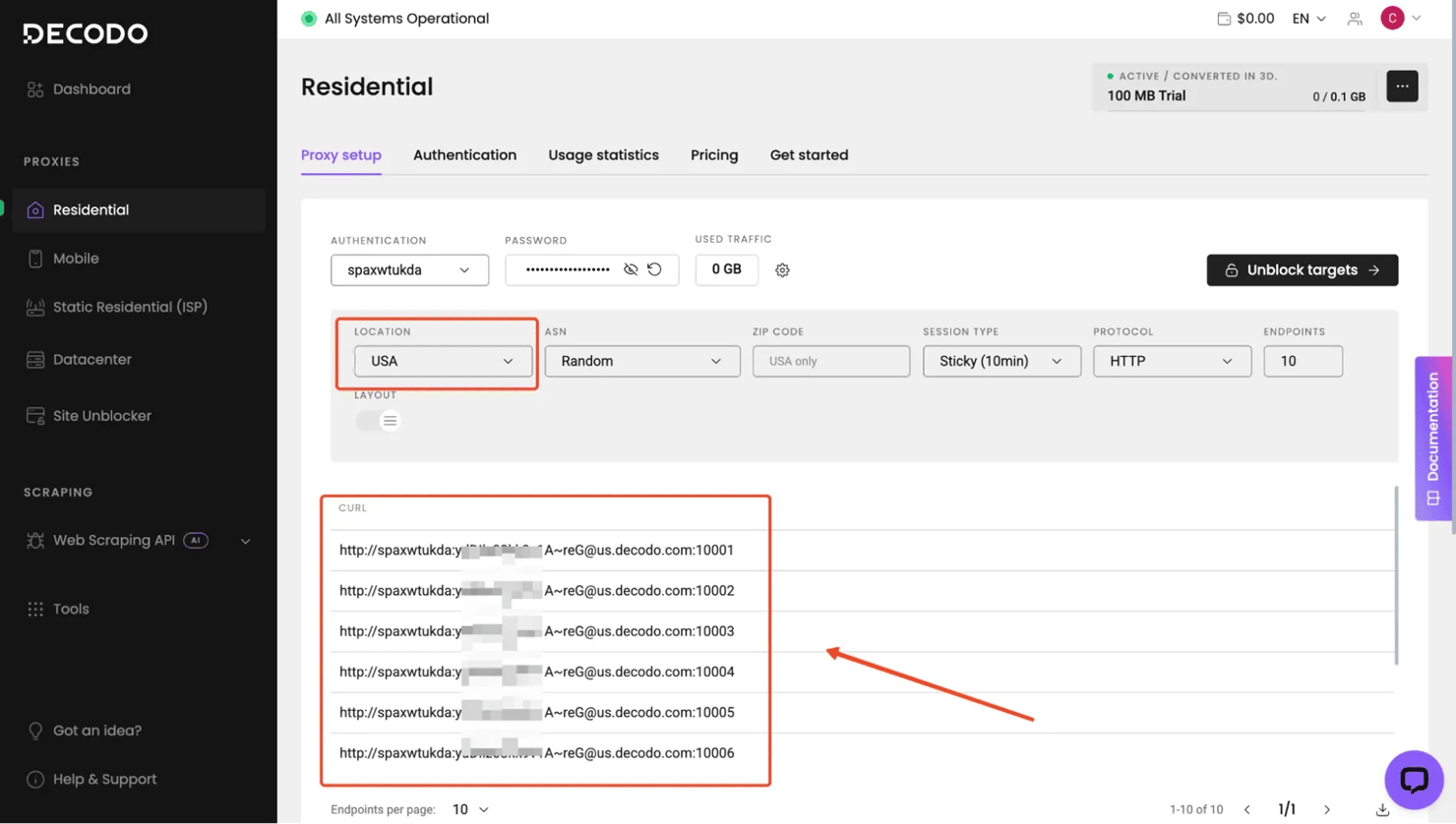
- Then, open the residential proxies section, and activate your 3-day free trial or choose a subscription that best matches your scraping needs.
- Once you're up and running, Decodo provides the proxy credentials you need for authentication, including the server address, username, and password.
Integrating Decodo residential proxies
In ScrapeGraph AI, proxy settings are passed through loader_kwargs. That lets the browser and request layer route traffic through your proxy session while keeping the rest of the graph config unchanged.
This tells ScrapeGraph AI to run the scraping session using proxies while still using your chosen LLM provider for extraction. Once the proxy credentials are in place, you can use them with SmartScraperGraph just like any other scraping task.
This is usually enough for standard residential proxy use. If you're scraping a site that's sensitive to request volume or repeated access, you can switch between rotating and sticky proxies depending on the job or website.
Working with output data and formats
ScrapeGraph AI returns structured output, which is one of the main reasons it's easier to work with than a raw scraping setup.
By default, the result comes back as a Python dictionary or list from executing .run().
This might be fine for quick experiments, but in production, you'll need to validate the shape of your data before it hits a database or feeds into another system.
This is where Pydantic comes in.
Validating extractions with Pydantic
Pydantic lets you define the exact structure you expect from an extraction and then check every result against it. If the LLM returns something malformed, like a missing field, a wrong type, or an unexpected nested object, you can catch it immediately.
Install Pydantic if you don't have it already:
Then define a schema that matches your expected output:
This gives you 2 practical wins. First, you can reference the schema directly in your prompt ("Return data matching this schema: …"), which nudges the LLM toward producing the right shape on the first try.
Second, your downstream code works with typed objects rather than loose dictionaries. news_item.date is an actual date object, not a string you'd have to parse again later.
Saving the output
Once your data is validated, serialize it to JSON with proper Unicode handling so international characters can survive:
For CSV output, iterate over the validated items and write them row by row:
The same pattern extends to SQLite, Postgres, or any other storage backend. Validate first, then write. For a full reference on output handling and storage options, see our guide on how to save scraped data.
Real-world applications and examples
ScrapeGraph AI fits best in scenarios where the data is messy, the sources are varied, or the target layouts change often. Here are a few practical use cases where it earns its place over a traditional scraper.
eCommerce price monitoring
Product pages look different on every retailer's site. One store might put the price inside a span, while another renders it dynamically in a JavaScript object or promo banner. An LLM-based extractor handles all of these with a single prompt with no need for a per-site parsing logic.
A good example is price monitoring across different stores. Let's say you want to compare prices for the Sony WH-1000XM5 across eBay and Walmart.
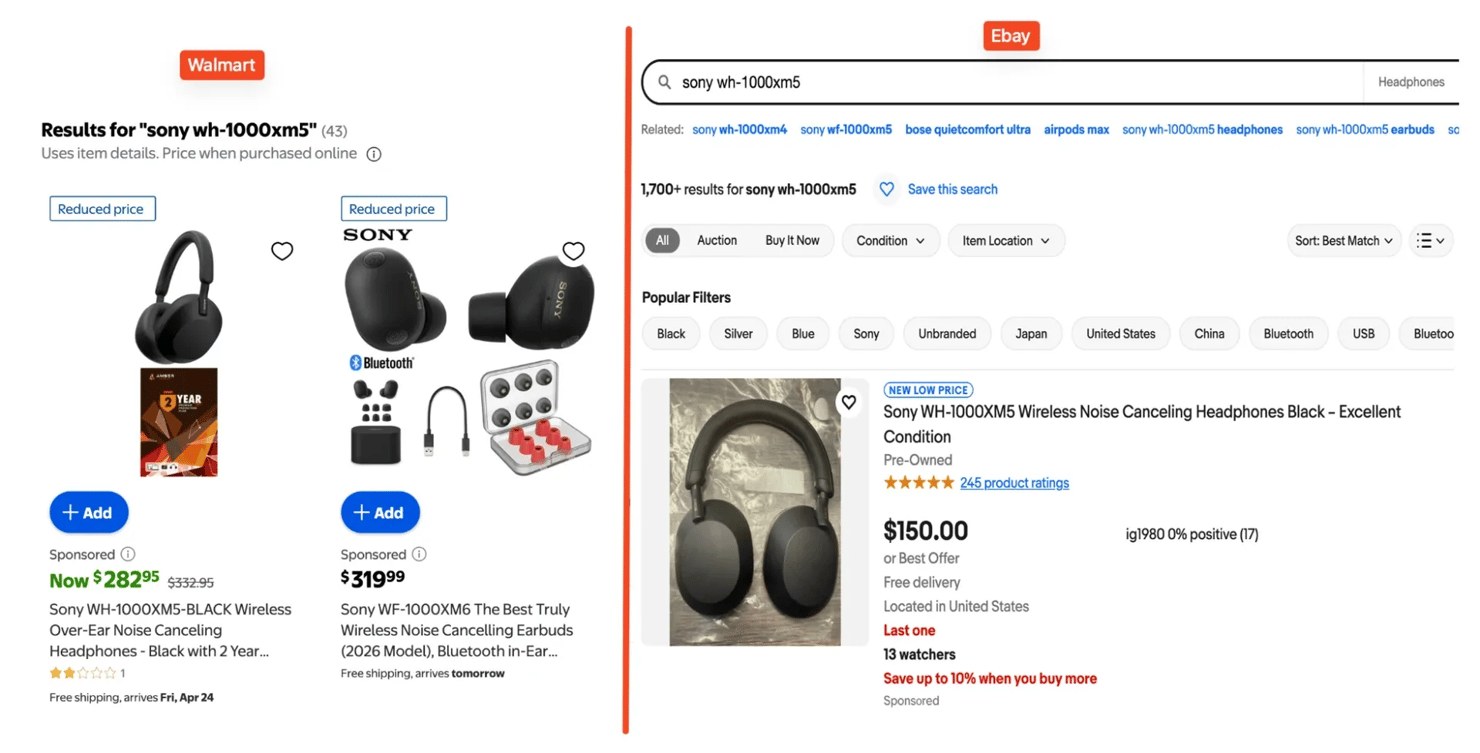
Both pages show product listings, but they don't present them in the same way. But we can easily handle this with ScrapeGraphAI like so:
Even though the HTML is different on each site, the model can still return the same output shape from both. To learn more about ecommerce scraping, see our guide on how to scrape Amazon prices.
Financial data extraction
Financial pages are also a good fit because they often mix structured data with narrative text. Earnings pages on sites like Yahoo Finance pack a lot of information into dense tables, but they're scattered across different elements and formats.
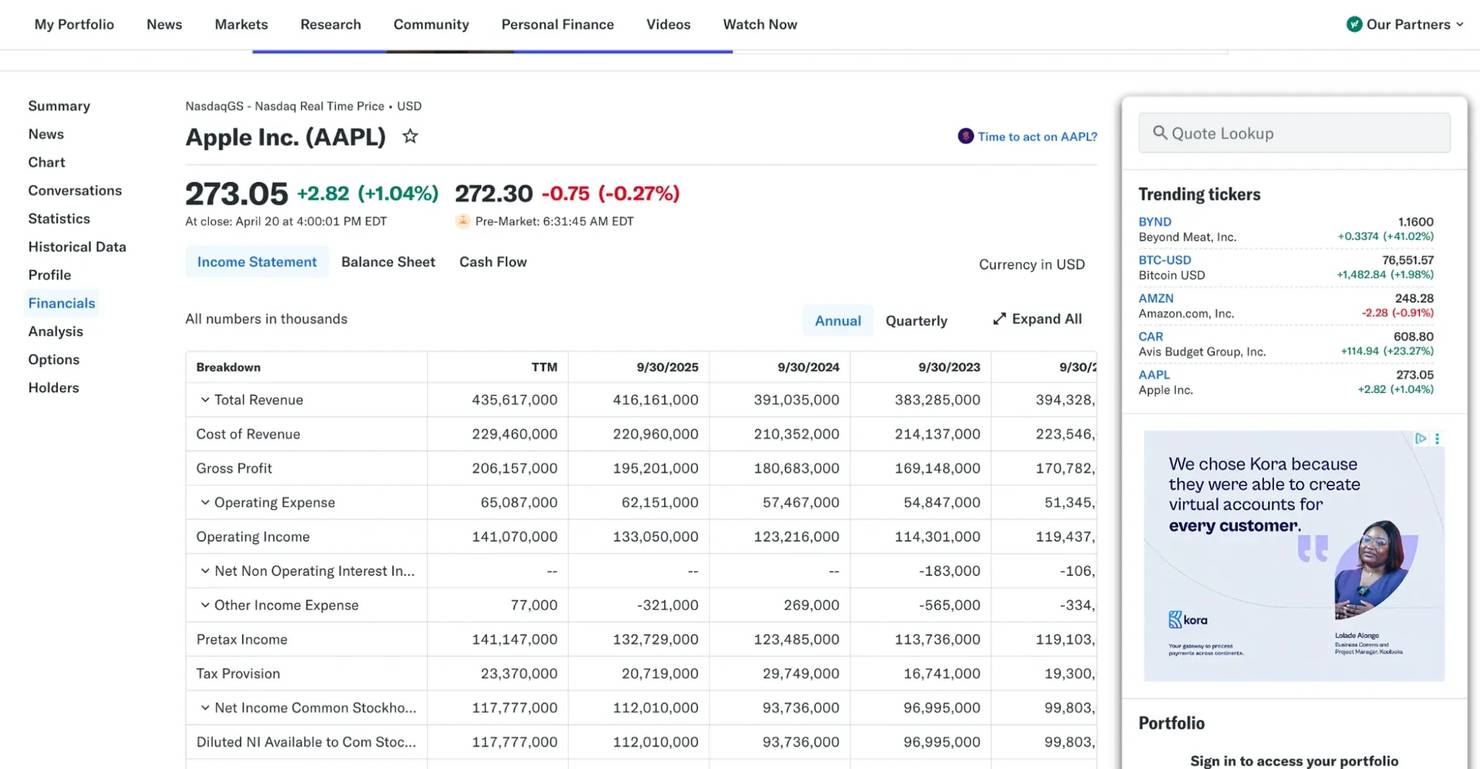
Instead of writing regex or selectors for each table row, you can ask ScrapeGraph AI to extract the metrics directly:
For more finance-focused scraping patterns, see our guide on how to scrape Google Finance.
Content aggregation
Content aggregation is another strong use case. News sites, blogs, and publisher pages all present the same general information, such as headline, date, author, and summary, but each one uses a different layout.
But with ScrapeGraph AI, one prompt can pull the same fields from multiple pages and return them in one format, which makes it easier to organize, deduplicate, and store the results in a research database.
Research and academic use
Research pages are another natural fit. Listings for papers, journals, and conference content often include useful fields such as title, authors, abstract, publication date, or citations, but the markup isn't always consistent.
Lead generation
Lead generation is another practical use case, especially when working with business directories and company listing pages. These pages often include company names, industries, locations, websites, and other public business details, but the layouts can vary widely from one directory to another.
Across all of these use cases, the pattern is the same. ScrapeGraph AI is most useful when the content is readable, but the structure isn't stable enough to justify maintaining a separate parser for every source.
Advanced features and configurations
Once you're comfortable with SmartScraperGraph, ScrapeGraph AI gives you a few ways to go beyond simple single-page extraction. This is where the library starts to feel more like a flexible scraping framework – you can scrape multiple pages with a single prompt, search the web before extraction, generate reusable scripts, or build custom pipelines.
SmartScraperMultiGraph for batch scraping
If you need to extract the same kind of data from several pages at once, SmartScraperMultiGraph is usually the next step. Instead of running the same graph over and over for each URL, you pass in a list of sources and use one prompt to extract from all of them:
This is useful for comparison workflows where you need the same fields extracted from multiple sources in one run.
SearchGraph for research workflows
Sometimes you don't have a fixed list of URLs. You just know the topic you want to research. That's where SearchGraph becomes useful. Instead of starting with a page, it starts with a search query, pulls the top results, and then extracts the data you ask for.
This can be useful for:
- Market research
- Competitor tracking
- Collecting articles or public references on a topic
SpeechGraph for audio output
SpeechGraph takes extracted content and turns it into audio output. That's not a core scraping feature, but it can be useful if your workflow includes accessibility or summaries.
The result is both a text summary and an .mp3 file saved to your specified output path.
Custom graph pipelines
For advanced users, ScrapeGraph AI lets you build your own graphs by composing built-in nodes like FetchNode, ParseNode, RAGNode, and GenerateAnswerNode. You can also write custom nodes for specialized preprocessing, filtering, or post-processing steps.
This is power-user territory and goes beyond most scraping workflows, but it's there when you need it. The ScrapeGraph AI documentation covers node composition in detail.
Best practices and troubleshooting
Here are some tips to keep in mind:
Choose the smallest model that gets the job done
Larger models can handle harder extraction tasks, but they also cost more and usually run slower. For simple fields such as names, prices, dates, and availability, a smaller model is often enough. Save larger models for pages that are text-heavy or ambiguous.
Keep prompts narrow
It's better to start with a small, well-defined structure, confirm that it works, and then expand it than to ask for too many fields at once. This also makes debugging easier because you can tell whether the problem comes from the page, the model, or the prompt itself.
Validate output before saving it
Even when the structure looks good, model output should still be checked before it moves into a file, spreadsheet, or database. A simple validation layer helps catch missing fields, wrong types, or malformed values early.
Running ScrapeGraph AI in Google Colab or Jupyter notebooks
If you're running ScrapeGraph AI in Google Colab or a Jupyter notebook, you'll likely hit this error the first time you call scraper.run():
This is a Colab/Jupyter event loop issue, not a ScrapeGraph AI logic issue. Notebooks already run an asyncio event loop in the kernel, and ScrapeGraph AI internally uses asyncio.run() for parts of its pipeline. When the two collide, Python raises the error above.
The fix is simple. Install and apply nest_asyncio before creating your scraper:
Then run your existing ScrapeGraph AI code as normal.
Error handling with retry logic
Network hiccups, LLM rate limits, and transient page failures all need retries. Exponential backoff is a solid baseline:
For more advanced retry patterns with jitter and decorator-based configuration, the tenacity library is worth exploring. See our guide on Python requests retry for the wider pattern.
Polite scraping
Respect robots.txt, read the terms of service, and throttle your requests. A 1 to 2 second delay between calls is enough to stay off anti-bot radars in most cases. Add retry logic where necessary, and avoid hammering a target with back-to-back requests.
Debugging tips
- Set "verbose": True in your config to watch each node execute. You'll spot exactly where things go wrong.
- Call scraper.get_execution_info() after a run to inspect token counts and per-node timing.
- Test your prompt against a single page before fanning out to SmartScraperMultiGraph.
- If the LLM returns empty results, try a simpler prompt first.

Bypass CAPTCHAs, IP bans, and geo-restrictions
Equip residential proxies with 99.92% for all your data collection needs.
Final thoughts
In this article, you looked at how to set up ScrapeGraph AI, configure its scraping pipelines, and use it to extract structured data from local files and live web pages.
ScrapeGraph AI is one of the easiest ways to build AI-powered scrapers for bulky or fast-changing pages. It gives you a practical way to extract structured data using natural language, rather than relying solely on CSS selectors.
If you need a more resilient setup for live targets, Decodo residential proxies can help reduce blocks, support geo-targeting, and make large-scale scraping workflows more reliable.
About the author

Kipras Kalzanauskas
Senior Account Manager
Kipras is a strategic account expert with a strong background in sales, IT support, and data-driven solutions. Born and raised in Vilnius, he studied history at Vilnius University before spending time in the Lithuanian Military. For the past 3.5 years, he has been a key player at Decodo, working with Fortune 500 companies in eCommerce and Market Intelligence.
Connect with Kipras on LinkedIn.
All information on Decodo Blog is provided on an as is basis and for informational purposes only. We make no representation and disclaim all liability with respect to your use of any information contained on Decodo Blog or any third-party websites that may belinked therein.