Open WebUI tools: how to give your local LLM real-time internet access with a scraping API
Local LLMs are powerful, but their knowledge ends at the training cutoff. Without internet access, a model running on your own hardware can’t check current prices, read recent news, or retrieve updated documentation. Open WebUI’s Tools system solves this by letting models call custom Python functions during a conversation. In this tutorial, you’ll connect the Decodo Web Scraping API to a custom Open WebUI tool, so your model can fetch live web content on demand.

Justinas Tamasevicius
Last updated: May 28, 2026
12 min read

TL;DR
- Local LLMs have no knowledge of events past their training cutoff, so no live prices, news, or updated docs. Unlike cloud-hosted models from OpenAI or Anthropic, they don't ship with built-in web access
- Open WebUI's Tools system lets you attach custom Python functions to a model, enabling real-time web retrieval during conversations
- We’ll build a fetch_page tool that sends any URL to the Decodo Web Scraping API and returns clean, model-readable text
- The stack is Ollama + Open WebUI v0.3.x + Docker + Decodo Web Scraping API + basic Python
- This tutorial will take ~30 minutes, assuming no prior setup
- We’ll cover setting up Ollama and Open WebUI, writing and installing the tool, configuring credentials via Valves, testing in chat, and troubleshooting common errors (auth failures, empty content, tool not firing)
- After building, you’ll learn how to extend the tool with search-then-fetch, structured data extraction, or multi-URL summarization – or connect it to n8n and LangChain for larger automated workflows
Why real-time web access changes what a local LLM can do
Because an LLM learns from a fixed training dataset collected up to a certain date, it has no built-in awareness of new information published after that point. To overcome this limitation, the model needs access to live web data.
With web access, the same model can check the current price of an API subscription, read the latest version of a library's documentation, summarize a news article published yesterday, or fact-check a claim against a live source. This reduces reliance on static training data and helps mitigate hallucinations when dealing with fast-changing information.
This capability is especially important for local models. Cloud-hosted AI, such as those from OpenAI and Anthropic, often include built-in retrieval and browsing layers. Local models, however, typically don't ship with web access by default, so developers must implement it themselves.
Adding web access to local LLMs unlocks a whole host of possibilities. For instance, by integrating your local model with a web scraping API, you can automatically collect recent product reviews from a competitor’s Amazon listings, analyze recurring customer complaints, identify missing features users keep requesting, and generate actionable recommendations for improving your own product or marketing strategy.
A related concept worth understanding here is Retrieval-Augmented Generation (RAG). Both RAG systems and live web-access via Tools extend an LLM beyond its static training data by accessing external information during inference.
Traditional RAG systems retrieve information from a pre-indexed and embedded document corpus, making them ideal for private knowledge bases or stable datasets. The tool we’ll build later takes a more dynamic approach. Instead of querying a vector database, it retrieves fresh information directly from live web pages through our Web Scraping API during the conversation itself.
The 2 approaches are complementary. In advanced AI agent systems, developers often use RAG for long-term or private knowledge retrieval and live web access for real-time information such as news, pricing, product reviews, or rapidly changing documentation.
Prerequisites and system overview
Before we start building the tool, you’ll need the following prerequisites.
A local model runtime. We recommend downloading Ollama because it’s straightforward to install on Windows, macOS, and Linux, and Open WebUI connects to it automatically. LM Studio works too, as well as any runtime that exposes an Ollama-compatible API endpoint will work.
Open WebUI v0.3.x or later. The Tools system was introduced in v0.3.x. The "Docker run…" installation command pulls its latest version, which is always Tools-compatible.
A Decodo Web Scraping API account. Our Web Scraping API handles JavaScript rendering, anti-bot bypass, and proxy rotation server-side. Python’s requests.get() call may fail on sites that block scrapers, require JavaScript to load content, or implement rate limits. Decodo manages these challenges and returns clean, structured content to your tool.
Basic Python knowledge. The tool is a Python class with one method. If you can read a function definition and understand what a POST request does, you're good to go.
System overview. Here's a visual representation of how the pieces connect at runtime:
Practical tip: Get Ollama and Open WebUI connected and working before adding the tool. Send a test message to the model with no tools enabled. A working baseline makes it much easier to isolate issues later.
Open WebUI's built-in web search vs. custom tools
Open WebUI includes a built-in web search feature under Settings → Web Search. You can connect it to providers like SearXNG, Brave Search, or Google Programmable Search Engine in a few clicks. For many general-purpose queries, this is often enough and works well out of the box.
However, it has limitations. Built-in search is designed around query → search results → snippets. It retrieves and injects summarized search results into the model context, rather than allowing direct, fine-grained access to arbitrary URLs. As a result, it offers limited control over what content is fetched, how it is parsed, and how it is structured before being passed to the model.
Custom tools operate at a lower level. A tool is essentially a Python function that the model can call during a conversation. This allows you to fetch specific URLs, process raw responses, extract structured data, apply custom filtering logic, and return precisely formatted outputs tailored to your use case. In other words, you control the retrieval pipeline end-to-end.
Here’s a simplified comparison:
Feature
Built-in Web Search
Custom Tools
Setup effort
Minimal, configure in UI
Moderate, write and install a Python tool
Retrieval scope
Search query-based
Direct URL-level access
Content control
Limited (search snippets/results)
Full control over fetching and parsing
Page rendering
Depends on the search provider
Can support headless rendering via external services
Anti-bot handling
Handled by search provider (if at all)
Can be implemented via services like Decodo or similar tools
Output format
Fixed by the search provider
Fully customizable (any structured or unstructured format)
Practical tip: Use the built-in search for quick, general queries where snippets are sufficient. Go with custom tools when you need deterministic access to specific pages, structured extraction, or a more reliable scraping pipeline that can handle complex or protected websites.
How the Open WebUI Tools system works
Open WebUI Tools follow a structured Python convention that determines how functions are exposed to the model. Understanding this structure makes implementing custom tools much easier.
Tools are defined as Python classes. A typical tool file contains a class named Tools, and each method inside that class is exposed as a callable function for the model. Open WebUI scans this class at load time to register available tool functions.
Docstrings and type hints define the tool schema. Open WebUI parses each method’s docstring and annotations to generate the function schema shown to the model. The model does not execute or interpret the docstring directly. Instead, it relies on this generated schema when deciding whether and how to call a tool. Clearly describing each function’s purpose and expected arguments will improve the model's reliability.
Streaming via the event emitter. Tool methods can optionally accept an __event_emitter__ parameter. When provided, Open WebUI injects a callback that allows the tool to stream status updates back to the UI during execution. This is what enables intermediate messages like "Fetching…" or progress indicators while the tool runs.
Tool calls are model-driven. There are no hardcoded triggers. The model receives the available function schemas at the start of a session and autonomously decides when a tool is relevant based on the user’s prompt and the schema description. This makes schema quality, especially docstrings, critical for consistent behavior.
Valves handle configuration. Sensitive or environment-specific values such as API keys, endpoints, timeouts, and limits are stored in a Valves inner class (typically defined as a Pydantic model). These values are configured through the Open WebUI interface rather than hardcoded in the tool logic.
Practical tip: Treat Valves like runtime configuration rather than application logic. Anything that may change across environments – credentials, base URLs, rate limits, or parsing limits – should live in a Valve, while the tool method itself should focus purely on execution logic.
Building and installing the web scraping tool
This section walks you through the complete implementation process, from setting up your local environment, writing the tool code, and uploading it to Open WebUI, to setting credentials via Valves and enabling it for your local model.
Setting up your environment
Step 1: Install Ollama
Download the installer for your OS from ollama.com/download and run it. On macOS, you can also install via Homebrew:
Once installed, start Ollama:
Verify it's running:
Pull a model that supports function calling:
Confirm it works:
Step 2: Install Docker Desktop
Download Docker Desktop. On Windows, enable the WSL 2 backend when prompted and restart your machine after installation. On macOS, simply start Docker Desktop after installing.
Verify that it’s installed:
Step 3: Run Open WebUI
Run this single Docker command in PowerShell, Command Prompt, or any of the command tools you’re using:
Windows (PowerShell) note: Replace the backslashes (\) with backticks (`) for line continuation, or paste the command as a single line.
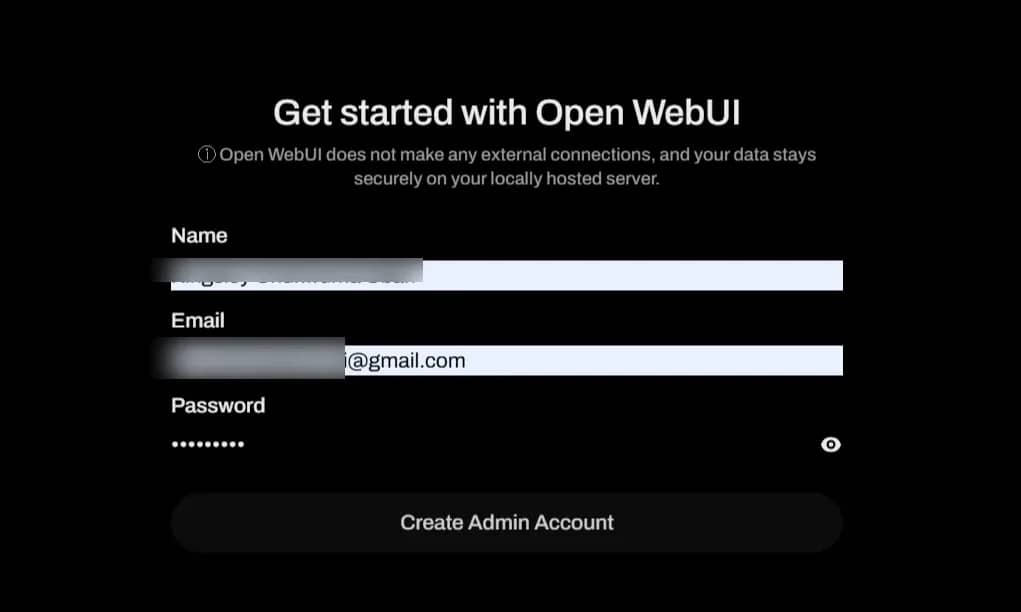
Wait about 30 seconds, then open http://localhost:3000 in your browser. Click Get started and create an admin account when prompted.
Step 4: Connect Ollama
In Open WebUI, go to Admin Panel → Settings → Connections. You might need to set the Ollama API URL if it hasn't done that automatically. In Open WebUI, go to:
Click the verify icon next to the URL. It should show a successful connection.
If you see a "network problem" error on Windows, Ollama may be bound to localhost only and unreachable from inside the Docker container. Fix it by restarting Ollama with all interfaces enabled:
On PowerShell:
Click the verify icon again. The connection should go green.
Writing the tool
The tool accepts a URL, sends it to Web Scraping API, and returns the page content as a string.
A few things worth noting about the code implementation above:
- The Valves class holds DECODO_USERNAME, DECODO_PASSWORD, REQUEST_TIMEOUT, and MAX_CHARS. None of these are hardcoded.
- The fetch_page method uses a POST request, which our API requires it. Authentication is HTTP Basic, using the username and password from the API Playground in your Decodo dashboard.
- The target: "universal" parameter tells the API to treat the URL as a generic web page. The headless: "html" parameter enables JavaScript rendering, which is necessary for pages that load content dynamically.
- The response JSON returns a results array. The page content is at results[0]["content"].
- Content is truncated at MAX_CHARS before being returned. This prevents context window overflow on long pages.
- The __event_emitter__ calls stream status messages ("Fetching...", "Page fetched successfully.") to the chat UI while the request is in flight.
Installing the tool in Open WebUI
Follow these steps to install the tool:
- In Open WebUI, click Workspace in the left sidebar, then Tools.
- Click + New Tool to create a new tool.
- Give it the name "Web Scraper" and a short description.
- Paste the full tool code provided above into the editor.
- Click Save.
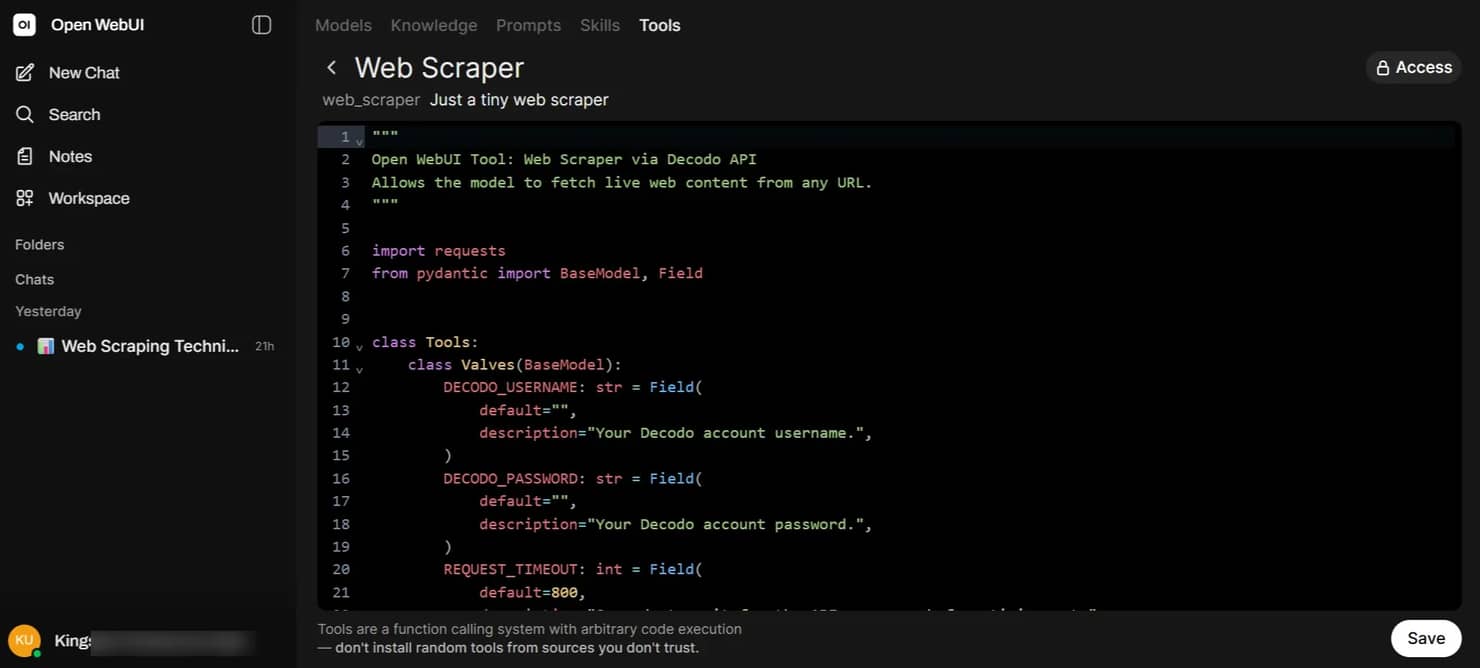
Open WebUI validates the Python syntax on save. If you see a syntax error badge, check the code for missing brackets or indentation issues before continuing.

Get Web Scraping API
Plug an API with 125M+ IPs worldwide into your LLM tool stack so it could access live data with at a 99.99% success rates.
Setting credentials via Valves
After saving, a Valves (gear) icon appears next to the tool. Click it and fill in:
- DECODO_USERNAME – your Decodo account username
- DECODO_PASSWORD – your Decodo account password
- REQUEST_TIMEOUT – leave it at 40 (seconds)
- MAX_CHARS – leave at 8000 (characters)
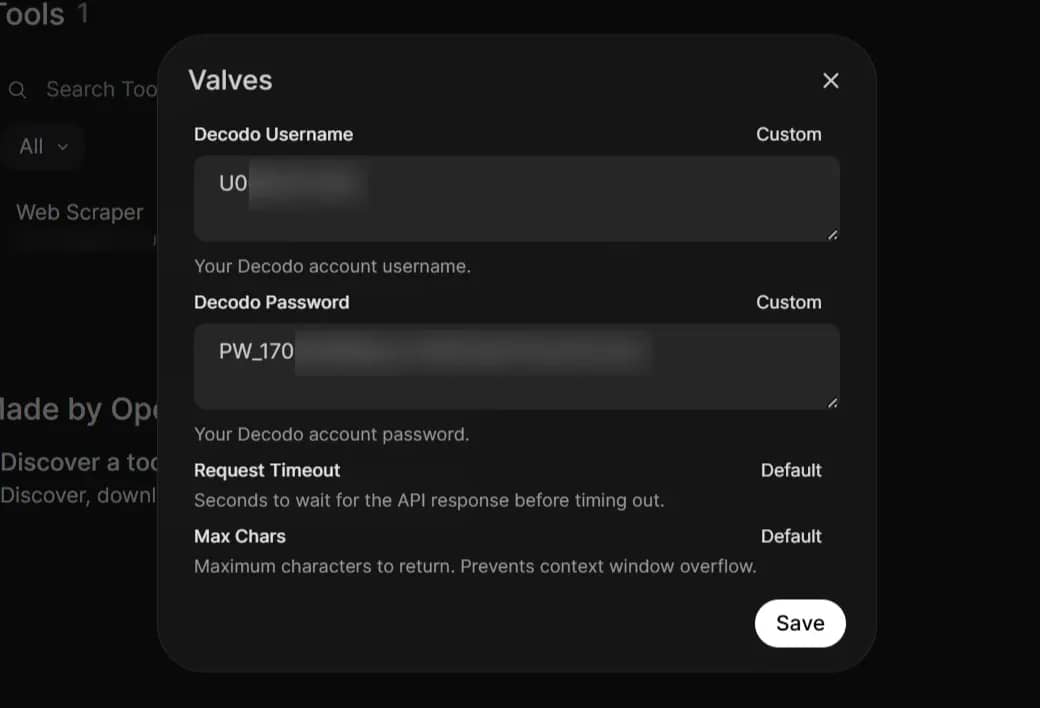
Click Save. Credentials are stored in Open WebUI's internal database, not in the tool source code.
Enabling the tool for a chat session
Follow these steps to test the tool:
- Open a New Chat and select your model from the dropdown in the top-left corner of the page.
- Click the icon next to the + button (labeled "Integrations" on hover) at the bottom-left of the chat input.
- Toggle Web Scraper on.
The tool is now active for that session.
Using the web scraping tool in chat
With the tool enabled, the model can fetch live web content whenever it decides the prompt warrants it. Using any of the prompts below will trigger the tool.
When you send one of these prompts, the model reads the function schema, determines that fetch_page is relevant, generates a tool call with the URL as the argument, waits for the returned content, and then responds based on the tool output.
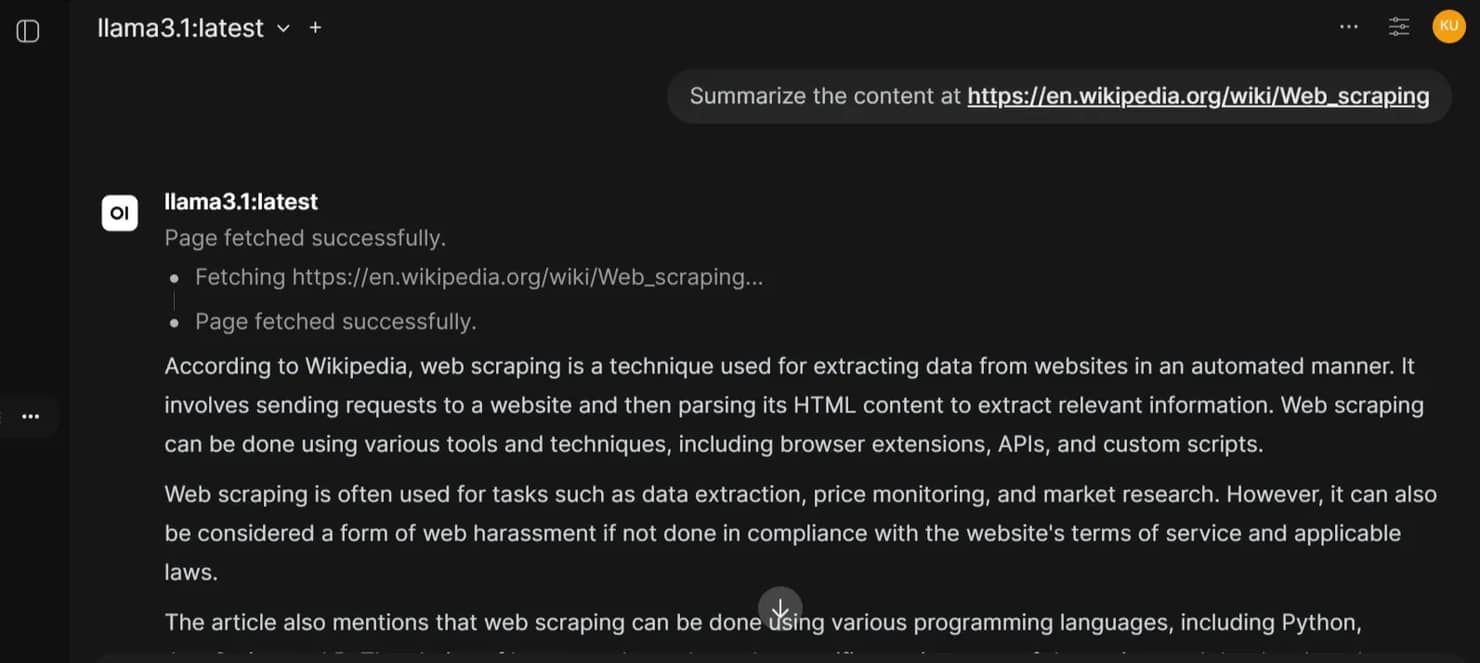
Keep in mind that very long pages will be truncated at MAX_CHARS (8,000 by default). The model only sees what the tool returns, so if a page is much longer than that, the response will reflect only the first portion.
For heavily protected targets, such as major eCommerce platforms, paywalled news sites, or pages with aggressive bot detection, standard web scraping approaches may not work. We recommend using Site Unblocker as an escalation layer for sites that block conventional scraping requests.
It handles advanced anti-bot challenges through techniques such as browser fingerprint emulation, TLS and header normalization, proxy rotation, and full browser rendering. The integration pattern remains the same as end-to-end AI workflows built with LangChain and the Web Scraping API: same API architecture, different retrieval layer.
Troubleshooting and best practices
Below are some common issues you may encounter while building a tool like this, along with practical fixes and best practices to follow throughout the development process.
Issue #1: The tool doesn't fire
The model may not support function calling, or the docstring isn't clear enough. To fix this:
- Check that you're using an instruction-tuned model (e.g., Ollama)
- Try a more explicit prompt: "Use the fetch_page tool to get [URL]."
- If it still doesn't fire, re-read the docstring and make the "when to call this" language more direct
Issue #2: HTTP 401 error
Either the credentials are wrong, or the Valve configuration wasn't saved correctly.
- Double-check the username and password in the Valves panel
- Verify API access with the following command (replace the placeholders with your actual credentials):
A successful response returns a JSON object with a results array.
Issue #3: HTTP 402 or 403 error
Your Decodo account has no remaining credits, or your subscription doesn't cover the requested target. Check your dashboard.
Issue #4: Empty content returned or response is truncated
If the tool returns little or no content, the target page may rely heavily on JavaScript rendering. Our tool already sends "headless": "html" to enable browser-based rendering, which resolves this issue for many modern websites.
If content is still empty on specific targets, the site may be protected by advanced anti-bot systems that block standard web scraping requests. In those cases, switch to our Site Unblocker for more advanced browser emulation and request handling.
Truncated responses are normal for very large pages. Increase MAX_CHARS in the Valves panel to allow more content through. For models with a 32K+ context window, values of 20K characters or higher are generally safe, depending on how much additional conversation context the model also needs to process.
Issue #5: The tool saved with a syntax error
Open WebUI shows a badge on the tool if the Python is invalid. Copy the code into a local Python file and run python web_scraper_tool.py to identify and resolve the error before re-uploading.
Best practices
- Always verify that the tool works and returns content by testing it against a known-good URL, such as a simple Wikipedia article or Hacker News thread, before moving on to heavily protected or complex targets.
- Keep REQUEST_TIMEOUT between 10 and 40 seconds. Long-running requests can stall or freeze the chat session.
- Return extracted content as plain text rather than raw HTML. Models process clean text far more reliably, while HTML tags add unnecessary noise. The Decodo API’s content field already strips most markup, but it’s still worth checking the output if the model appears confused or produces inconsistent responses.
- Keep tools single-purpose. A tool that only fetches URLs is easier to debug, monitor, and scale than one that tries to search, fetch, parse, and filter content all at once.
Customizing and extending your scraping tools
We intentionally made the fetch_page tool minimal for demonstration purposes. Follow the patterns below to extend it and build new tools that serve more specific use cases. These are structural starting points, not complete implementations.
1. Search-then-fetch
Add a second method to the Tools class that accepts a search query, sends it to the our Web Scraping API, extracts the top result URLs from the response, and then calls the equivalent of fetch_page on the first one. This gives your model the ability to search the web by topic rather than just fetching content from a given URL.
2. Structured data extraction
Instead of returning raw page content, parse the content string for specific fields and return a JSON string. This approach is useful when the model needs to compare data across multiple pages – for example, extracting price, product name, and availability from several eCommerce URLs.
3. Multi-URL summarization
Add a method that accepts multiple URLs, fetches each page in sequence, and returns a combined summary. This is useful for comparative research workflows, such as analyzing and summarizing multiple competitor pages in a single request.
4. Domain filtering
Add an ALLOWED_DOMAINS list in Valve as a comma-separated string of approved domains. Before making any API request, validate that the requested URL’s domain matches one in the allowlist. And if it doesn’t, return an error string and abort the request. This is useful in shared or enterprise Open WebUI deployments where unrestricted URL fetching could pose a security risk.
Connecting to broader AI tooling
Open WebUI Tools work well as standalone extensions, but the same web access pattern composes into larger AI workflows.
If you need the model to fetch data on a schedule or route between multiple tools automatically, integrate n8n with Decodo to build real-time, automated data pipelines. If you're building agents with Python rather than Open WebUI, LangChain supports direct integration with our Web Scraping API using the same fetch-and-return pattern.
Furthermore, if you’re using Claude Desktop or other MCP-compatible clients, the Decodo MCP Server provides an alternative integration path that doesn't require Open WebUI. See the step-by-step MCP setup guide and top 10 MCPs for AI workflows in 2026 to understand where MCP fits in the broader ecosystem.
Final thoughts
Open WebUI’s Tools system provides a clean, model-agnostic way to extend local LLMs with live web data, without relying on a cloud provider, opaque retrieval layers, or prompt-based workarounds.
At its core is a Python function that sends a URL to the Decodo Web Scraping API and returns clean, usable text. That same pattern scales from a single-user local setup to a multi-user Open WebUI deployment without any structural changes.
From here, the next step is adding a search-then-fetch tool so the model can discover pages from queries instead of relying on predefined URLs. You can also explore n8n for scheduled web retrieval and monitor the MCP ecosystem if cross-client portability matters.

Web Scraping API for all your AI use cases
Integrate 125M+ IPs to feed live web data to your AI chatbot. AI-ready outputs and 99.99% success rates with auto-retry logic.
About the author

Justinas Tamasevicius
Director of Engineering
Justinas Tamaševičius is Director of Engineering with over two decades of expertise in software development. What started as a self-taught passion during his school years has evolved into a distinguished career spanning backend engineering, system architecture, and infrastructure development.
Connect with Justinas via LinkedIn.
All information on Decodo Blog is provided on an as is basis and for informational purposes only. We make no representation and disclaim all liability with respect to your use of any information contained on Decodo Blog or any third-party websites that may belinked therein.