How to Set up a Proxy on macOS
Secure your entire Mac environment. Configure Decodo’s 115M+ residential IPs at the system level to enhance privacy and view location-specific content across all applications.
14-day money-back option
Secure your entire Mac environment. Configure Decodo’s 115M+ residential IPs at the system level to enhance privacy and view location-specific content across all applications.
14-day money-back option
115M+
ethicall-sourced IPs
<0.5s
average response time
99.92%
success rate
3-day
free trial
99.99%
uptime
Trusted by:







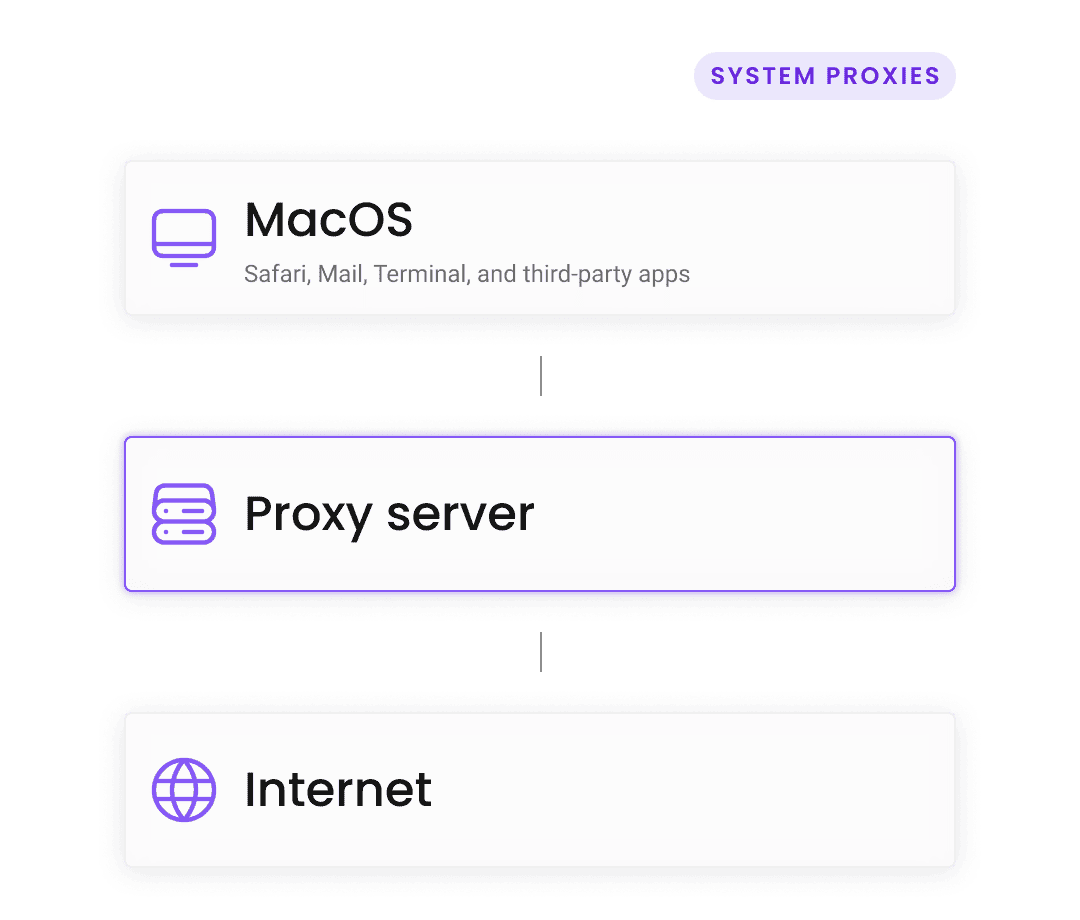
A macOS system proxy configuration routes all traffic leaving your Mac, including Safari, Mail, Terminal, and third-party apps, through an intermediary server. Unlike a browser extension that only affects web traffic, configuring a residential proxy in System Settings changes your digital location for the entire operating system. This is essential for developers testing localized software or marketers validating region-specific campaigns across multiple tools.
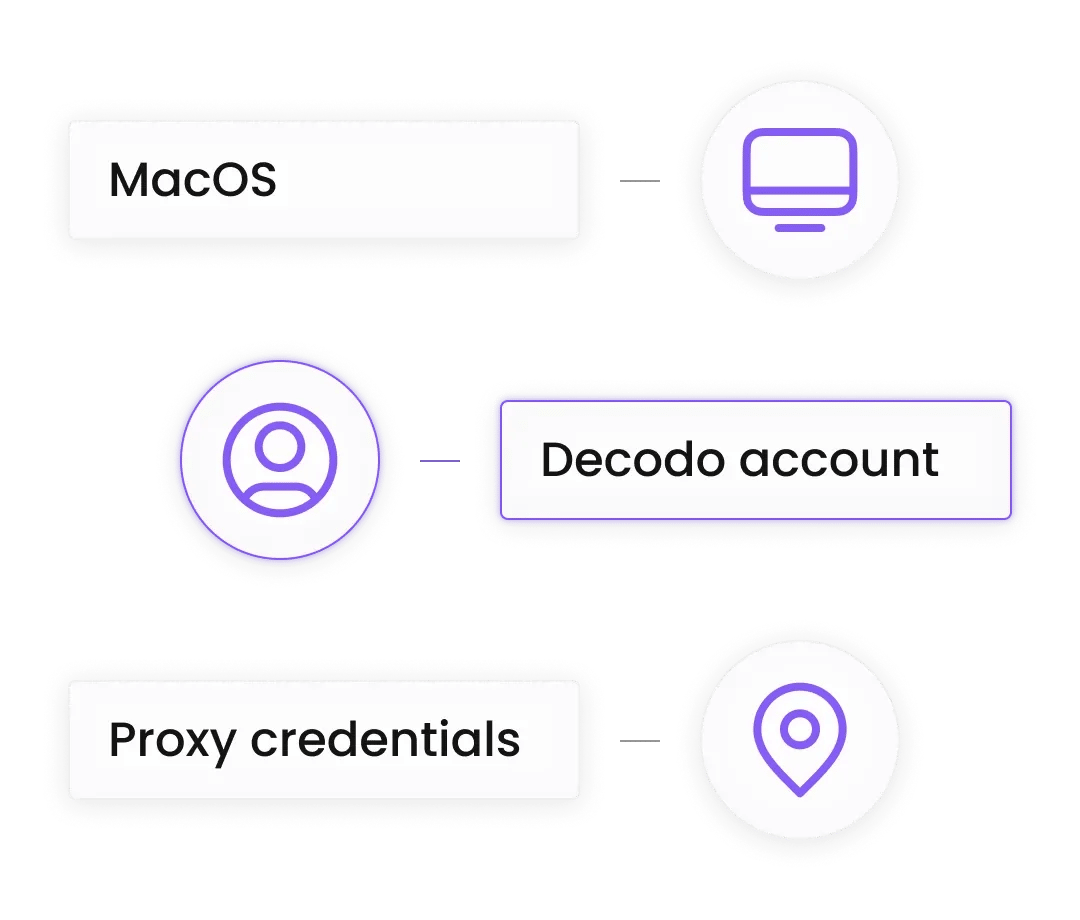
Before you start, ensure you have:
Keep in mind that these steps apply to the newest System Settings interface. For older macOS versions, look for System Preferences, then Network, and Advanced.
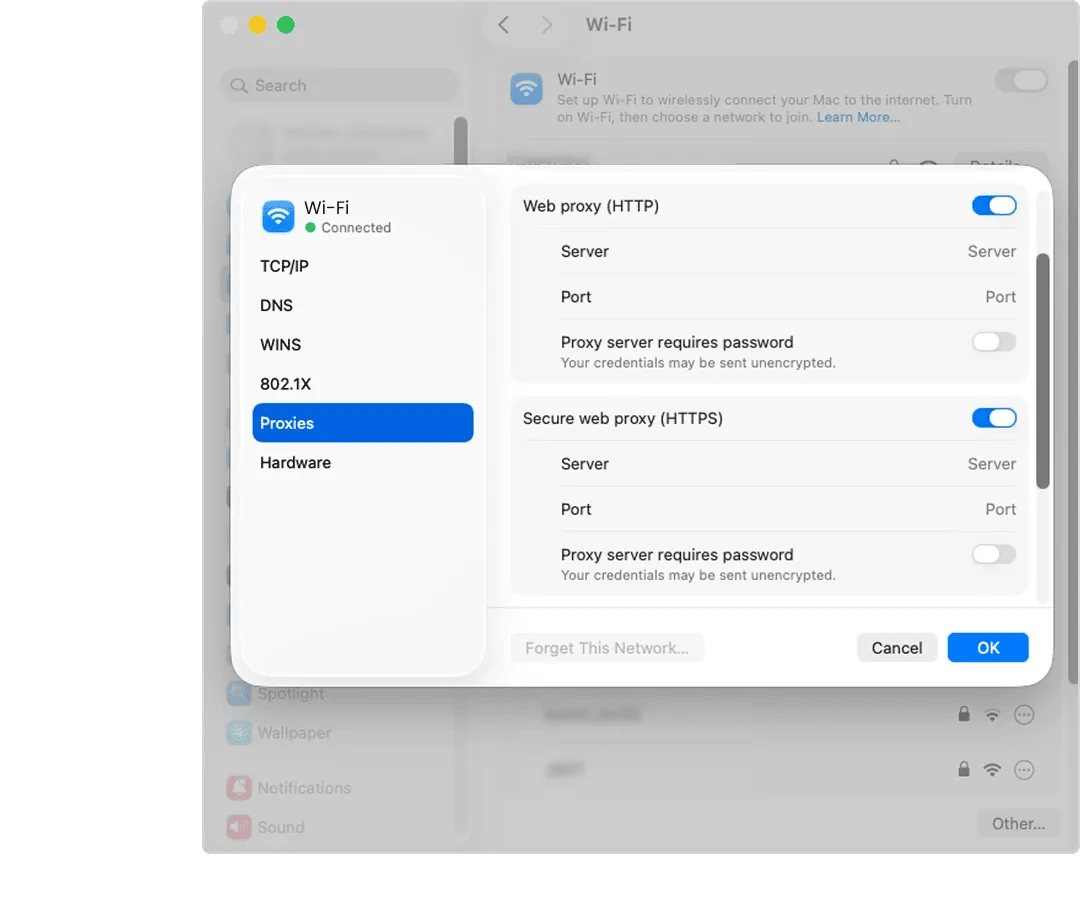
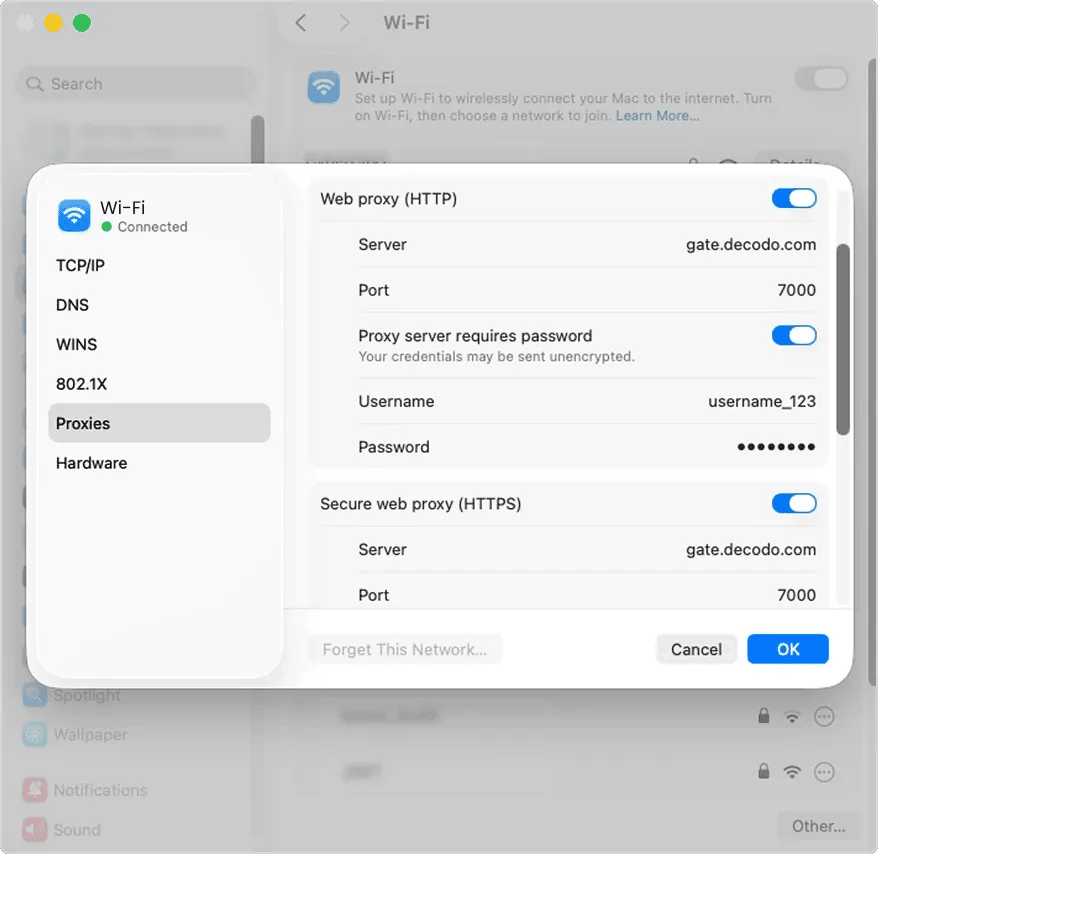
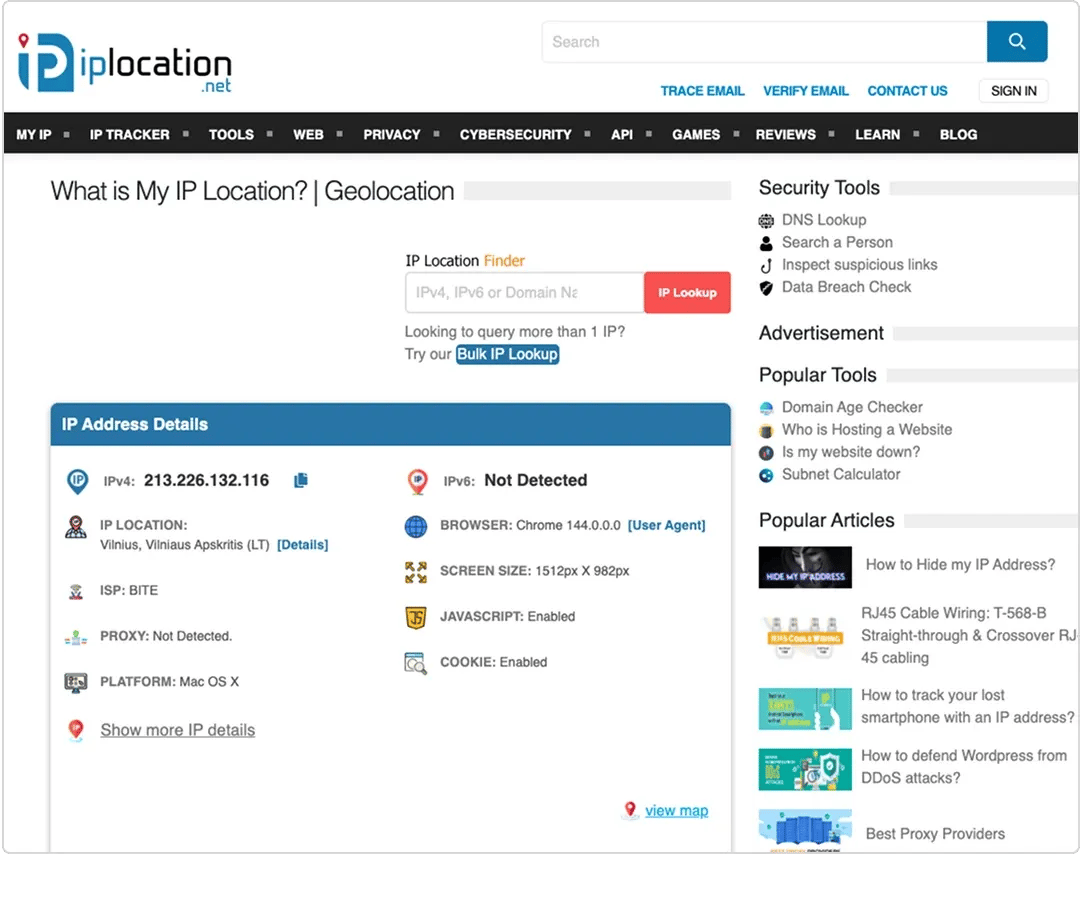
Here are a few tips to return to your normal connection and continue using a different IP address.
Keeps asking for a password?
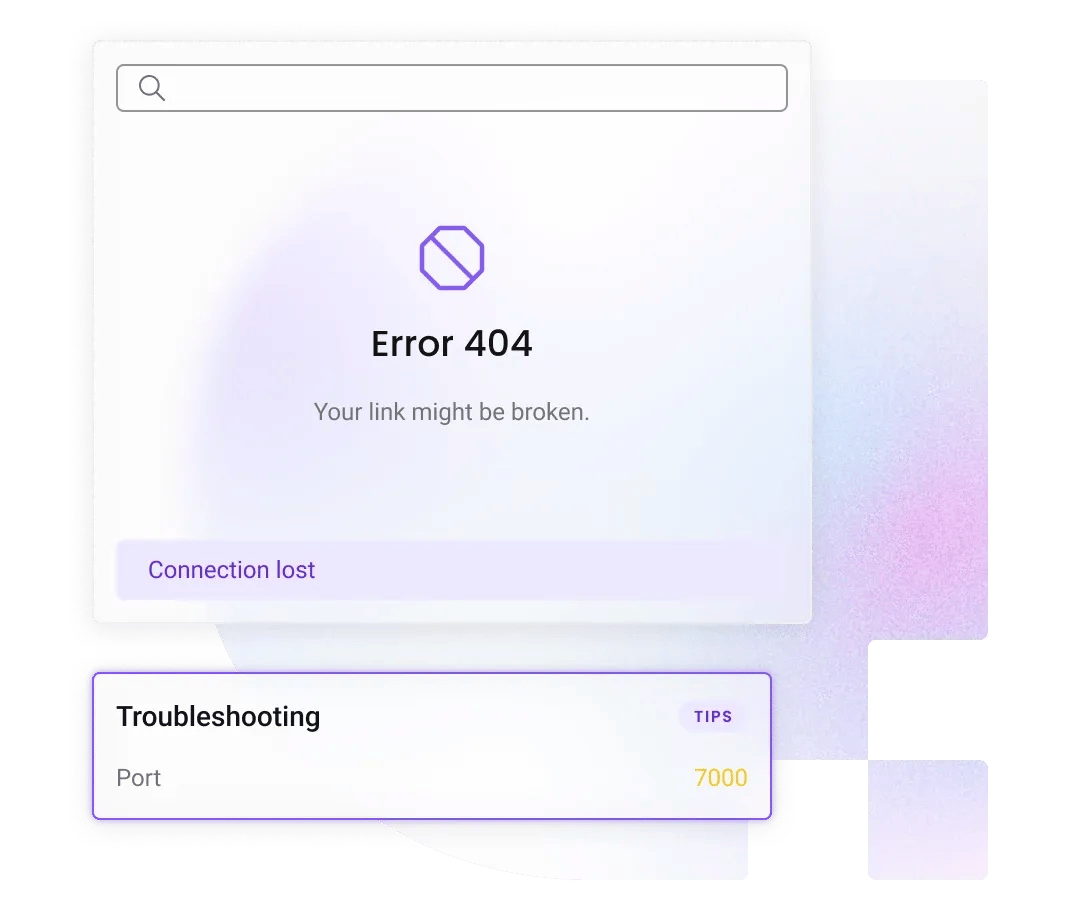
Apple's macOS is strict about keychain security. If the system keeps prompting for the proxy password, open Keychain Access, search for gate.decodo.com, delete the entry, and re-enter it when prompted in the browser.
Safari works but Chrome doesn’t?
Chrome usually respects system settings, but if you have extensions installed (like FoxyProxy or SwitchyOmega), they will override the macOS system settings. Disable those extensions to use the system proxy.
SOCKS5 connection failing?
The macOS System Settings interface for SOCKS proxies does not always support username/password authentication natively. For verified SOCKS5 performance on Mac, we recommend using a specific tool like Proxifier or Shadowrocket (for M-series Macs).
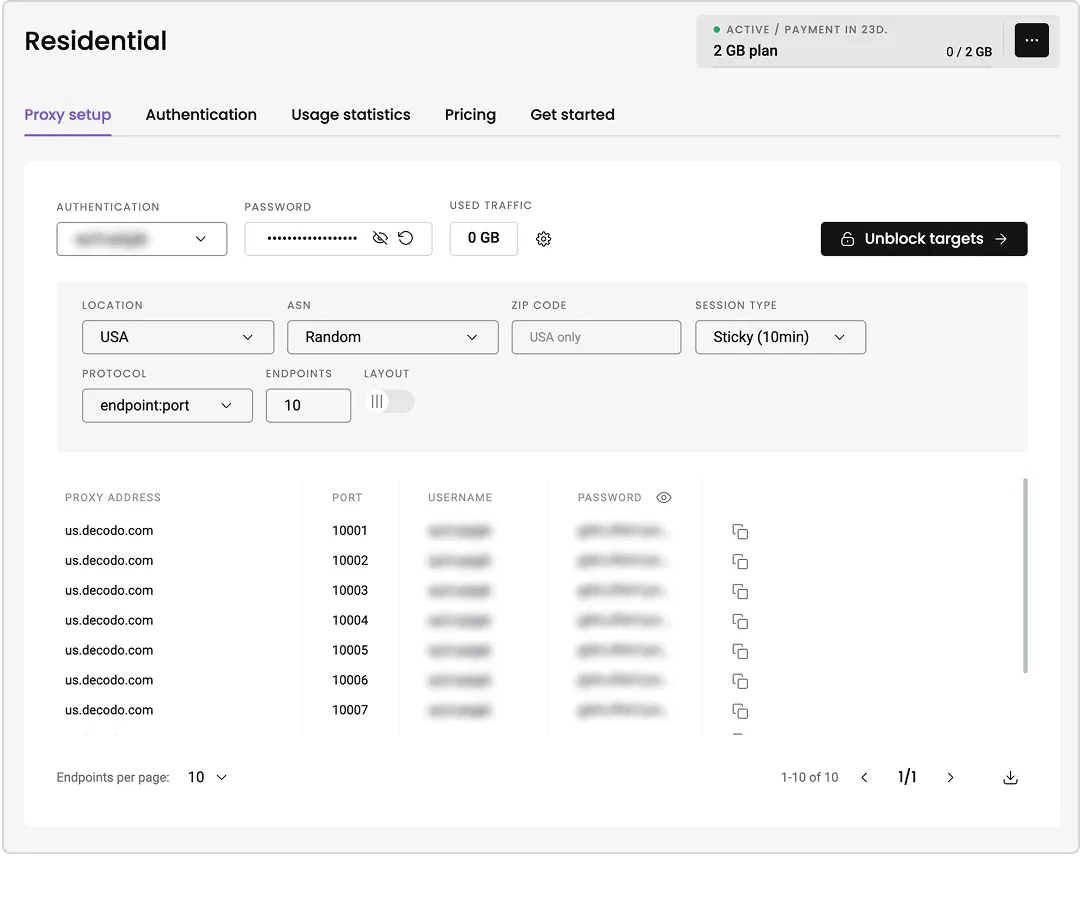
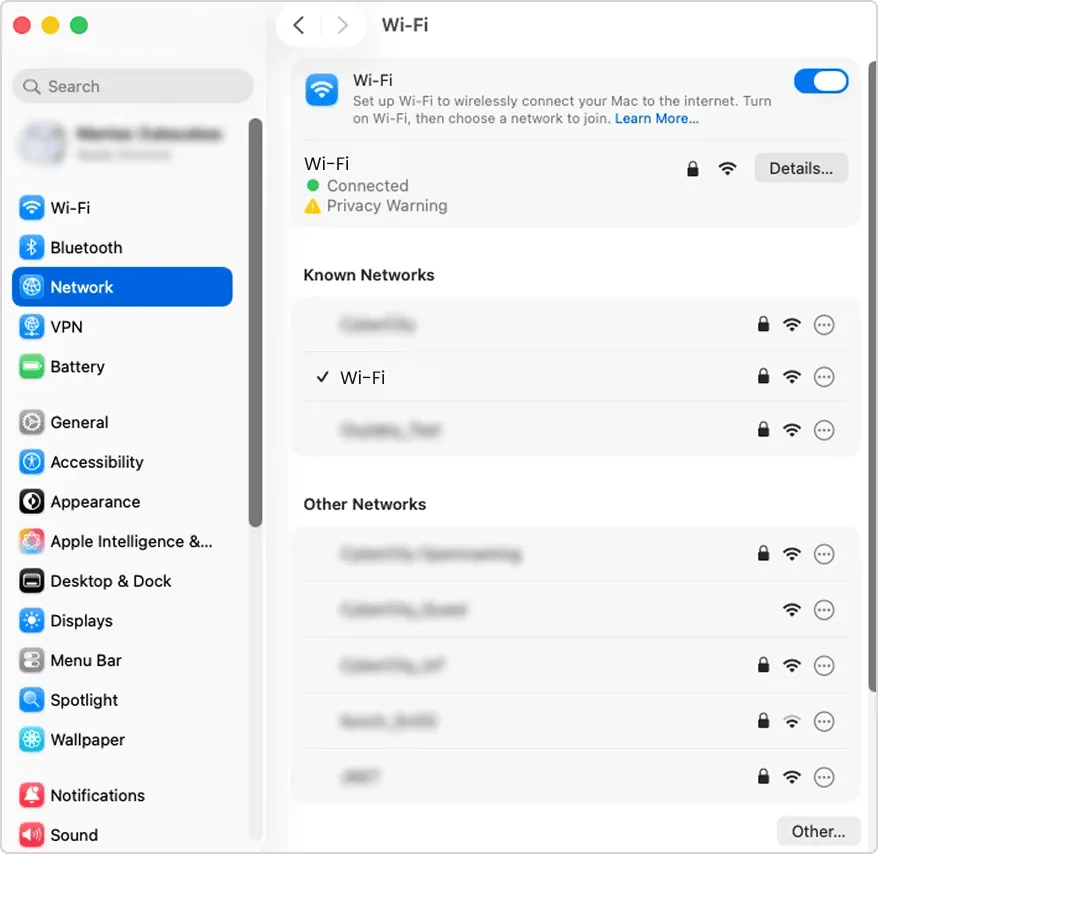
See exactly where to find the Network Settings on modern macOS and how to input your proxy credentials step-by-step.

System-wide localization
Change your location for every app instantly. Whether you are checking a localized Spotify ad, testing an App Store listing, or using curl in Terminal, the entire OS appears to be in your target region.

Developer-friendly
Choose macOS as the preferred platform for developers, and integrate Decodo at the system level to run code, scripts, and API calls through residential IPs, without hardcoding proxy credentials into every script.

High trust & privacy
Encrypt your traffic on public Wi-Fi networks in coffee shops or airports. Our residential IPs provide a high trust score, reducing the number of verification challenges (CAPTCHAs) you encounter while browsing.
Choose a subscription that best matches your needs and project.
With each residential proxy plan, you access:

115M+ ethically-sourced IPs in 195+ locations
HTTP(S) & SOCKS5 support
Continent, country, state, city, ZIP code, and ASN-level targeting
Rotating and sticky session options
<0.5s avg. response time
99.92% success rate
99.99% uptime
Seamless integration with scraping tools and bots
24/7 tech support
14-day money-back
SSL Secure Payment
Your information is protected by 256-bit SSL

Explore other setup guides for other operating systems and connection tools

iPhone (iOS) System Setup
Configure proxies on your Apple mobile devices in just a few simple steps.
We're thrilled to have the support of our 135K+ clients and the industry's best.

Attentive service
The professional expertise of the Decodo solution has significantly boosted our business growth while enhancing overall efficiency and effectiveness.
N
Novabeyond
Easy to get things done
Decodo provides great service with a simple setup and friendly support team.
R
RoiDynamic
A key to our work
Decodo enables us to develop and test applications in varied environments while supporting precise data collection for research and audience profiling.
C
Cybereg
Generally, yes. Most command-line tools (like curl or wget) respect the system proxy environment variables. However, some specific shell configurations may require you to export the proxy manually (e.g., export http_proxy=...).
Decodo does not currently provide a PAC (Proxy Auto-Config) file. For the most reliable connection, please use the Manual configuration steps listed above.
Go back to System Settings, select Network, then Details, and Proxies, and simply toggle the HTTP and HTTPS switches to Off. Click OK. Your internet connection will return to your direct ISP connection immediately.
Experience privacy and global access across your entire operating system.
14-day money-back option