How to Set Up a Proxy in Safari Browser
Secure your browsing on macOS. Configure Decodo’s 115M+ residential IPs to verify localized content and browse anonymously via Apple’s native Safari browser.
14-day money-back option
Secure your browsing on macOS. Configure Decodo’s 115M+ residential IPs to verify localized content and browse anonymously via Apple’s native Safari browser.
14-day money-back option
115M+
ethically-sourced IPs
<0.5s
average response time
99.92%
success rate
7-day
free trial
99.99%
uptime
Trusted by:







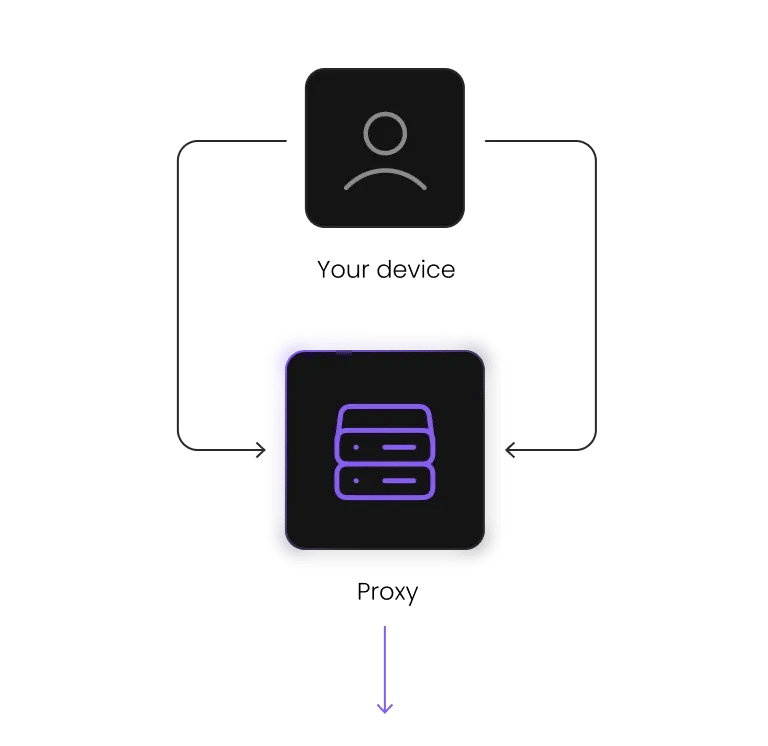
Safari works differently from most browsers. It doesn't have its own standalone proxy configuration, instead acting as a native interface to macOS networking.
When you configure residential proxies for Safari, you're updating system-wide network settings on your Mac. As a result, your proxy connection applies to Safari as well as other applications that rely on the same network setup.
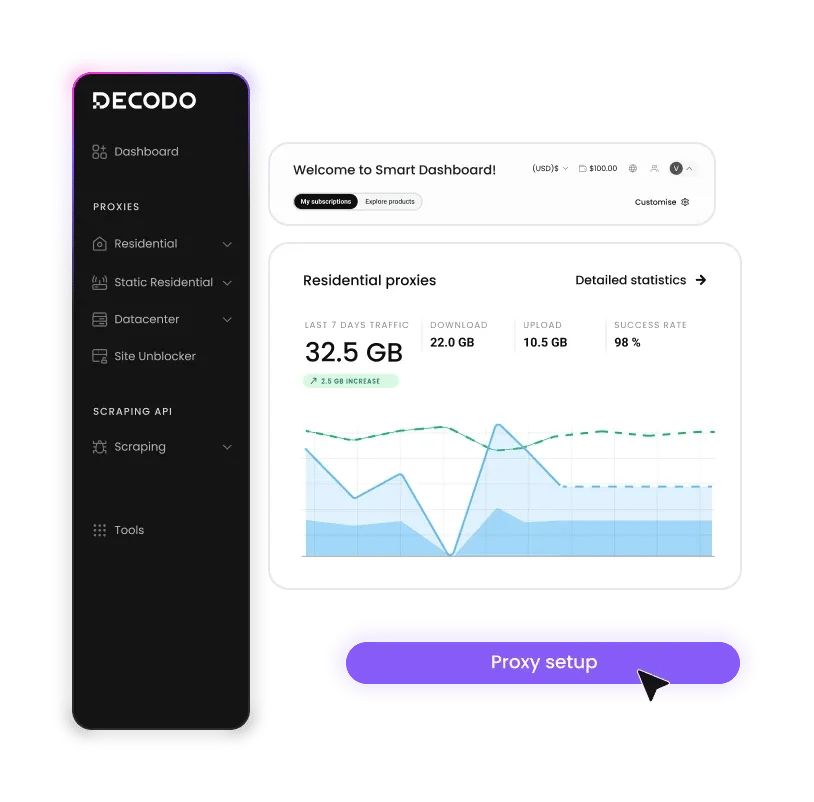
Before getting started, make sure you have:
Since Safari relies on system level settings, the process closely follows macOS network configuration, with Safari acting as the entry point.
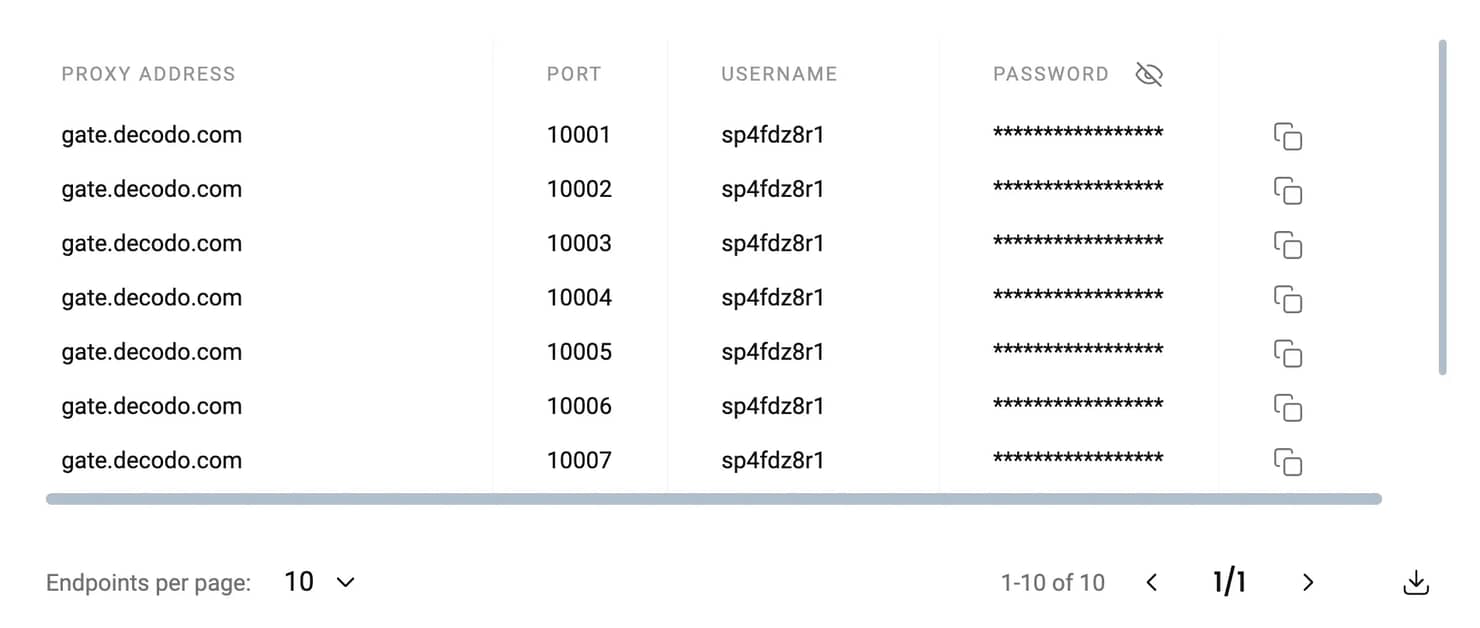
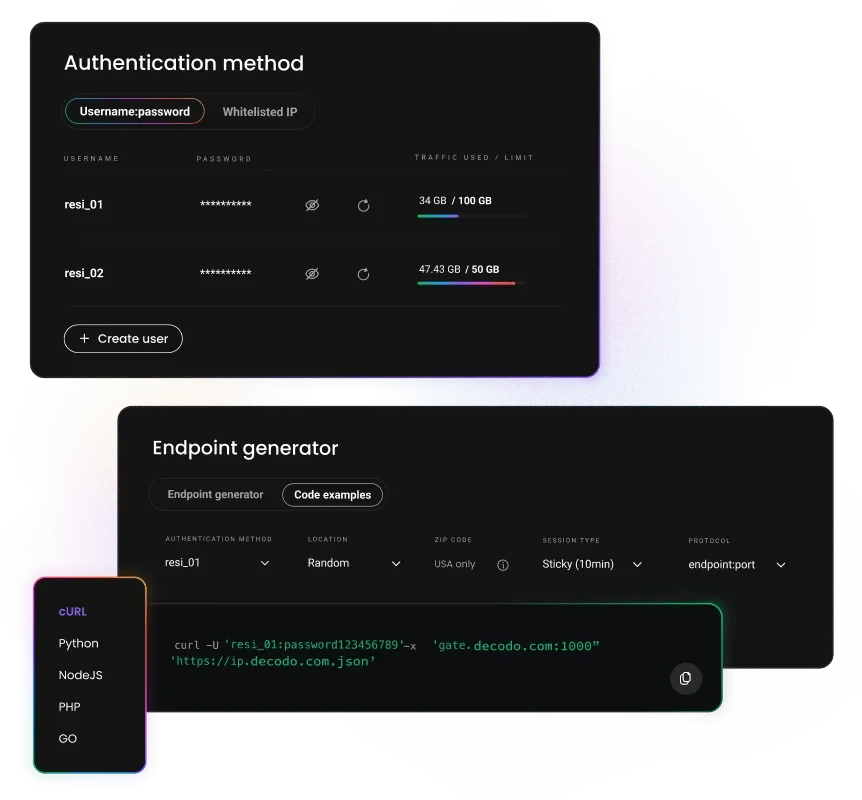
Start by collecting our Decodo proxy details:
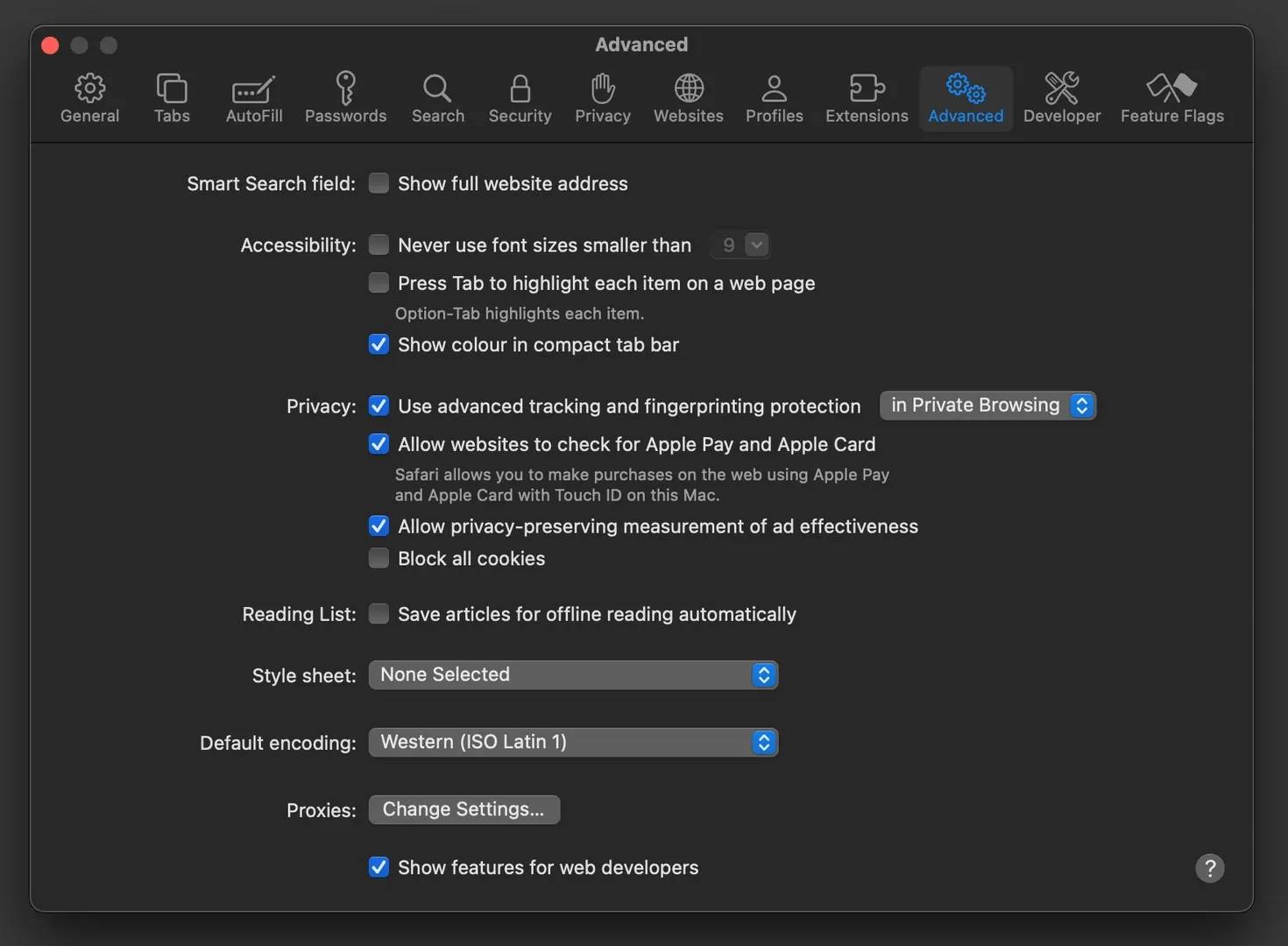
Safari provides a direct shortcut to macOS proxy settings:
This shortcut opens your Mac's Network settings.
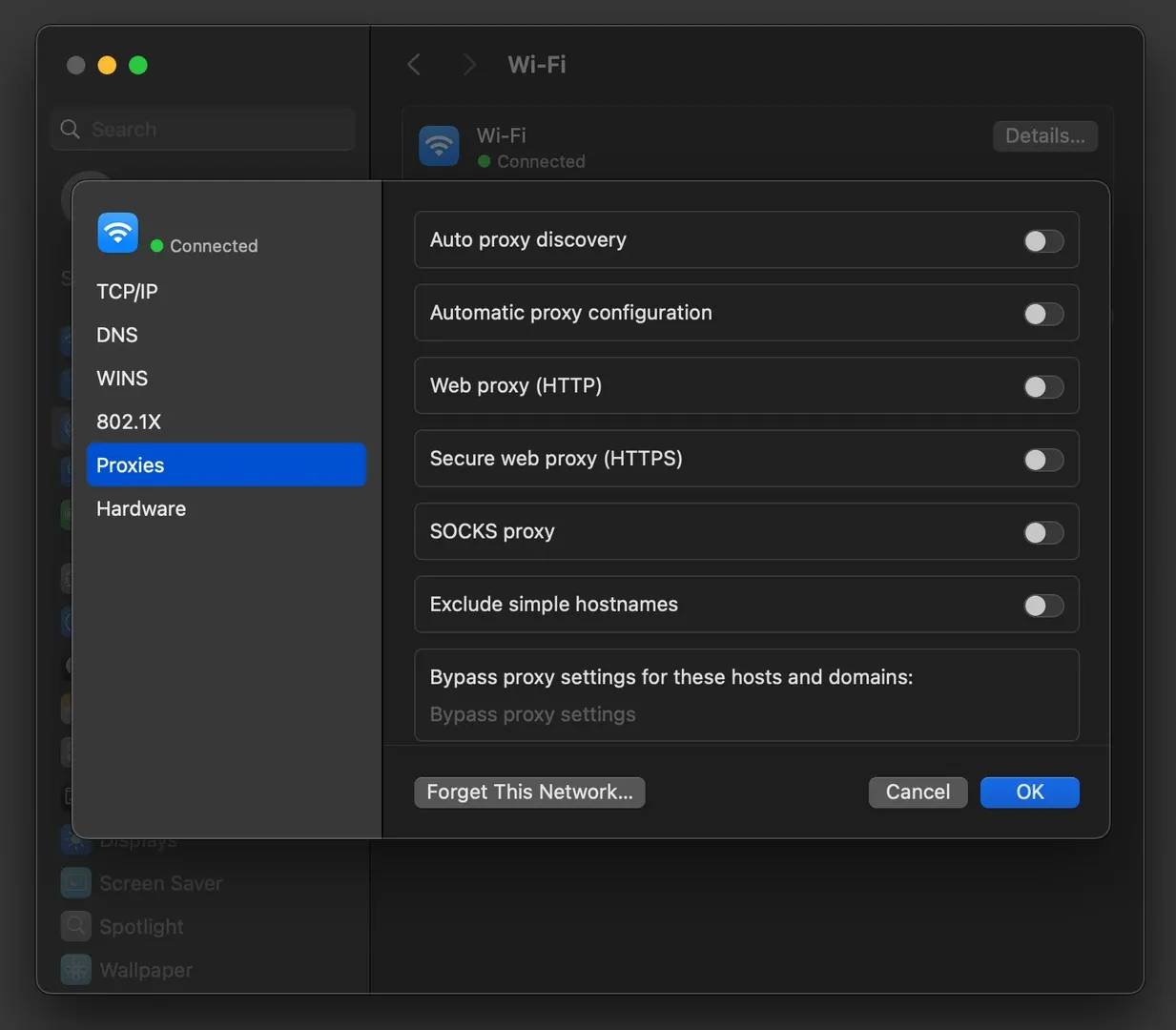
Here you define which traffic Safari routes through the proxy:
Enabling both is required for modern websites to load correctly in Safari.
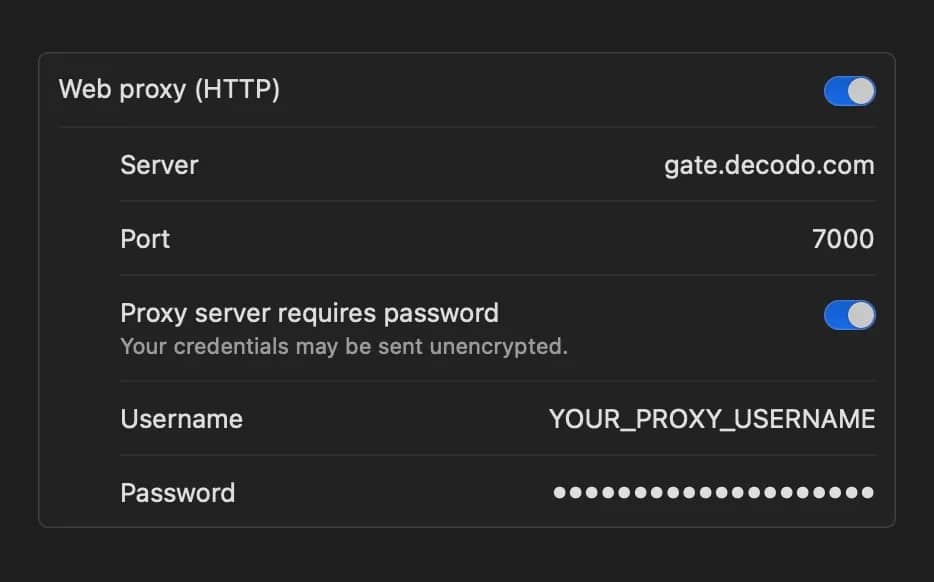
Now add your Decodo proxy credentials:
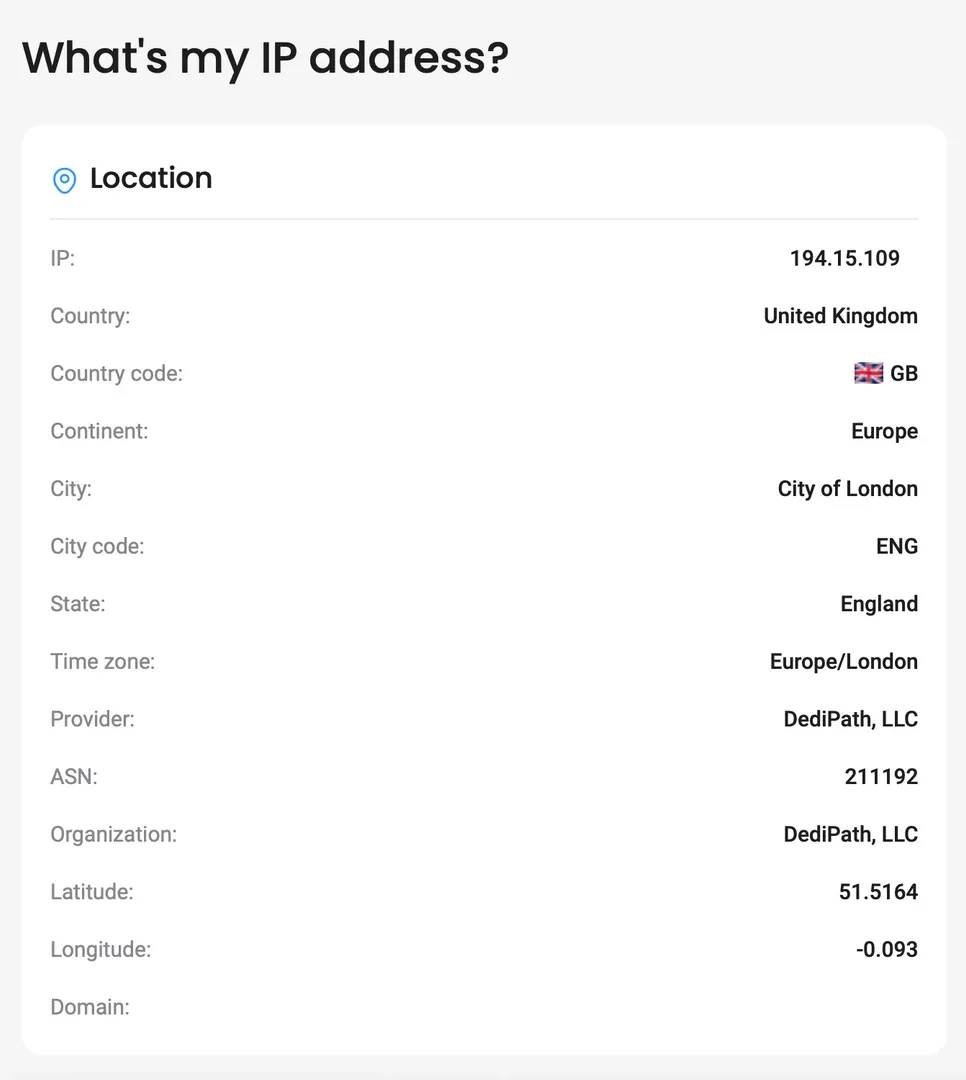
Finish by confirming the connection is active:
See how you can easily fix some of the common Safari errors.
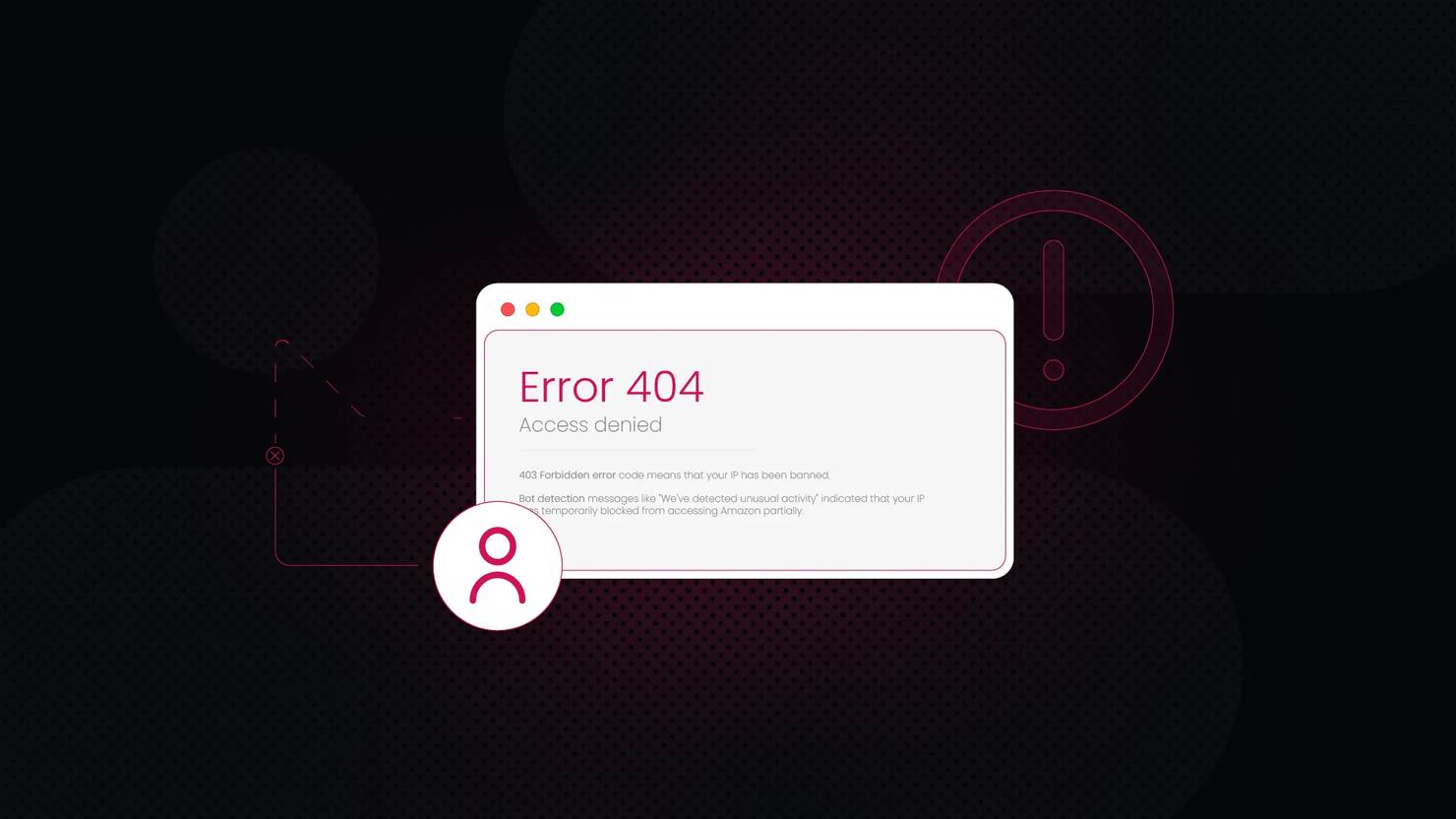
"Safari cannot open the page" error
This issue usually occurs when only the HTTP proxy is enabled and HTTPS is left off. Most modern websites require secure HTTPS connections. Make sure Web Proxy (HTTP) and Secure Web Proxy (HTTPS) are both turned on in the proxy settings.
Repeated password prompt
Safari integrates closely with iCloud Keychain. If macOS keeps asking for your proxy password, an outdated or corrupted Keychain entry may be causing the loop. Open Keychain Access, search for the proxy entry, delete it, then re-enter your credentials in the proxy settings to create a fresh save.
Slow loading speeds
Safari’s built-in privacy features, such as Intelligent Tracking Prevention, can occasionally increase latency when used with proxies. If you notice unstable connections or slow loading, check that iCloud Private Relay or similar relay features are disabled, as they can interfere with proxy traffic.
Employ proxies to improve your success with ad verification, online privacy, accessing geo-blocked websites, and more.

Ad verification and SEO
Simulate a local iPhone or Mac user in 195+ locations using residential IPs and accurately review geo-targeted ads and search results.

Enhanced privacy
Avoid location-based tracking and add an extra layer of protection by masking your real IP address with residential proxies while browsing Safari.

Access region-specific content
View localized websites that may be unavailable in your location by routing traffic through Decodo's network of real household devices.
Get unlimited concurrent sessions and comprehensive geo-targeting with our fast residential proxies.
With each residential proxy plan, you access:

115M+ ethically-sourced IPs in 195+ locations
HTTP(S) & SOCKS5 support
Continent, country, state, city, ZIP code, and ASN-level targeting
Rotating and sticky session options
<0.5s avg. response time
99.92% success rate
99.99% uptime
Seamless integration with scraping tools and bots
24/7 tech support
14-day money-back
SSL Secure Payment
Your information is protected by 256-bit SSL

Check out step-by-step tutorials for major operating systems and connection tools.
We're thrilled to have the support of our 135K+ clients and the industry's best.

Attentive service
The professional expertise of the Decodo solution has significantly boosted our business growth while enhancing overall efficiency and effectiveness.
N
Novabeyond
Easy to get things done
Decodo provides great service with a simple setup and friendly support team.
R
RoiDynamic
A key to our work
Decodo enables us to develop and test applications in varied environments while supporting precise data collection for research and audience profiling.
C
Cybereg
Since Safari uses the macOS system settings, any proxy you configure will affect the entire operating system (including applications like Mail, Spotify, etc.). If you need to use proxies only on the browser, we recommend using Chrome or Firefox with a specialized extension.
Yes, macOS supports SOCKS proxies, but Safari is optimized for HTTP(S) web traffic. While you can enable the SOCKS proxy in the settings, authentication support is limited. We recommend Firefox for reliable SOCKS5 browsing.
Yes, iCloud Private Relay is essentially Apple's own proxy. If both are enabled, they may conflict. We recommend disabling Private Relay (System Settings > Apple ID > iCloud > Private Relay) when using a custom residential proxy.
Experience privacy and global access directly in Safari with premium residential IPs.