Claude MCP: How To Set Up MCP Servers in Claude Desktop and Claude Code
Claude MCP is the Model Context Protocol as Claude implements it: a server declares tools, and Claude calls them. Claude Desktop and Claude Code both use it, and each reads a different config file. This guide sets up both clients, then measures cost and hidden failures.

Justinas Tamasevicius
Last updated: Sep 14, 2026
12 min read

TL;DR
- Claude Desktop reads claude_desktop_config.json at launch, so changes take effect on restart. Claude Code takes a single claude mcp add command and loads the server per scope.
- Scope decides who gets the server. Local stays private to one project. Project is stored in .mcp.json and asks each teammate once, and the user applies it in every project.
- Authenticate a server through the /mcp command. A server listed as connected with zero tools means authentication is still pending, not that setup failed.
- Reference secrets with ${VAR} syntax pointing to environment variables instead of hardcoding them in the config. SSE transport is deprecated in favor of Streamable HTTP.
What Claude MCP is and how the pieces fit
Claude MCP standardizes the layer between a model and everything outside it, so one server works with every client that implements it. A Claude MCP server is one that Claude Desktop or Claude Code can call through the protocol. 4 pieces matter first:
- Client. Claude Desktop or Claude Code. The client starts servers, reads their tool lists, and decides which tool to call.
- Server. A process or an HTTP endpoint that answers tools/list and tools/call. Most servers give the model access to an API you already have.
- Tools. Named capabilities with JSON Schema inputs. The model reads the schema, so schema quality affects call quality.
- Transport. Streamable HTTP for remote servers, stdio for local processes. SSE is deprecated and scheduled for removal, so don't start anything new on it.
Those 4 pieces combine in a single request. Read the sequence top to bottom, where solid arrows are requests and dashed arrows are responses. The single highlighted arrow shows the failure mode worth noting first: a target's refusal can arrive as ordinary tool content rather than as an error:
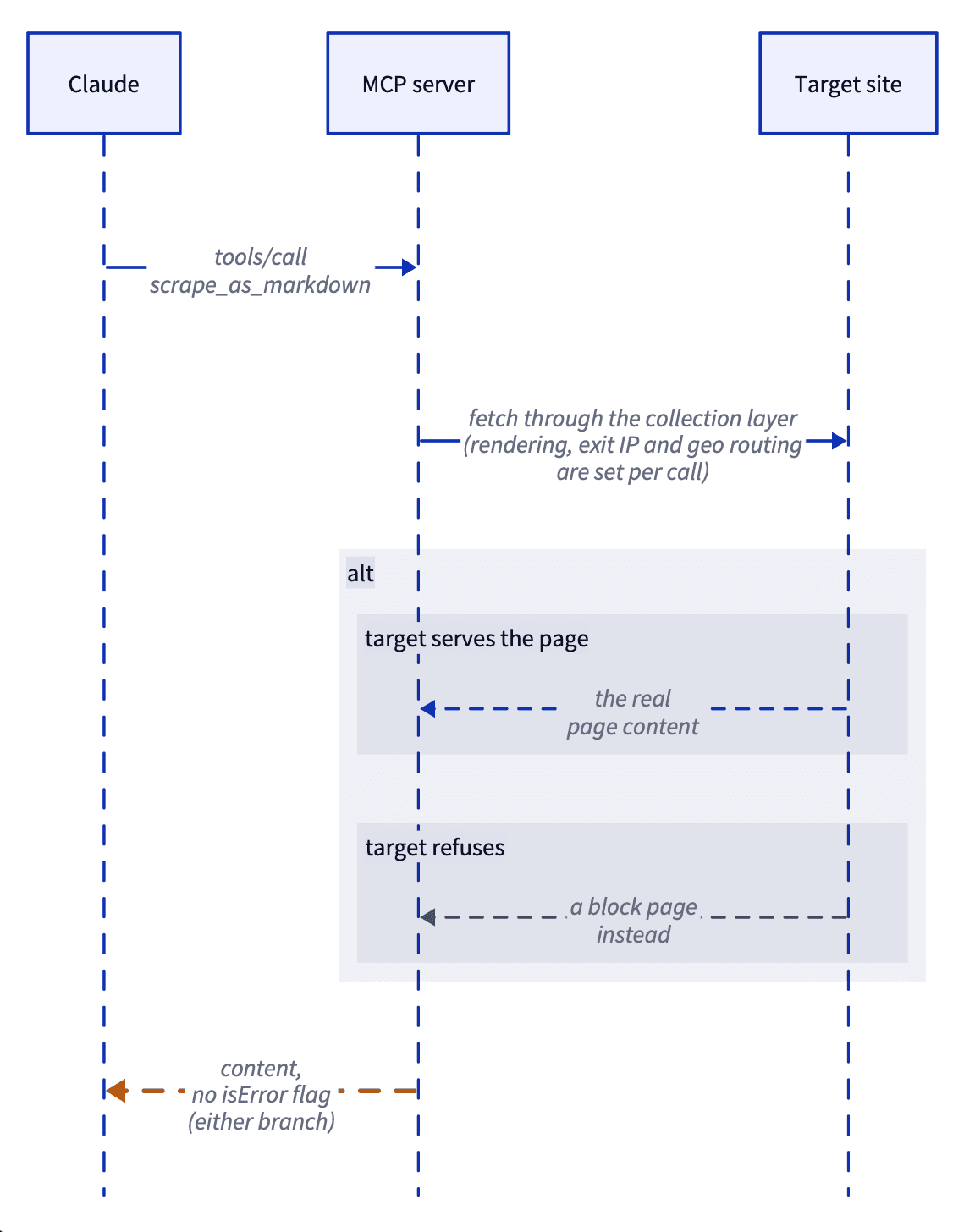
The shaded alt block marks the one place where 2 things can happen: the target serves the page, or it refuses. When a refusal arrives this way, both branches return through the identical arrow with no isError flag. A blocked page and a real page therefore look the same until the model reads what's inside.
The protocol underneath is the same in both clients. The config files, the scopes, and the approval steps differ.
Claude Desktop MCP setup
Claude Desktop MCP setup has 2 paths, and they differ in how much control you keep. Start with the menu, which installs packaged extensions and remote connectors. Use the config file when the menu doesn't list what you need.
Both setups need Node.js on the PATH that the app itself sees, because the example server runs through npx. They also need a Decodo API token from the free Web Data API plan. Decodo is the worked example because it gives Claude live web access. Most other MCP servers use the same config fields with their own credentials.

Give Claude a scraper
Mount Decodo's MCP server and Claude gets live web search and scraping tools, not just static training data.
Path 1: Connectors and Extensions
Extensions are packaged servers that come as .mcpb bundles. Settings > Extensions installs them. The bundle contains a manifest.json, so the app can collect your API key through a form instead of asking you to edit JSON. The format appeared as .dxt first and was renamed to .mcpb, so older guides still name the .dxt extension.
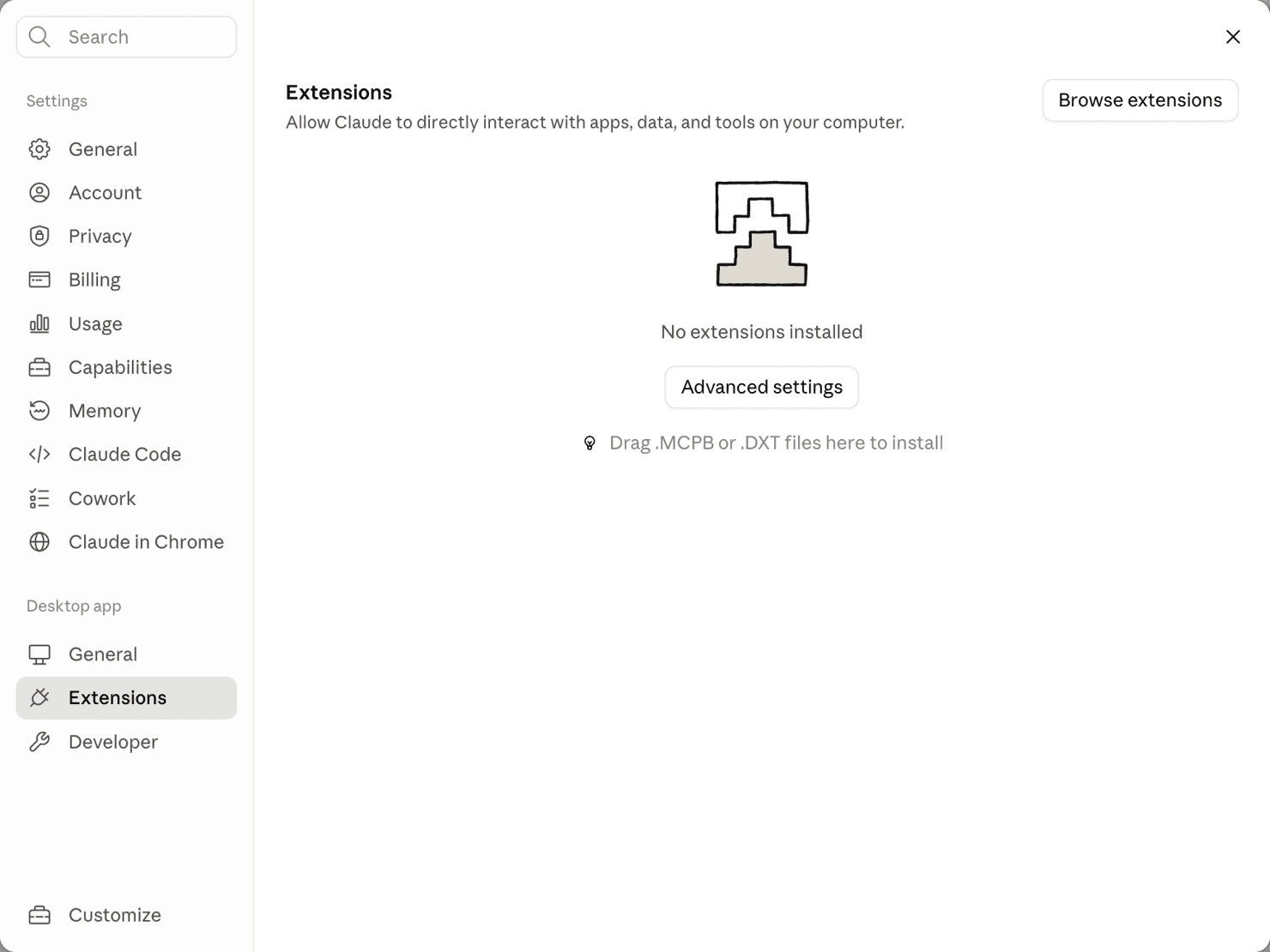
The install hint is the rename in one line: .MCPB is the current format, .DXT is the older name that Claude Desktop still accepts. Browse extensions shows the marketplace for anything you haven't built yourself.
For a remote server, open Settings > Customize > Connectors and click Add. Paste the HTTPS endpoint into the dialog that opens. Authentication usually completes in the browser through OAuth. The token then stays in the app rather than in a file you might commit.
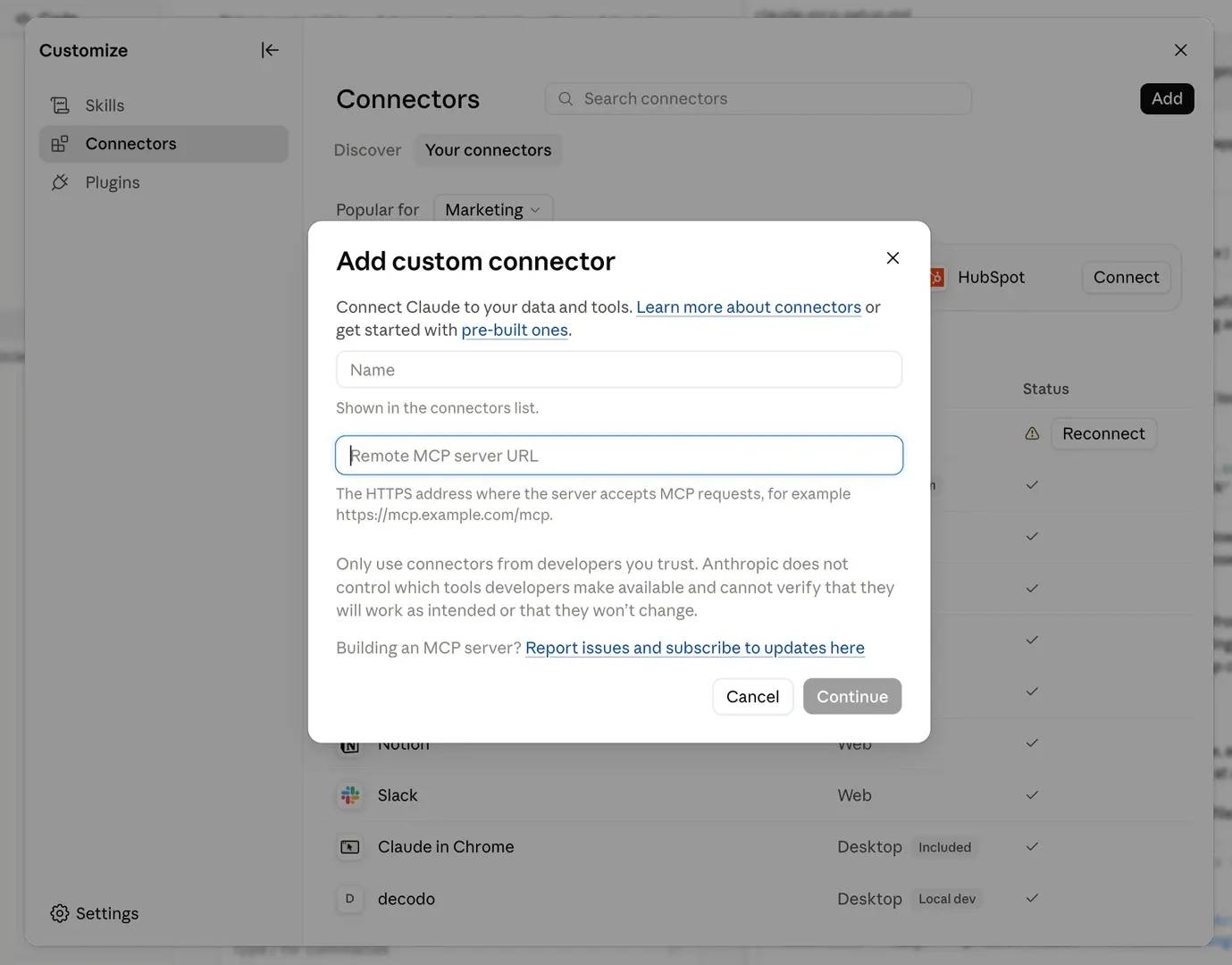
Claude Desktop states this plainly in the dialog itself: "Anthropic does not control which tools developers make available and cannot verify that they will work as intended or that they won't change". The warning says a server can change without your knowledge, so pin a version and read the diff before you trust one.
Pick this path when the server you want is listed. Everything else needs the config file.
Path 2: claude_desktop_config.json
The config file is at ~/Library/Application Support/Claude/claude_desktop_config.json on macOS and %APPDATA%\Claude\claude_desktop_config.json on Windows. Settings > Developer > Edit Config opens it directly.
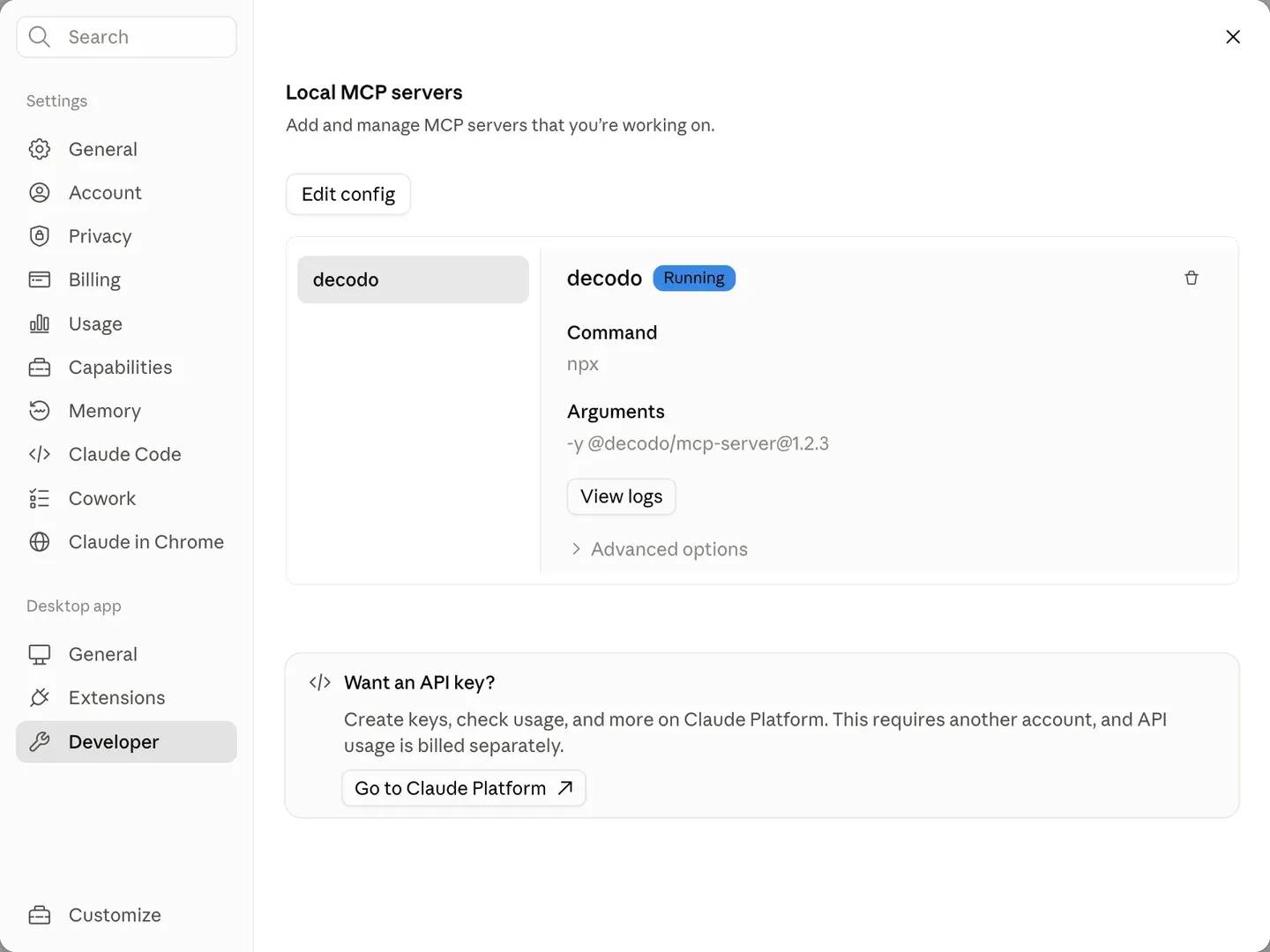
The Edit Config button opens the same file that this section edits. Once a server is added, it appears here with a live status, so you can confirm the process actually started.
This block connects the Decodo MCP server, which gives Claude live web access through a managed collection layer:
The TOOLSETS value decides how many tool schemas load into the session, so name only the groups you need. Restart Claude Desktop fully after saving, because the app reads this file at launch and won't reload it while running. Claude Desktop stores the token exactly as written, so the file's protection is all the token gets. Keep that file out of synced folders and repositories.
Once the server reconnects, open it from Settings > Customize > Connectors to see what actually loaded. Claude Desktop groups a connector's tools by capability and puts each group behind an approval setting. Every tool defaults to Needs approval until you change it.
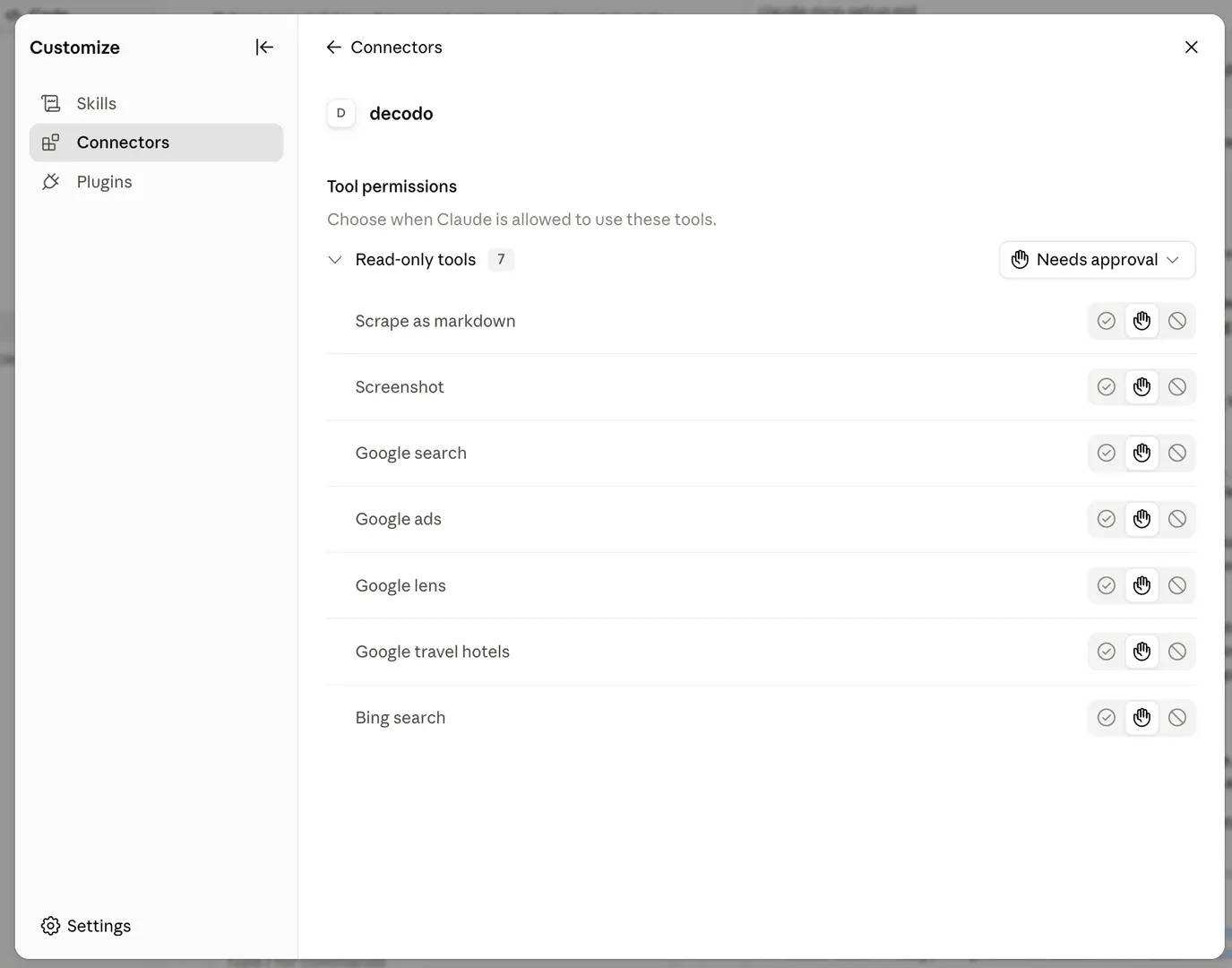
The 7 tools listed here are exactly the web and search toolsets set above: scrape_as_markdown and screenshot, then google_search, google_ads, google_lens, google_travel_hotels, and bing_search. Each tool has its own control, so you can allow or block a single one without editing the config file. Because of that default, your first real prompt is likely to trigger an approval.
Then test it. Name the server directly so the call reaches it. Claude can otherwise use its own web search or a public API when one exists for the target: "Use the decodo tool to scrape https://news.ycombinator.com and list the titles of the top 5 posts."
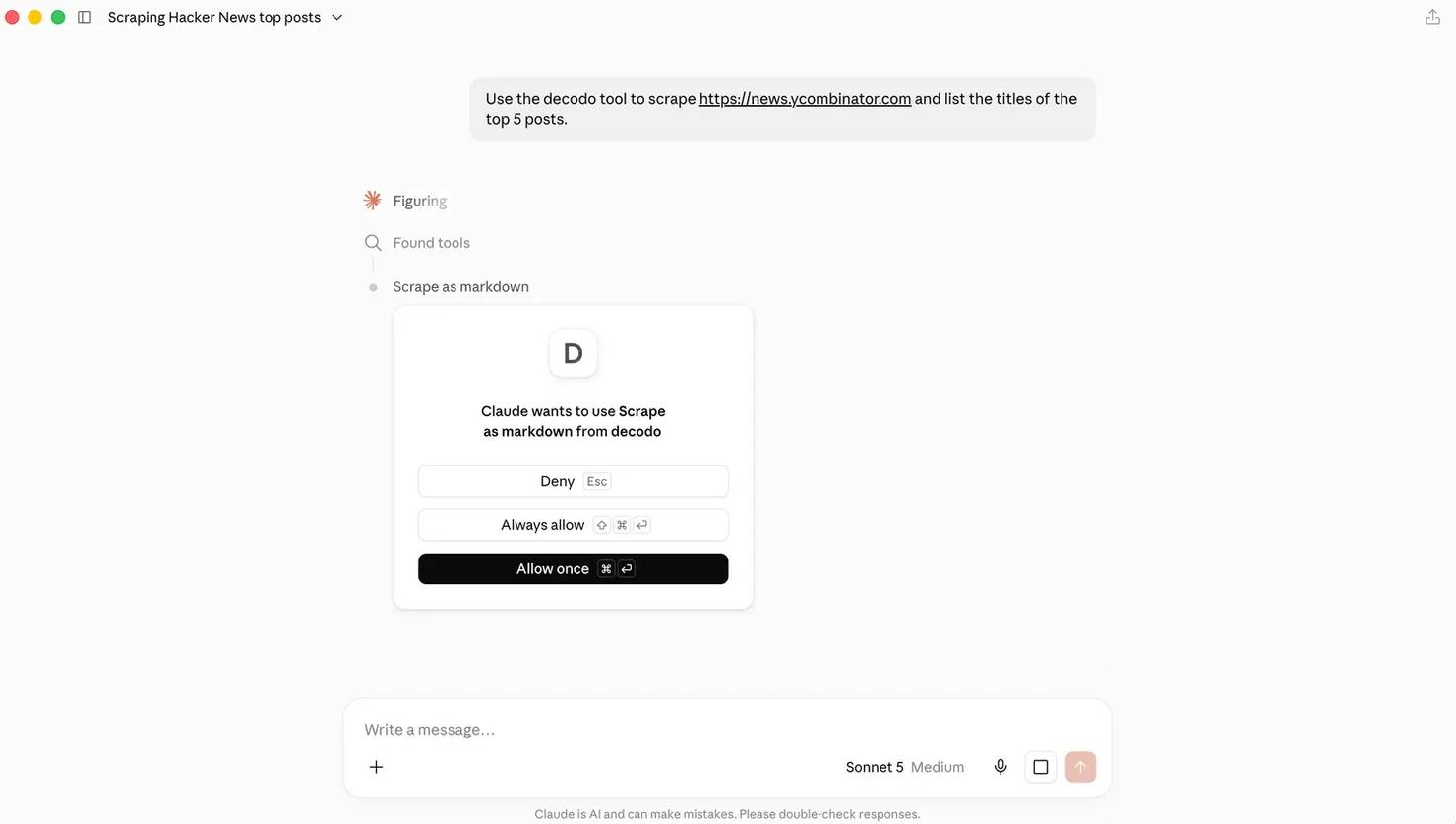
Deny blocks the call, Always allow skips this prompt for every future call from the tool, and Allow once approves just this one. The Needs approval default produces this dialog when a tool runs, not just an entry on a settings page.
The approved call runs in the same turn, with the integration named above the answer.
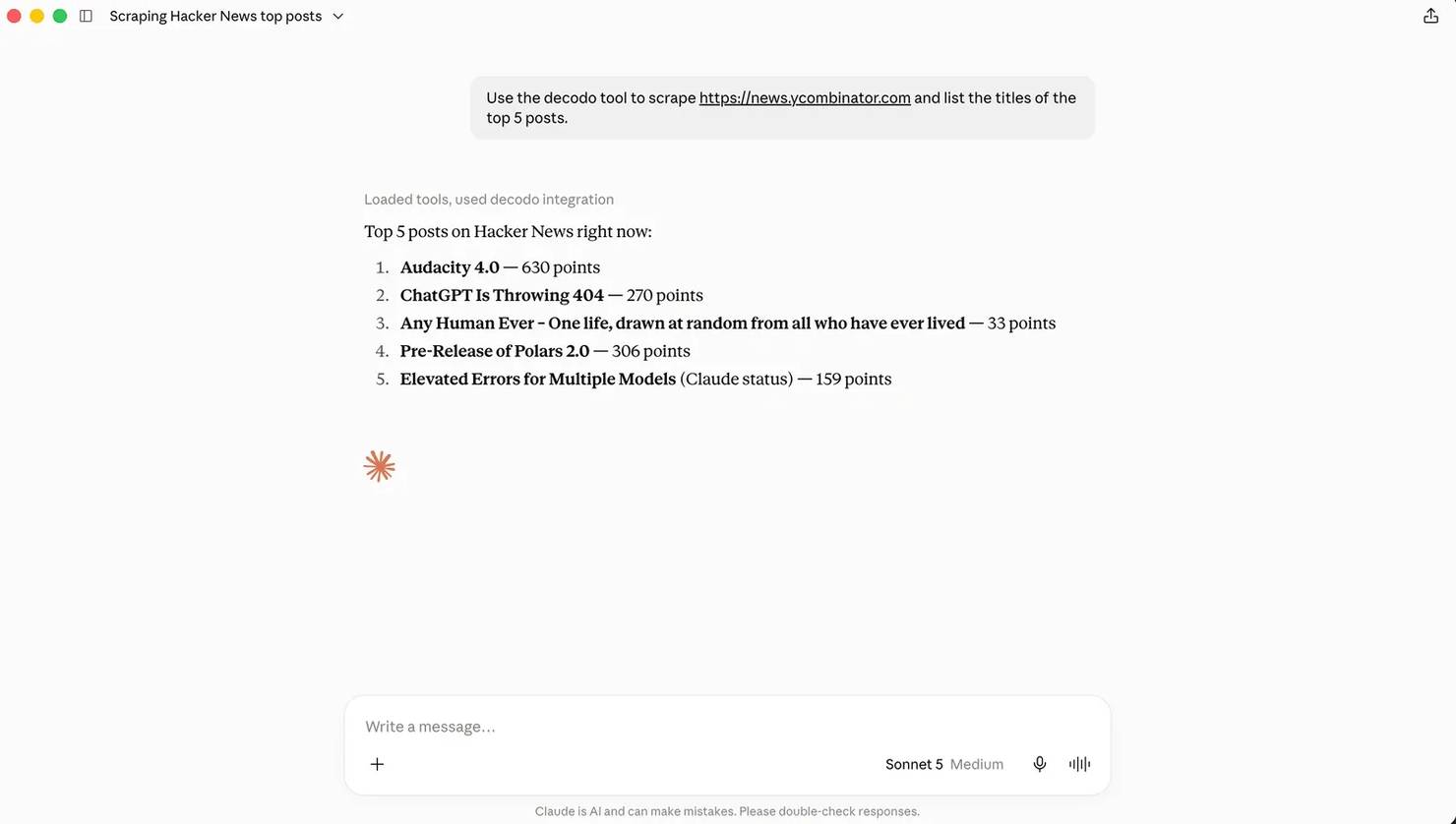
The screenshot shows one run's actual output, not a fixed example. Hacker News's front page changes by the hour, so the titles here are unlikely to match what a later run returns. The structure of the response should stay constant: a real ranked list returned by the tool, not a paraphrase.
The full parameter reference is in the setup documentation.
Claude Code MCP setup
Claude Code MCP setup runs from the CLI, so you never have to hand-edit a config file unless you want to. One command adds a server, and one flag decides who else gets it.
A local stdio server takes the command you'd run in a shell, after a "–" separator:
A successful add prints the name it registered and the file it wrote to:
The output confirms the config was written. It says nothing about whether the server runs, so check that separately.
Everything before "–" belongs to Claude Code. Everything after it is the server's command line. A missing separator makes Claude Code read the server's flags as its own and reject them.
Remote servers skip the separator and take a transport flag instead:
Verify either one with claude mcp get <name>, which starts the server, runs the handshake, and prints the result:
Connected means the process started and answered. Connected doesn't mean the credentials are valid, and it doesn't mean the tools work, so continue checking. The Environment block echoes whatever you passed literally, including the token. Treat the output of this command as sensitive when you paste it anywhere.
Claude Code MCP server setup: Scopes and where config lives
Claude Code MCP server setup starts with scope, the setting worth deciding first. The default is the narrowest option, and the confirmation line names it without saying that it was a choice.
Claude Code scope
Where config is stored
Who gets it
When to use it
local (default)
~/.claude.json, keyed by project path
Just you, in the current project
Experiments, personal credentials
project
.mcp.json at the repo root
Every teammate who clones and approves
Servers the whole team needs
user
~/.claude.json, top level
Just you, in every project
Personal tools you want everywhere
A project-scoped server waits for approval before it starts. Until someone approves it, claude mcp get reports it as pending:
The approval step is the point of project scope. A cloned repository can define a server that runs any local commands, so Claude Code asks once per project before starting anything from a committed file.

The screenshot shows the actual prompt behind that pending status. Read the warning literally: trusting the server here doesn't skip approval for individual tool calls. Each one still needs its own approval.
Transports, headers, and auth
Use Streamable HTTP for anything remote. Use stdio for anything local.
The CLI still accepts the deprecated transport: claude mcp add –transport sse prints the same confirmation as any other add, with no warning. The deprecation is real, but the CLI says nothing about it. For a server that requires a static token, pass a header when you add it:
For OAuth servers, add them with no credentials and finish the flow with claude mcp login <name>, or open /mcp inside a session. A connected server with 0 tools almost always needs that step.
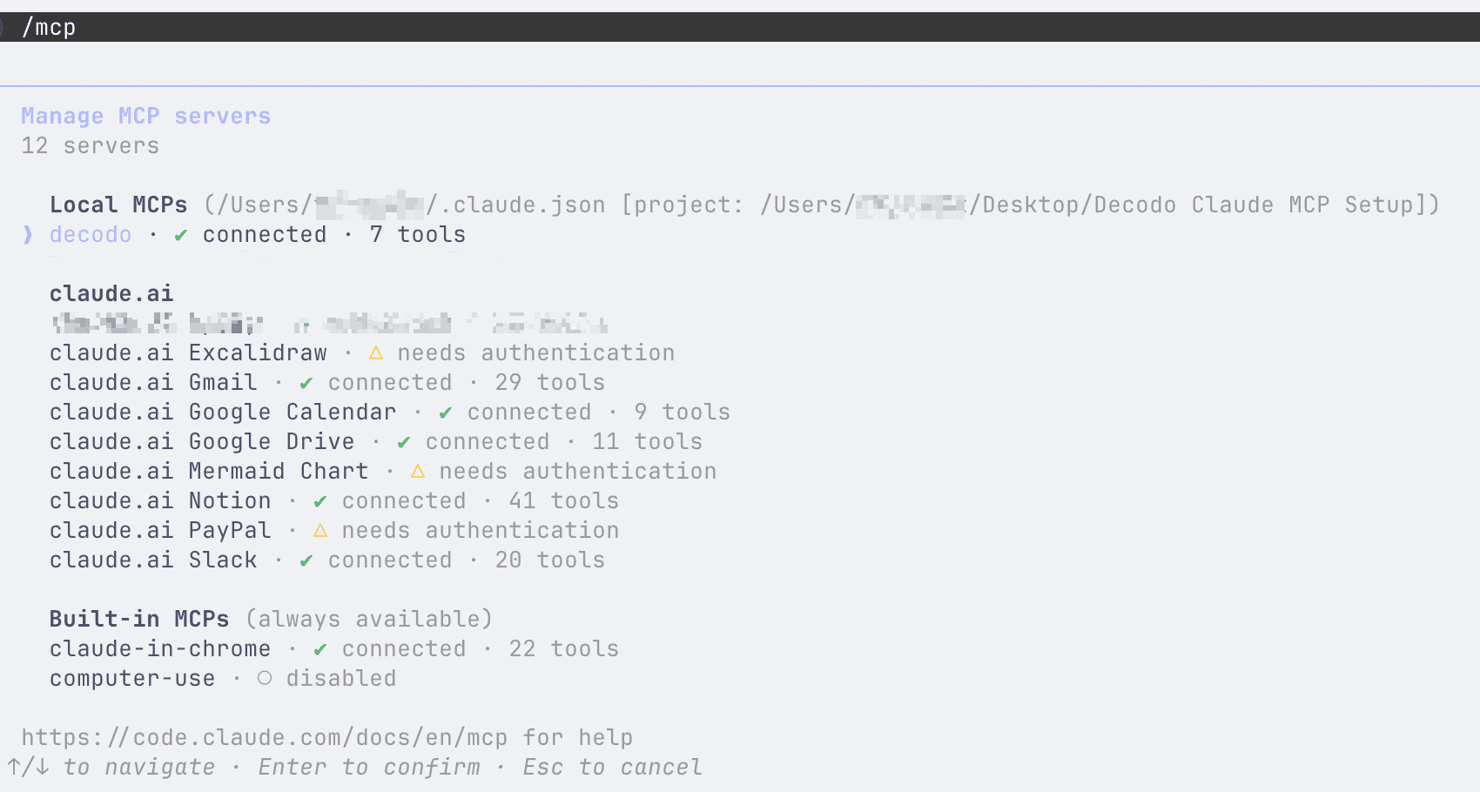
The panel groups servers by scope: Local MCPs for this project, claude.ai for connectors managed elsewhere, and Built-in MCPs that come with the client. The decodo line matches the web and search toolsets from the add command above: 2 tools plus 5.
If your servers already work in Claude Desktop, claude mcp add-from-claude-desktop reads that config and offers them in a checklist on macOS and WSL. A name with a space in it still appears in that list, pre-checked like any other. The error arrives only after you confirm:
The valid servers are imported and the rest report one line each, so a bad name skips that entry rather than the whole import. Rename anything outside [a-zA-Z0-9_-] in the Desktop config before you start, or read that summary carefully.
The import command also needs a real terminal. If you run it with stdin redirected, the way a setup script does, it produces no output, no error, and no exit. Exclude it from anything automated.
What the client actually sends over the wire
Protocol revisions matter when you build a server or evaluate one, and your client may use a different one. Check it by pointing the client at a server that logs every frame.
A minimal stdio server answers that question in one run. The server appends each inbound message to a file, and it echoes the client's protocol version back so the handshake always completes. The echo suits a probe and would be wrong in a real server:
Register it with claude mcp add probe – node ./probe.js, run claude mcp get probe, and read the log. Every run opened with the same frame:
The frame above is the stateful handshake, at revision 2025-11-25, from a build released well after the 2026-07-28 revision made the protocol stateless and removed initialize entirely. Setting MCP_SDK_GENERATION=v2 and MCP_PROTOCOL_NEGOTIATION=auto against an HTTP server did produce a server/discover probe with mcp-protocol-version: 2026-07-28. The run still finished on the legacy handshake, even when the test server advertised support for both revisions.
Those runs give 2 practical conclusions. If you write an MCP server today, target 2025-11-25 and keep the initialize path working, because the client you're using sends that revision. And if you buy one, the vendor's claimed spec revision tells you less than a 5-minute frame log does.
Claude Code also runs as a server. claude mcp serve returned 30 tools and 119,069 bytes of schema on build 2.1.216, about 6 times the schema of a focused data server with the same tool count. That number changes with the client. An older 2.1.108 on the same machine returned 26 tools and 80,859 bytes, so measure your own build before you nest one Claude instance inside another workflow.
Managing large tool sets and the context they cost
Every tool that a connected server exposes has a name, a description, and a JSON Schema, and the model reads that text to choose between tools. Cost scales with tools exposed, not tools used.
The Decodo server makes this measurable, because its TOOLSETS variable controls which groups load. Measuring the serialized tools array from tools/list per toolset, on version 1.2.3, gives these numbers:
Decodo TOOLSETS value
Tools returned
tools/list bytes
web
2
1,299
search
5
3,999
ai
3
1,771
social_media
8
3,545
ecommerce
12
9,333
all 5 (the default)
30
19,943
Leaving TOOLSETS unset loads the full set, 30 tools in that version. Naming web, search instead reduces the schema payload by about 73%. If your workflow never scrapes Amazon or TikTok, it loses nothing it uses.
Claude Code limits this on its own: tool search is on by default, so MCP tool definitions are loaded on demand and aren't included in every request. Tool search is a client behavior, not a protocol guarantee, and Claude Desktop, a custom agent, or an older build won't necessarily do it. Scope the toolset anyway.
Output is the other half of the cost, and it has a fixed limit. Claude Code caps MCP tool results at 25,000 tokens by default through MAX_MCP_OUTPUT_TOKENS, which the Claude Code MCP reference documents alongside the other timeout and transport variables. Past that limit, Claude Code tells you rather than truncating silently. A probe tool asked for 400,000 characters returned this instead:
A 40,000-character result returned inline, and Claude Code wrote a 90,000-character result to disk, so the character count that crosses the limit depends on how your content tokenizes.
The variable moved in one direction only. Setting it to 500 sent that same 40,000-character result to disk, so lowering the cap works. Raising it to 100,000 and then 200,000 still sent 60,000-character and 90,000-character results to disk, exactly as at the default. If you need a larger result to arrive complete, set the per-tool anthropic/maxResultSizeChars annotation on the server rather than changing the client environment.
Writing to disk has 2 consequences worth planning for. The model may read that file back in chunks and spend more context than a plain truncation would have. And that file goes under your project directory, so customer data in the payload is now on disk.
Ask the server to trim instead. The Decodo tools accept a tokenLimit argument, and in testing it trimmed exactly: a value of 2000 returned 2000 characters of payload. Read it as a character budget rather than a token count, and check the figure against your own content.
Scoping and trimming work with what both clients give you today. Code execution removes the problem outright: the agent writes code that calls the servers, so schemas and intermediate results never reach the model's context. One published workflow dropped from 150,000 tokens to 2,000. It's the same tradeoff as picking a CLI script over an MCP server in the first place, covered in MCP vs CLI.
That pattern is an architecture for agents you build yourself, not a setting in either client. The protocol is moving in the same direction, with progressive discovery named on its roadmap, where clients load a server's tools as they need them instead of taking the whole catalog at the start.
When a tool call succeeds and the data is wrong
MCP has an error channel, and a page that refuses you doesn't reliably use it. That gap is the expensive part of connecting a web data server, and it stays invisible until you look at the raw result.
A transport failure that never reaches the target is marked as an error. Calling scrape_as_markdown against a domain that doesn't resolve returns this:
The model receives isError: true and can react to it. The same tool against a Cloudflare-protected category page, with default settings, returned a block page instead:
That result had no isError field at all. At the protocol level, it's a successful tool call. A model asked for a summary can summarize the block page instead.
Measure how often a block page arrives rather than assuming it's rare. Across 28 runs against 6 pages, the 2 open pages and 2 of the 4 protected ones returned real content every time. A third protected page failed with an error on all 4 of its runs, with isError: true and a 49-character message. The fourth returned a block page as ordinary content on 6 runs out of 8, and gave an error on the other 2.
That fourth page is the whole problem. A refusal reached the model as content repeatedly, with nothing in the result marking it as a failure. Most pages never behave this way, and the rarity is exactly why it surprises people. You check the error field; it works for weeks, and then one target puts a block page into a summary with no error.
Turning on browser rendering changed the result on this target. The same call with jsRender: true returned the real category page:
Geo routing is the second control, and each request exited in the country it asked for against an IP echo endpoint. geo: "United States" came from Los Angeles on those runs, Germany from Berlin, and Japan from Tokyo. The test specified a country, so the exit city varied within it. Geo routing matters when a target serves different inventory or pricing per country.
Those findings give you 4 defaults, and they apply to web data MCP servers generally, not only this one.
- Check for an endpoint before you scrape anything. Asked to list the top Hacker News posts, Claude skipped the scrape tool, found the public Firebase API, and called that instead. The API was the cheaper call, and it returned 4,501 bytes of structured JSON with a title and score on every item, against 34,384 characters of markdown for the same front page. A tool that renders pages is worth using on targets that block you or publish nothing structured, and where an endpoint exists, use it instead.
- Turn on rendering for protected targets. A blocked page is easy to fetch and dangerous to trust. Server-side rendering plus a residential exit changed the response here. The Web Data API and residential proxies do that job underneath a server like this one. Rendered and premium requests bill at a higher rate than plain ones, which is why they're per-call switches rather than a global default.
- Ask the model to verify before it summarizes. A prompt line as short as If the page mentions being blocked, verification, or enabling cookies, say so and stop converts a silent failure into a visible one.
- Retry a failure before you trust it. Most pages answered the same way on every run. The ones that vary can give you a different result each time: one run of the same rendered request returned a JavaScript TypeError string as tool text, and the next run returned the page. Error text from a tool isn't a stable interface, so branch on the structure of the result rather than on the wording.
For a wider comparison of what different servers give an agent, the guide to the best MCP servers for AI workflows covers the categories worth connecting.
Custom implementations: Your own scripts as Claude MCP tools
An internal script becomes a Claude MCP tool once something answers tools/list and tools/call on its behalf. The wrapper needs 3 things: a JSON Schema for each input, a timeout, and a mapping from your exceptions to isError. If you need procedure rather than connectivity, the comparison of Claude Skills and MCP servers covers which one does which job.
For servers that need raw JSON rather than flags, claude mcp add-json takes the whole entry:
${REPORTING_DSN} in the config, rather than the value itself, keeps the secret out of the file you commit. Claude Code expands shell-style variables in command, args, env, url, and headers, and it reads them from the environment it was launched in. ${VAR:-default} supplies a fallback when the variable is unset.
One expansion detail costs real debugging time. In the build tested, ${CLAUDE_PROJECT_DIR} inside args didn't expand, and the server failed with CONNECTION_CLOSED: Connection closed. An ordinary variable in the same file expanded correctly. Presetting CLAUDE_PROJECT_DIR in the shell before launch made the same config connect, so the placeholder resolves only against variables that already exist in the launching environment.
Read the value inside your server instead, because Claude Code injects it into the child process either way:
claude mcp get prints the config unexpanded, so ${VAR} appears literally whether or not it resolved. Log the value from inside the server when you need to confirm it.
Production considerations: Teams, security, and CI
Setup stops being a solo activity the moment a config file enters a repository, and 2 risks arrive with it. You handle both when you set it up rather than later.
The first is supply chain. An npx -y <package> line resolves to whatever version is current at launch, so the code Claude runs tomorrow need not be the code you reviewed today. The risk has already happened twice.
An npm package named postmark-mcp released a version that added a hidden BCC recipient to every email the agent sent, documented in a published malware report. The widely used mcp-remote bridge had a critical remote-code-execution flaw tracked as CVE-2025-6514. Pin the version, and review the diff before you move the pin.
The second is credentials. An MCP server runs with your permissions and can hold a token that reaches production data, so give it the narrowest key the job needs.
The quick-start configs keep the token inline for speed. The config below passes a code review, with a pinned version, a scoped toolset, and no secret in the file:
Commit the config as .mcp.json. Every teammate then gets the same server after one approval prompt, while the token stays in each person's shell or secret manager.
Brief the team on one behavior before they see it. If a teammate never exports DECODO_SCRAPER_TOKEN, Claude Code passes the literal ${DECODO_SCRAPER_TOKEN} text through to the server.
The server starts on it, and claude mcp get reports a green Connected. The failure appears only on the first real tool call, as Scraper API request failed (401): Authentication failed. Tell people to make one call before they trust the check mark.
Local and user scopes stay on one machine, so a team server belongs in project scope.
For CI and other non-interactive runs, no one can answer the trust prompt, so pass the server set explicitly. --mcp-config points at a JSON file, --strict-mcp-config ignores every server not in it, and --allowedTools names the exact tools that may run. A headless call returns its result and never prompts when the tool is allowlisted. The same call without the tool is refused rather than left waiting.
Apply the same review to web access for AI agents that you would apply to database access, because an outbound fetch is a privilege too.
Troubleshooting Claude MCP: the errors everyone hits
Claude Code prints a different string for each failure class, and the string tells you which one you have.
One habit is worth more than the list itself. Across everything tested here, a broken setup usually reported success or said nothing at all.
A server holding no credentials showed Connected, a deprecated transport was accepted without comment, an output limit raised past its maximum was read and ignored, and a refusal from a target arrived as ordinary content. A green status here isn't evidence that anything works. Make one real call and read what it returns.
Match yours below before changing anything.
- ENOENT: Executable not found in $PATH. The command doesn't exist where Claude looks. Check that which node returns a path at all before anything else, because a missing Node install and a hidden one produce this same error. Desktop apps generally don't read ~/.zshrc, so a version managed by nvm can be invisible to them. Put the absolute path from which node in command.
- -32000: Connection closed. The process started and exited. Run the exact command after "–" in your own shell. If it fails there, the problem is the server, the package, or an unexpanded variable, not Claude.
- ConnectionRefused: Unable to connect. Nothing is listening at that URL. Check the port and whether the server is running at all.
- Connected, but 0 tools. Authentication is pending. Open /mcp and complete the flow, or run claude mcp login <name>.
- Pending approval. A .mcp.json server is waiting for the trust prompt. Start an interactive session and approve it, or reset earlier choices with claude mcp reset-project-choices.
- Tool call timed out after Ns. The per-server timeout in .mcp.json is a fixed limit on a single call, and it appears as MCP server "name" tool "toolname" timed out after 5s. Raise it for genuinely slow work like a rendered scrape, or lower it to fail fast.
- The server starts on macOS and fails on Windows. npm installs command-line tools as .cmd shim files, which can't always be spawned directly. Wrap the command as cmd /c npx -y <package> outside WSL.
- The server works in one directory and not another. Local scope is keyed by project path. Run claude mcp list from the directory you're actually working in, or move the server to user scope.
The usual advice says any stray line on stdout corrupts the JSON-RPC stream and kills the connection. Some servers wrote plain text to stdout alongside real frames, and even bare JSON objects. They still connected on every run, because unparseable lines were skipped.
Keep logs on stderr anyway, since the specification asks for that and other clients are stricter. Stdout noise is unlikely to be the cause of the failure you're investigating.
Final thoughts
Use 2 defaults in every future setup: Streamable HTTP for anything remote, and project scope with a pinned version for anything a team shares. Scope your toolsets from the start, because tool count is the part of the context cost that you control in advance.
Treat a tool result as unverified content rather than an answer, since a block page can arrive with no error flag and look exactly like data. The server you connect decides what live data means for your agent, so judge it on how reliably it returns real pages and not on how many tools it lists. Point the frame probe at any server you're evaluating and read the handshake yourself before it reaches production.
The next step takes one run: point the setup above at the targets you actually care about and read the result. Pages that return clean markdown need nothing more than what you have configured now. A block page tells you which server you actually need.

Set it up once, use forever
One Decodo config entry gives Claude Desktop or Claude Code a working scraping tool, ready whenever a task needs live data.
About the author

Justinas Tamasevicius
Director of Engineering
Justinas Tamaševičius is Director of Engineering with over two decades of expertise in software development. What started as a self-taught passion during his school years has evolved into a distinguished career spanning backend engineering, system architecture, and infrastructure development.
Connect with Justinas via LinkedIn.
All information on Decodo Blog is provided on an as is basis and for informational purposes only. We make no representation and disclaim all liability with respect to your use of any information contained on Decodo Blog or any third-party websites that may belinked therein.