No-Code Web Scraper With Playwright MCP: How to Scrape Any Website With Playwright MCP
Playwright MCP is one of the most accessible ways to get started if you need data from a website but do not want to write scraping code. It enables an AI application or agent to control a browser, interact with web pages, and extract content just like a regular user would. In this article, you’ll learn what Playwright MCP is, how to set it up, and how to use it to scrape websites with natural language.

Justinas Tamasevicius
Last updated: Apr 14, 2026
14 min read

TL;DR
- Playwright MCP lets AI agents scrape websites through a browser interface without writing custom scraping code, selectors, or browser logic.
- MCP, short for Model Context Protocol, is the layer that lets AI agents connect to external tools such as browsers, filesystems, and other services in a standardized way.
- To set up this workflow, you need an MCP host such as Claude Desktop, the Execute Automation Playwright MCP server, and a filesystem MCP server so the model can save scraped output locally.
- A strong Playwright MCP prompt should name the tool explicitly, include the full target URL, list the exact fields to extract, set a record limit, define the output format, and tell the model not to write or execute code.
- Playwright MCP can extract and structure live page content into formats like JSON by using built-in tools such as playwright_get_visible_text and playwright_evaluate.
- This approach works best for public pages, small datasets, and one-off scraping tasks where the data is already visible on the page.
- It becomes less reliable on large pages, protected sites, and login-gated content because of context window limits, browser-based blocking, and session fragility.
- For larger-scale scraping, stronger anti-bot handling, scheduled runs, or more reliable structured output, Decodo Web Scraping API or Decodo MCP Server is the better next step.
What is MCP?
MCP stands for Model Context Protocol. It is an open standard for connecting AI applications to external tools and data sources. On their own, LLMs are limited to their training data, which means they do not have built-in access to live websites, databases, or other real-time data.
MCP changes that by giving a model a controlled way to act. Instead of only generating instructions for you to follow, the model can call a tool directly and get results back. Under the hood, MCP servers receive requests from the AI agent and route them to the right tools or external systems.
What is Playwright MCP?
Playwright is widely known as a browser automation tool used to control web browsers programmatically. The Playwright MCP server brings those browser actions into MCP, so an AI agent can use them as executable tools.
By running the server, you can connect an MCP host and give an AI agent access to Playwright’s full automation toolkit. Instead of writing code to automate a browser yourself, you can describe the task and let the agent handle the interaction.
That means the agent can open pages, interact with elements, and read live content from a headless browser much like a regular user would.
In this tutorial, we will look at how to set up Playwright MCP and build a no-code web scraper. This is fundamentally different from scraping dynamic content with Python, where you usually need to understand selectors, parsing logic, and error handling before you can reliably extract anything.
Playwright MCP provides tools for common browser interactions, including:
- Navigation: Open URLs, go back/forward, and reload pages.
- Clicking and typing: Click elements, type text, fill forms, and select dropdowns
- Screenshots: Capture the current page or specific elements for verification.
- Keyboard and mouse: Press keys, hover, and drag and drop
- Tabs: Create, close, and switch between browser tabs.
Microsoft Playwright MCP vs Execute Automation Playwright MCP
Before you set anything up, you should note that there’s more than one Playwright MCP server.
- The Microsoft Playwright MCP is the official version, and it’s built primarily for test automation and structured browser interactions, but it doesn’t expose dedicated tools for directly pulling visible text or rendered HTML.
- The Execute Automation Playwright MCP, on the other hand, is a community implementation with a broader set of tools. It feels more practical for scraping work, especially when you need to pull visible text, rendered HTML, or specific values from a page.
We’ll be using the latter in this guide as it is a better fit because it gives you more useful extraction tools out of the box, including playwright_get_visible_text, playwright_get_visible_html, playwright_custom_user_agent, and playwright_evaluate.
However, the tool names are not the same across both versions. If you install one server and then prompt for tools from the other, you’ll run into errors.
Setting up Playwright MCP for no-code web scraping
To run the Playwright MCP server, you need an MCP host. You can use any host of your choice, such as Claude Desktop, Cursor, or Claude code CLI. For this article, we’ll use Claude Desktop because it is very accessible and does not require an IDE.
Once Claude Desktop is connected to the right MCP servers, it can use Playwright tools to control a browser and a filesystem server to save the extracted output locally.
Prerequisites
Before you start, make sure you have the following:
- Claude Desktop installed on your computer. Download it from the official Claude’s website if you haven't already.
- Node.js version 18 or higher
- A terminal: macOS Terminal, Windows PowerShell (version 7 or higher recommended), or any equivalent
The official Microsoft Playwright MCP server requires Node.js 18+, and the Execute Automation package is installed through npm as well, so you do not need a Python environment for this workflow.
Run this first:
If node --version returns 18 or higher, you are good to move on. Otherwise, download the latest version from nodejs.org.
Step #1: Install the Execute Automation Playwright MCP server
Install the Playwright MCP server with:
The global install makes the package available for use with npx, which is what Claude Desktop will use when starting the server from its MCP configuration.
This command also installs the browsers necessary for Playwright to run, which usually takes a few minutes.
Step #2: Configure MCP servers in Claude Desktop
Claude Desktop reads MCP server settings from a local JSON configuration file. You can open it directly from within the Claude Desktop app.
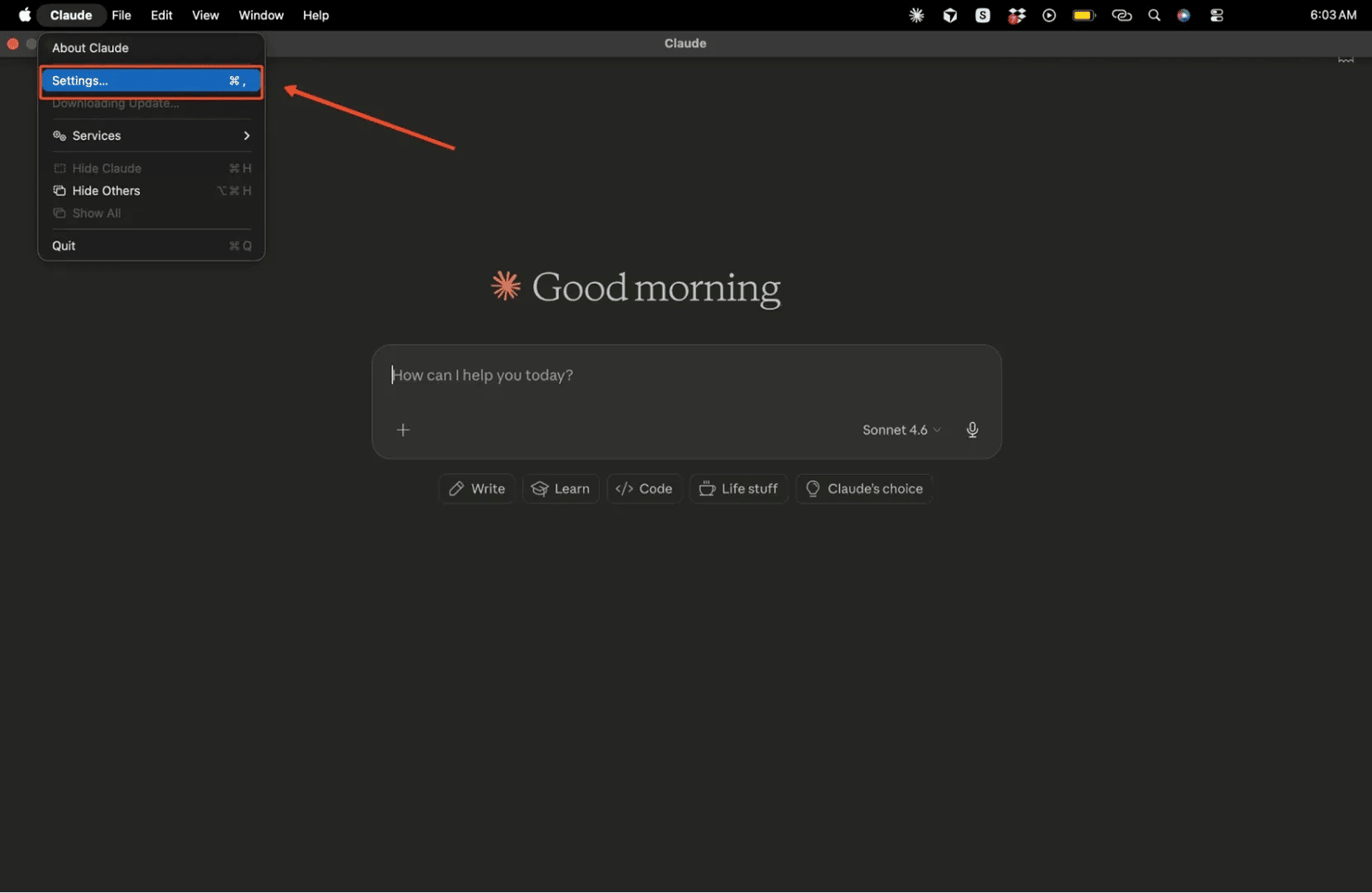
Click the Claude menu, then go to Settings, open the Developer tab, and click Edit Config. This opens the JSON file in your default text editor.
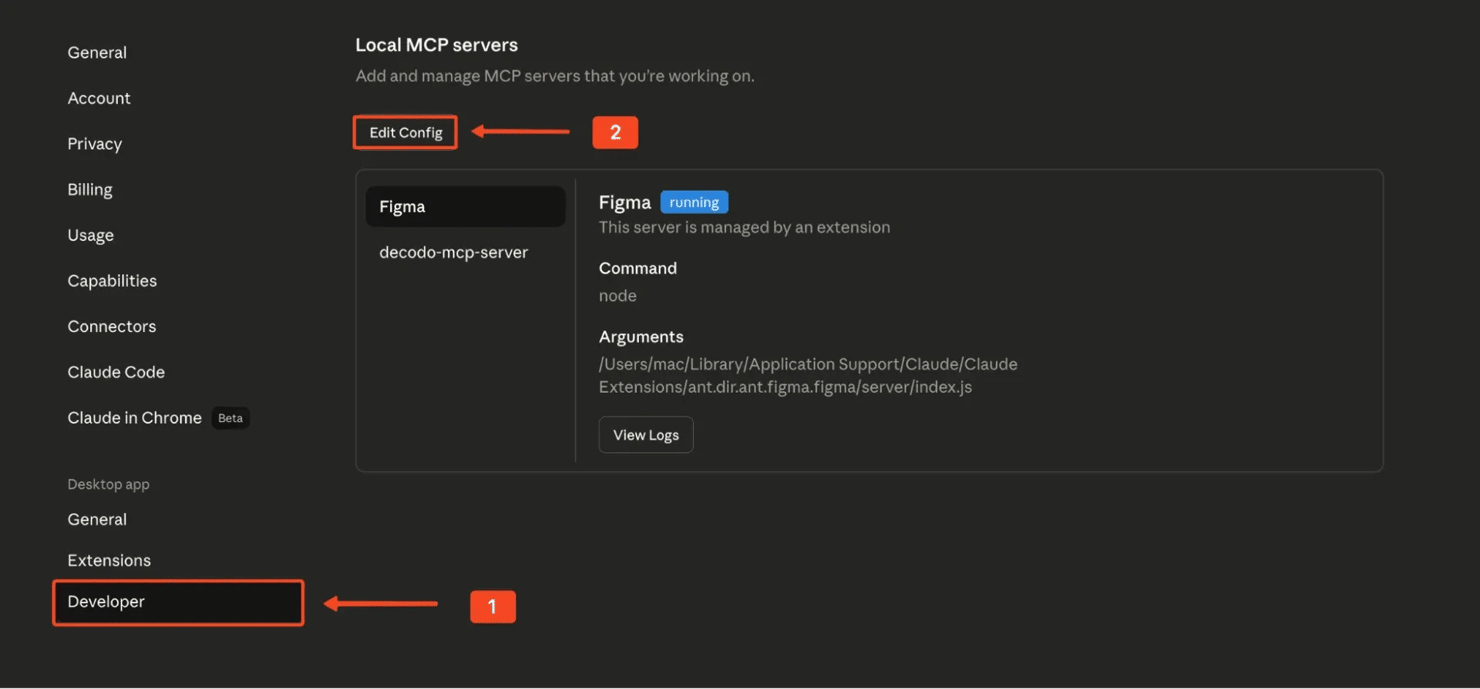
Use this exact JSON to add the Playwright MCP server:
Once this is saved, Claude Desktop will know how to launch the Playwright MCP server when needed.
The Playwright MCP server
Like every MCP server, the Playwright MCP server exposes a set of tools that an AI agent can use directly. These tools map closely to the Playwright APIs developers already know, which is why the setup feels so capable even without writing code.
Let’s look at some of the most important ones:
- browser_click: allows the AI agent to click on elements, much like a human using a mouse
- browser_drag: enables drag-and-drop interactions
- browser_close: closes the browser instance
- browser_evaluate: lets the AI agent execute JavaScript directly in the page
- browser_file_upload: handles file uploads through the browser
- browser_fill_form: fills out forms on a webpage
- browser_hover: moves the pointer over elements
- browser_navigate: navigates to any URL
- browser_press_key: simulates keyboard input
Step #3: Add the filesystem MCP server
To save extracted results to your computer, you also need a filesystem MCP server. The official filesystem server only allows file operations inside directories you explicitly pass to it.
A good choice is a dedicated folder, such as:
- macOS: /Users/yourname/Desktop/scraping-output
- Windows: C:\Users\YourName\Desktop\scraping-output
Before you add the filesystem MCP server, make sure the folder actually exists. On a Mac, you can create one with:
Once the folder is ready, add the filesystem server to the same Claude Desktop config:
This tells Claude Desktop to start the filesystem MCP server and limit file access to that folder only. No separate install command is needed for the filesystem server, as it gets pulled automatically at runtime.
With both servers added, your full config file should look like this:
On Windows, use double backslashes for the file path:
For a broader walkthrough of the MCP server configuration, our step-by-step MCP server setup guide covers the general setup in more detail.
Step #4: Verify the MCP connection
Save the file, then fully restart Claude Desktop. Make sure the app is completely closed before opening it again. On Windows, terminate all Claude Desktop processes in Task Manager before relaunching.
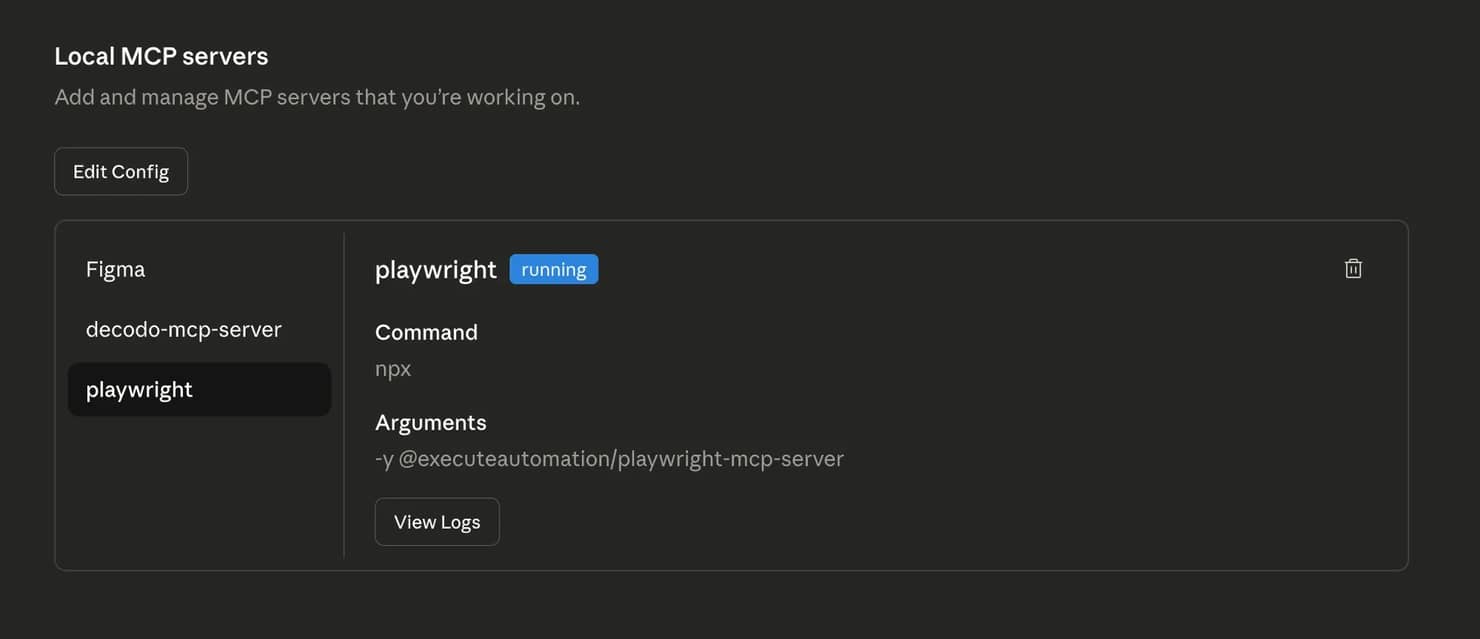
Once Claude Desktop is back open, try a simple prompt like this:
On first use, Claude may ask for permission to run the MCP server. Approve it so the session can continue.
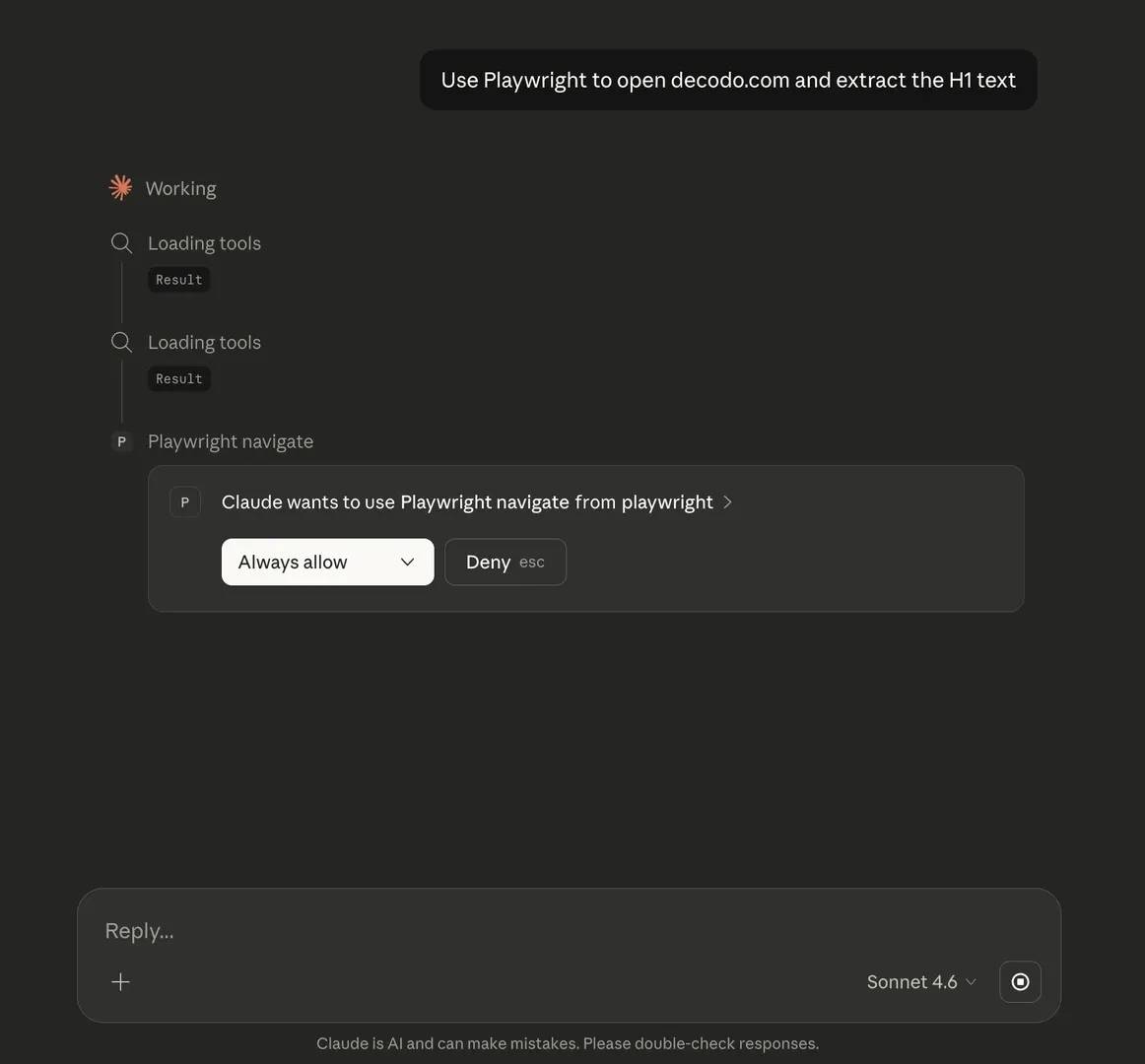
If everything is connected properly, Claude will launch Chromium, open the page, and return the requested result. This confirms that your setup is working as intended.
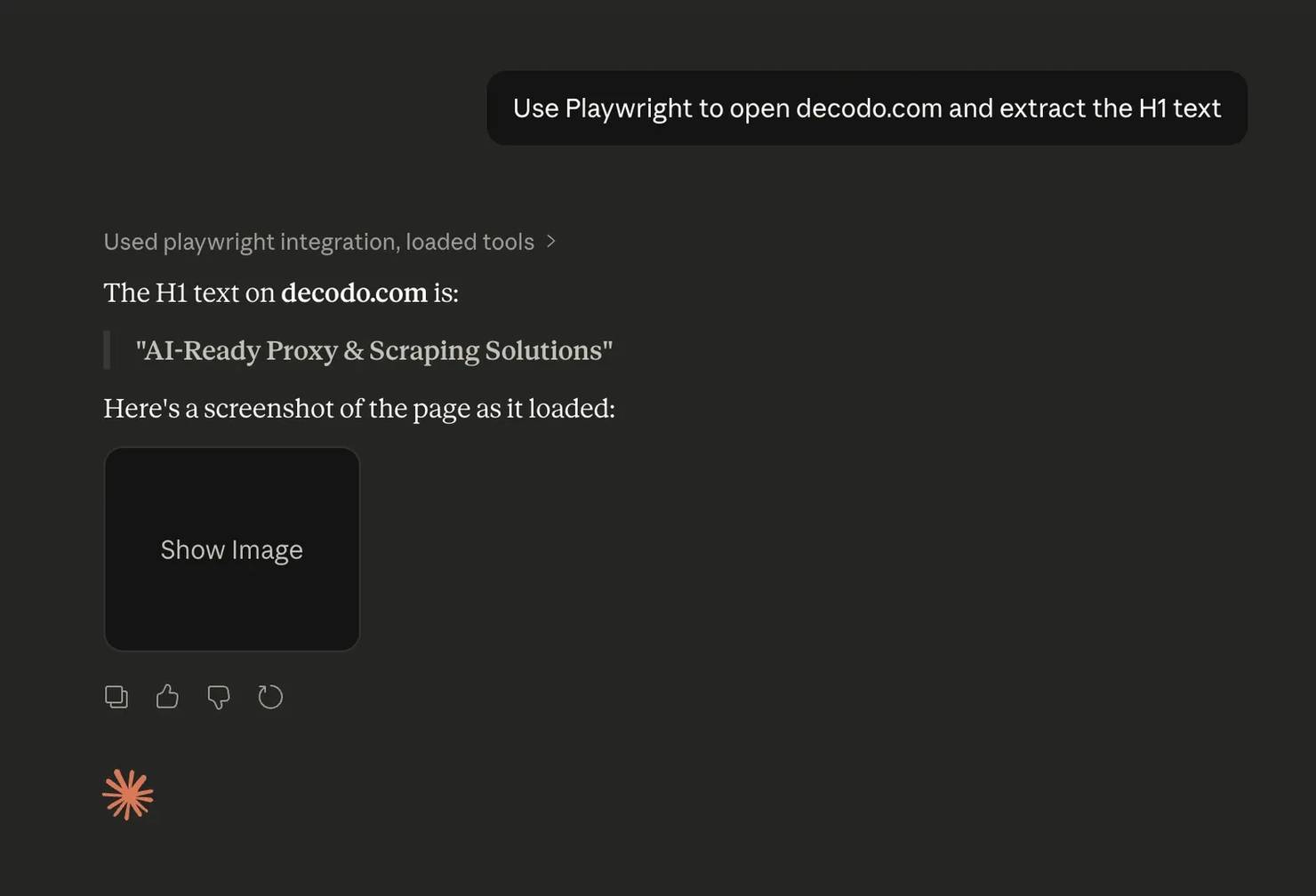
It's worth noting that you might want to explicitly specify the terms “Playwright MCP” in your initial prompt. Otherwise, Claude may default to creating a Python script instead of utilizing the MCP tools you just set up.
Web scraping workflows with Playwright MCP
Now that the setup is done, let’s actually scrape something. The best results come from giving the AI agent a clear prompt, a clear target, a clear list of fields, and a clear output format.
What makes a good Playwright MCP scraping prompt?
A good Playwright MCP scraping prompt should include the following:
- Name the tool explicitly: Say "Playwright MCP" and reference the exact tool you want it to use. This helps keep the model in tool-use mode instead of drifting into code generation.
- Paste the exact URL. Don't describe the site by name and hope the model guesses the right address. Give it the full URL.
- List every field to extract. You should also list every field you want to extract. Name each one clearly, whether that is the product name, description, price, rating, or product URL. Asking for “all the data” is too vague and usually leads to messy output.
- Set a record limit. It also helps to set a record limit. For example, telling the model to extract the first 10 items only keeps the run small enough to verify its output before you scale it up.
- Define the output format and file location. You should define the output format and file location as well. Specify whether you want JSON or CSV, and point the model to the output directory.
- Tell the model not to write a script. Finally, tell the model not to write or execute code. That one line matters more than it may seem. Without it, Claude may default to generating a script instead of using the MCP tools.
Scraping with the Playwright MCP server
Let’s put this into practice by scraping the eBay search results page for MacBook Air listings. From this site, we want to extract the product name, short description, and price from the first 10 listings. Our prompt may look like this:
Once you send that prompt, the model first calls playwright_navigate with the eBay URL and waits for the page to load.
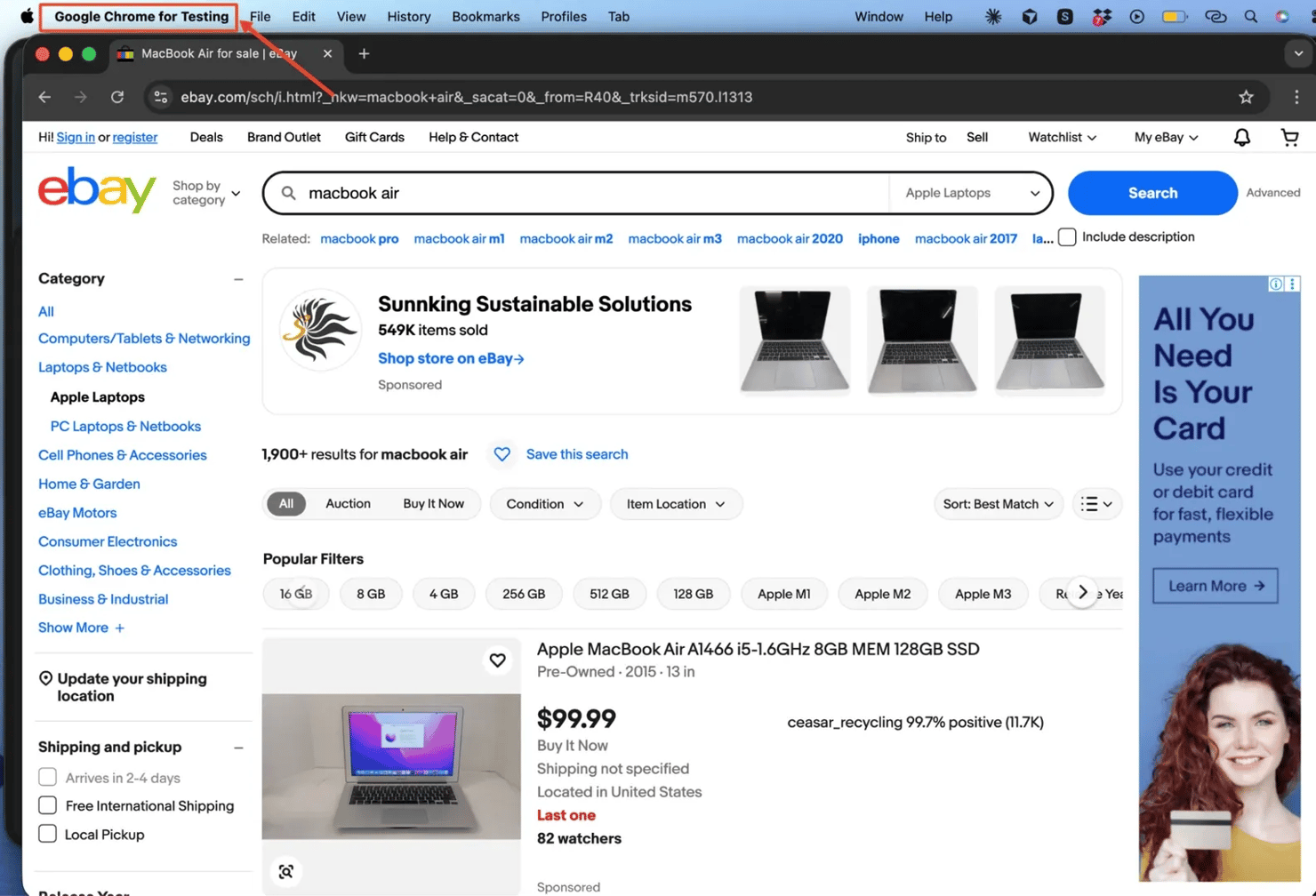
Because product listing pages often use lazy loading, the model may call playwright_evaluate to scroll the page and trigger all product cards to render before extracting content.
Then, the model calls playwright_get_visible_text to retrieve the rendered page content as plain text. After retrieving the text, it then parses that text in context, identifies the repeating listing structure, and maps the visible content to the fields you asked for.
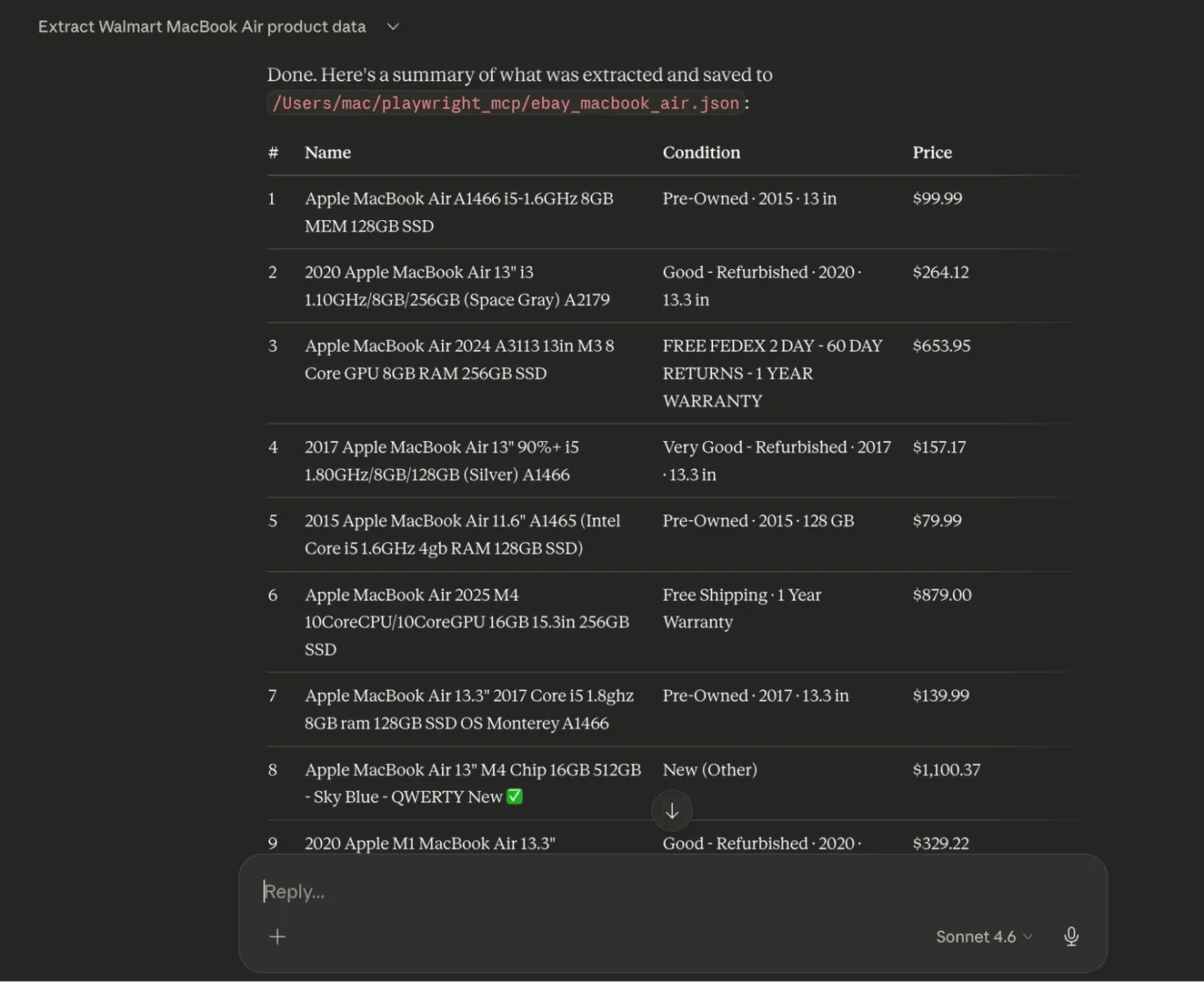
Once the parsing is complete, it uses the filesystem server to write the structured JSON file to the output directory you specified.
A clean result looks something like this:
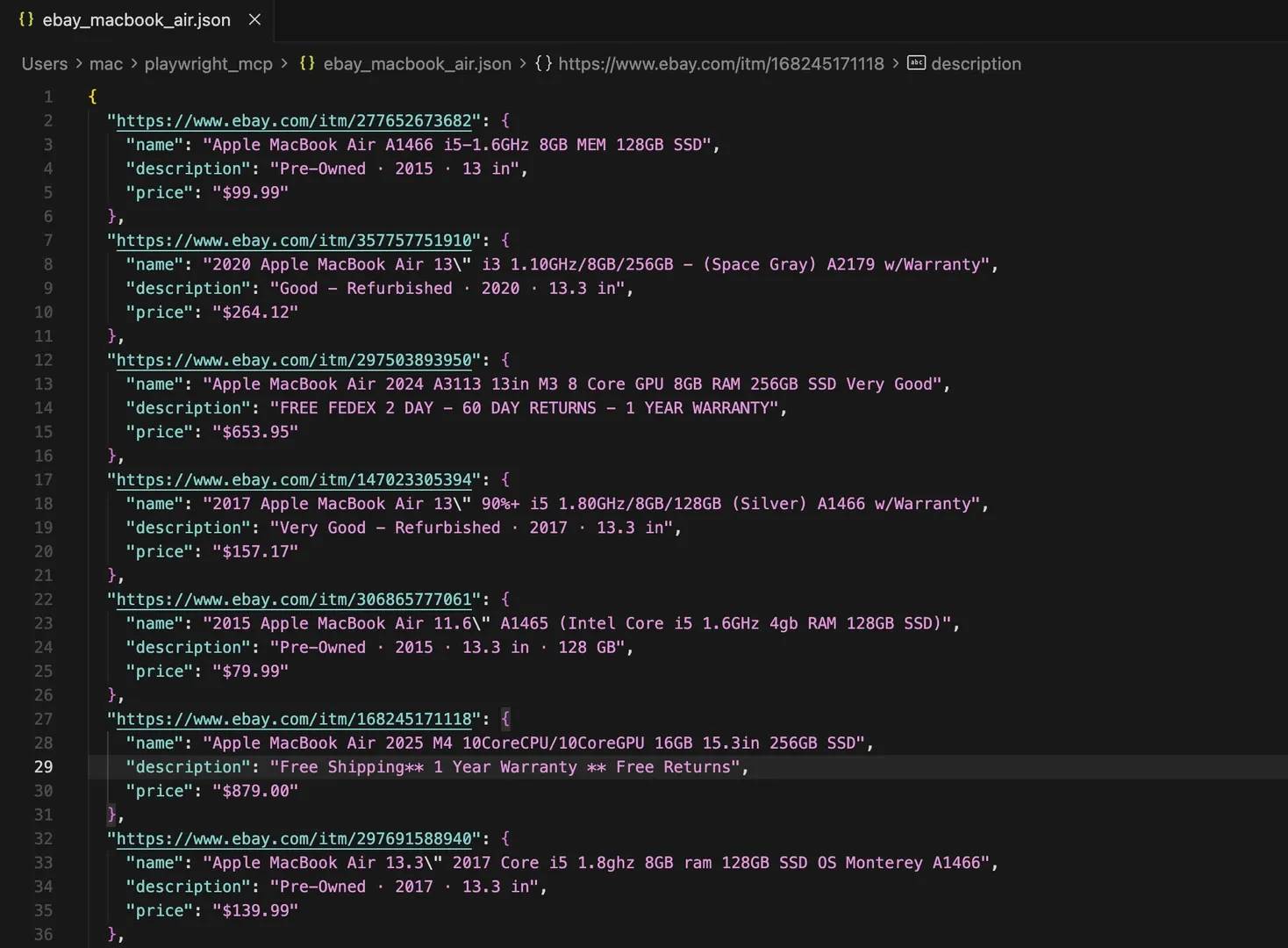
That kind of output is easy to inspect, easy to reuse, and easy to extend later if you decide to scrape more pages or save the results in another format.
What partial output usually means
If some fields come back empty, that does not always mean the scrape failed. It often means the field is not present in visible text.
With playwright_get_visible_text, the model only gets what is exposed as readable page content. If a value lives inside an HTML attribute, such as an image source, a hidden identifier, or a data- attribute, that field may come back null.
In cases like that, the fix is usually to switch to playwright_get_visible_html or playwright_evaluate for the specific field that is missing.
Handling paginated and multi-page targets
Once a single-page scrape works, the next step is usually pagination. This is where prompts need to be a little more deliberate, because the model needs to know what to extract and how far to go.
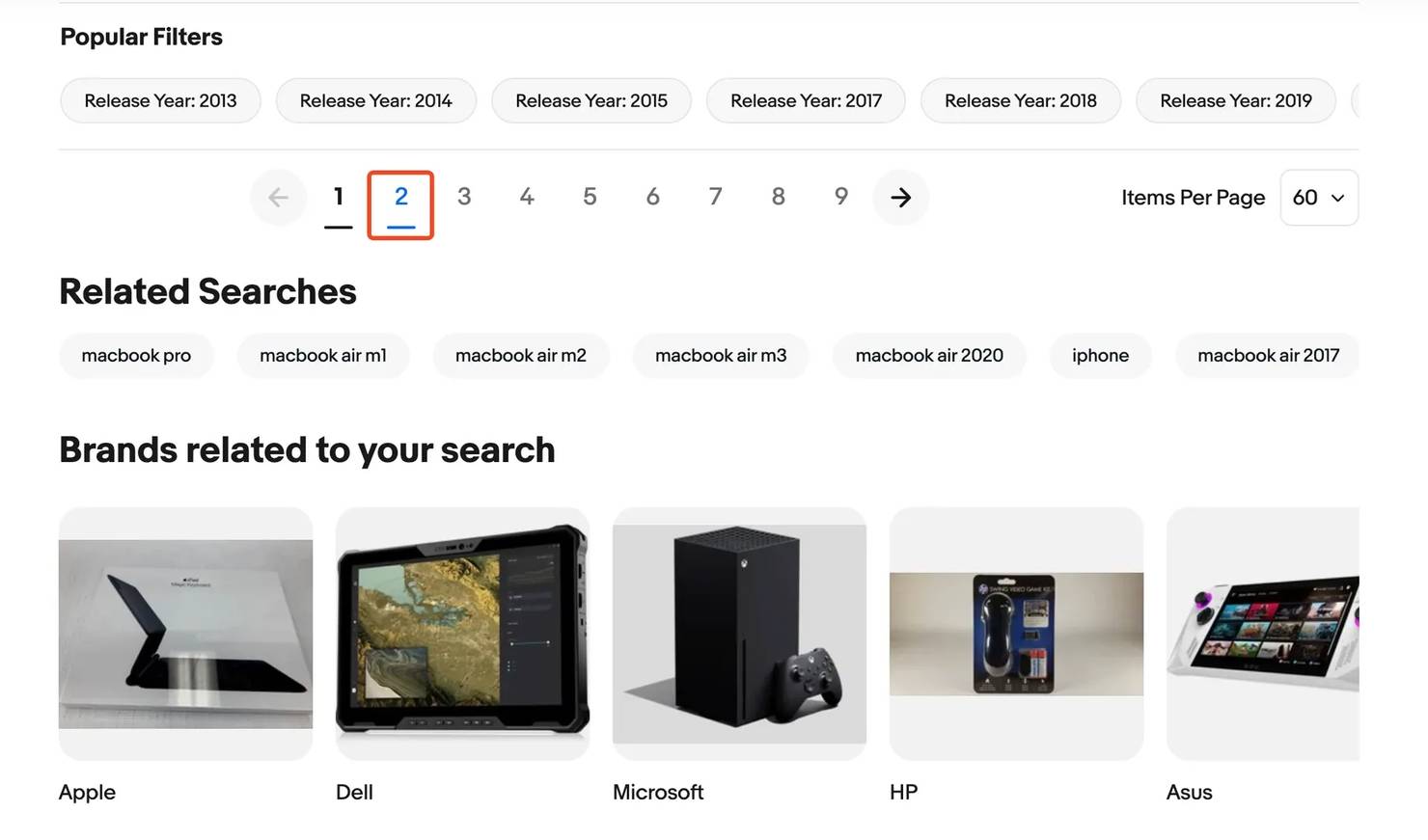
It is also important to set a hard stop. A line like “stop after page 3” or “stop after 60 total records” keeps the session from running indefinitely.
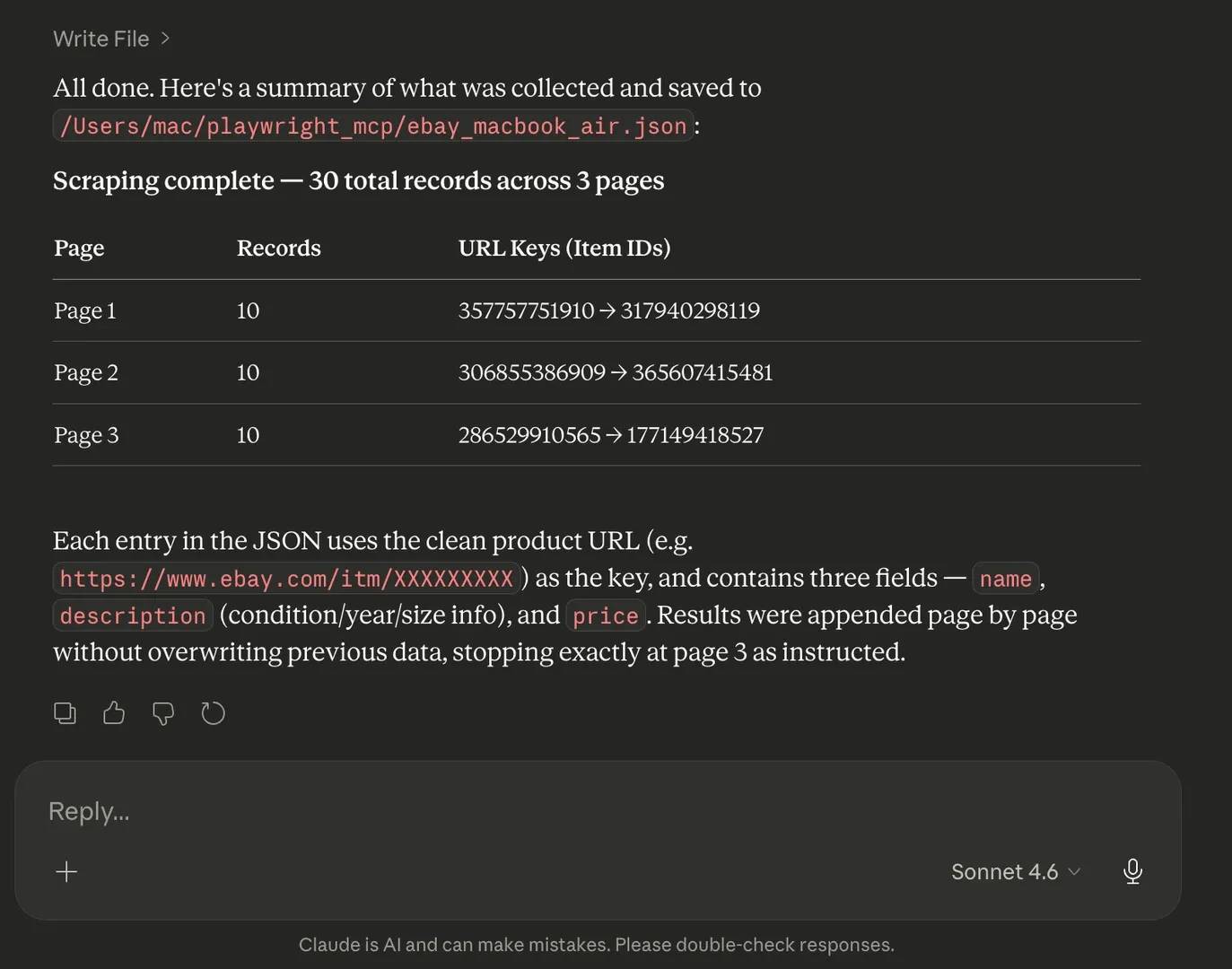
A prompt for a paginated run might look like this:
A hard cap on page count is important. Without it, the session can loop indefinitely.
Extracting attribute-level data with playwright_evaluate
Not every useful field appears in visible text. Some values live inside HTML attributes, which means playwright_get_visible_text will not capture them.
Common examples include image src values, data-price attributes, canonical link href values, and other metadata that are present in the page markup but not shown as readable text on the screen. In those cases, playwright_evaluate is the better tool.
A simple example would be:
playwright_evaluate lets the model run a targeted JavaScript expression against the loaded page and return the result as a string.
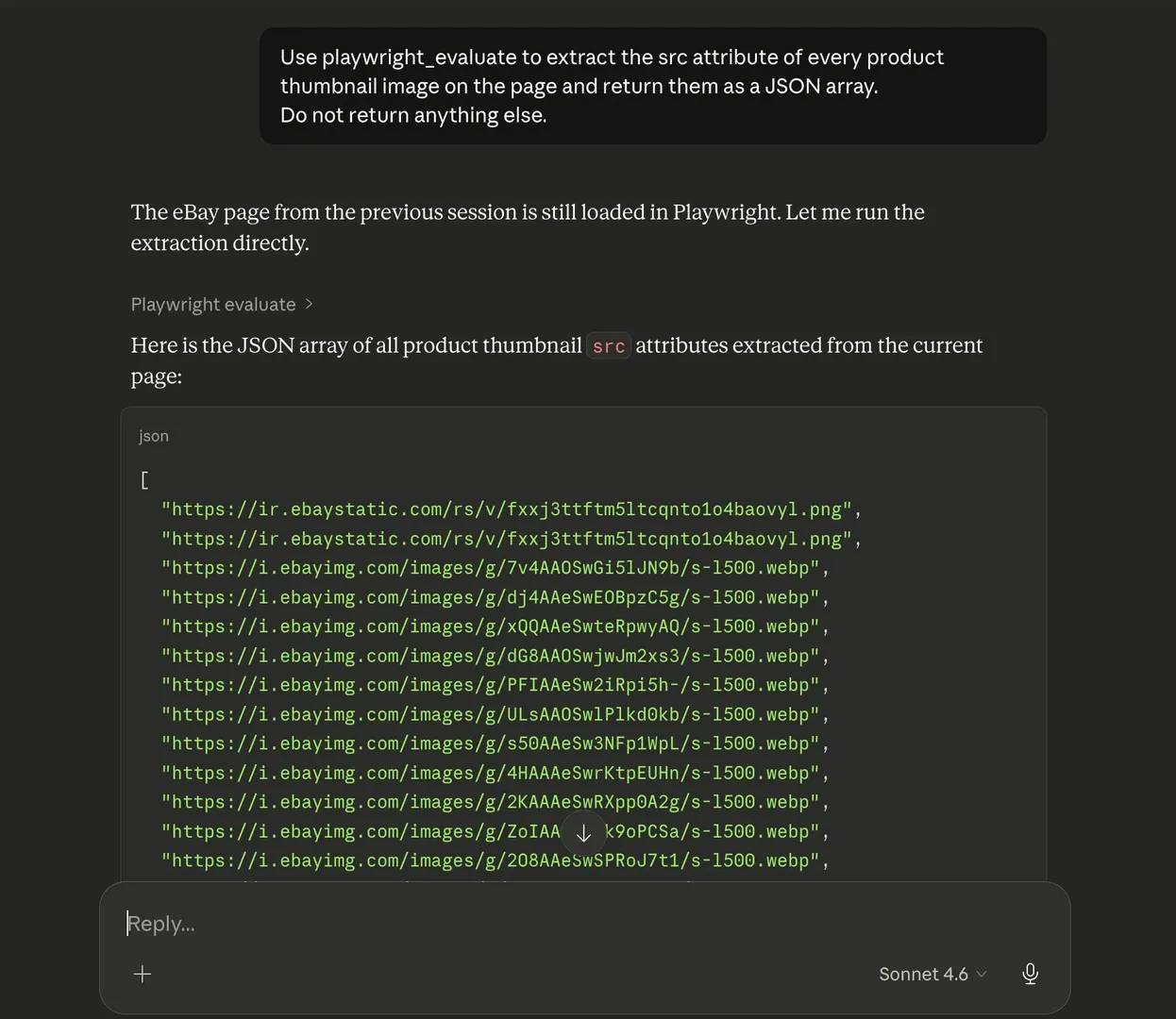
This way, you can instruct the model to extract only the specific attribute values you need.
Saving and organizing output files
One of the best ways to organize your output is by instructing the model to include a metadata block at the top of the JSON file. That block should include the scrape timestamp, source URL, and the total record count.
It also helps to use timestamped filenames. Instead of overwriting the same file on every run, use names like ebay_macbook_air_20260408_1430.json. You can also ask the model to save a CSV version alongside the JSON file.
You can prompt your agent like this:
Playwright MCP limitations and troubleshooting
Every tool has a ceiling, and Playwright MCP is not an exception. While it can be surprisingly capable for a no-code scraper, it still depends on a single browser session, a limited context window, and whatever data the page chooses to expose at the time.
With that in mind, let’s briefly discuss these limitations and some easy workarounds.
Large pages and context window limits
There is a finite amount of input text, or tokens, that a model can process at once, and that limit is called the context window. This can become a problem when scraping thousands of pages, as the model might run out of context or usage limits.
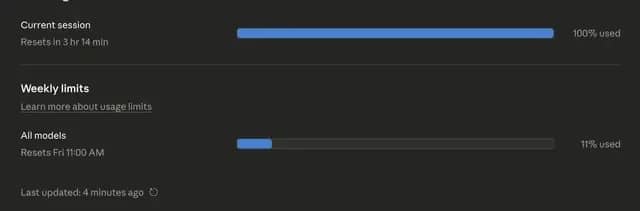
As a result, the output might stop halfway, miss some records, or only capture part of the page, even when more content is clearly there.
Why it happens: playwright_get_visible_html can return too much content in one go, especially on pages with lots of repeated elements, product cards, or rendered markup. Once the model hits its context window limit, some of that content gets left out.
Workaround: In simpler cases, you can switch to playwright_get_visible_text first. It removes most of the markup and gives the model a much smaller and cleaner input to work with. If you need specific attribute values, use playwright_evaluate to extract only those fields.
However, sometimes, some pages are still too large, especially when you need to extract data at scale. That is usually the point where a scraping API that handles chunking, pagination, and larger content loads better.
Bot detection and IP blocking
On protected sites, an automated browser with a fixed IP can still get flagged. When that happens, the page may show a CAPTCHA, return a 403 error, redirect to a verification page, or stop loading the content you actually need.

Why it happens: Many modern websites are built to detect automated browsing. If the browser fingerprint looks suspicious, or too many requests come from the same IP in a short time, the site may block or challenge the session.
Workaround: You can improve your chances by setting a more realistic user agent with playwright_custom_user_agent, adding delays, and avoiding repeated requests to the same route in a short window. But these tweaks will not beat stronger bot protection or strict IP-based rate limits.
If the site starts showing CAPTCHA challenges, our expert guide to bypassing CAPTCHA is the next place to look. And if the block shows up as a specific HTTP(S) failure, the proxy error codes reference can help you understand what the response means.
Why some fields come back empty
If certain fields keep coming back empty, then you might want to check the extraction method. playwright_get_visible_text only returns what appears as readable content on the page, so anything stored inside HTML attributes will be missed.
Why it happens: Things like image URLs in src, numeric IDs in data- attributes, and canonical URLs in href values aren’t usually stored as visible text
Workaround: Switch to playwright_evaluate and ask for only those specific values. In some cases, playwright_get_visible_html can help too, but playwright_evaluate is usually the more direct fix.
Session timeouts and navigation failures
Some pages simply take longer to load than the model expects. In those cases, Claude may stall, say the page did not load properly, or try to extract content before the page is fully rendered. This tends to show up more often on slower sites or pages with
Why it happens: The page may rely on some heavy client-side rendering. If the model reads too early, it ends up working with an incomplete page state.
Workaround: Tell the model to wait for the page to finish loading before extraction starts. A wait_until: networkidle condition can make these runs much more stable. If the browser crashes mid-session, start a new session and run the prompt again.
Login-gated and authenticated pages
Login-protected pages are another weak spot for this setup. Playwright MCP sessions do not persist between runs, so the model often has to sign in again each time it visits a target.

Why it happens: Playwright MCP sessions don't persist cookies or authentication tokens between runs. Many sites also layer bot detection specifically on their login forms.
Workaround: On simpler sites, you can tell the model to fill in the login form and continue to the target page in the same session. But if there is MFA or extra verification, Playwright MCP becomes much less reliable for that kind of page.
Best practices for reliable Playwright MCP scraping
Here are some best practices to keep in mind as you scrape with the MCP:
- Test on a single page before scaling
Start with one page before trying to scrape several pages. This makes it easier to check if all the desired data are present and whether anything important is missing.
- Be explicit in every prompt
Name the tool, paste the exact URL, list the fields you want, set a record limit, and define the output format and file path. The clearer the prompt, the cleaner the result.
- Prefer playwright_get_visible_text over playwright_get_visible_html
Unless you specifically need attribute-level data. Visible text is faster, uses fewer tokens, and is less likely to exceed the context window. If a field is missing because it lives in an attribute, switch to playwright_evaluate for that specific value instead of pulling the whole page again.
- Add pacing instructions
It also helps to slow things down a little. Ask the model to add delays between page navigations or repeated actions to reduce scraping intensity and avoid triggering rate limits.
- Treat extraction patterns as temporary
Pages change layout without notice, and what works today may return empty results next week. So, build in a quick verification step when reusing a prompt.
For the legal and ethical context around web scraping, read our guide on data collection laws, cases, and compliance to learn more.
When to move to a dedicated Web Scraping API
Playwright MCP is great for one-off scraping and fast data collection with minimal setup. But cracks begin to show when the scraping volume is large, or the workflow needs to run repeatedly without manual involvement.
That is usually the point where a dedicated Web Scraping API makes more sense. If the site uses stronger bot protection, if you need geo-targeting, if the scrape has to run on a schedule, or if the volume is growing beyond what a single browser session can handle comfortably, then you probably need a scraping API.
Use case
Playwright MCP
Web Scraping API
One-off scraping
Great fit
Works, but may be more than you need
Repeated or scheduled runs
Manual and harder to scale
Better fit
Large data volume
Can become slow or fragile
Better fit
Geo-targeted scraping
Limited
Better fit
Setup effort
Low
Usually more structured
Bot protection bypass
No anti-detection, standard Chromium fingerprints, single IP
Built-in IP rotation, fingerprint management, CAPTCHA solving
A better alternative to Playwright MCP scraping
So far, we've been able to successfully scrape a live product listing page using nothing but regular prompts. However, this approach is still quite low-level. You're managing each step through prompt instructions, and there is no protection against anti-bot systems, so the setup will break once the target gets stricter or the job gets bulkier.
This is where Decodo Web Scraping API comes in. It handles JavaScript rendering, automatically rotates through high-quality residential IPs, solves CAPTCHAs, and returns structured data without any need to oversee things manually.
For you, that means less time spent handling sessions, retries, and CAPTCHAs, and more time spent working with the data.
If you want to keep the same conversational workflow, Decodo MCP Server is the more natural step up. You connect it to Claude Desktop the same way you connected Playwright MCP, but the infrastructure behind it is built for tougher scraping jobs.

Lower-effort alternatives for simpler scraping tasks
Not every scraping job needs Playwright MCP or a scraping API. For simpler targets, here are some lighter options that can do the job:
Browser extension scrapers
Browser extension scrapers are the easiest option to try. You click on elements, select the data you want, and export the result. They work fine on simple static pages, but they usually struggle with JavaScript-rendered content, pagination, and protected sites.
Google Sheets IMPORTHTML
Google Sheets IMPORTHTML is even simpler. It can pull plain HTML tables from websites, which makes it useful for very basic table extraction, but it does not work on dynamic content and gives you very little control.
n8n with a scraping API integration
If you need something in between, n8n is a good low-code option. It lets you build visual scraping workflows, run them on a schedule, chain multiple steps together, and handle failures more cleanly. It's a better fit than Playwright MCP for repeating pipelines, and easier than writing custom scripts if you're not a developer. Our complete guide to n8n web scraping workflows walks through the full setup.

Overcome restrictions while collecting data
Get started with a free plan of the Web Scraping API and access real-time data faster.
Bottom line
In this article, you looked at how to set up Playwright MCP, connect it to Claude Desktop, and use it to scrape product data with natural language prompts.
Playwright MCP is one of the easiest ways to build a no-code web scraper. It gives you a practical way to extract live website data without writing any code.
However, if you need to scrape at scale or you want a solution that is better equipped for protected targets, explore Decodo Web Scraping API. It comes with a range of handy features, including 125M+ proxy pool, browser rendering, CAPTCHA solving, and more.
About the author

Justinas Tamasevicius
Director of Engineering
Justinas Tamaševičius is Director of Engineering with over two decades of expertise in software development. What started as a self-taught passion during his school years has evolved into a distinguished career spanning backend engineering, system architecture, and infrastructure development.
Connect with Justinas via LinkedIn.
All information on Decodo Blog is provided on an as is basis and for informational purposes only. We make no representation and disclaim all liability with respect to your use of any information contained on Decodo Blog or any third-party websites that may belinked therein.