Puppeteer Download File: A Complete Guide for Node.js Developers
Puppeteer makes browser automation feel easy until you need to save a file to disk. Triggering a download in headless mode isn't the same as clicking a button in a real browser, and the default behavior in headless Chrome won't help you. This guide covers the full Puppeteer download file workflow: configuring CDP correctly, picking the right method for your scenario, detecting when a file truly finished, and scaling to batch jobs without leaking memory or corrupting your queue.

Justinas Tamasevicius
Last updated: Jun 08, 2026
25 min read
TL;DR
- Set a custom download directory using Browser.setDownloadBehavior over CDP. Without this step, headless Chromium will not save files
- Pick your method based on what the target does. Use page.click() for real download buttons, in-browser fetch for blob or AJAX exports, CDP events for reliable completion tracking, and Node-side HTTP for direct asset URLs
- Detect completion with Browser.downloadProgress events. Polling for .crdownload files or watching for filename changes does not work reliably across different operating systems
- Use the Decodo Web Data API if downloads are blocked by Cloudflare, DataDome, geo-restrictions, or login flows that headless Chrome cannot handle by itself
Configuring Puppeteer for file downloads
This section is essential for successful downloads. Incorrect download paths or CDP scope selection will cause silent failures, resulting in no errors or files, only an empty folder.
Setting up the project
Create a dedicated project directory before writing any code:
Initialize a Node.js project:
Install Puppeteer:
Create the main script file and downloads directory:
Your project should now look like this:
All code in this section goes inside downloader.js unless stated otherwise.
Puppeteer has two versions:
- puppeteer. Automatically downloads Chrome for testing. Recommended for local development and most environments.
- puppeteer-core. Doesn't include Chrome; you must supply your own installation. Suitable for CI containers, Lambda layers, or when minimizing binary size is necessary.
If you're using puppeteer-core, point it at a valid Chrome installation explicitly:
Check your Node version before going further. Puppeteer's current release requires Node 20+:
Running Puppeteer in Docker or CI containers
If you're running this in Docker, Kubernetes, or a CI environment like GitHub Actions, add these flags to every puppeteer.launch() call in the guide:
- --no-sandbox. Chrome's sandbox requires kernel-level privileges that most container environments don't grant by default. Without this flag, Chromium crashes immediately in unprivileged containers with a confusing SUID sandbox helper binary error.
- --disable-dev-shm-usage. By default, Chrome uses /dev/shm (shared memory) for rendering. Docker containers cap /dev/shm at 64MB. Chrome silently exceeds that limit and crashes mid-scrape with no clear error. This flag tells Chrome to use /tmp instead, which has no such restriction.
Without both flags, headless Chrome will crash intermittently in containers often only under load, making it hard to diagnose. Add them to every puppeteer.launch() call if your scraper runs anywhere outside a local machine.
Why downloads break in headless mode
By default, headless Chromium does not automatically allow browser-managed downloads. When a response includes a Content-Disposition: attachment header, headless Chrome does not display a message, save the file, or show an error. The download never starts.
To resolve this, use a Chrome DevTools Protocol (CDP) command to enable file downloads during the session.
Configuring downloads with CDP
CDP (Chrome DevTools Protocol) is the underlying protocol for Puppeteer. The Browser.setDownloadBehavior command specifies where Chromium saves files and whether downloads are permitted.
Add this to downloader.js:
Download options:
- allow. This option lets users download files and uses the name suggested by the server.
- allowAndName. This option allows downloads but names the files using their CDP GUID instead of the suggested name. Use this option for batch jobs to avoid naming conflicts.
- deny. This option blocks all downloads. Use it on pages where you want to prevent any downloads from happening.
Browser.* vs. Page.*:
Previous Puppeteer guides reference Page.setDownloadBehavior, which is page-scoped and now deprecated. Use Browser.setDownloadBehavior for browser-wide, consistent behavior in recent Puppeteer versions.
Use absolute paths only
Chromium’s sandbox interprets relative paths based on its own working directory. Using a relative path, such as ./downloads will prevent files from being saved. Always use path.resolve().
Headless mode caveats
Puppeteer’s headless: true now defaults to the new headless mode, which is a fully headless Chromium build and behaves differently from the legacy shell mode regarding browser-managed downloads.
This guide assumes headless: true (new mode) throughout. If you are using an older Puppeteer version and encounter unexpected download behavior, try the following:
The legacy shell mode has broader compatibility with older CDP download behavior but is being phased out. Stick with headless: true for new projects.
Persistent profiles
When downloads require cookies or auth from a previous session, a dashboard export that needs you to be logged in, for example, launch with userDataDir to persist storage between runs:
Chromium writes cookies, localStorage, and session data to that directory. The next time you launch with the same path, the session is already active; there's no need to re-authenticate.
Create the profile directory upfront:
Your project directory now looks like this:
Per-context configuration for parallel scrapes
When running parallel download jobs, set download behavior per BrowserContext rather than per page. This keeps each job's files isolated:
Incorrectly scoping download behavior is a common reason why files from parallel jobs are saved to the same folder or are not saved at all.
Environment prerequisites checklist
Before downloading, review the following checklist:
- Ensure you have Node version 20 or higher by running node --version.
- Verify write permissions for the download directory. Use ls -la in the parent folder to check permissions.
- Confirm sufficient disk space for the largest expected file, plus additional space for temporary files ending with .crdownload.
Check your file descriptor limit. On Linux, downloading multiple files simultaneously can exhaust file descriptors. Use ulimit -n to view and increase the limit if necessary:
If you encounter environment issues during setup, refer to the JavaScript heap out of memory guide for common Node diagnostics. If you're still evaluating browser automation tools, consider the trade-offs between Playwright and Selenium.
Methods for downloading files with Puppeteer
There's no one-size-fits-all way to download files with Puppeteer. The best method depends on how the target site handles downloads. Here are four methods, ranked by how well they work in real situations.
Method 1: Triggering a real browser download via page.click()
Use this method when a regular download button or link triggers a file download with a Content-Disposition: attachment header, and you don't need to check the file's contents first. This is the simplest case: clicking the button makes the server send the file, and the browser saves it. Puppeteer handles this for you. Chromium puts the file right in the download path you set with setDownloadBehavior. Your Node script doesn't handle the file data; it just checks when the file is done downloading.
Add this to downloader.js:
Run it:
Here are some common reasons downloads might fail:
- Same-tab navigation instead of a download: the server returned the wrong header. The file URL opened in the browser instead of triggering a save. Check the response headers with DevTools. Content-Disposition: attachment must be present.
- Button opens a new tab, attach a listener for new pages before clicking:
- Link generated by JavaScript on hover: the href does not exist until the element is hovered. Trigger hover first:
Method 2: Capturing in-page blobs with the browser fetch API
Use this method when the download is an XHR or fetch call that returns a Blob or ArrayBuffer, which the page converts into a download URL. This is common on dashboards with “Export to CSV” buttons that generate the file in the browser. Keep file size under ~50 MB; larger files are slow to transfer as base64 over the CDP bridge.
Under the hood, the page calls URL.createObjectURL() to create a temporary blob: URL, then programmatically clicks a hidden anchor pointing to it. That blob: URL doesn’t exist outside the page context, and a plain Node fetch can’t reach it.
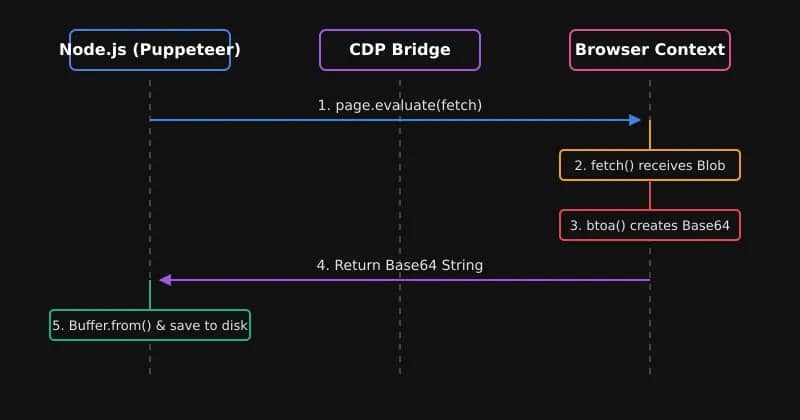
The fix is to run the fetch inside page.evaluate() so it inherits the live session’s cookies, auth headers, and CSRF tokens:
This works better than a plain Node fetch because the blob: URL is a one-time object created with URL.createObjectURL(). It exists only within the browser tab, so a Node fetch outside the browser can't access it.
Method 3: CDP-driven downloads with Browser.downloadProgress
Use this method when production scrapers require precise timing and cannot tolerate filesystem polling races.
This is the most reliable way to know when a download is done. Instead of watching for .crdownload files to disappear, you can listen to CDP events and track Chromium's download progress in real time.
Why CDP events are better than checking for .crdownload files:
- Chrome on macOS, Linux, and Windows handles temp file naming differently
- Antivirus software on Windows can briefly lock the final file after Chrome writes it
- .crdownload disappearing doesn’t mean the file is fully flushed to disk
CDP events avoid all these problems. When the state is "completed," Chromium has finished writing the file.
With behavior: "allowAndName", Chromium saves files using their CDP GUID as the filename instead of the suggested name. This stops naming conflicts in batch jobs where two downloads might both be called report.csv. After the download is complete, rename the GUID file to the suggested filename.
Method 4: Bypassing the browser with Node-side HTTP for direct asset URLs
Use this method when the file URL is stable and not restricted, such as CDN-hosted files, public S3 objects, or government open-data CSVs whose URLs you can extract from the page.
This method uses Puppeteer only to extract the final href, then passes it to a Node HTTP client. The browser does not download the file.
This method is faster because it skips the browser's rendering and download steps, streams the response directly to disk, and lets you control how many files download at once. For big files or lots of downloads, this makes a big difference.
Forward the cookies before closing the browser. If the asset host checks your session, a Node HTTP request without the right cookies will get a 403 error. Copy all cookies from page.cookies() into your request headers before closing the browser.
When this breaks:
- The URL is signed and bound to the browser’s TLS fingerprint
- The asset host inspects JA3/JA4 TLS fingerprints
- The file is regenerated per-request and only valid inside a click handler
In any of these cases, fall back to Method 3 or use a managed API.
For readers coming from a shell scripting background, how to download files with cURL covers the equivalent patterns. And for Node-side HTTP with proxy integration, proxy integration with Axios goes deeper on the request configuration side.
Scenario
Method
Button with Content-Disposition: attachment
Method 1: page.click()
"Export to CSV" that builds the file in the browser
Method 2: in-page fetch
Production scraper needing reliable completion detection
Method 3: CDP events
Stable, public file URL scraped from the page
Method 4: Node HTTP
Any of the above behind Cloudflare or anti-bot protection
Decodo Web Data API
Handling download completion and file management
Starting a download with Puppeteer is easy. Making sure the file is fully and correctly downloaded, without naming conflicts, is where most people run into problems. This section explains reliable patterns and common mistakes.
The unreliable patterns
These methods are common in Stack Overflow answers and older tutorials. They may appear effective, but are unreliable:
- setTimeout. Waiting a fixed number of seconds after a click assumes the download will always complete within that period. Slow connections or large files may exceed this window, while fast connections result in unnecessary delays:
- fs.watchon a single file. Monitoring for a specific filename can fail if Chrome has not finalized the filename, if the file remains a .crdownload temporary file, or if two parallel downloads suggest the same filename:
- The first new file in the folder wins. In batch jobs with multiple concurrent downloads, the first new file detected may not correspond to the intended download. This can cause silent data mismatches that are difficult to diagnose:
The reliable pattern: CDP downloadProgress events
The recommended approach is to subscribe to Browser.downloadProgress events and resolve a Promise when state equals "completed". Set a strict timeout for each file to ensure stalled downloads fail the job rather than causing indefinite hangs:
Use this function with any of the download methods described in the previous section:
Cross-platform temp files
Chrome names files that are still downloading with the extension .crdownload. Firefox uses .part, and Safari uses .download. If you switch to Playwright or use different browsers, the way you check for these temporary files will change. However, CDP events work the same way across all browsers; the same listener will function no matter what browser you use.
Handling filename collisions
With behavior: "allow", Chrome saves files using the server’s suggested filename. When 2 parallel downloads both produce report.csv, Chrome silently renames one to report (1).csv. You won’t know which is which.
With behavior: "allowAndName", Chrome names files by their CDP GUID, guaranteed unique. Rename them yourself after the completed event fires:
You can also prefix with a jobId so files from parallel runs never collide.
Integrity verification
A completed event means Chrome finished writing the file; it doesn’t mean the file is correct. Truncated downloads, partial transfers, and silent server-side errors all produce files that pass completion detection but contain garbage data.
Stream-hash each file after completion and compare against the server’s ETag or Content-Length header when available:
This catches truncated downloads that the completed event missed. A server that closes the connection early won't always trigger canceled.
Folder hygiene
Each download job generates files that accumulate fast without cleanup.
Assign a unique download directory for each job ID to ensure unambiguous completion detection and prevent restarts from overwriting previous output:
Without this, long-running scrapers accumulate gigabytes of files with no clear ownership.
Use a timestamp or UUID to generate the job ID:
Detecting and recovering from stalls
A stalled download differs from a failed one. Chrome may report the download as in progress, but no data is being received. Use the receivedBytes delta from Browser.downloadProgress as a heartbeat indicator:
Server-side stalls occur when no data is received from the remote host, often due to rate limits or dropped connections. Retry these downloads using exponential backoff.
Chromium-side stalls occur when the browser process becomes unresponsive. Restart the browser and retry the download.
Be aware that using setTimeout to detect stalls assumes that the Node event loop is not blocked. If you are processing large CSV files with heavy tasks, make sure to do it after the download finishes, not during the download. Mixing these blocking tasks with active downloads can delay stall timer callbacks and lead to false positive alerts.
Recovering from crashes
Store the GUID, URL, and retry count in a small SQLite or Redis table before each download starts. If the worker dies mid-transfer, the next run knows exactly which files to retry:
The schema below tracks each download by its CDP GUID. Before triggering a download, insert a pending row. On completion, mark it done. On the next run, getFailedDownloads() returns everything that did not finish. This way, you resume exactly where you left off without re-downloading files that have already completed.
If you encounter download failures due to network or rate-limit issues at the proxy level, refer to our guide to proxy error codes for common solutions.
Batch and automated file downloads with Puppeteer
Most developers and production scrapers need this because they download hundreds or thousands of files from sources that update regularly. This section explains the full batch pipeline, including link discovery, queue design, concurrency, and resumability.
Step 1: Link discovery
Wait until you have the complete list of URLs before opening any download tabs. First, collect all download links from the listing page, use that list as your queue, and process each link one by one.
Create a new file for the batch scraper:
Add the code below:
path.basename runs in Node, not in the browser. page.$$eval executes its callback in the browser context where Node modules don't exist. Plain string operations like .split("/").pop() work in both environments.
If the listing pages are paginated, go through all the pages to collect links before building your queue:
Make sure to gather the entire list of URLs before starting any downloads. This keeps your queue organized and makes it easier to restart if needed.
Step 2: Queue design with bounded concurrency
Avoid opening all download tabs at the same time. Use a bounded concurrency queue to limit parallel downloads to what your proxy pool and the target site's rate limits can handle. For most sites, 3-5 parallel downloads work well. If you need 20+, you'll need to rotate IPs.
Install p-limit for concurrency control:
This guide uses CommonJS (require()). If your project uses ES modules (import), you can install the latest version with npm install p-limit and replace require("p-limit") with import pLimit from "p-limit" at the top of your file.
Using Promise.all here is intentional. If one download fails, it won't stop the rest of the batch from running.
Step 3: Browser and context reuse
Starting a new Chromium instance for each file uses a lot of resources. Instead, launch one Browser instance and create a separate BrowserContext for each worker. This approach is more efficient and keeps cookies separate, so parallel logged-in sessions won't interfere with each other.
Close each context right after its download finishes. If you leave them open, memory usage will increase quickly. Give each download its own subfolder, named by URL hash or job ID. This way, it's clear when a job is done: one folder, one file, one job. Restarts won't overwrite previous results.
Step 4: Retry policy
Not every failure is permanent. Add a retry layer that uses exponential backoff:
Use different retry strategies depending on the error type:
- 429/503 errors: Retry with exponential backoff
- Transient TLS errors (e.g., ECONNRESET): Retry immediately without delay
- Permanent failures (after N attempts): Add URL to a dead-letter list for later inspection
Step 5: Memory hygiene at scale
Chromium uses more memory the longer it runs under automation. If you don't manage this, a long batch job can use up all available RAM and crash.
Close pages and contexts as soon as a download finishes. The finally block in downloadSingleFile takes care of this. For very long runs, restart the browser process after every N jobs:
Step 6: Manifest and resumability
Write a manifest after each run. The next time you run the script, it will read the manifest and skip files that are already completed:
Step 7: Scheduling recurring runs
For daily snapshots or recurring data pulls, pair the batch scraper with a cron job. Create the logs directory first:
Open your crontab:
Add this entry to run nightly at 3 am:
For more complex scheduling and workflow orchestration, how to schedule web scraping tasks covers the options in depth. For non-developer pipelines that trigger on file downloads, building n8n web scraping workflows covers the low-code integration side.
When batch volume requires managed proxy rotation rather than a fixed endpoint, Decodo’s rotating proxies handle IP rotation at the infrastructure level so your scraper doesn’t have to.
Full batch script
Here’s everything wired together in batch-downloader.js:
Run it:
Advanced download scenarios and integrations
Basic download methods save a file to disk, but production scrapers often need more. You may need cloud storage, post-processing, authenticated sessions, and tool integrations to keep your scraper stateless. Here are 4 patterns.
Create a new file for the advanced patterns:
Streaming downloads directly to cloud storage
If you write to a local disk and then upload, you double the I/O, and this approach fails on ephemeral runtimes like Lambda functions, Cloud Run containers, and CI workers that do not keep state between runs. Instead, pipe the response stream directly into your cloud SDK’s upload stream.
Install the AWS SDK:
The function below uses Puppeteer only to extract the file URL and session cookies, then hands the stream straight to S3 using the Upload class from @aws-sdk/lib-storage. The Upload class handles multipart uploads automatically for files over 100 MB, so you don't need to manage part sizes or retry logic yourself.
For GCS:
The GCS client uses a write stream rather than a multipart upload object. Setting resumable: true enables the resumable upload protocol, which handles large files and recovers from dropped connections without restarting the transfer from zero.
Note: Method 1 (browser-managed downloads using page.click()) always writes to local disk first because Chromium cannot stream to other destinations. For direct-to-cloud streaming, use Method 2 (in-page fetch) or Method 4 (Node HTTP), where you control the response stream.
Compressing and post-processing files inline
If you run batch jobs that deliver daily snapshots, it is better to compress multiple downloaded files into a single archive when the job finishes instead of sending individual files.
Install the archiver package:
archiveDownloads() takes a job directory and zips everything in it into a single output file. The zlib: { level: 9 } option sets maximum compression. The whole operation is wrapped in a Promise so you can await it cleanly before marking the job complete.
For large uncompressed CSV or JSON files, use gzip while downloading to reduce storage costs by 60-80%:
Validate the schema of downloaded data files before marking a job as successful. This helps catch partial downloads and silent server-side regressions before bad data enters your pipeline:
csv-parse provides a synchronous parser via csv-parse/sync, useful for validating small-to-medium files inline without async overhead.
Authenticated downloads: preserving session and cookies
If the file is behind a login, authenticate once and reuse the session for each download run.
Persist session with userDataDir:
For the next run, launch with the same userDataDir so the session remains active.
For multi-step authentication such as SSO, OAuth, or MFA, export the storage state after a successful login and reload it for each run:
Watch out for CSRF tokens: many SaaS dashboards rotate CSRF tokens every time the page loads. Do not cache the token in a config file. Instead, capture it from the page’s DOM when you make the request:
User-Agent mismatch warning: When you forward session cookies from Puppeteer to a Node HTTP request, copy the User-Agent header exactly. Some sites will invalidate sessions if the User-Agent between the browser and the HTTP client does not match:
Integration patterns
Queue downloaded files for downstream processing using ioredis as the BullMQ connection:
queueForProcessing() pushes each completed file into a BullMQ queue with its metadata. The attempts: 3 and exponential backoff options mean transient failures in downstream processing retry automatically without any extra code. Note that maxRetriesPerRequest: null is required by BullMQ when using ioredis; without it, the connection throws on startup.
Trigger a webhook on each successful download:
This works well with n8n, Make, or Zapier for low-code post-processing pipelines. The webhook triggers, the workflow tool picks it up, and handles the rest without extra scraper code. For a complete setup, see our web scraping with Decodo’s n8n integration walkthrough.
Use Chrome DevTools Protocol directly for more control
When Puppeteer's public API doesn't expose what you need, intercepting Page.downloadWillBegin to redirect specific file types to different folders, for example, drop down to chrome-remote-interface directly:
chrome-remote-interface gives you direct access to the Chrome DevTools Protocol without Puppeteer's abstraction layer. Use it when you need finer control than Puppeteer's public API exposes, like intercepting specific download events and redirecting them to different folders based on file type.
Combine Puppeteer with an MCP server for AI-driven file collection
If your AI agents need to request and process files as part of a larger automation workflow, Decodo’s MCP server lets agents collect web data directly. For orchestration patterns that combine agents with file downloads, see the our AI agent orchestration tutorial with n8n and Decodo MCP Server.
When a Puppeteer download file job gets blocked
The steps in this guide work well when the target site is not blocking you. If the site tries to stop automation, you’ll notice certain symptoms. Solutions can be as simple as changing settings or as involved as using a managed API.
Recognizing the symptoms
Blocking usually doesn’t show a clear error. Instead, your scraper might seem to work but actually returns nothing useful.
- HTTP 403 or 429 on the file endpoint. The page loads fine, but the download request gets blocked. The server is distinguishing between a browser session loading a page and an automated request fetching a file. Check the response status on the download request, specifically, not just the page load:
- CAPTCHA page on click. The download button triggers a challenge instead of a file. The CDP downloadWillBegin event never fires. Your waitForDownload promise times out with no output.
- File arrives as 0 bytes or HTML. Sometimes, the file downloads but is either empty or contains an HTML error page with a .csv extension. This can be hard to spot at first. To catch this, check the file’s content after every download.
- Silent IP ban after a handful of successful pulls. Sometimes, your first few requests work, but then you stop getting results and don’t see any errors. Response times slow down, and requests may start timing out. This usually means your IP has been flagged. Try running the same request from a different IP to check.
Why headless Chrome loses these fights
There are 3 main reasons why headless Chromium is easier to detect than regular Chrome:
- TLS fingerprinting. The JA3/JA4 fingerprint of a headless Chrome session differs from a real browser. Sites running Cloudflare, Akamai, or DataDome check this at the TLS handshake level before any HTTP headers are sent. No amount of user agent spoofing fixes a JA3 mismatch.
- Single-IP request volume. A residential user visits a product page a handful of times. An automation script hits dozens of pages per minute from the same IP. The behavioral signal is obvious even without fingerprinting.
- Challenge pages get tougher with each request. Services like Cloudflare, DataDome, and Akamai Bot Manager start with a simple check, then move to a JavaScript challenge, and finally a CAPTCHA. Each step is harder to get past, and headless Chrome usually fails at some point.
What helps before reaching for a managed API
Before reaching for a managed API, exhaust the self-hosted options:
- Rotating residential IPs. Instead of using one proxy, use a pool of residential IPs that change with each request. This makes it much harder for sites to detect high-volume scraping.
- Randomized timing. Don’t use fixed delays. Instead, randomize the timing for every action, like between loading a page and clicking, or between hovering and clicking. This helps your script look more human.
- Persistent storage state. Some sites treat returning users differently. Use userDataDir when launching so your session keeps cookies and storage between runs.
- Stealth plugins. Using puppeteer-extra with the stealth plugin helps hide signs of automation that sites look for.
puppeteer-extra is a wrapper around Puppeteer that supports plugins. The stealth plugin is the most useful one because it patches the most common automation signals that bot detection platforms check before serving any content.
The stealth plugin patches navigator.webdriver, fixes chrome.runtime exposure, spoofs plugin arrays, and handles a handful of other tells that basic headless Chrome exposes. It's not a silver bullet against serious bot management platforms, but it clears most lightweight detection.
If you want to learn more about bypassing CAPTCHA with Puppeteer or see a full breakdown of anti-bot tools, check out the detailed guides on these topics.
When self-hosting stops being worth it
At some point, keeping up with fingerprint patches, proxy rotation, CAPTCHA solving, and TLS rewrites takes more time and effort than the data is worth.
The signal that you've crossed that line:
- Selectors break weekly because the site serves different HTML to suspected bots
- IP bans arrive faster than you can rotate new addresses into the pool
- CAPTCHA solve rates drop below 80%, and the backlog grows faster than it clears
- The site started serving honeypot data plausible-looking results that are actually wrong
When that happens, switching to a managed scraping API is usually cheaper. It saves both on infrastructure and on the time engineers spend maintaining workarounds.
How a managed API fits into a Puppeteer workflow
Decodo's Web Data API handles JS rendering, anti-bot bypass, and proxy rotation as a single managed endpoint. The integration is straightforward: hand it the URL, receive the rendered HTML or file response, and handle the output on your side:
jsdom parses raw HTML strings into a queryable DOM, the same API you'd use in a browser, but running in Node. It's the lightweight alternative to spinning up a full Puppeteer page just to find a single element.
If your team wants to keep using Puppeteer and handle IP rotation on your own, Decodo’s residential proxies offer an IP pool without the managed API. For more on why rotating IPs is important for ongoing download jobs, see the guide on rotating proxies.
Final thoughts
Start with configuration, choose your method based on the situation, use CDP events to confirm completion, batch tasks with limited concurrency, and escalate if you get stuck. This decision framework works whether you are downloading one file or ten thousand.
The real challenge isn’t clicking the button. It’s making sure the file actually arrives, preventing parallel jobs from interfering with each other, and staying up and running when a site blocks headless Chrome.
When protected sites block downloads, Decodo Web Data API takes care of the hard parts like JavaScript rendering, anti-bot bypass, and proxy rotation, all in one place. If your team prefers to use Puppeteer directly, Decodo rotating proxies let you rotate IPs while keeping full control of your browser.

Skip the boilerplate
Decodo's Web Data API handles proxies, CAPTCHAs, and anti-bot detection so your code stays short and your requests actually land.
About the author

Justinas Tamasevicius
Director of Engineering
Justinas Tamaševičius is Director of Engineering with over two decades of expertise in software development. What started as a self-taught passion during his school years has evolved into a distinguished career spanning backend engineering, system architecture, and infrastructure development.
Connect with Justinas via LinkedIn.
All information on Decodo Blog is provided on an as is basis and for informational purposes only. We make no representation and disclaim all liability with respect to your use of any information contained on Decodo Blog or any third-party websites that may belinked therein.