Browser MCP: What It Is, How to Set It Up, and When to Use It
Browser MCP is an MCP server and Chrome extension. It allows applications such as Cursor, Claude Desktop, and VS Code to control a tab that is already open. And it doesn't launch a new browser. Browser MCP attaches to your existing profile, so the agent works inside the sessions you already have. That one design choice decides what Browser MCP is good for. But the same choice stops it from scaling. This guide explains setup, use cases, and safety, and compares Browser MCP with other browser automation servers.

Justinas Tamasevicius
Last updated: Sep 24, 2026
19 min read

TL;DR
- Browser MCP pairs a local MCP server with a Chrome extension to control 1 tab that's already open. That tab has your logged-in profile and real browser fingerprint, so pages that need an account usually open without a login step. But clicks that do nothing are the most reported problem in the repository, and no explanation is provided.
- The server exposes 12 tools, handles 1 tab at a time, has no headless mode, and was last released in 2025. Playwright MCP's extension mode connects to the same logged-in tab and ships releases, so pick it for anything you re-run, schedule, or want maintained.
- The server's WebSocket listener binds to every network interface with no token check, and another device on the same Wi-Fi reached port 9009 in testing. On the same machine, a second client replaced the extension's connection and read the agent's tool payloads. No public advisory exists for this behavior, so always stop the server between jobs, and block the port at your firewall on Linux or Windows, where that works.
- An agent inside your authenticated session inherits every permission that session has. So prompt injection is the risk to plan for. Run it in a separate Chrome profile that holds only the accounts a task needs.
What is Browser MCP and how does it work?
Browser MCP lets an AI agent read and control a Chrome tab you already have open. It navigates, fills in fields, and pulls content out of pages on your behalf. The tool has 2 halves. An open-source MCP server under the Apache-2.0 license runs locally on your machine, and a Chrome extension connects your active tab to that server.
You don't start the server yourself. Your editor launches the server as a child process, using the npx command that you put in a config file. A config change means reloading the client, not restarting a terminal.
The extension opens a WebSocket to that server on port 9009. The agent's commands all use that socket.
MCP is an open standard that allows AI applications to call external tools through a common interface. A server written once works across several editors because of that interface. For more detail, see the wider MCP server ecosystem.
Browser MCP started as a fork of Microsoft's Playwright MCP server, then changed one thing. Playwright MCP launches a browser of its own by default, and Browser MCP drives the one you already have open.
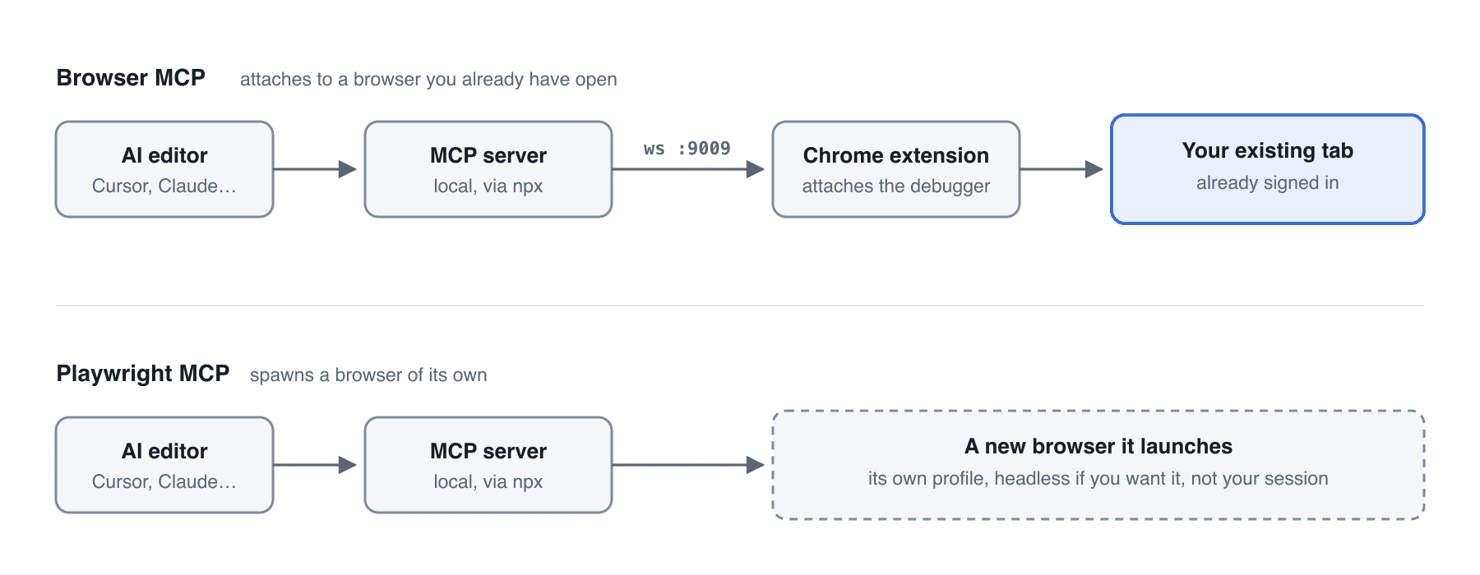
Playwright and Puppeteer work differently. They control Chromium over the Chrome DevTools Protocol, or CDP, against a browser they launched. Browser MCP uses a private message format between its server and its extension instead. The extension runs inside a browser you launched yourself, and it uses CDP on the connected tab.
The project is popular, but barely maintained, so there's a few things to keep in mind before you depend on it. The public repository has over 7,000 stars and over 550 forks, but only 6 commits, no tagged releases, and over 120 open issues. A problem you run into is unlikely to be fixed for you.
The npm package has sat at 0.1.3 since 2025, and the README says the repository can't be built standalone because it mirrors a private monorepo. The bundled code that defines every tool's schema has no public source, so the contract your model receives isn't in the repository you can read.
The standard is moving, too. Browser MCP answers only the 2025-11-25 MCP revision. Nothing is broken today because clients still negotiate that revision, and Browser MCP stops working for any client that adopts the 2026-07-28 one.
The 12 tools Browser MCP exposes
Interaction starts with browser_snapshot. That call returns an accessibility tree, not an image. And every call that acts on an element refers to that element by its reference in the tree.
Tool
What it does
browser_navigate
Opens a URL in the connected tab
browser_go_back
Returns to the previous page
browser_go_forward
Moves forward in history
browser_snapshot
Returns the page as an accessibility tree
browser_click
Selects an element by snapshot reference
browser_hover
Moves the pointer onto an element
browser_type
Enters text into a field, optionally submitting
browser_select_option
Chooses one or more values in a dropdown
browser_press_key
Sends a single key, such as ArrowLeft
browser_wait
Pauses for a number of seconds
browser_get_console_logs
Returns console output from the tab
browser_screenshot
Captures the tab as a PNG
A 13th tool, browser_drag, is defined in the source but never registered, so a client sees 12 and not 13.
Every navigation and interaction call except browser_press_key appends a fresh snapshot to its result, so a multi-step task pays for the page again at every step. A 3-step job against books.toscrape.com, a sandbox catalog site, returned these amounts, counted with the o200k_base tokenizer:
Step
Tokens returned
Running total
browser_snapshot on the listing
6,807
6,807
browser_click into the book
2,061
8,868
browser_snapshot on the product page
2,054
10,922
The third call was unnecessary, because the snapshot appended to the second already held the answer. Page size sets the scale, so read these as an order of magnitude. The server accepts no flags and has no slim tool set, so the only lever you have is a habit. Reuse the reference that browser_click hands back, because an explicit browser_snapshot renumbers every reference and invalidates the one you were about to use.
Why developers pick Browser MCP over a spawned browser
Browser MCP has 4 properties that make it attractive, and each one has a cost:
Advantage
Why it works
What it costs you
Local execution
Commands are sent over a local WebSocket, not the internet
Nothing runs without your machine on and the tab open, and the listener accepts connections from your network
Privacy
No outbound calls found in the published server bundle
Page content the agent reads still goes to your model provider, and the extension contacts 2 analytics services
Logged-in sessions
The tab already has your cookies and tokens
The agent inherits whatever that session can reach
Real fingerprint
Genuine history, cached data, no WebDriver flags
Blocks apply to your home IP and your account
Local execution means commands travel over a local WebSocket instead of the internet. The extension gives that speed back in fixed pauses of about a second before and after each action.
Privacy holds for the server and not for everything around it. A scan of the published server bundle found no outbound HTTP client and no telemetry library, though that was a static read rather than a traffic capture. Everything the agent reads still travels to your model provider inside the prompt.
The extension is a separate component, and it arrives with Amplitude and PostHog enabled, and their project keys already live. Both hosts received a call within seconds of install, over TLS. An analyticsEnabled key in the extension's local storage turns those calls off.
A logged-in session is the one advantage a spawned browser can't copy without being handed credentials. An agent that skips your login screen has also skipped every other one you've passed.
A real fingerprint clears the checks a freshly spawned browser fails. On a public bot-detection page, a spawned headless Chrome failed 4 checks, and the same Chrome launched headful failed one. That one is the WebDriver flag, which Chrome sets when automation launches a browser, so a browser you started yourself doesn't carry it.
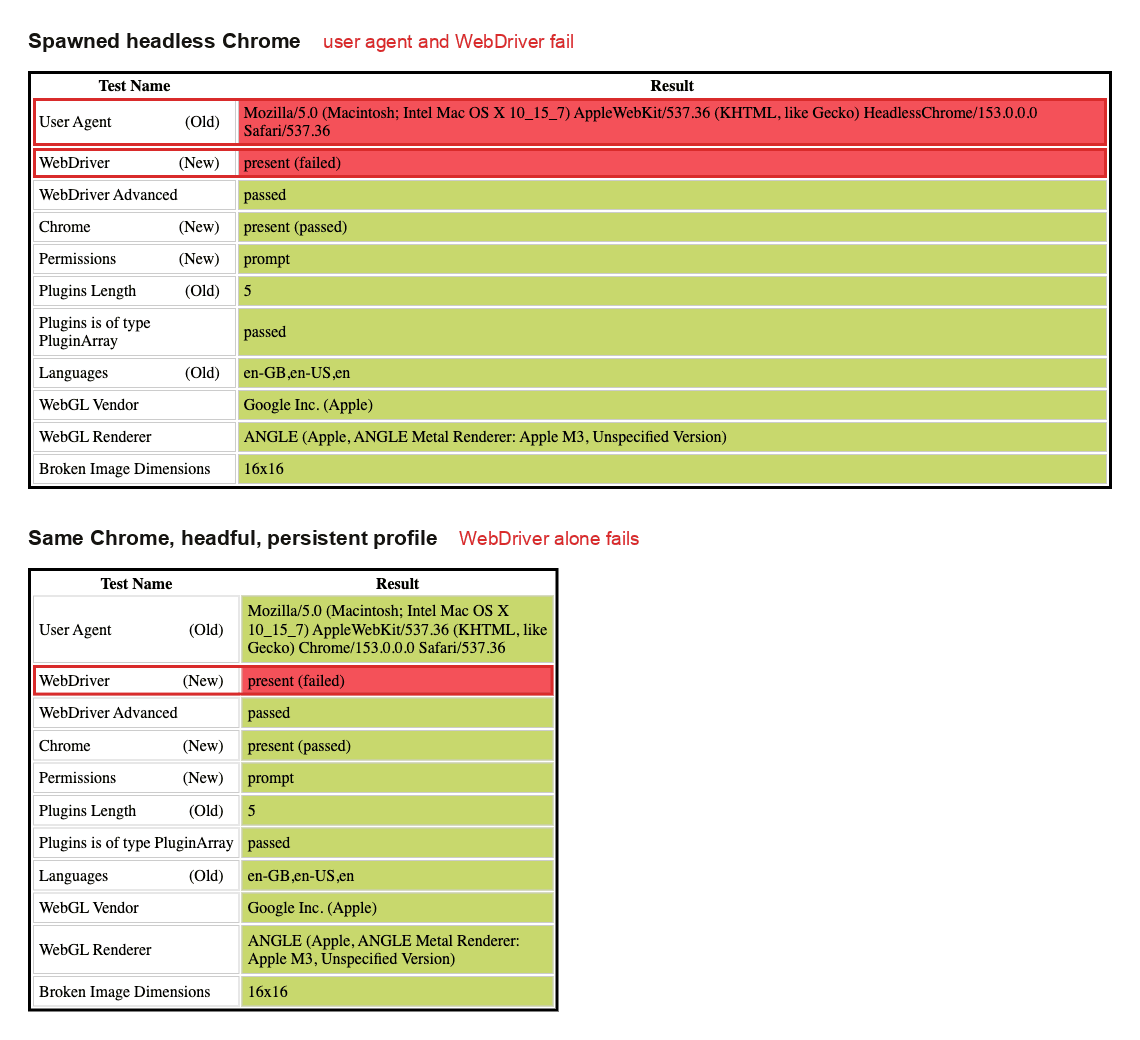
The profile is only part of what a site scores, and Playwright MCP's extension mode clears the same check anyway. Your residential IP and your request pattern are the rest, so a block lands on the account you're signed into. Read how modern anti-bot systems score visitors and what an antidetect browser changes about the profile.
Browser MCP vs. Playwright MCP and other browser automation servers
Unrelated projects use some version of the name "browser MCP", so search results are confusing. The project at browsermcp.io is the subject here.
Every browser tool here either attaches to a browser you opened or spawns its own browser. Attaching gives you your own profile and your existing session. Spawning trades both for an isolated environment and repeatable runs. Most of the other differences follow from that choice.
Tool
How it controls the browser
Logged-in sessions
Headless / CI
Best for
Browser MCP
Attaches to your open Chrome tab via extension
Yes, your real profile
No
One-off local tasks on sites you're signed into
Spawns a browser, or attaches via its own extension
Yes, persistent profile or extension
Yes
Test automation and repeatable runs
Chrome DevTools MCP
Connects over CDP to a Chrome instance
Yes, when pointed at your own profile
Yes
Debugging and performance work
Python library that also runs as a stdio MCP server
Configurable
Yes
Agent workflows written in code
Decodo MCP server
Doesn't drive a browser, and calls scraping tools on managed infrastructure
No
Yes
Collection that doesn't need your session
Browser MCP kept Playwright MCP's snapshot-then-act tool pattern, so both work nearly the same way.
Playwright MCP has an --extension_ flag_ and a companion extension that connects to existing tabs and reuses your logged-in state. Playwright MCP's default mode already keeps a persistent profile. Both tools attach to a logged-in tab. And Playwright MCP shipped a new release every few weeks through 2026.
The logged-in tab is no longer the deciding factor. If your question is about the underlying engines, see choosing between browser automation frameworks.
Match the tool to the task. Browser MCP fits short local jobs in the tab that is already open, and Playwright MCP's extension mode covers that same case, ships releases, and installs the same way, with an npx line and a Chrome extension. Use Playwright MCP for anything you intend to re-run or schedule, and for anything you want maintained. Use Chrome DevTools MCP when the job is debugging a page, not controlling it.
How to install Browser MCP and connect it to your AI app
The install takes 5 steps. Most install failures happen at 2 of them: the config file and the reload.
1. Check the requirements. Start with Node.js. Check the version with node -version, and download Node.js from nodejs.org if that command fails. The code runs on Node.js 18 or newer, though a current LTS release is the better choice, because 18 and 20 have both reached end of life. You also need Chrome or another Chromium-based browser, and an MCP client already installed, such as Cursor, Claude Desktop, VS Code, or Windsurf.
2. Add the server config. Put this in your client's MCP configuration file, and note that VS Code nests the same entry under servers:
The project's own setup docs use @browsermcp/mcp@latest there. A pinned version is the more reliable default, because @latest re-resolves the package on every launch. That behavior is one cause of startup failures.
Each client keeps that file somewhere different:
Client
Where the config file is
How to load it after editing
Cursor
~/.cursor/mcp.json, or .cursor/mcp.json inside a project
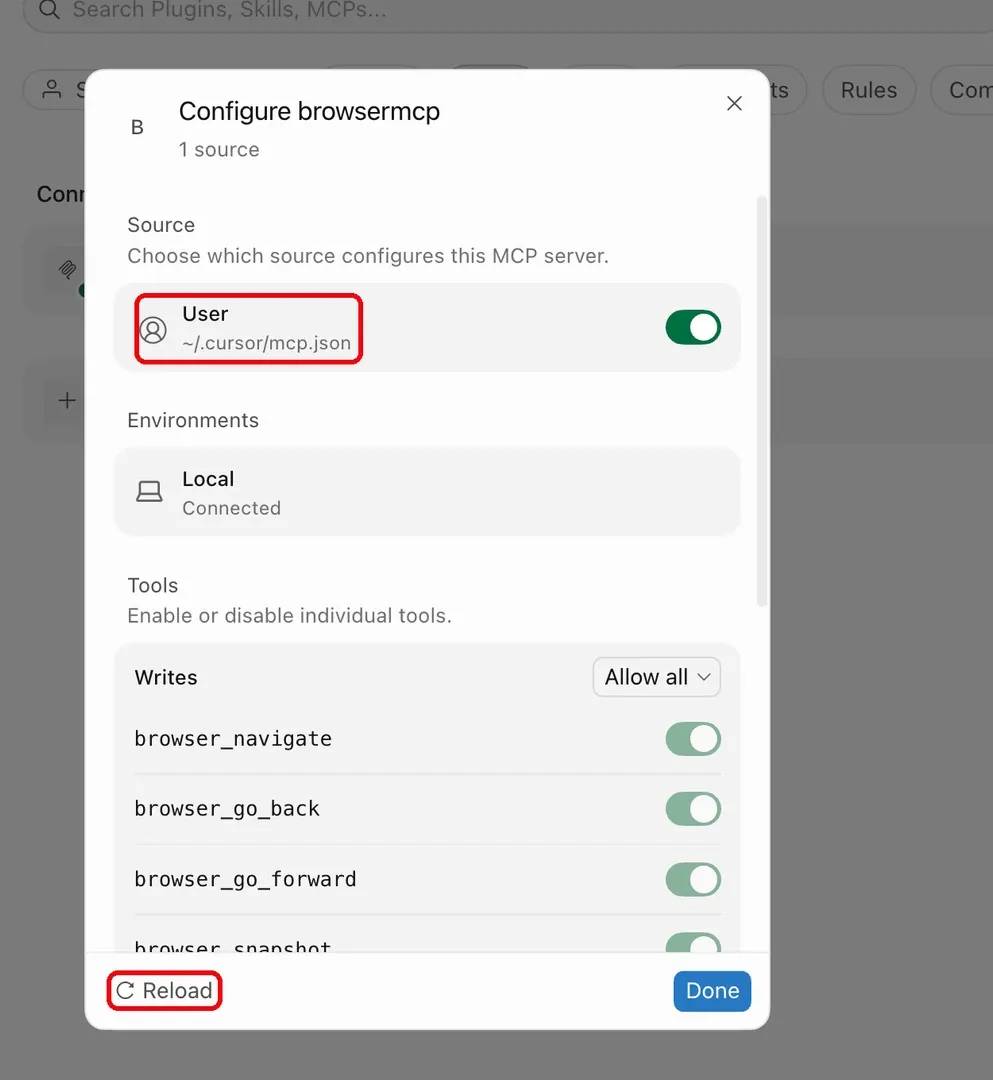
Open Customize, select MCPs, open the browsermcp entry, then select Reload
Claude Desktop
~/Library/Application Support/Claude/claude_desktop_config.json on macOS, %APPDATA%\Claude\claude_desktop_config.json on Windows, reachable from Settings, Developer, Edit Config
Quit the app completely and reopen it
VS Code
.vscode/mcp.json in the workspace, or the MCP: Open User Configuration command for the user-level file. This one nests under servers, not mcpServers
Run MCP: List Servers, select browsermcp, and start it
Windsurf
~/.codeium/windsurf/mcp_config.json
Restart the app
If the file already has an mcpServers block, add the browsermcp entry inside that block rather than replacing the file. Replacing the file removes the servers you already have. If the file doesn't exist yet, create it with that mcpServers block. The general MCP server configuration steps explain the same setup for other clients.
If you already run another server, the merged file looks like this:
Only the browsermcp key is new. The comma between the 2 entries is required. Without it, the whole file is invalid JSON, and the client loads no server at all.
3. Load the config. A client reads its MCP file at startup, so an edit does nothing until you reload the client. Use the reload action listed for your client, or restart the application. Restarting works for all 4 clients.
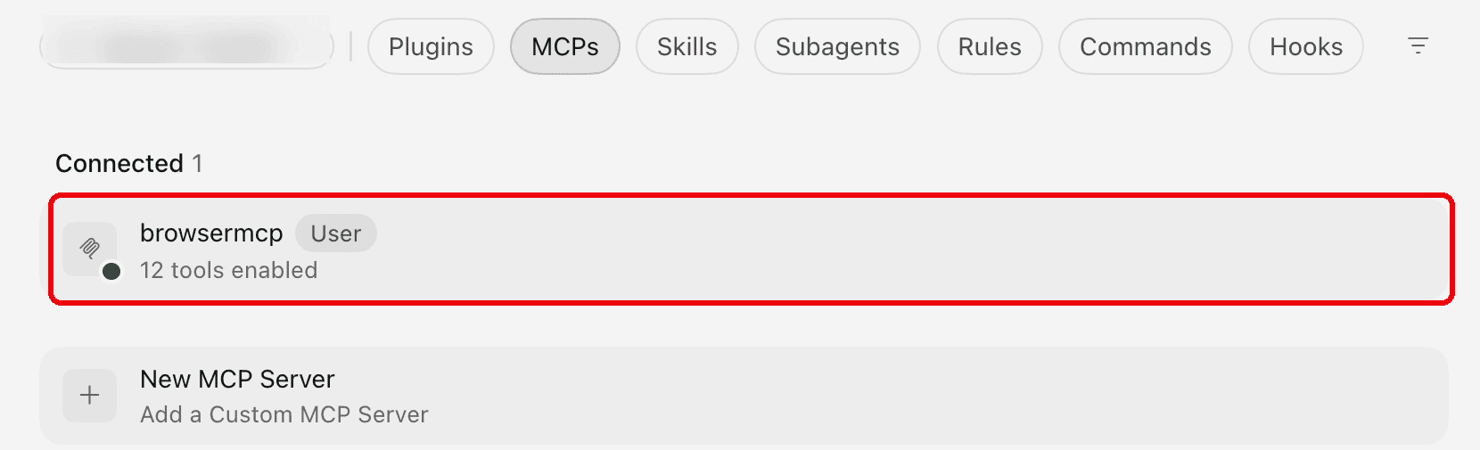
4. Verify the server is running. Your client should list browsermcp with its 12 tools enabled. Then block inbound TCP 9009, or stop the server between jobs, because the listener accepts connections from your network.
You can check the tool count and the port binding from the terminal, without the model calling anything. The tool-count command starts its own server, which stops the server that your client launched. The command below pipes 3 JSON-RPC messages into the server and prints the tool list it reports:
Expect 12 names, and expect browser_drag to be missing. The protocolVersion string in that command names an older MCP revision, and the server answers 2025-11-25 whatever a client asks for. The stderr redirect keeps a stack trace off your screen, because closing the input triggers a crash in the server's shutdown handler.
Reload the server in your client, then check the bind address:
An asterisk before the port means every network interface, not loopback alone.
5. Install the extension. Add it from the Chrome Web Store, and pin it so its icon stays in the toolbar. Then open its panel and select Connect on an ordinary HTTP or HTTPS page.
Installing the Browser MCP Chrome extension
The Browser MCP Chrome extension is half the product. Setup takes a second step that most MCP servers don't have, because the npm package alone does nothing.
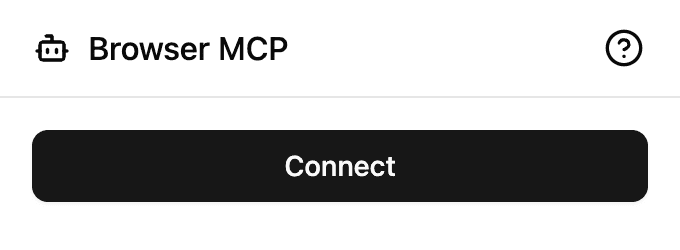
The extension refuses chrome:// pages, local files, about:blank, PDFs, and the Chrome Web Store. Selecting Connect on one of them shows no error. The tab navigates to a blank page on the vendor's own domain, the extension connects there instead, and the page you were reading is gone. Start from a page you don't mind losing.
All browser actions run on the connected tab, not the frontmost tab and not the tab you switched to afterward. That one behavior sends commands to a tab you aren't watching.
With both halves connected, an ordinary prompt controls the page. Name Browser MCP in the prompt so the model calls a tool rather than writing a script:
Browser MCP returns a single snapshot of the connected tab:
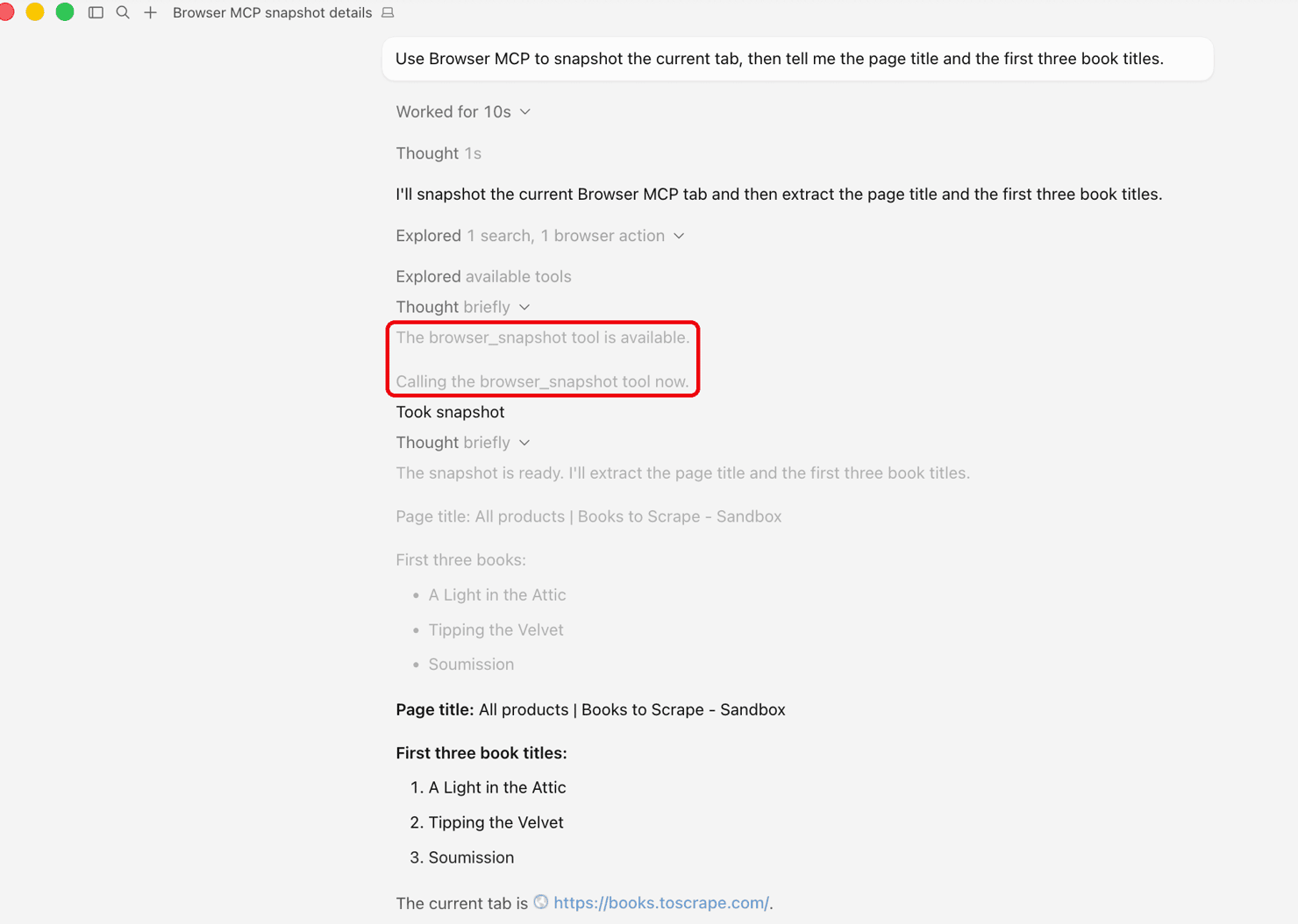
Cursor names the tool only when the step is expanded. A collapsed step shows 1 search and 1 browser action, and that search is Cursor reading its own tool list, not a Browser MCP call. Expand the step when you're checking what an agent did rather than what it says it did.

Which AI applications work with Browser MCP
The project supports Cursor, Claude Desktop, VS Code, and Windsurf. The interface is standard MCP, so a client that isn't on that list usually works anyway if it can launch a local stdio server. Unlisted clients include terminal agents such as Claude Code and editor extensions such as Cline.
AI application
How the server is added
Known issue
Cursor
MCP settings panel or project config file
None documented
Claude Desktop
Config file, then restart the app
Launches the server more than once, so an error can appear while the server still works
VS Code
MCP config file in the workspace or user settings
Nests under servers, not mcpServers
Windsurf
MCP config file
None documented
On startup, the server stops whatever process is using port 9009 before binding to it. A second launch replaces the first, and the client reports an error for a server instance it no longer needs.
If you're comparing MCP with the other extension points that a client offers, read how Claude skills and MCP differ.
One detail affects nvm users. If the client launches before your shell initializes nvm, npx resolves differently than it does in your terminal, and the server never starts. Set the absolute path to npx in the command field. Run which npx on macOS or Linux, or where npx on Windows, and paste that full path in place of npx.
Platform compatibility and local authenticated automation
The Chrome Web Store distributes the extension, so Browser MCP should run on Chrome and on a Chromium-based browser that can reach that store. Firefox and Safari aren't supported. The listing names Chrome, so check the store page before you assume a particular Chromium browser is supported.
Browser MCP has no platform-specific build, so it should run wherever Chrome and Node.js run: macOS, Windows, and Linux. Every measurement here came from macOS.
Browser MCP is built for local authenticated automation. The targets are internal dashboards, SaaS admin panels, account pages, and anything behind single sign-on. Browser MCP needs no credentials in a script, no login step in the prompt, and no separate session to maintain, because it uses the session you already have.
That session still expires on the site's own schedule. So a long job can stop at a login screen, and the agent has no credentials to enter. Anything the agent does is attributed to your account, because the session is yours.
The limits are easy to list:
- 1 tab at a time, and 1 browser profile.
- No headless mode, so the window stays visible while the agent works.
- No CI runner, and no parallel sessions.
- Your machine has to stay awake with the tab open, so unattended work means a machine left signed in.
- 1 client at a time on each machine, because starting a second client replaces the first, so a team needs 1 install per person.
- A 2-step job took 29 seconds end-to-end in testing, and every added step costs another model round trip.
Browser MCP use cases
The strongest Browser MCP use cases all need your own account right now.
- End-to-end testing against a signed-in app. An agent runs a real user flow in your development browser, with no test fixture and no seeded login. A checkout path works even without a seeded cart, because your cart is already there. Use a development account, because the agent acts with whatever payment method the session has.
- Repetitive form and portal work. Internal tools often have an API, but it needs admin approval you won't get. Expense submissions, CRM updates, and procurement forms all run through the web UI instead. The agent reads the form from the snapshot and fills it field by field, and browser_type can submit as well as fill, so keep the approval prompt on.
- Extracting data from dashboards behind a login. Analytics panels and vendor portals show numbers on screen but offer no export. Check the snapshot first, because a dashboard that draws its tables into a canvas returns almost nothing. This case most often becomes a larger collection job, and the Web Scraping API can take the pages that don't need your session.
- Reproducing and reporting bugs. The agent repeats the steps, captures console logs and a screenshot, and returns a report. Check the console tool against your own page first, because the repository has several issues about the tool returning nothing once the page has navigated or reloaded. Opening DevTools on the connected tab ends the agent's session, so read the returned console logs instead of watching the panel yourself.
- Research inside authenticated tools. The agent reads a wiki, ticket tracker, or knowledge base you're already signed into. That work is a first step in giving AI agents access to live web data.
Data extraction needs a bigger tool before the others do. A single snapshot of a public catalog listing returned 20 complete records, each with title, link, price, and stock state from the accessibility tree. That page is static server-rendered HTML, so that result is the best case.
The catalog page has availability in its text. The tree returns far less when dashboards draw tables into a canvas, virtualize long rows, or hide content in shadow DOM. Even the best case has a problem:
That entry contains 2 versions of the title. The visible heading has the truncated one, and the full one is on the thumbnail link above it. An agent that reads the heading returns "A Light in the …" for every row, and the run below reads the thumbnail link instead.
Asking for the same rows in a table takes 1 prompt:
The agent answered with 1 snapshot.
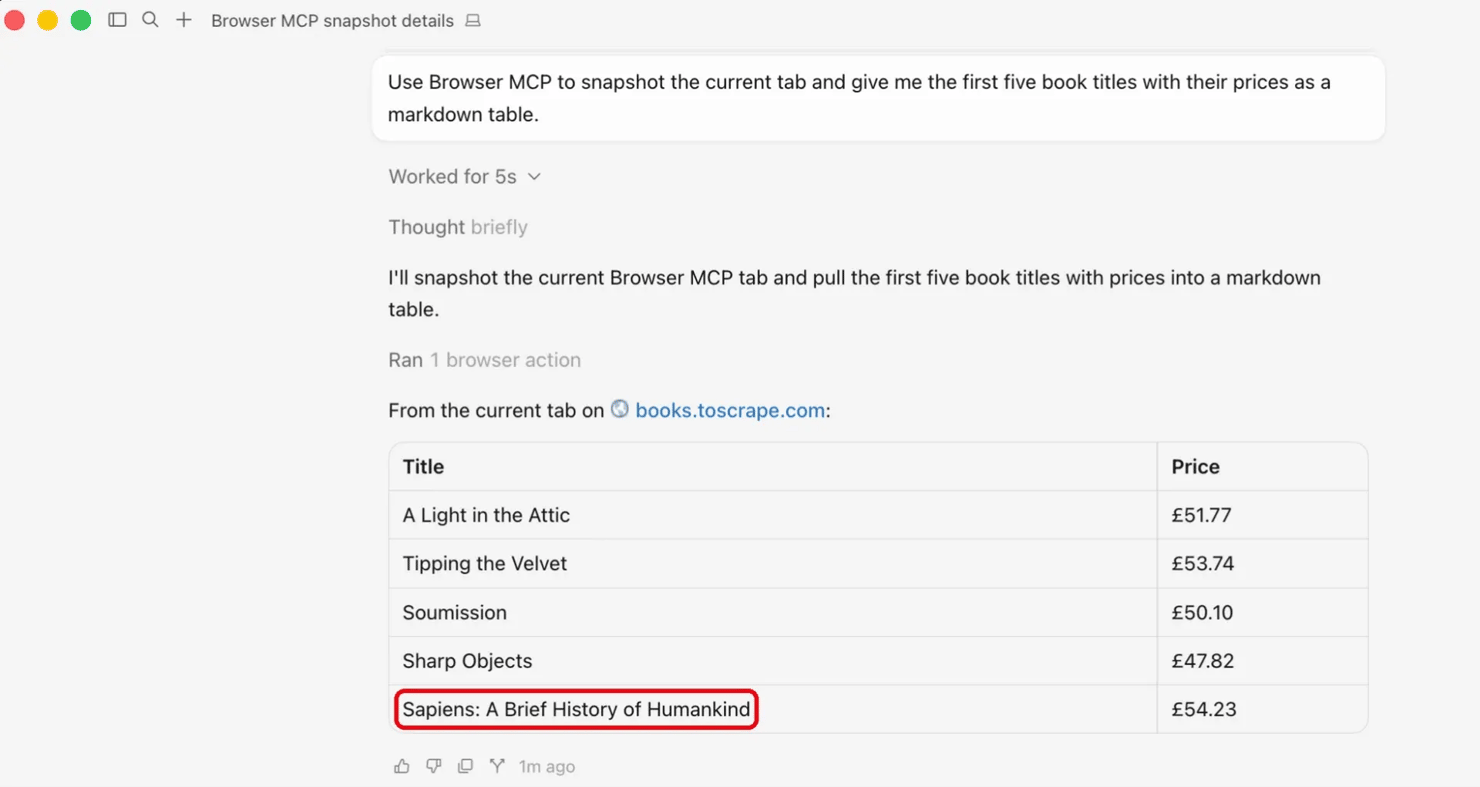
Scale changes the job. The listing reported itself as page 1 of 50, with 20 books on each page, and its snapshot measured the same 6,807 tokens. At that size, the whole catalog is near 340,000 tokens of returned content, and every page is another sequential navigation in a real browser.
Is Browser MCP safe? Security and privacy considerations
Browser MCP is as safe as the session you attach it to. The tool runs automation locally, and no outbound calls appear in the published server bundle. But the tool gives an AI model control of a browser signed in to every account in your profile. The risk has 2 halves: what an attacker can make the model do, and what the local server exposes.
- Prompt injection is the documented one. A page that the agent reads can contain instructions aimed at the agent. The agent acts inside your logged-in session, so a successful injection acts with your permissions. Unit 42 at Palo Alto Networks documented indirect prompt injection against web-browsing agents in real-world attacks. The 2026 edition of the OWASP Top 10 for LLM Applications ranks prompt injection first.
- The agent isn't scoped to one site. Run the agent in a separate Chrome profile that has only the accounts a task needs, not your daily profile. That profile still has real logged-in accounts, so you keep the session advantage and limit how far an injection reaches. That limit applies even when you approve calls automatically.
- Auto-approve removes the per-call prompt. MCP clients prompt by default before running a tool, and many offer an auto-approve mode, so review those calls instead of turning the prompt off. Some clients allow you to disable tools one by one. Cursor's configure dialog for a server lists its tools, each with a toggle, so a task that only reads pages can run with the typing and clicking tools disabled.
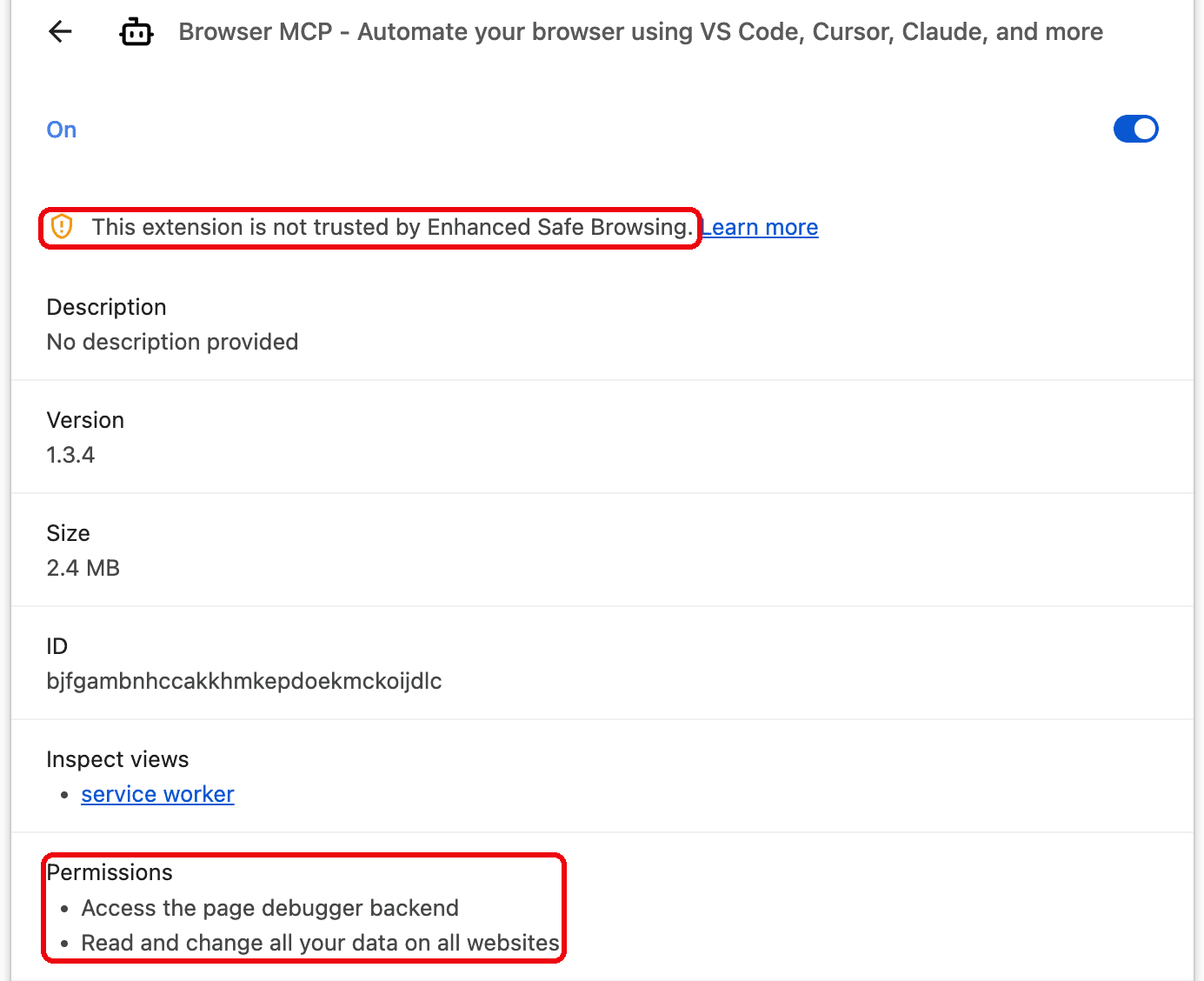
- The extension's permission set is broad, and one entry matters most. The manifest requests debugger, scripting, tabs, webNavigation, and storage, with host permissions on all URLs and a content script that matches every page, not only the connected one. That script makes no remote network calls of its own in the published bundle.
Pages on the vendor's own domain can also message the extension, though that channel is limited. The channel accepts sign-in, status, and analytics messages, and none of the browser commands.
The debugger permission controls the browser. The extension attaches the Chrome DevTools Protocol to the connected tab and dispatches input through it, using CDP calls such as Input.dispatchMouseEvent and Input.insertText. Chrome shows a banner while that attachment is live. Dismissing the banner ends the debugger session, so it stops the agent from acting on the page.
Chrome stamps every event as trusted or untrusted, and a page that checks the stamp can drop an untrusted event without an error. Browser MCP's events arrive stamped trusted, like a real mouse, so the tool works on pages that reject scripted input. But clicks that do nothing are still the most reported problem in the repository.
Chrome's permission list shows 2 warnings for the extension, one naming the page debugger backend and one saying the extension can read and change all your data on all websites. The same debugger attachment enables the Runtime domain, which supplies the console log tool. Chrome's own extension page also shows the line "This extension is not trusted by Enhanced Safe Browsing", which is a statement about the review process rather than a conclusion that the extension is harmful.
The local server is the other half of the risk. The server's WebSocket listener binds to all network interfaces, not loopback only, which the asterisk in the lsof output shows directly. In version 0.1.3, the server accepts connections without a token, doesn't check the Origin header, and closes any existing client when a new one connects.
In testing, a second client on that port replaced the extension's connection and then received the agent's tool payloads, including the text that the agent passed to browser_type. That second client ran on the same machine. A separate check connected to the machine's LAN address with a foreign Origin header and no credentials. That check stopped at the connection, so the payload capture rests on the same-machine test alone.
Version 0.1.3 sets the port and the bind address in code, and provides no flag or environment variable to change them. A pull request adds both a token check and a configurable port, and it has been open since 2025.
The behavior is a design default rather than a published vulnerability, and no security advisory exists for the package. Someone did try to report an issue privately and found the listed support address undeliverable. A DNS lookup found no MX record for the domain. The missing record is consistent with that report, but it isn't proof.
A separate issue about the bind address was opened in 2026 and closed in June of that year with no comment. The registry still serves 0.1.3, published in April 2025, so no fix has been released.
The exposure is an access-control gap, not a way to stop the server, since malformed frames on port 9009 didn't crash the server in testing. A new connection does end the extension's session, so a client on that port can stop the agent mid-job.
A machine behind a typical home router is usually unreachable from the internet, though you should check 3 exceptions: IPv6 without a firewall rule, UPnP, and manual port forwarding. For most setups, the realistic exposure is other local processes and other hosts on the same network. The same network still covers shared office networks, conference wifi, and hotel wifi. The fix is to block inbound TCP 9009 at your host firewall, and to stop the server when you aren't using it.
The firewall command differs by platform. On Linux, run sudo ufw deny 9009/tcp. On Windows, open an elevated prompt and run netsh advfirewall firewall add rule name="Block 9009" dir=in action=block protocol=TCP localport=9009.
The exposure was observed on macOS. The Linux and Windows commands are standard for those firewalls, but they weren't run. Treat both as a starting point rather than as verified output.
macOS is the exception to the firewall fix. Its built-in firewall filters by application, not by port, and allows signed binaries by default. With that firewall enabled, the port stayed reachable from another device on the same network in testing.
A host firewall is also the wrong tool for the local half of the exposure. Blocking inbound 9009 does nothing about a process already running on your own machine, so stopping the server between jobs is the one control that works for both. To stop it, quit the client that launched it, or find the listener with lsof -nP -iTCP:9009 -sTCP:LISTEN and end that process.
- A pinned package doesn't pin its dependencies. Pin the version anyway. The package's MCP SDK dependency uses a caret range, so the SDK version can change under a pinned package, though the server still negotiates revision 2025-11-25. Pinning the package can't freeze that floating dependency, because npx resolves the whole tree on every launch, on the machine holding your logged-in profile.
Troubleshooting common Browser MCP errors
Most Browser MCP connection failures have 1 of 3 causes: the server isn't running, the extension isn't connected to a tab, or 2 processes are competing for port 9009. The table below covers those and the errors that appear once the connection works.
What you see
Cause
Fix
"Client closed", and reloading doesn't help
@latest re-resolves the package on every launch
Pin the version so the config reads @browsermcp/mcp@0.1.3
"No connection to browser extension" from the start
The extension has no tab connected
Open the extension panel and select Connect
That same message part-way through a working session
Chrome ends the session when you open DevTools on that tab or dismiss the debugging banner. Otherwise, no established cause, since Chrome keeps Manifest V3 service workers alive during active debugger sessions and WebSocket traffic
Reconnect from the panel, and split long jobs into resumable segments
"spawn npx ENOENT" in the client's logs
The client launched before nvm configured PATH
Run which npx, or run where npx on Windows, and put that full path in the command field
Claude Desktop shows an error, but everything works
The client launched the server more than once
Not a config problem
The model writes a script instead of using the tools
The model didn't choose the tool, and a script is often the better answer for a repeatable job
Name Browser MCP explicitly when the task needs your authenticated tab
"This page cannot be automated. Please try a different page."
The connected tab navigated to a page that the extension can't control
Connect on a normal web page, since the extension refuses chrome://, file://, about:blank, PDFs, and the Chrome Web Store
"Stale aria-ref" and "Please regenerate an aria snapshot"
The reference came from an earlier snapshot
Act on the references that the previous call returned, and take a new snapshot only when you have none, since every explicit snapshot invalidates the previous references
The target site still blocks the agent
The profile is real, but the IP and the request pattern still look automated
Change the exit IP and the pacing, or try Decodo's residential proxies
"No tab with given id" on click, type, or hover, while navigate and snapshot still work
The extension acts on a tab ID it stored when you connected, and that ID no longer resolves
Select Connect again on the tab you want, so the extension rewrites the stored ID
browser_get_console_logs returns nothing after a navigation or a reload
Users report that it returns output only between connecting and the next page load
Reconnect before reading logs, and confirm the tool against your own page before depending on it
The Claude Desktop row comes from the way the server takes the port: it runs lsof and kill -9 on macOS and Linux, and taskkill /F on Windows. In testing, launching a second instance stopped the first instance with SIGKILL and printed nothing on either side. That behavior also decides which agent controls the browser. Only 1 process can use the port at a time, so the newest launch takes it and stops the previous process without a message.
The server also stops an unrelated service on port 9009, without warning.
When the client closes the connection, the server's close handler calls itself, so the server fails with "RangeError: Maximum call stack size exceeded" and a non-zero exit code instead of exiting normally. The server never runs its cleanup, but the operating system reclaims the port regardless. The effect is an error at exit, not a leak.
One pattern in the repository has no agreed explanation and is worth knowing before you commit to the tool. Clicks that have no effect are the most reported problem there, and the usual explanation doesn't fit, because Browser MCP's clicks arrive stamped as trusted, and a page can't drop them as synthetic input. Reporters across 13 open threads describe the pointer moving to the right place and nothing happening. Clicking worked in testing here, so test clicking early on your own targets, and don't assume either result.
When the target site blocks the agent, the fix isn't in the config. The browser profile is real, but the exit IP and the request pattern still mark the traffic as automated. Read avoiding blocks during automated collection for the general problem.
If the block becomes a challenge page, handling CAPTCHA challenges is a separate problem. Browser MCP exposes no way to act on coordinates, and the server never registered its drag tool. The limit is the tool surface rather than local execution.
Browser MCP alternatives and when to switch
The right Browser MCP alternative depends on what you're trying to keep. If you stay inside MCP, Playwright MCP handles headless runs and CI, and Chrome DevTools MCP handles debugging and performance work.
If token cost is the problem rather than scale, look outside MCP. The Playwright CLI aims at exactly that problem. The CLI's maintainers give coding agents a command line with skills, and they say that CLI calls keep large tool schemas and verbose accessibility trees outside the model context.
Chrome DevTools MCP cuts its tool set to 3 with a –slim flag, and Playwright MCP enables most of its tools only when you opt in. Measure the token cost on your own pages before you pick between them.
A W3C community group is developing WebMCP. The proposal would let a site declare its own tools through a browser API, so an agent would call them directly and never operate the interface. Chrome puts WebMCP behind a flag, so no site can rely on it yet.
Browsers with a built-in agent are a different kind of answer. They target a person browsing rather than an AI app controlling a tab, and Decodo's ranking of 45 AI browser agents compares them.
The limits on scale come from attaching to your own browser. You get 1 tab and 1 client at a time, every request leaves from your home connection, and nothing runs while your machine sleeps.
Managed infrastructure fits when the job needs many concurrent sessions, rotating IPs, requests from specific countries, or a schedule. Site Unblocker targets sites that block before a page ever renders, where a real browser fingerprint isn't the deciding factor. Outcomes vary by target, so test it against yours.
A closer replacement fits when you want to keep working from a prompt. The Decodo MCP server keeps that shape, because your client still connects to an MCP server and still calls tools by name. The agent calls scraping tools on managed infrastructure instead of controlling your tab. The config goes in the same file as the one above:
That token comes from a Decodo account, and the free tier covers 2K requests without a card.
Decodo's Web Scraping API returned the same catalog page in markdown, at 3,356 tokens against the snapshot's 6,807 tokens, or about half the input cost for the same page.
The snapshot and markdown return different things. The snapshot includes the element references that an agent needs in order to act, and markdown includes none of them. Choose the snapshot when the agent has to act, and choose markdown when it only reads.
The scraping API offers more than 1 output mode, and the cheaper one depends on the page. On one page, markdown costs about a third as much as the parsed output, and on another page it costs twice as much, so try both on your own targets.
Managed infrastructure runs the job without your machine awake, without your home IP, and without your account in play, and it costs money. If your task needs the session already in your browser, keep that work local.
Final thoughts
Pin @browsermcp/mcp@0.1.3 instead of @latest. Pipe the 3 JSON-RPC messages into your own install, and confirm that the server reports 12 tools before you trust it with real work. Then run Browser MCP against your first real target, and copy 1 snapshot from the tool result into snapshot.txt. Page size affects the token cost more than any setting you can change, so measure it on your own pages:
When those numbers show that the job needs more than one tab, the Web Scraping API is the next step.

Stop getting blocked
Route your agent's traffic through Decodo's residential proxies to bypass IP-based rate limits and bans.
About the author

Justinas Tamasevicius
Director of Engineering
Justinas Tamaševičius is Director of Engineering with over two decades of expertise in software development. What started as a self-taught passion during his school years has evolved into a distinguished career spanning backend engineering, system architecture, and infrastructure development.
Connect with Justinas via LinkedIn.
All information on Decodo Blog is provided on an as is basis and for informational purposes only. We make no representation and disclaim all liability with respect to your use of any information contained on Decodo Blog or any third-party websites that may belinked therein.