How to Scrape Hidden APIs (With a Worked Example)
A hidden API is an undocumented endpoint that a website's frontend calls in the background, usually through XHR, Fetch, or GraphQL, to load data as JSON. Scraping hidden APIs means calling that endpoint directly instead of parsing the rendered HTML. Many modern websites load the page first, then fetch the actual data this way, so the clean JSON you need is often just one request away. In this guide, you'll learn how to find these hidden APIs and use them to collect structured data faster, without a headless browser.

Justinas Tamasevicius
Last updated: Aug 06, 2026
20 min read
TL;DR
- Find hidden APIs in DevTools by filtering Fetch/XHR requests and inspecting the JSON responses.
- Replay the request directly in code to collect structured data without parsing rendered HTML.
- Adjust query parameters such as page, offset, or cursor to paginate through larger datasets.
- Keep requests realistic, expect undocumented endpoints to change, and use proxies or a managed scraping tool when scale or anti-bot protection becomes a problem.
What is a hidden API, and why do websites use them?
A hidden API is an undocumented endpoint that a website uses internally to send data to its frontend. It’s "hidden" because it isn’t published as a public API or documented for third-party developers. In many cases, you also won’t see the actual data when viewing the page source because the browser requests it after the page starts loading.
Many modern websites work roughly like this:
The browser loads the page, sends a background request for the data it needs, and receives a structured response, usually JSON. JavaScript then uses that data to render what you see on the page. This is common in applications built with frontend frameworks like React, Vue, and Angular.
These background requests usually appear in a few forms:
- XHR (XMLHttpRequest) – a browser method for requesting data without reloading the page.
- Fetch – the newer browser API commonly used to make the same type of background requests.
- GraphQL – usually a POST request where the frontend specifies the data and fields it needs.
- Plain JSON or REST requests – standard HTTP requests to endpoints that return structured data.
For scraping, the important part is that the data may already be available before it becomes HTML. Instead of downloading the page, parsing the DOM, and locating individual elements, you can sometimes request the same JSON the website uses internally.
That can give you:
- structured JSON
- cleaner data
- faster collection
- lower infrastructure costs
- fewer parsing errors
Once the JSON already exists, parsing rendered HTML is usually unnecessary work, and it introduces extra overhead to your workflow. If you're new to scraping and APIs, check out our guides on what an API is and how it works.
Hidden API scraping vs. HTML parsing vs. headless browsers
Hidden API scraping can be a great option, but it isn’t automatically the best choice for every website. The right approach depends on where the site exposes its data and how much work it takes to access it reliably.
Approach
Best when
Trade-offs
Hidden API scraping
Structured data is loaded through background requests
Undocumented endpoints can change
HTML parsing
Data already exists in the server-rendered HTML
DOM selectors can be brittle
Headless browser
Data requires JavaScript execution or browser interaction
Higher CPU, memory, and execution overhead
Typically, you want to start with the least complex layer that gives you reliable access to the data. If the JSON endpoint is visible and reproducible, hidden API scraping is usually the cleanest option. If the content is already in the page source, plain HTML parsing is enough.
You can use a headless browser when the browser has to execute JavaScript or maintain state before the data becomes available.
If you can find the JSON endpoint and replay it, do that. Reach for a headless browser only when the data is locked behind browser-only behavior you can't reproduce, and stick with plain HTML parsing when the content is already in the page source. For a broader look at the difference between working with APIs and scraping webpages, see API vs. web scraping.
How to find hidden API endpoints in the Network tab
You can find most hidden API endpoints directly in your browser’s DevTools. The trick is to isolate the request that loads the data you’re interested in.
1. Open the Network tab
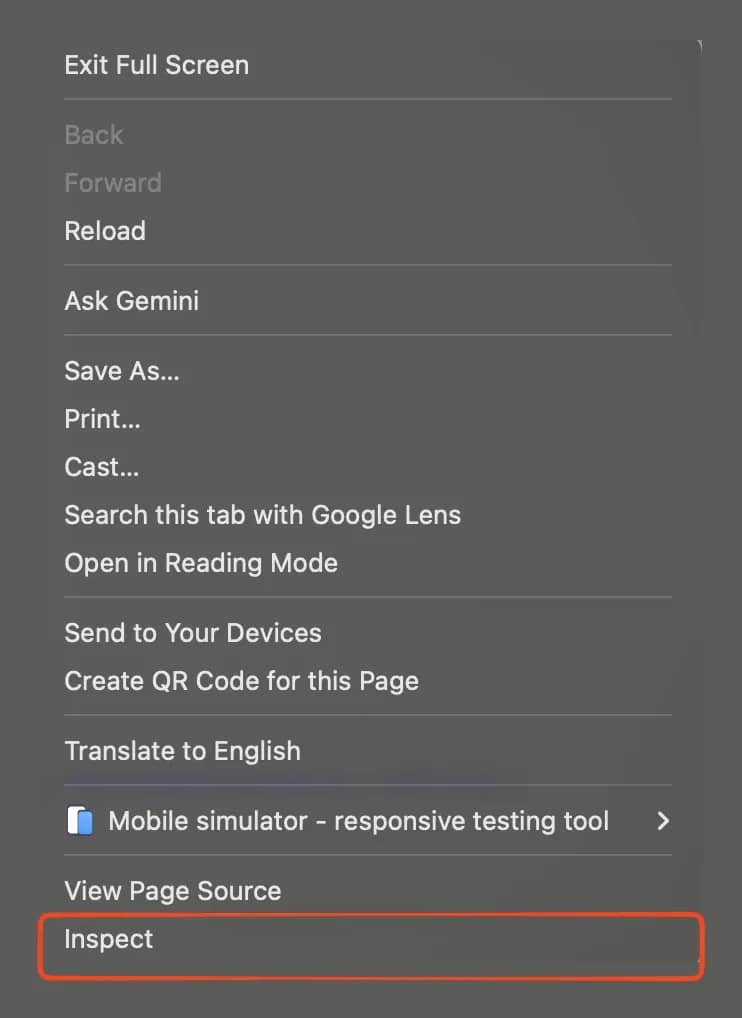
Open DevTools with F12 or right-click → Inspect, then switch to the Network tab. This panel shows every request the page makes while it loads and while you interact with it.
2. Clear the log and trigger the data
Clear the existing requests first, so you have less noise to work through. Then perform the action that loads the data you want.
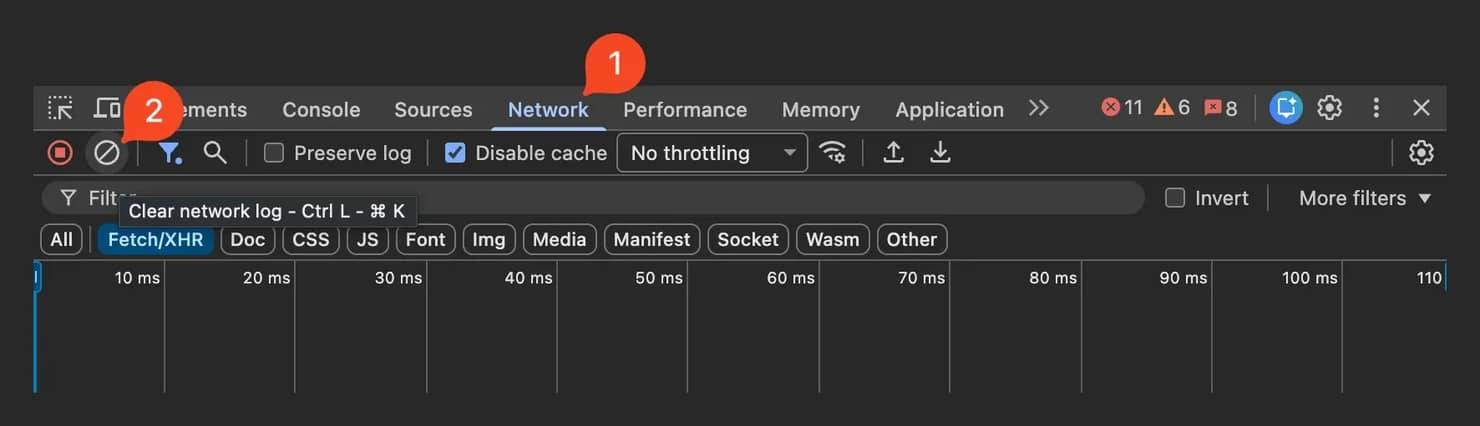
For example, you can:
- scroll to load more results
- move to the next page
- apply a filter
- reload the page
You do this to fire the request while watching.
3. Filter to Fetch/XHR
Select Fetch/XHR to hide requests for images, fonts, CSS, and other page assets.
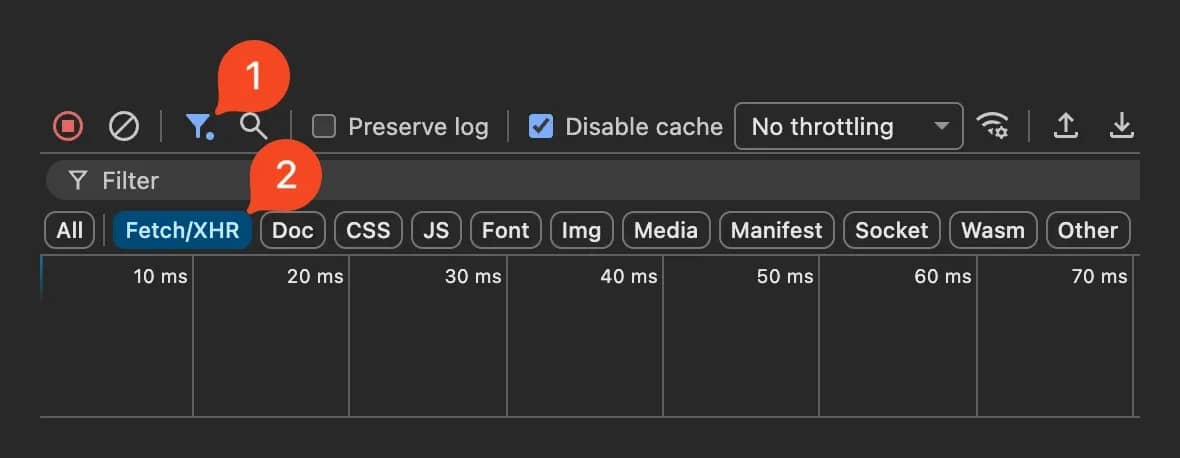
You should now have a much smaller list containing the background requests most likely to return JSON data.
4. Inspect the response
Click a request and check its Response or Preview tab. Look for JSON that matches what you see on the page.
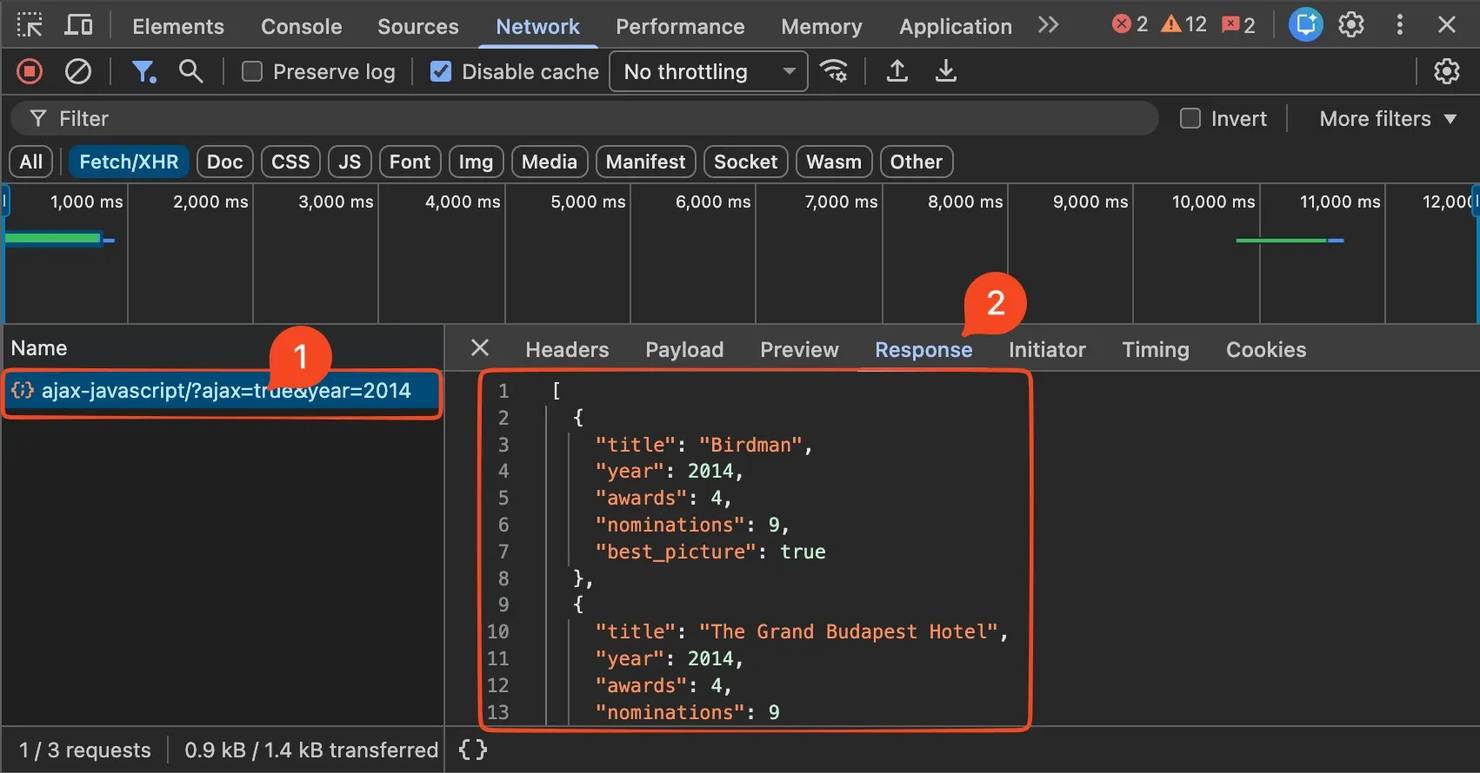
5. Confirm the endpoint
Take a value you can already see on the page, such as a product name or title, and search for it in the response. If the same value appears there, you’ve likely found the request that supplies the page with that data.
When it matches, note the request's URL, method, query string, headers, and any payload, as those are the pieces you’ll need to reproduce the request later in code.
Pro tip: Hidden endpoints tend to advertise themselves. Watch for path patterns like /api/, /v1/, /graphql, or /search, and for query parameters that control paging such as cursor, offset, or page.
If there are still too many requests, sorting them by Type or Size can help. The JSON payload you want is often one of the larger XHR responses.
For more detail on how Fetch and XHR requests are made from the browser, see our web scraping with JavaScript guide.
Worked example: calling a hidden JSON endpoint
Let’s put this into practice on a real target now. Open dev.to in Chrome, launch DevTools, switch to the Network tab, and filter to Fetch/XHR. Clear the log, then scroll down the page until the feed loads more articles.
Among the new requests, you should see one similar to "feed/?page=3&type_of=discover". That's the endpoint powering the infinite scroll.
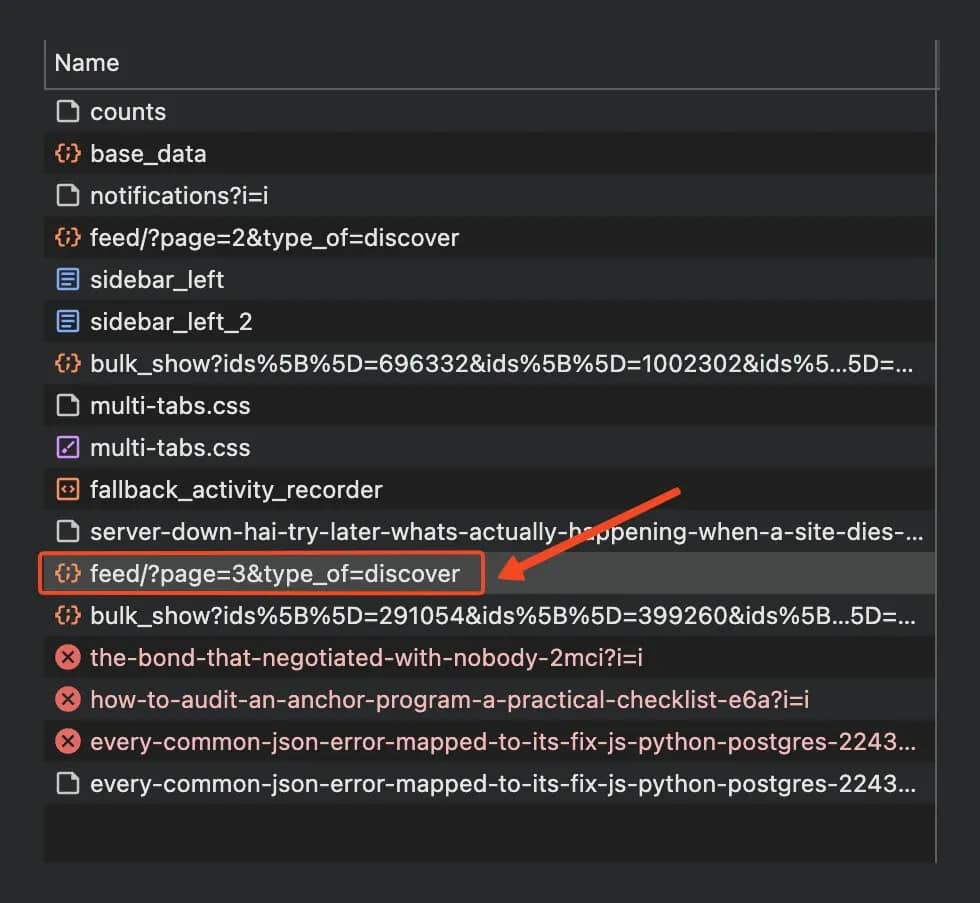
Click it and open the Headers panel. Under General, you'll find the full endpoint and the method:
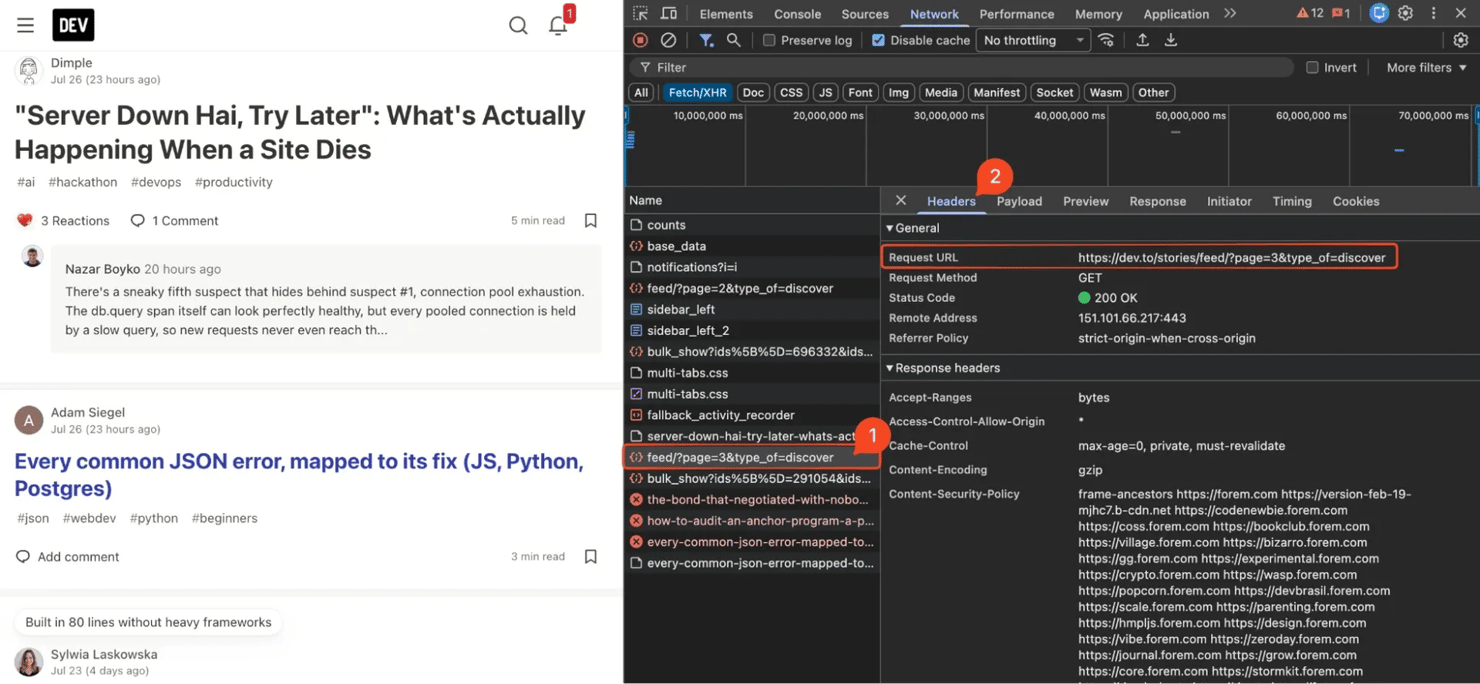
- Request URL – https://dev.to/stories/feed/?page=3&type_of=discover
- Request Method – GET
Scroll down to Query String Parameters, and you'll see the 2 parameters broken out cleanly:
- page – 3
- type_of – discover
Here, page tells the endpoint which batch of stories to return, while type_of identifies the feed being requested. If you change either of them, you’ll get a different slice of data. Next, open the Response or Preview tab.
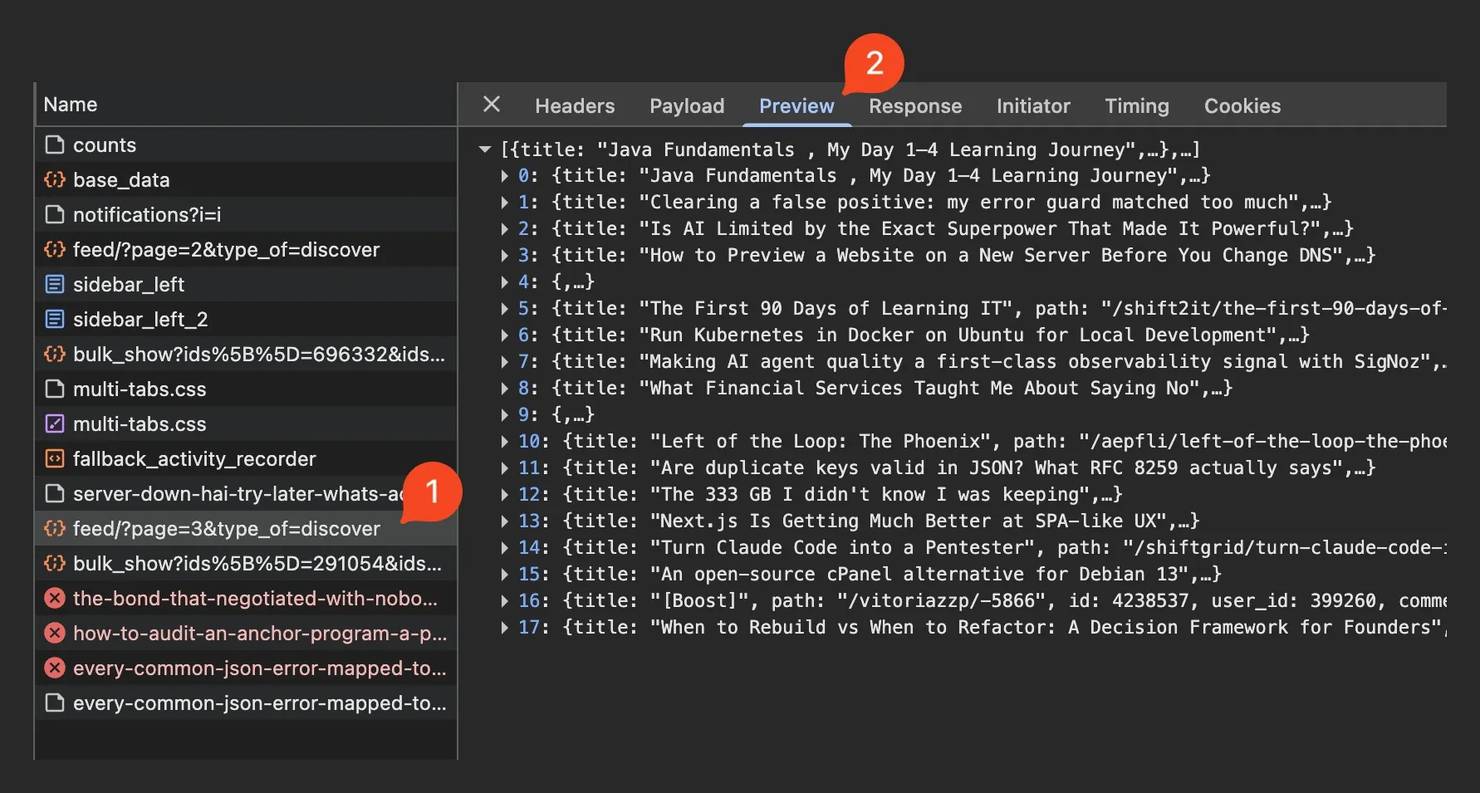
Here, you’ll find the structured data the frontend uses to build them. This way, rather than downloading the HTML and extracting individual article cards, we can replay the same request directly with Python:
response.json() parses the JSON response into native Python objects (typically dictionaries and lists), so you can work directly with the returned records instead of parsing HTML.
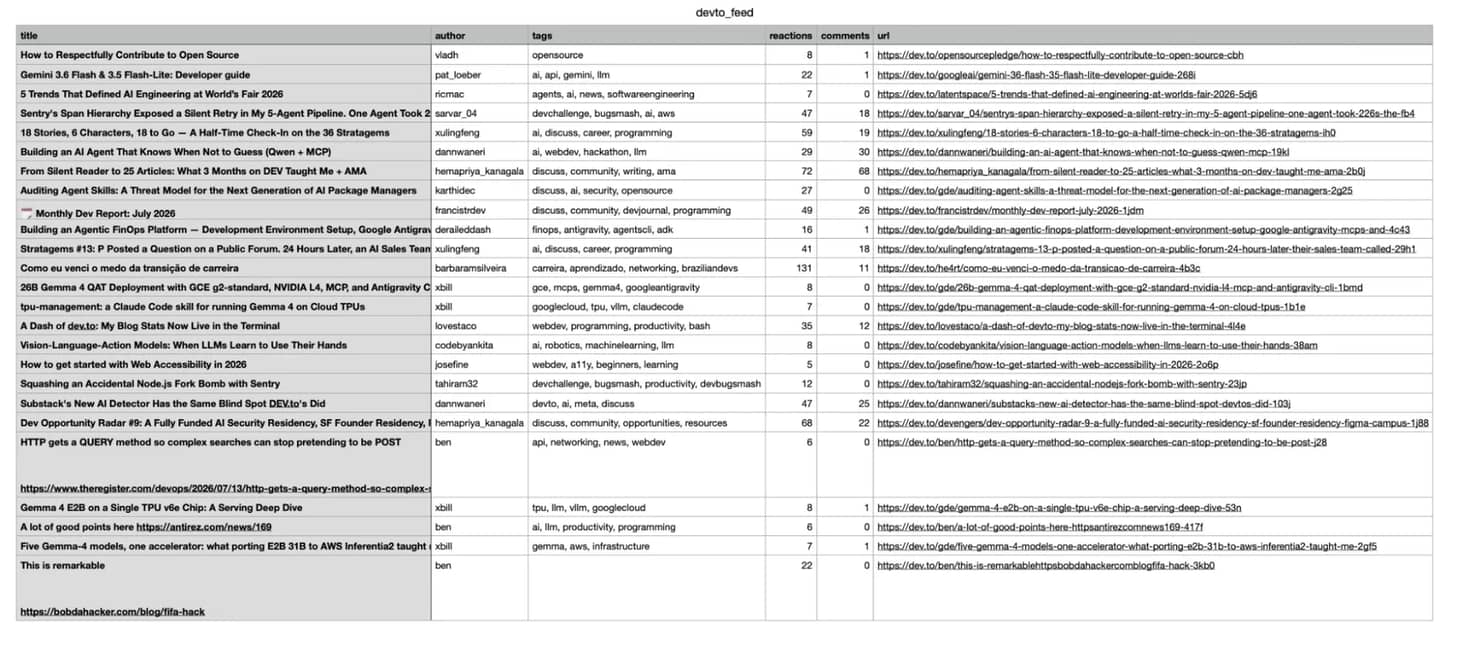
Once you’ve inspected a record, you can select the fields you need, such as the article title, URL, author, or other metadata available in the response, and save them to CSV or a DataFrame:
The exact fields depend on what the endpoint currently returns and may change over time, which is another reason to inspect the JSON before writing your extraction logic.
Working with request parameters and pagination
To collect more data, you need to understand which parts of that request change as you interact with the website. Most endpoints handle paging in 1 of 3 ways:
Page numbers
Increment a page parameter until the response is empty or the API tells you there are no more results. This is what dev.to uses, and it's the most common style:
Offset and limit
Ask for records starting at a given index, like offset=40&limit=20, then advance the offset each round:
Here, limit controls how many records are returned and offset controls where the next batch starts.
Cursor or token
Instead of calculating the next page yourself, the response provides a cursor or token that you send with the next request. A response might look something like:
Your scraper then keeps using next_cursor until the API returns no cursor or signals something like has_next: false.
Whichever style you encounter, follow the behavior of the website rather than inventing your own pagination scheme. For more pagination patterns and implementation examples, see how to handle web scraping pagination.
In our dev.to example, the query string contains two parameters:
The easiest way to identify what each parameter does is to watch how the request changes as the site loads more data:
In this case, type_of stays the same, while page increases. That tells us dev.to is using page-based pagination for this request.
We can reproduce that behavior with a loop:
Here, we request pages 3 through 6 by changing only the page parameter. Each request returns the next batch of articles while the rest of the endpoint stays the same.
Handling authentication, headers, and GraphQL endpoints
Some hidden APIs work with a simple GET request while others expect specific headers, cookies, or authentication details before they’ll return the same data you saw in the browser.
For example, our dev.to feed answered a request with 1 header, but plenty of endpoints won't. When a request works in your browser but fails from your script, the difference is almost always in the headers you didn't copy.
These are some common headers worth checking
- User-Agent – identifies the client. A missing one, or an obvious default like python-requests/2.31.0, is the easiest possible flag to raise.
- Accept – states what you want back, usually application/json. Some endpoints serve HTML unless you ask for JSON explicitly.
- Referer – some endpoints only answer when the request looks like it came from the site's own page.
- Custom X- headers – things like X-API-Key, X-Requested-With, or a CSRF token. These are app-specific, and you'll only find them by reading the captured request.
You usually don’t need every header the browser sends. Keep the ones required for the request to work.
Token and cookie authentication
Some endpoints only return data when the browser includes authentication information so it can know who’s making the request.
You might see a bearer token:
Or you might encounter a session cookie:
These values can expire, and that is the single most common reason a script that worked yesterday may return an error like 401 or 403 on a future run.
When authentication is required, reproduce the legitimate request the browser already makes. Don’t try to forge signatures or bypass access controls.
GraphQL endpoints
GraphQL requests work a little differently compared to REST endpoints. Instead of many endpoints with readable query strings, GraphQL often exposes a single endpoint – /graphql and a POST body that describes exactly what the frontend wants:
Once you understand the request, you can often change values inside variables, such as the page number, search term, or filter, while keeping the rest of the query unchanged.
In DevTools, the body is under the Payload tab rather than Query String Parameters. GraphQL responses are also nested under a data key, so your extraction path is a level or 2 deeper than with a flat REST array.
To learn more about reproducing requests with headers and payloads, see scraping with cURL and how to send JSON with cURL.
Turning a captured request into code
Sometimes, you don’t have to rebuild a captured request by hand. DevTools can do most of the work for you. To do this, right-click the request in the Network tab and open the Copy submenu:
- Copy URL – just the endpoint and its query string
- Copy as cURL – the complete request, headers and body included
- Copy as fetch – the same thing as JavaScript, ready to paste into Node.js or the console
In our case, right-click and select Copy → Copy as cURL. This captures the request URL, method, headers, and body in a format you can run directly from a terminal. You can also choose Copy as fetch if you’re working in JavaScript.
The cURL request looks like this:
Run the command first to confirm that the request works outside the browser:
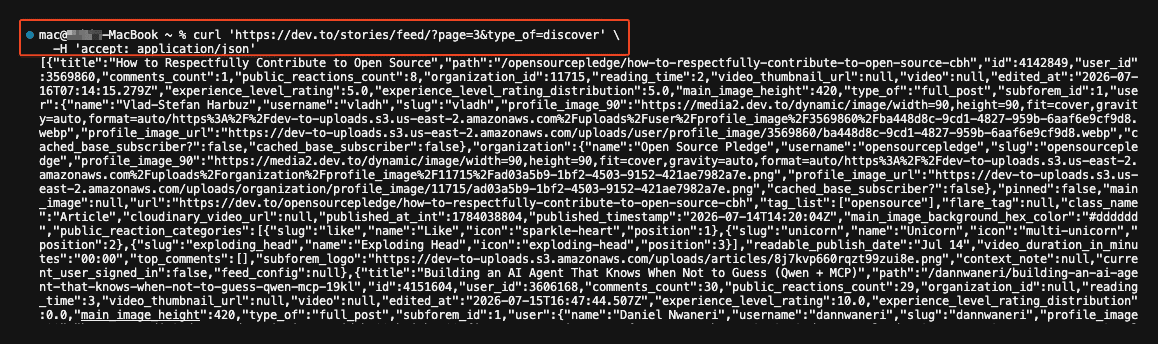
From there, you can convert it into whatever language you’re using. Tools such as curlconverter can turn a copied cURL command into Python Requests, Node.js, Go, or PHP code. You can also import the cURL command into Postman to inspect and test the request before adding it to your scraper.
Working in JavaScript instead? Check out our guides on web scraping with node-fetch and cURL in JavaScript.
Trim what you don’t need
A request copied from the browser is mostly bloated and can contain a lot of extra headers, including values such as:
Most of that is noise; you can start with the captured request, confirm that it works, then remove unnecessary headers one at a time and keep the smallest version that still returns the data correctly.
Scraping hidden APIs at scale without getting blocked
A hidden API may be easier to call than the rendered page, but it can still be rate-limited and monitored. As request volume grows, websites can look at several signals to decide whether traffic looks automated. Three common signals are:
- Requests per IP. Once you send too many requests from the same address, the server may start returning 429 Too Many Requests, slow responses down, or temporarily block the IP.
- Header consistency. Your headers should make sense together. A request claiming to come from Chrome on macOS while missing headers normally sent by that browser can stand out.
- Request timing. Scripts that send requests at perfectly fixed intervals or with very high concurrency are easier to distinguish from normal browsing behavior.
Fix your request hygiene first
Most blocks are self-inflicted, so you want to make sure the scraper itself isn’t creating unnecessary problems. A few simple changes can go a long way:
- Send a realistic User-Agent and any required headers from the request you captured.
- Keep concurrency low instead of sending a large number of parallel requests.
- Add small, randomized delays between calls.
- Cache data you’ve already collected so you don’t request the same records again.
- Back off when you receive a 429 instead of immediately retrying.
When volume outgrows one IP
There’s still a limit to how much data you can pull from a single IP. When you’re collecting thousands of records regularly, spreading requests across multiple IPs can prevent one address from carrying the entire workload.
This is where Decodo’s residential proxies come in. They provide access to a pool of 115M+ residential IPs across 195+ locations, with both rotating and sticky sessions. You can rotate IPs on every request or hold a sticky session when an endpoint expects the same IP to persist for several requests.
Some endpoints also sit behind stronger anti-bot systems that go beyond simple IP rate limits. They may use browser fingerprinting, JavaScript challenges, CAPTCHAs, or other checks before returning the data. In those cases, Site Unblocker can handle more of the access layer so you don’t have to maintain that logic yourself.
To learn more about this, see web scraping without getting blocked and anti-scraping techniques.

Enhance your scraper with proxies
Claim your 3-day free trial of residential proxies and explore full features with unrestricted access.
When a hidden API breaks (and when to switch tools)
Hidden APIs are undocumented, which means nobody owes you stability. An endpoint that works today can change, require new headers, or disappear completely after a frontend update. That makes maintenance a part of the job.
Here’s a summary of most failure modes; just go through them as most fixes take minutes:
Symptom
Usual cause
Fix
401 or 403
Token or session cookie expired
Capture a fresh request and update the credential
Empty response, 200 status
A required header or parameter got dropped
Compare your request against the browser's, header by header
Signature or session error
The endpoint wants something you're not reproducing
Recapture from DevTools
404
The endpoint moved or was renamed
Reopen the Network tab and find the new path
429
You're requesting too fast
Slow down, back off, add rotation
Build for changes
Don’t assume that a 200 OK response means the scraper still works correctly. The endpoint may return valid JSON while changing the fields or structure you depend on.
Validate the shape on every run. Check that the keys you depend on exist before you write anything:
For a larger project, log these failures or trigger an alert. It’s much easier to fix a broken scraper than to discover later that several days of collected data are unusable.
Know when to stop reproducing the request
Sometimes the endpoint becomes too dependent on browser behavior to call reliably with a simple HTTP client, or the endpoint just isn’t worth the maintenance.
At that point, continuing to recreate every browser detail can become more work than the scraping itself.
That’s a good point to move to a managed layer. Decodo’s Web Data API handles proxy rotation, headers, JavaScript rendering, and anti-bot handling, so you can focus on requesting and processing the data instead of maintaining the access logic yourself.

Skip the boilerplate
Decodo's Web Data API handles proxies, CAPTCHAs, and anti-bot detection so your code stays short and your requests actually land.
What to consider before scraping a hidden API
Hidden APIs are undocumented, so access conditions can vary from one website to another. Before calling one directly, check how the endpoint is exposed and what kind of data it returns.
These are a few things worth reviewing:
- Website terms. Check whether the site places restrictions on automated access or data collection.
- Authentication. Public, unauthenticated endpoints are very different from endpoints that require an account, session cookie, or access token.
- Type of data. Avoid collecting personal, private, or otherwise gated information.
- Rate limits. Respect any limits the site exposes and avoid sending excessive requests.
- robots.txt and site policies. These can give you additional guidance about which parts of a site are intended for automated access.
Stick to public data you’re allowed to access and avoid trying to bypass authentication or other access controls. Requirements can also differ by website and jurisdiction, so review each target individually. For more insight, see is web scraping legal and how to check if a website allows scraping.
Closing remarks
Scraping hidden APIs comes down to finding the request behind the page and replaying it directly. When the endpoint returns clean JSON, you can skip HTML parsing and collect structured data with much less overhead. Just remember that these endpoints can change, so keep your requests simple, monitor for failures, and switch tools when maintaining the endpoint becomes more trouble than it's worth, such as by moving to a managed scraping API.

Try Web Data API for free
Activate your free plan with 10K requests and scrape structured public data at scale.
About the author

Justinas Tamasevicius
Director of Engineering
Justinas Tamaševičius is Director of Engineering with over two decades of expertise in software development. What started as a self-taught passion during his school years has evolved into a distinguished career spanning backend engineering, system architecture, and infrastructure development.
Connect with Justinas via LinkedIn.
All information on Decodo Blog is provided on an as is basis and for informational purposes only. We make no representation and disclaim all liability with respect to your use of any information contained on Decodo Blog or any third-party websites that may belinked therein.