How to Do Web Scraping with curl: Full Tutorial
Web scraping is a great way to automate the extraction of data from websites, and curl is one of the simplest tools to get started with. This command-line utility lets you fetch web pages, send requests, and handle responses without writing complex code. It's lightweight, pre-installed on most systems, and perfect for quick scraping tasks. Let's dive into everything you need to know.

Zilvinas Tamulis
Last updated: Dec 02, 2025
16 min read
What is curl and why use it for web scraping?
curl ("Client URL") is a command-line tool that transfers data using various network protocols. It supports HTTP(S), FTP, and about 20 other protocols, making it incredibly versatile for fetching data from the web. Initially released in 1997, curl has become a standard utility pre-installed on Linux, macOS, and modern Windows systems, meaning you can start scraping immediately without installing anything.
Why developers love curl for scraping
The main appeal is simplicity. You can fetch a webpage's HTML with a single command, without the need for IDEs or fancy tools. It's simple, fast, and doesn't consume much memory compared to complex, browser-based tools. For quick data extraction tasks or testing APIs, curl gets the job done in seconds. It's also perfect for automation – write a curl command in a bash script, schedule it with cron, and you've got a basic scraper running on autopilot.
curl shines when you're dealing with static HTML pages, simple API calls, or need to test how a server responds to different request headers. If you're extracting data that's already present in the initial HTML response, curl handles it effortlessly.
When curl isn't enough
Here's where it gets tricky. Modern websites love JavaScript, but curl doesn't execute JavaScript. If the data you need is loaded dynamically after the page renders, curl will fetch just the base HTML while the actual content stays hidden. Sites with heavy anti-bot protections, CAPTCHAs, or complex authentication flows can also be a headache with curl alone.
For these scenarios, you'll want to reach for headless browsers like Puppeteer or Playwright, or consider using a dedicated solution like Decodo's Web Data API that handles JavaScript rendering and anti-bot measures automatically.
Getting started: Installing and setting up curl
Checking if curl is already installed
Before downloading anything, curl might be curled up somewhere in your system already. Open your terminal tool and type:
The result should look something similar to this:
If you see a similar response with version information and a list of supported protocols, you're already good to go.
Most modern systems ship with curl pre-installed, so there's a decent chance you can skip straight to scraping. If, for some reason, your system doesn't have curl, follow the steps below to install it based on your operating system.
Installation by operating system
- Linux. Most distributions include curl by default. If yours doesn't, install it using your package manager:
- macOS. curl should be pre-installed on macOS. If you need to download or update to the latest version, use Homebrew:
- Windows. Windows 10 (build 1803 or later) includes curl natively. Open Command Prompt or PowerShell and type curl --version to confirm. If it's missing or you're on an older version, download the Windows binary from the official curl website. Extract the files and add the folder to your system's PATH environment variable so you can run curl from any directory.
- Other systems. If you're using a less popular operating system or want to download curl manually, you can find a version from the official downloads page.
Readers working entirely in a Linux shell can follow our web scraping with Linux guide for the wider toolchain.
Verifying your installation
Run a quick test to make sure everything works:
You should see HTML content printed directly to your terminal. If you get an error about SSL certificates or connection issues, check your network settings or firewall. Once you see that HTML dump, you're ready to start scraping.
Basic curl commands for web scraping
Understanding curl syntax
A curl command follows a simple structure:
The URL is the only required part – everything else is optional flags that modify the request behavior. The order also rarely matters, meaning that [options] can be written after the [URL] as well. Options typically start with a single dash (-o) for short form or double dash (--output) for long form. They are followed by additional parameters that add extra clarification or context. You can stack multiple options in a single command, which you'll do constantly when scraping.
Fetching a webpage's HTML
The most basic scraping command is a simple GET request:
This prints the entire HTML response straight to your terminal. You'll see all the raw HTML tags, scripts, and content – exactly what the server sends back. It's useful for quick checks, but scrolling through walls of HTML in your terminal to find what you need is like trying to find a needle in a haystack.
Saving output to a file
Make sure you know where your terminal is currently running commands. Check your working directory with the pwd command, then use cd to move to where you want your test files to live. Create a new folder with mkdir, then enter it with cd folder_name. This way, you won't have trouble locating where your files are being placed.
Instead of cluttering your terminal, save the HTML to a file you can actually work with:
The -o flag writes the output to whatever filename you specify after it. If you want curl to name the file based on the URL automatically, use -O:
This saves the file as data.html in your current directory.
Following redirects
Many websites redirect you from one URL to another – think HTTP to HTTPS, or shortened URLs that bounce you to the actual destination. By default, curl doesn't follow these redirects, so you won't get any meaningful content by running this:
On its own, this command will return nothing. If you add the --verbose flag (a request to provide detailed, extra information about the terminal's process), you'll see "HTTP/1.1 301 Moved Permanently". The line means that the content you're trying to access is no longer there and has been moved elsewhere (most likely to HTTPS).
Add the -L flag to tell curl to follow redirects automatically:
Now curl chases the redirect chain until it reaches the final destination and fetches the real content. This is essential for scraping, since you rarely want the redirect page itself – you want where it's sending you.
These basic commands cover most of the simple scraping tasks. Once you're comfortable with GET requests, saving files, and handling redirects, you're ready to tackle more sophisticated scenarios.
Advanced web scraping with curl
Customizing requests
Real-world scraping means disguising your requests to look like they're coming from a regular browser, not a command-line tool. Websites check request headers to identify bots, and a default curl request screams "automated tool" from a mile away.
Setting custom headers
The -H flag lets you add custom headers to your request. The most important one is the User-Agent, which identifies what browser you're using:
The above command tells the site that you're using a Windows 10 operating system on a 64-bit machine. AppleWebKit is the reported rendering engine of Chrome and most Chromium-based browsers (although they actually use Blink). Pay no attention to Mozilla/5.0, as it's a legacy token that no longer works, and most browsers just include it for compatibility.
The test request is sent to HTTPBin, a handy website for testing your requests. You will get a JSON response that sends the information you provided back to you, so you know that it went through.
Without a realistic User-Agent, many sites will serve you different (often broken) content or block you entirely. That's why you'll need to include a lot of them, as a real browser would. You can stack multiple headers in one command:
The Referer header tells the server where you "came from," which some sites check before serving content. The Accept-Language header tells what language and locale the client prefers. These are common headers that are sent by browsers to websites, making them strong identifiers of legitimate users.
Working with cookies
Cookies maintain session state between requests. This is what helps sites remember you, your set preferences, login status, and more. Save cookies from a response using -c:
We're using an HTTPBin URL to set a custom "decodo-test-cookie" with the value "67". You can do this with a real site too, but most of them provide cookies through JavaScript – something curl can't handle.
Then send those cookies back in subsequent requests with -b:
This is crucial for scraping pages that require you to stay logged in or maintain a session.
Sending POST requests
curl isn't limited to just GET requests. Forms, logins, and API endpoints often need POST requests with data. Use -X POST and -d to send form data:
HTTPBin will return JSON data by default. For sites that don't return it in a readable format, you can specify the Content-Type:
This pattern works for most API interactions where you need to submit data to get results back.
HTTP authentication
Some sites use basic HTTP authentication. Handle them with the -u flag:
curl encodes your credentials and includes them in the Authorization header automatically. For sites that don't use basic auth, you'll need to scrape the login form and submit credentials via POST instead.
Handling pagination and multiple requests
The real power of curl shows up when you automate it with shell scripts. Most scraping jobs involve fetching multiple pages: product listings, search results, or paginated data. A simple bash loop handles this elegantly. Create a new file (touch file_name.sh in the terminal, or create it manually) and write the following command in it:
Save the file and run it through the terminal with:
This fetches pages 1 through 5, saves each to a separate file, and waits 2 seconds between requests to avoid overwhelming the server. An -L option is often used in pagination, as the first page will usually redirect to the default link without a page number in the URL.
You can also read URLs from a file. Create a file named urls.txt and enter several URLs you want to scrape:
Make sure they're separated by a new line, including the last one (notice the empty 4th line). Then, in a different bash (.sh) file, write the following script:
Run it in your terminal as before. The script will scrape the listed websites and create a new file for each of them.
For more complex workflows like scraping data, extracting specific values, and then using those values in subsequent requests, you'll want to combine curl with other command-line tools or script it in Python. But for straightforward multi-page scraping, a bash loop with curl gets you surprisingly far.
Avoiding blocks and bans
Getting blocked is a scraper's nightmare. Websites deploy increasingly sophisticated anti-bot measures, and a few careless requests can get your IP banned for hours or days. Here's how to stay undetected during scraping.
Using proxies
Proxies are your first line of defense. They route your requests through different IP addresses, making it look like the traffic comes from multiple users instead of one relentless bot hammering the server. With curl, setting up a proxy is possible with the -x option:
wget handles the same job through its own flags and environment variables, covered in our wget proxy guide.
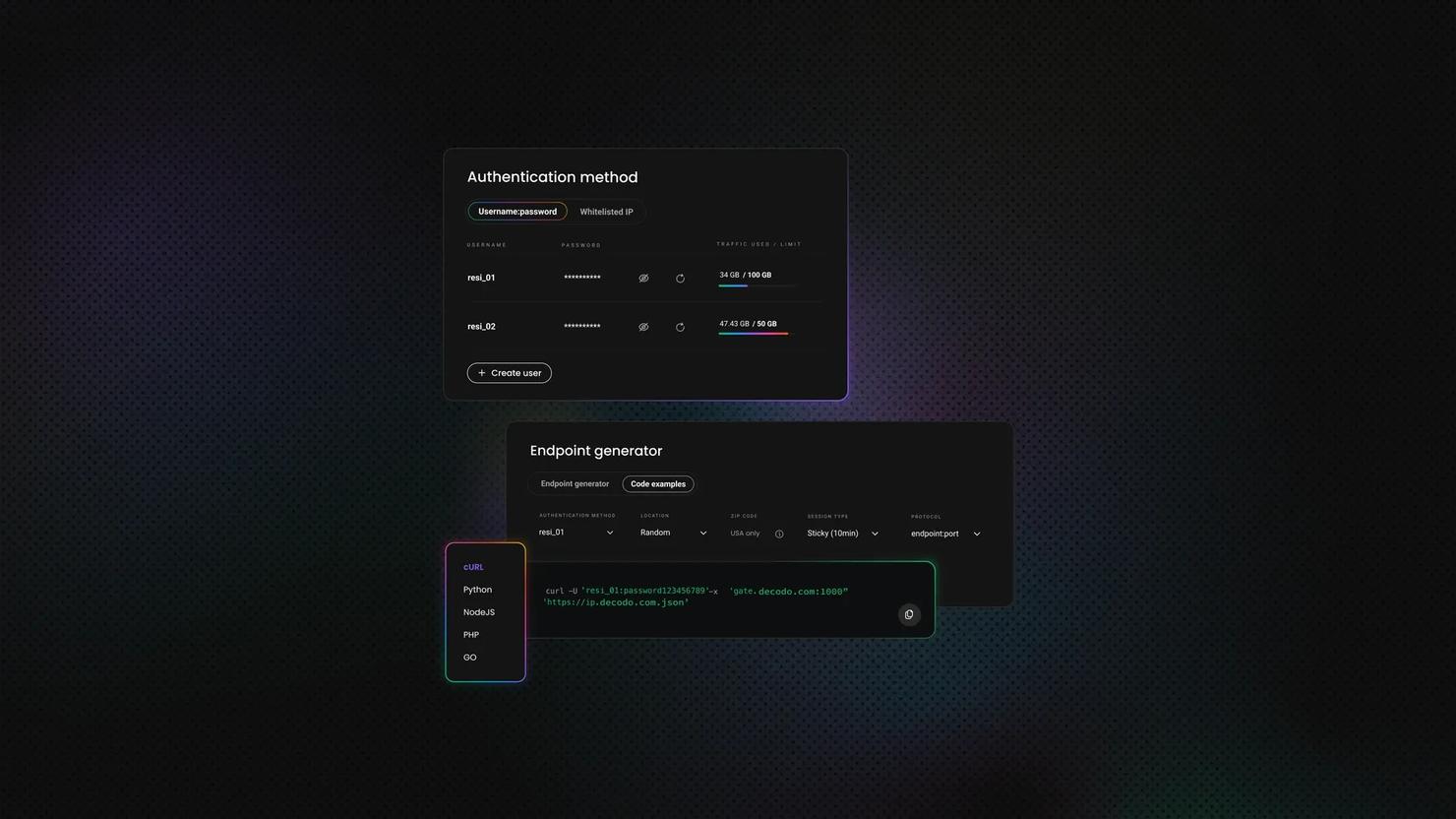
But what if your proxy is unreliable or gets banned as well? This is where Decodo's rotating residential proxies become essential. Residential proxies use real and reliable IP addresses from actual devices, making your requests virtually indistinguishable from legitimate traffic. Even in the event one fails, the rotating nature will just switch to the next IP address, and you can continue scraping as usual.
Setting up Decodo's residential proxies with curl is simple:
Replace username:password with your Decodo credentials, and you're routing requests through a pool of residential IPs that rotate automatically. For high-volume scraping, this setup is non-negotiable.
Rotating user-agents and headers
We covered User-Agent headers earlier, but it's worth emphasizing: rotating them between requests makes your traffic pattern look more organic. Create a list of common User-Agent strings and cycle through them:
Mix in other headers like Accept-Language, Referer, and Accept-Encoding to further randomize your fingerprint. The goal is to avoid sending identical requests that may seem bot-like.
Handling CAPTCHAs and anti-bot measures
Here's where curl hits a wall. Modern websites deploy CAPTCHAs, browser fingerprinting, JavaScript challenges, and behavioral analysis that curl simply can't handle. curl doesn't execute JavaScript, can't solve CAPTCHAs, and lacks the browser environment these systems expect.
This is precisely what Decodo's Web Data API was built for. It handles JavaScript rendering, bypasses anti-bot protections, handles user-agent and header rotation, and bypasses CAPTCHAs, all behind the scenes. You send a simple API request, and Decodo returns clean HTML:
The API uses headless browsers and proxies under the hood, so you get all the benefits of sophisticated scraping infrastructure without building it yourself. For sites with heavy anti-bot measures, this approach is far more reliable than trying to outsmart CAPTCHAs with raw curl commands.
When you're scraping at scale or facing aggressive bot detection, tools like Decodo's API aren't just convenient – they're the difference between a scraper that works and one that gets blocked after three requests.

Skip the struggle, scrape smarter
Stop wrestling with blocks and CAPTCHAs. Decodo's Web Data API handles JavaScript rendering, proxy rotation, and anti-bot measures so you don't have to.
Scraping dynamic content with curl
Modern websites rarely serve all their content in the initial HTML response. Instead, they load a bare-bones page skeleton and use JavaScript to fetch data after the page loads. When you scrape with curl, you get that empty skeleton – no product listings, no prices, no useful data. Just a bunch of <div> tags waiting for JavaScript to populate them.
The good news is that a workaround exists: find the API endpoints that JavaScript uses to fetch data. Here's how it's done:
- Open your browser's Developer Tools (F12).
- Go to the Network tab.
- Reload the page. Watch for Fetch/XHR requests – these are the AJAX calls loading dynamic content.
- Click on one of these requests and select the Response tab to see the endpoint URL and any parameters it uses. Often, you'll find clean JSON responses that are actually easier to parse than HTML:
The response will look something like this:
This is scraping gold. JSON is structured, predictable, and trivial to parse compared to messy HTML. Many sites expose these API endpoints without authentication, especially for public data. You just need to find them.
Some APIs require specific headers or authentication tokens. Check the request headers in Developer Tools and replicate them in your curl command. You might need to include cookies from a logged-in session or add an API key header.
When curl struggles
Sometimes the API endpoints are obfuscated, encrypted, or protected by anti-bot measures that verify you're using a real browser. Other times, the site uses WebSockets, complex authentication flows, or renders content through multiple JavaScript frameworks that make endpoint hunting impractical.
For these scenarios, you need tools that can actually execute JavaScript. Headless browsers like Playwright or Selenium run a real browser environment without the GUI, letting JavaScript execute normally while you control the browser programmatically.
Integrating curl with other tools and languages
Combining curl with command-line utilities
curl becomes significantly more powerful when you pipe its output through Unix tools that extract and transform data. Instead of saving HTML to a file and processing it later, you can parse data on the fly using tools already installed on your system.
Extract all email addresses from a page using grep with a regular expression:
- grep searches text for patterns (regular expressions)
- -E enables extended regular expressions, which allow + and {} without escaping
- -o tells grep to only output the parts that match, rather than the whole line
Pull out all links (all URLs in href="..." attributes) with sed:
For more structured extraction, awk excels at processing line-by-line data. Let's say you're scraping a price comparison page:
These one-liners are perfect for quick data extraction tasks where you need a few specific values and don't want to write a full script. You can read about their structure, syntax, and how they work in their respective documentation links. Lastly, you don't have to limit yourself to just one – chain multiple commands together with pipes to build sophisticated processing pipelines.
Using curl with Python
For anything beyond basic text extraction, Python gives you proper HTML parsing and data manipulation. The most straightforward approach uses Python's subprocess module to run curl commands and capture output:
But when you're scraping HTML, Beautiful Soup makes parsing infinitely easier than regex:
This combination gives you curl's speed and reliability for fetching pages, plus Python's ecosystem for processing data. You can save to databases, transform JSON, generate CSV files – whatever your scraping workflow requires.
For more complex scraping needs, you might skip curl entirely and use Python's Requests library, which offers similar functionality with a more intuitive feel to it.
Integrations with other languages
Most programming languages have built-in or library support for running curl commands:
PHP uses curl_init() and related functions:
Node.js can shell out to curl via child_process:
Or use the node-libcurl package for native bindings to libcurl.
The pattern is consistent across languages: execute curl to fetch data, then use language-specific tools to parse and process it. This approach works well when you need curl's specific capabilities but want to handle data manipulation in a more expressive language.
Error handling and best practices
Scrapers fail, but that's ok. Networks drop, servers timeout, sites restructure their HTML, and anti-bot systems kick in without warning. The difference between a professional scraper and a fragile script is how gracefully it handles these inevitable failures.
- Checking HTTP status codes. Every HTTP response includes a status code that tells you whether the request succeeded. A 200 means success, 404 means not found, 403 suggests you're blocked, and 500+ indicates server errors. Use curl's -w flag to capture it:
- Implementing retries and handling failures. Transient network issues mean a single failed request doesn't equal total failure. Implement exponential backoff by retrying with increasing delays:
- Logging and debugging tips. Silent failures are the worst. Log every request with timestamps and response codes, or use the -v verbose mode to see full request/response headers when debugging.
Building scrapers that handle errors gracefully isn't just good engineering – it's the only sustainable way to scrape at scale.
When to use alternatives: curl vs. other scraping tools
Comparison with browser automation tools
curl excels at speed and simplicity, but it can't execute JavaScript or interact with pages like a user would. Libraries like Playwright and Selenium are better choices when you need to run actual browsers, letting you click buttons, fill forms, and wait for dynamic content to load. Scrapy sits somewhere in between – it's faster than browser automation but more sophisticated than raw curl. It comes with built-in support for following links, handling concurrent requests, and processing data pipelines. Use curl for quick API calls and static pages.
Switch to Scrapy when you need to crawl entire sites with complex logic. Use Playwright when the site requires user interactions or heavily relies on JavaScript rendering.
When to switch to a scraping API or headless browser
If you're spending more time fighting CAPTCHAs and anti-bot systems than actually extracting data, it's time to upgrade your tools.
Headless browsers handle JavaScript-heavy sites but require significant infrastructure – memory management, browser maintenance, proxy rotation, and CAPTCHA solving. Regardless, they're a more hands-on solution to build a scraper exactly the way you want.
Decodo's Web Data API handles all of this automatically: JavaScript rendering, proxy rotation, anti-bot bypassing, and CAPTCHA avoidance happen behind the scenes while you focus on processing the data you actually need.
If curl gets blocked or returns empty pages, and you're scraping at a large scale, a headless browser or a managed scraping solution saves you days of infrastructure headaches.
curl command summary
Here's a quick reference of the essential curl commands covered in this guide:
Column
Full command
What it does
Example
curl [URL]
curl [URL]
Fetches and displays webpage content in the terminal
-o
--output
Saves output to a specified filename
-O
--remote-name
Saves output using the filename from the URL
-L
--location
Follows redirects automatically
-H
--header
Adds custom headers to the request
-c
--cookie-jar
Saves cookies to a file
-b
--cookie
Sends cookies from a file
-X
--request
Specifies HTTP method (POST, PUT, etc.)
-d
--data
Sends data in a POST request
-u
--user
Provides username and password for authentication
-x
--proxy
Routes request through a proxy server
-U
--proxy-user
Provides proxy authentication credentials
-w
--write-out
Outputs additional request information
-v
--verbose
Shows detailed request and response information
-s
--silent
Suppresses progress meter and error messages
Final thoughts
curl remains one of the most accessible entry points into web scraping – lightweight, pre-installed, and powerful enough for static pages and API endpoints. But when you hit JavaScript-heavy sites, aggressive anti-bot systems, or need to scrape at scale, tools like scraping APIs or headless browsers handle the complexity so you can focus on the data instead of infrastructure headaches. At the end of the day, the best scraper is the one that actually works when you need it to.

Scrape without roadblocks
Decodo's residential proxies ensure your scrapers keep running while you sleep.
About the author

Zilvinas Tamulis
Technical Copywriter
A technical writer with over 4 years of experience, Žilvinas blends his studies in Multimedia & Computer Design with practical expertise in creating user manuals, guides, and technical documentation. His work includes developing web projects used by hundreds daily, drawing from hands-on experience with JavaScript, PHP, and Python.
Connect with Žilvinas via LinkedIn
All information on Decodo Blog is provided on an as is basis and for informational purposes only. We make no representation and disclaim all liability with respect to your use of any information contained on Decodo Blog or any third-party websites that may belinked therein.