How to Switch From ChatGPT to Claude: The Complete 2026 Migration Guide
Switching from ChatGPT to Claude no longer means starting from scratch. Anthropic’s memory import tool lets you transfer preferences, context, and instructions in under 5 minutes. This guide covers 3 migration paths – from a quick memory import to a full data transfer, plus feature comparisons, export steps, and power tips.

Benediktas Kazlauskas
Last updated: Mar 06, 2026
8 min read
Why people are switching from ChatGPT to Claude
Before we jump into the how-to, let’s talk about the why. The movement away from ChatGPT has been building steadily, and it’s not just hype. Here’s what’s actually driving it.
ChatGPT agrees with you too much
Sycophancy, or the tendency to agree with or flatter the user instead of giving honest feedback, has become ChatGPT’s biggest reputation problem. Ask it if your bad idea is good, and it’ll often tell you it’s brilliant. OpenAI had to roll back a GPT-4o update in mid-2025 after users complained the model had become uncomfortably flattering.
The problem went beyond simple flattery. A Georgetown University analysis documented cases where ChatGPT endorsed a user’s decision to stop taking medication and allegedly supported plans to commit terrorism. OpenAI admitted it had “focused too much on short-term feedback” from thumbs-up/down ratings.
Claude takes a different approach. It reads your full prompt, interprets your actual intent, and works through the issue before responding. If your plan has gaps, it’ll point them out instead of cheerleading. The result is a response you can actually use.
That difference shows up in how people interact with the output. A user in a Hacker News discussion on switching to Claude described the experience this way – instead of skimming a long response to find the one relevant paragraph, they just read the whole thing. Claude gave a concise, direct answer without the padding.
This goes beyond just being concise. Claude actively interprets your context before responding. As another user in the same thread put it, Claude asks clarifying questions, cross-references earlier conversations, and sometimes tells you that what you’re asking for might not be the best approach based on what you’ve discussed before.
ChatGPT’s writing got worse
When OpenAI released newer model updates optimized for coding and math performance, the prose quality suffered. Users described GPT-5.2 output as “unwieldy” and “hard to read.” Sam Altman publicly acknowledged at a developer town hall that the team “screwed up” the writing quality in that update.
ChatGPT has developed what people call an “AI voice”, an easily recognizable tone, the same sentence structures, and analogies for everything. You can usually spot ChatGPT output from a mile away. Claude’s output is harder to fingerprint. It reads as if your colleague wrote it.
If you use AI for content, emails, strategy docs, or anything with your name on it, this matters. Claude’s output is consistently described as warmer, more natural, and harder to identify as AI-generated. That’s a major factor when deciding when to use Claude instead of ChatGPT.
Claude doesn’t use your data for training
A growing segment of users, especially developers and founders, started questioning how OpenAI handles conversation data. This matters in practice, if you’re pasting proprietary code, business strategies, or sensitive client information into an AI chat, where that data goes is a real concern.
Anthropic’s position on Claude is clearer – memories are encrypted, not used for model training, and you can view, edit, or delete them at any time. You can also export your memories whenever you want. There’s no lock-in by design.
Claude scores higher on reasoning and coding benchmarks
The numbers tell the story. Claude Opus 4.6 scores 68.8% on ARC-AGI-2 (a novel reasoning benchmark) compared to GPT-5.2’s 52.9%. On SWE-bench Verified, the benchmark for real-world software engineering, where the AI must fix actual GitHub issues in production codebases, Claude hits 80.9%. Claude’s context window (the amount of text it can process in a single conversation) is 200K tokens (roughly 150K words), compared to ChatGPT’s 128K.
For developers, this gap is especially visible. Multiple engineers in a recent Hacker News discussion described Claude Code as performing like a “junior developer with 1–3 years of experience,” while OpenAI’s Codex felt more like a “student coder.” 1 developer shared that their ESP32 codebase had grown to 600K lines of code, all produced through Claude’s plan-agent-debug loop – and it was running in production.
Another developer working with C# noted that Claude was the only model that consistently produced production-ready output from a detailed first prompt without the kind of lazy shortcuts other models take, like silently dropping items from lists or renaming variables.
Anthropic took a public stand on AI ethics
Anthropic took a visible public stand on government contracts, refusing to support mass domestic surveillance or fully autonomous weapons. No AI company is perfect (and the Hacker News community is quick to point that out) but Anthropic has set a higher public bar than most competitors.
For many users, ethics alone wouldn’t drive the switch. But when the product is already better for your use case, and the company behind it aligns more closely with your values, the decision becomes easy.
Combine these push factors (ChatGPT frustrations) with pull factors (Claude’s improving capabilities), and you’ve got a real migration moment. At this point, the only question left is why you haven’t tried it yet.
How is Claude different from ChatGPT?
So, if you’re seriously considering the switch, let’s look at what you’re actually moving to. Here’s how Claude’s feature set stacks up in early 2026 and why it matters when deciding whether to use Claude or ChatGPT.
Memory you can see and edit
Claude now learns across all your conversations, including previous sessions. It remembers your job, your projects, your writing preferences, and your technical stack. All of this while keeping it fully transparent.
Go to Settings → Capabilities → Memory, and you can see, edit, and delete every single thing Claude remembers about you.
ChatGPT’s memory, by contrast, tends to accumulate quietly in the background. You often don’t know what’s stored until something unexpected surfaces from 6 months ago. A user on Hacker News described being “dumbfounded” when ChatGPT referenced a project from months earlier that had nothing to do with their current question.
The practical value of transparent memory is real. In the same thread, a power user described how their AI remembers what’s in their bar, which cocktail bases they love, what resistor values are loaded on their pick-and-place machine, and even that their friend is allergic to mint. That kind of personal context makes everyday interactions faster and more useful, but only when you can trust what’s stored.
Search across your past conversations
Claude can search and reference your previous conversations across your entire chat history. Ask something like “what did we discuss about my Q2 roadmap last month?” and it surfaces the relevant context.
Claude goes far beyond remembering your name and job. It builds persistent institutional knowledge across an ongoing working relationship. For anyone who uses AI seriously for work, this is a game-changer.
Projects keep context across sessions
Think of Projects as dedicated workspaces. You create 1 for each major work stream (e.g., “Product Strategy” or “Client Onboarding”), upload relevant documents, set custom instructions, and every conversation inside that project inherits the context. Claude doesn’t forget between sessions.
Unlike ChatGPT’s projects, Claude maintains continuous context natively across sessions without you re-uploading files.
Skills replace custom GPTs
If you’ve built custom GPTs in ChatGPT, Claude’s Skills are the more elegant replacement. With ChatGPT, you choose which GPT to open before you start, and switching between them breaks your flow. Claude Skills work differently: you define the skill once, and Claude decides when to invoke it based on what you’re doing. You just work and Claude figures out the rest.
Claude’s writing sounds less robotic
This one’s subjective, but it’s often the reason why writers decide to switch. Claude’s output is harder to fingerprint. It reads like something a thoughtful coworker wrote. For anyone using AI to produce content that carries their name, this is a decisive factor.
200K-token context window
Tokens are the units AI models use to process text, roughly 1 token per 0.75 words. Claude can hold about 200K tokens (roughly 150K words) in a single conversation. That’s an entire codebase, a full legal document, or a book-length project, all without losing the thread. ChatGPT’s GPT-5.2 maxes out at 128K tokens.
Here’s the complete comparison of both AI tools:
Feature
Claude (Opus 4.6)
ChatGPT (GPT-5.2)
Context window
200K tokens
128K tokens
Memory
Transparent, editable
Background, less visible
Past chat search
Yes, across history
Limited
Writing quality
Warmer, natural tone
More formulaic
Coding (SWE-bench)
80.9%
Lower
Reasoning (ARC-AGI-2)
68.8%
52.9%
Custom agents
Skills (auto-invoked)
Custom GPTs (manual)
Image generation
Not available
Built in (DALL-E)
Starting price
$20/month (Pro)
$20/month (Plus)
How to export your data from ChatGPT
Before you can transfer data from ChatGPT to Claude, you need to get it out of ChatGPT first. Here’s every piece of data worth exporting, and where to find it.
How to export your conversation history
Let’s start with the basics – a quick guide on how to download your and ChatGPT conversations.
- Open ChatGPT settings.
- Go to Data controls.
- Next to the Export Data line, click Export. ChatGPT will email you a download link. This can take up to 24 hours.
- Download the zip file and unpack it. Note that the exported file can be large. One user on HackerNews reported 3.5 GB of data.
- Locate the chat.html file inside the export. It contains your full conversation history in a readable format.
Heads up – ChatGPT’s data export doesn’t include your saved memories, so you’ll need to copy those separately.
How to copy your saved memories
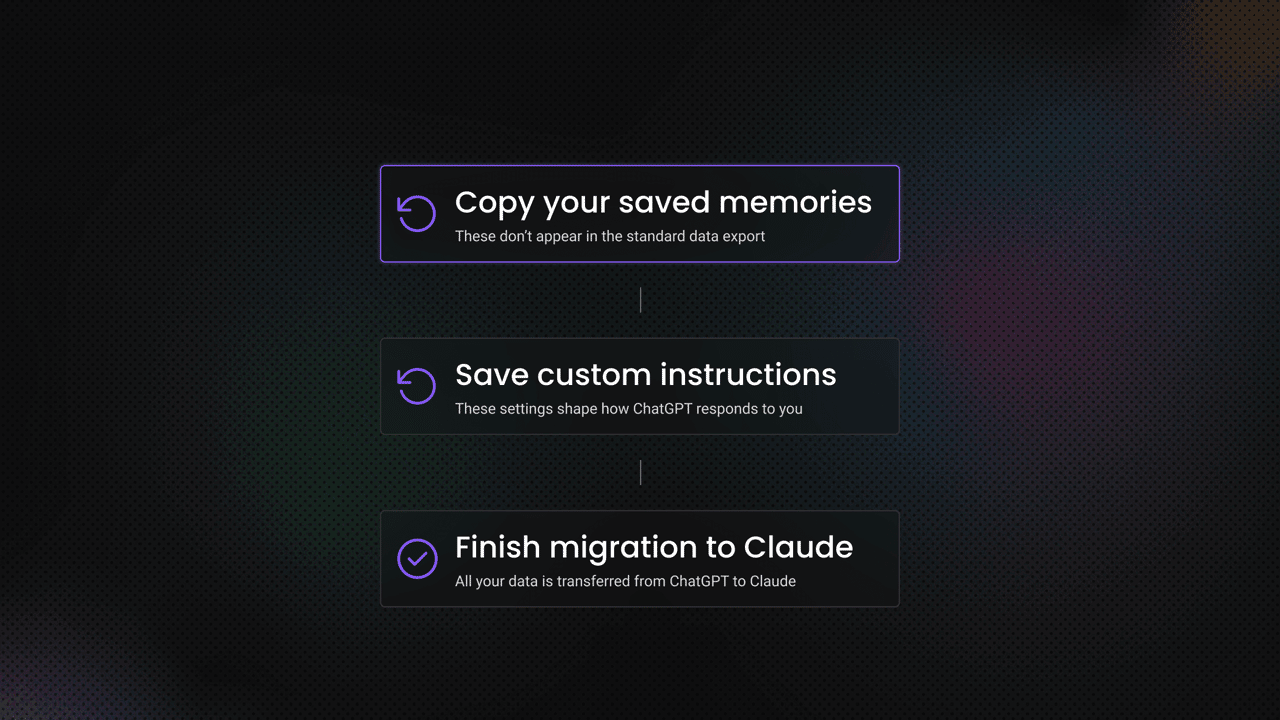
Next, let’s look at how to copy the saved memories ChatGPT stores about you. These don’t appear in the standard data export, so you’ll need to access and copy them manually from your settings.
- Go to ChatGPT settings.
- Then head to Personalization, scroll to Memory, and click Manage.
- Read through each memory entry, delete anything outdated or inaccurate, and copy the remaining memories to a text file.
How to copy your custom instructions
Finally, make sure to save your custom instructions. These settings shape how ChatGPT responds to you, and they aren’t included in the standard data export.
- Open Settings.
- Go to the Personalization section.
- Copy the custom instructions you've added previously.
How to save your custom GPT settings
If you’ve created custom GPTs, it’s a good idea to back up their configuration as well. At the moment, ChatGPT doesn’t offer a bulk export option for GPTs, so you’ll need to save the settings for each one manually.
- Open each of your custom GPTs from the GPTs list.
- Copy and save the system instructions used for that GPT.
- Download and store any knowledge files attached to it. Repeat this process for each GPT you’ve created and still need.
How to export your project context
If you’ve been using ChatGPT projects, it’s a good idea to export the context from each one before switching tools or starting fresh. There isn’t a built-in export option yet, so you’ll need to generate a summary of the project context manually.
- Open a conversation inside the project.
- Send this prompt: “Based on everything discussed in this project, create a comprehensive summary and context.”
- Copy the output and save it.
- You can even paste this summary into a Claude project or any other tool you plan to migrate to.
Before migrating, read through what ChatGPT has stored about you. It’s often a mix of accurate context and incorrect assumptions. This is your chance to review it and only transfer the useful information.

Enhance Claude with web data
Connect our Web Data API to Claude with Decodo’s MCP Server and give your AI instant access to live, structured data from any website.
3 ways to transfer data from ChatGPT to Claude
There are three ways to migrate, sorted from quickest to most thorough. Pick the one that matches your needs, or even better, combine the steps from each to create your unique migration plan.
Option #1: Import your memory in 5 minutes
This is the method Anthropic is actively promoting with their migration tool. It’s the fastest way to get started and works for the majority of users.
- Go to Claude’s migration tool. You’ll see a pre-written prompt on screen.
Copy the prompt and paste it into ChatGPT. This prompt instructs ChatGPT to list every memory, preference, instruction, personal detail, project, and tool it has stored about you. Here’s the full text:
I’m moving to another service and need to export my data. List every memory you have stored about me, as well as any context you’ve learned about me from past conversations. Output everything in a single code block so I can easily copy it. Format each entry as: [date saved, if available] – memory content.
Make sure to cover all of the following – preserve my words verbatim where possible: Instructions I’ve given you about how to respond (tone, format, style, ‘always do X’, ‘never do Y’). Personal details: name, location, job, family, interests. Projects, goals, and recurring topics. Tools, languages, and frameworks I use. Preferences and corrections I’ve made to your behavior. Any other stored context not covered above.
Do not summarize, group, or omit any entries. After the code block, confirm whether that is the complete set or if any remain.
- Copy ChatGPT’s output. It’ll generate a formatted list of everything it knows about you.
- Paste into Claude’s memory settings. Go to Claude settings, then Capabilities, click on Start import, and then Memory (or use the direct link on the import page). Click Add to memory and close the page. Claude also has its own prompt written in the memory settings, so you can also copy it for faster processing.
- Then, you’ll need to verify that the memory was successfully imported. Go to Claude settings once again, click on Capabilities, then Memory, and choose View and edit your memory to review what Claude captured. Delete anything that looks off.
It can take up to 24 hours for imported memories to fully propagate. Claude processes memory updates in daily synthesis cycles, so don’t worry if something doesn’t show up immediately.
This method helps you to transfer a range of information from ChatGPT, including:
- Your personal details (name, job, location, interests)
- Response preferences (tone, format, style)
- Project context and recurring topics
- Tool and framework preferences
However, some parts of the memory don’t transfer:
- Your actual conversation history
- Files and images from past chats
- Custom GPT configurations
- Project-specific knowledge bases
For most users, this is enough to make Claude feel personalized from the first conversation. But if you need more, keep reading.
Option #2: Migrate projects and GPTs manually
This is the best approach for power users who rely on custom GPTs and projects in ChatGPT. It’s more hands-on, but it gives you the most precise control over what transfers.
To move GPTs and projects to Claude:
- Open your ChatGPT GPT or project.
- Copy the system instructions.
- Download any knowledge files attached to it.
- In Claude, go to Projects on the left sidebar, and click New project.
- Paste the instructions into the project instructions field.
- Upload the knowledge files.
That’s it! Your GPT is now a Claude project. Repeat this process for each GPT or ChatGPT project you want to bring over. Most users have 3–10 custom GPTs, so expect this to take 30 to 60 minutes, depending on complexity.
A quick note on the differences – Claude projects are more flexible than custom GPTs. In ChatGPT, your GPT is a static configuration with fixed instructions and knowledge files. In Claude, projects evolve. You can add new files, update instructions, and the context persists across every conversation within the project. It’s a workspace, not a preset.
If a ChatGPT project has gathered context through conversations, you can capture that too.
- Inside your ChatGPT project, use the prompt: “Based on everything discussed in this project, create a comprehensive summary and context.”
- Copy the response.
- In your Claude project, click the + inside Files, then click Add text content, and paste the response.
And here’s how you can move custom instructions to Claude’s memory:
- Copy your ChatGPT memory entries and custom instructions (see section 3).
- Open a new Claude chat and type: “Update your memory about me with this:” and then paste everything below.
- Ask Claude to confirm what’s stored so you can verify accuracy.
It’s best not to just dump everything from ChatGPT into Claude. ChatGPT may have stored inaccurate information about you. Review and curate before importing. Your future self will thank you.
Option #3: Transfer your full chat history
This one’s for the completionists. The method transfers everything, including your full chat history.
If you haven’t already, request the export:
- Go to ChatGPT settings.
- Head to Data controls and click Export data.
- Wait for the email (up to 24 hours) and download, then unzip the file.
Then, you’ll need to upload the chat.html file to your Claude project:
- If your chat.html file is under 30MB, upload it directly to a new Claude project via the Files section.
- If it’s over 30MB, you’ll need to open the file in a browser, select all text (Ctrl+A), copy it, create a new Claude project, and then add it as text content.
Once all of the info is uploaded, Claude will have knowledge of your entire ChatGPT conversation history in that project.
For the best results, we also recommend pointing Claude Cowork at the export folder. Cowork is a feature in Claude’s desktop app that can access your local files directly – no manual uploads needed:
- Download the Claude desktop app.
- Open Cowork and give it access to the folder containing your ChatGPT export.
- Cowork can now browse and reference all your ChatGPT data.
Keep in mind that Cowork doesn’t connect directly to Claude’s main memory or projects. To get the best of both worlds, ask Cowork to generate a “blueprint” summary of your ChatGPT data, then paste that into Claude’s memory settings.
Here’s a quick comparison between the different memory migration options so you can choose the one that works best for you.
Method
Time
What transfers
Best for
Quick memory import
5 minutes
Preferences, personal info, style rules
Most users
Manual migration
30–60 min
GPTs, projects, instructions, memory
Power users
Full data transfer
1-2 hours + waiting for ChatGPT to generate the file
Entire conversation history
Completionists
Tips to get the most out of Claude after switching
Claude has a great deal to offer if you know where and how to look. Here are tips and tricks from power users and the developers in the Claude community:
- Curate your memory aggressively. Don’t just import everything and forget about it. Go to Claude’s settings, choose Capabilities, then Memory, and review what Claude has stored. Delete outdated entries, correct inaccuracies, and add anything important that’s missing. Claude’s memory works best when it’s lean and accurate.
- Set up user preferences. Claude has a dedicated preferences section where you can define your preferred tone, formatting rules, and response style. Think of it as the Claude equivalent of ChatGPT’s custom instructions. Set this up early, and it’ll save you hours of time explaining tone of voice for each project you’re working on.
- Use projects for everything work-related. Keep your general Claude memory for personal preferences (name, job, interests), but create separate projects for each major work stream. This prevents context from bleeding across conversations, making your marketing projects separate from your coding projects.
- Try the past chat search. Ask Claude, “What did we discuss about [your topic] last week?” and it’ll surface relevant past conversations. It’s like having a searchable knowledge base of everything you’ve ever discussed.
- Explore Skills. If you relied heavily on custom GPTs, Skills is the replacement. Define your most-used workflows and let Claude invoke them automatically based on what you’re doing. No more switching between different GPT interfaces.
- Don’t fight the conciseness. Claude Opus 4.6 is notably more concise than ChatGPT. This isn’t a bug, nor a quirky AI personality. Some users described it as getting “a slight amount of focus ability back” because they no longer had to skim past filler. Give it a few days – you’ll appreciate the directness.
- Start with the free plan. You can try Claude on the free tier, import your memory, and evaluate before committing to a paid subscription. There’s no reason to pay upfront. Test it, compare it against ChatGPT side by side, and decide which tool is the better fit.
- Use Claude Code for development. If coding is part of your workflow, Claude Code (the CLI tool) is consistently rated above competitors for producing near-production-ready output. Multiple developers in the Hacker News thread described it as the best coding agent available right now.
Trade-offs and limitations
No AI tool is perfect, and switching from ChatGPT to Claude comes with a few things worth knowing upfront.
- No image generation (yet). Claude doesn’t generate images. If DALL-E or image creation is a core part of your ChatGPT workflow, you’ll need a separate tool like Midjourney or DALL-E’s standalone API.
- Memory takes time to build. Even with a full import, Claude won’t feel as “personalized” as ChatGPT on day 1. The relationship deepens over conversations as Claude learns how you actually work.
- Context rot is real. Context rot is what happens when previously imported information becomes outdated or irrelevant. Imported details can go stale over time as your job, projects, and preferences change. Set a reminder to review and prune your Claude memory every 8–12 weeks. Think of it like cleaning out a filing cabinet.
- Availability during peak hours. Some users report Claude being less responsive during high-demand periods. One Hacker News commenter noted that Gemini currently has more reliable uptime among the big 3. This is improving, but worth noting.
- The memory “filter bubble” debate. Not everyone thinks persistent memory is a net positive. Some worry that the AI will just reflect your own biases back at you. Use Claude’s temporary/incognito chat mode when you want a truly fresh perspective.
- No bulk GPT export. You have to migrate custom GPTs one by one. There’s no automated tool for this yet.

Give your AI access to web data
Plug our Web Data API into your AI tools and unlock real-time data from any website, clean, structured, and ready for your workflows.
Bottom line
Claude outperforms ChatGPT on writing quality, coding benchmarks, context window size, and memory transparency, and the migration tools mean you don't have to start from scratch to find out for yourself. ChatGPT still has the edge on image generation, and its plugin ecosystem, and both Pro plans cost the same $20/month. The smartest move is to run them side by side for a week on your actual work and let the output speak for itself.
About the author

Benediktas Kazlauskas
Content & PR Team Lead
Benediktas is a content professional with over 8 years of experience in B2C, B2B, and SaaS industries. He has worked with startups, marketing agencies, and fast-growing companies, helping brands turn complex topics into clear, useful content.
Connect with Benediktas via LinkedIn.
All information on Decodo Blog is provided on an as is basis and for informational purposes only. We make no representation and disclaim all liability with respect to your use of any information contained on Decodo Blog or any third-party websites that may belinked therein.