Python Web Crawlers: Guide to Building, Scaling, and Maintaining Crawlers
TL;DR: A web crawler is a program that systematically navigates the web by following links from page to page. Python is the go-to language for building crawlers thanks to libraries like Requests, Beautiful Soup, and Scrapy. This guide covers everything from your first 50-line crawler to a production-grade Scrapy setup with proxy integration, JavaScript rendering, and distributed architecture. If you've ever had to collect data from hundreds or thousands of pages and done it manually, this is for you.

Justinas Tamasevicius
Last updated: Mar 02, 2026
10 min read
What is a web crawler in Python?
As of January 2025, there are at least 3.98 billion indexed web pages on the internet, and most of that data is publicly accessible. However, accessing it at scale is a different challenge entirely.
Whether you need to track prices across hundreds of product pages, audit a site with thousands of URLs, or build a research dataset spread across dozens of domains, opening pages one by one and copying content out of them is a huge time sink that grows linearly with the amount of data you need.
A web crawler solves this by automating the discovery and retrieval of pages systematically. Not to be confused with a scraper (we'll get to the distinction), a crawler's primary function is discovery: starting from a URL, fetching the page, extracting all the links on it, and repeating that process across as many pages as you define.
Search engines run this at planetary scale. You can run a version of the same process in Python with a few dozen lines of code.
But the problem, as with most things that sound simple, is in the details. That includes fetching the right pages in the right order, avoiding duplicates, staying within rate limits, handling errors cleanly, and eventually scaling beyond a single machine.
Web crawling vs. web scraping: What's the difference?
Web crawling and web scraping get used interchangeably, but they describe different parts of the same workflow.
Web crawling is the process of discovering pages. A crawler starts with one or more seed URLs, fetches those pages, finds every link on them, adds those links to a queue, and keeps going. The output of a crawl is typically a list of URLs and the raw HTML of the pages it visited.
Web scraping is the process of extracting structured data from specific pages. A scraper knows where it's going and what it wants: product prices, review text, job titles, contact information, etc. The output is structured data, usually written to a file or database.
In practice, most real-world data collection projects combine both. You crawl to discover the pages you care about, then scrape those pages to extract the data you need. To learn more about the differences between web crawling and web scraping, read our guide.
Common use cases for Python web crawlers
Before getting into the code aspect, it's worth understanding what people actually build crawlers for. The use cases span industries and project sizes.
Search engine indexing
Search engine indexing is the canonical example of web crawling at scale. Google's crawler (often referred to as Googlebot) discovers new content by following links across billions of pages. When you publish a new post and it shows up in search results a few days later, that means a crawler found it. Smaller teams build internal versions of this for site search, documentation indexing, or content audits.
SEO analysis and monitoring
Crawlers are genuinely useful for SEO work. You can map a site's internal link structure, catch broken links and redirect chains, track how pages change over time, and understand how content is distributed across a domain. For competitor research, crawling a rival site gives you a structural view of what they're prioritizing without having to click through it manually.
Price monitoring and market intelligence
Retailers use crawlers to keep tabs on competitor pricing across thousands of product pages on eCommerce platforms, often on a daily or even hourly schedule. Without automated discovery, you'd have to manually maintain a list of every URL you want to monitor, which breaks down fast as product catalogs grow or change.
Academic and research data collection
Researchers across fields rely on crawlers to gather data at a scale that manual collection simply can't match. Training data for ML models, NLP research corpora, and economic datasets all depend on systematic collection of publicly available web data. Government data portals, academic repositories, and news archives are common targets.
Lead generation and business intelligence
Business directories, job boards, and professional listings are all fair game for crawlers when you're building a sales pipeline or doing market research. It's generally faster and more targeted than buying pre-built contact lists.
Preparing your crawler environment
Let’s move to the practical side and prepare a clean Python environment to keep dependencies predictable and isolated.
Python 3.10 or higher is recommended. Most modern libraries have dropped support for older versions, and anything below 3.10 will create compatibility issues as you add dependencies.
Set up a virtual environment before installing anything:
Or if you're using uv, which handles dependency resolution faster than plain pip:
For the basic crawler in the next section, you need these three packages:
Requests handles HTTP communication. Beautiful Soup parses the HTML. lxml is a faster parser backend for Beautiful Soup that's worth using over Python's built-in html.parser for anything beyond a quick prototype.
For VS Code users, the Python extension handles autocomplete, linting, and debugging well. PyCharm is the heavier-weight alternative with more built-in support for virtual environments and project management.
Building a basic crawler with Requests and Beautiful Soup
Let's build a crawler that systematically visits pages on Quotes to Scrape, a site designed for exactly this kind of practice. It has clean HTML, pagination, author pages, and tag pages, which gives enough link variety to make it a realistic test without any anti-bot headaches.
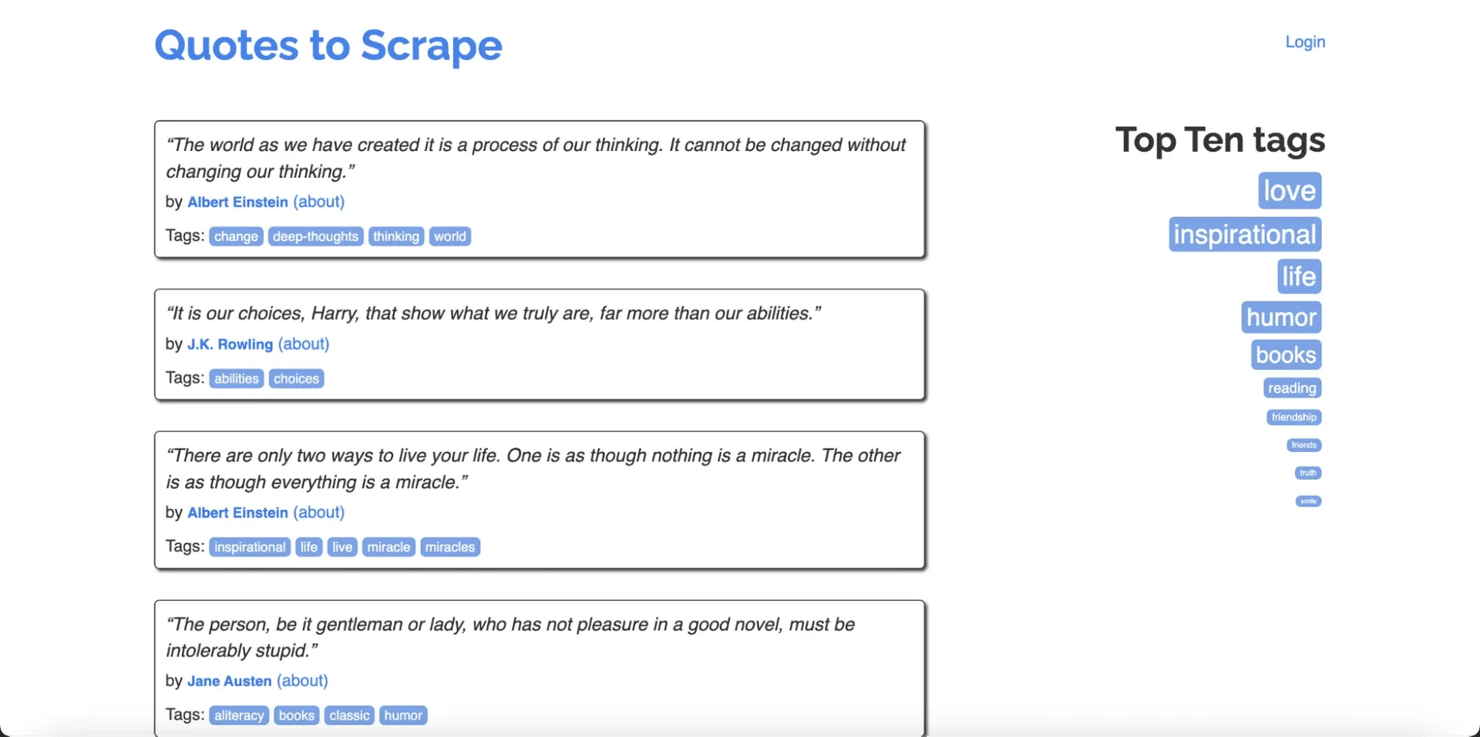
The crawler will start from the homepage, follow every internal link it finds, collect the page title from each one, and print the results. It won't run indefinitely because we'll cap it at a configurable number of pages.
Here's what it needs to do, in order:
- Start with a seed URL and add it to a queue
- Pull a URL from the queue, fetch the page, and parse the HTML
- Store the page title
- Extract all links on the page and add unvisited ones back to the queue
- Repeat until the queue is empty or the page limit is hit
Create a new file called crawler.py in your project folder. You can do this in VS Code by going to File > New File, or in your terminal with:
Then, open the file, paste in the code below, and save it:
Run it with:
When you run this, you'll see each URL printed as it's visited, followed by a summary of all results.
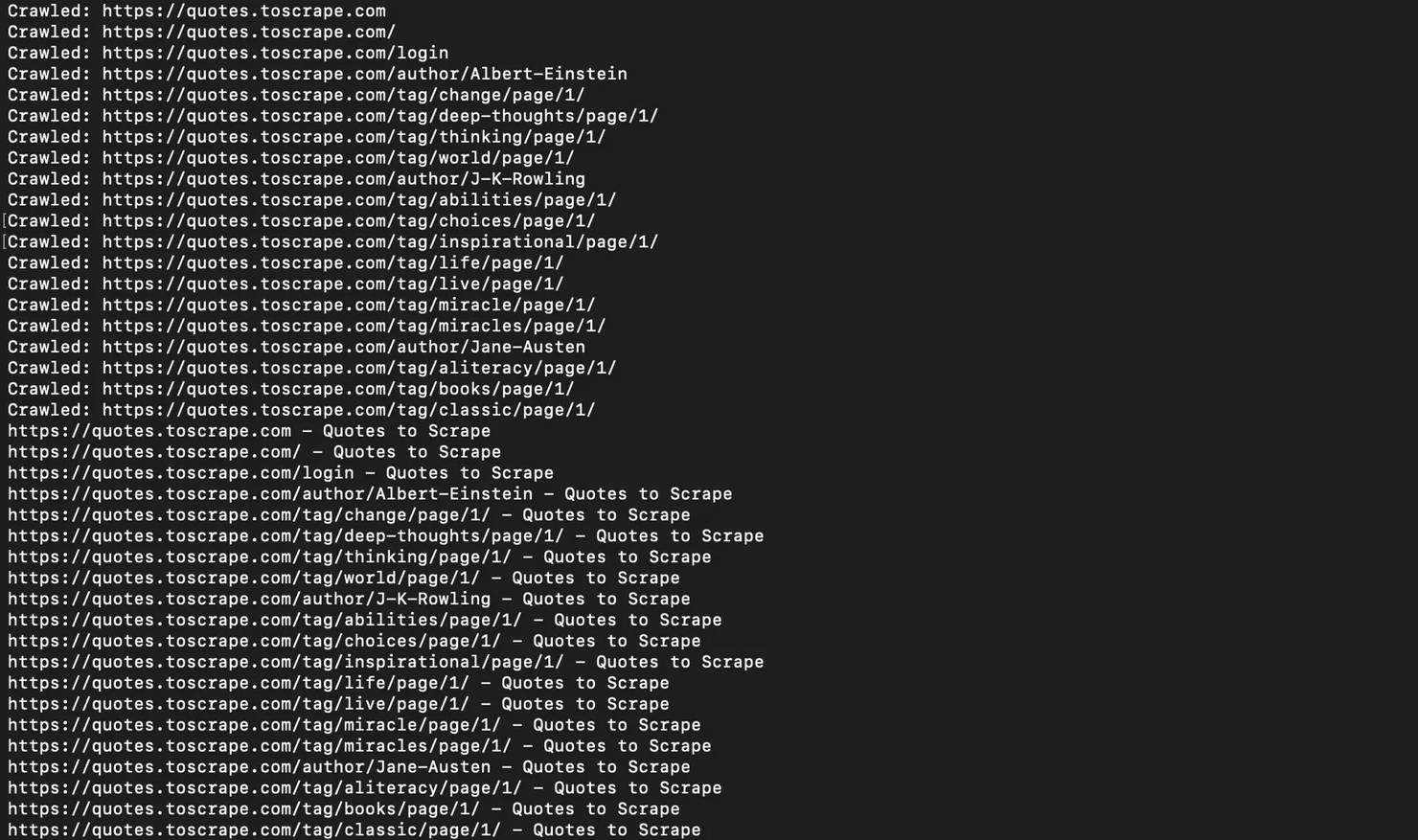
You might notice the crawler visits both https://quotes.toscrape.com and https://quotes.toscrape.com/ as separate entries. That's the trailing slash problem in action, and it's exactly why URL normalization matters. We'll cover that shortly.
Here's what the code is actually doing:
- The crawl function takes a start URL and a max_pages limit, which defaults to 50 but is set to 20 in the example call at the bottom. Without that limit, the crawler would keep going until it ran out of links, which on a real site could mean thousands of pages.
- The three variables at the top are the engine of the whole thing: visited tracks URLs already fetched, queue holds the ones still waiting, and results is where the data builds up. The main loop keeps pulling from the queue, fetching each page, storing the title, and adding new links back in.
- Another thing worth understanding is the User-Agent header. When your script makes a request, the server can see what's making it. Python's Requests library identifies itself as a bot by default, and plenty of sites will block that immediately. Setting a User-Agent that resembles a real browser gets you past the most basic filters.
- The timeout=10 in the code means if a server takes longer than 10 seconds to respond, the request gives up and moves on rather than hanging forever.
- response.raise_for_status() is a small line that does important work. If the server returns a 404 or 403, this raises an error immediately so the crawler skips that URL cleanly. Without it, those error responses would come back as valid-looking objects and the code would try to parse an error page as if it were real content.
- Finally, parsed.netloc == base_domain is what keeps the crawler on one site. Before any link gets added to the queue, this check confirms it belongs to the same domain as the start URL. Without it, the crawler would follow every external link it found and eventually try to crawl the whole internet.
Right now the crawler is only collecting the URL and page title. That's intentional. This is the crawling part of the workflow: discovering pages and mapping the site.
If you want to see actual content being extracted, here's a quick extension that pulls quotes and authors from each page as the crawler visits them.
Create a new file called quotes_crawler.py and paste this in:
Run it with python quotes_crawler.py and you'll see the actual quotes printed alongside their authors as each page is visited.
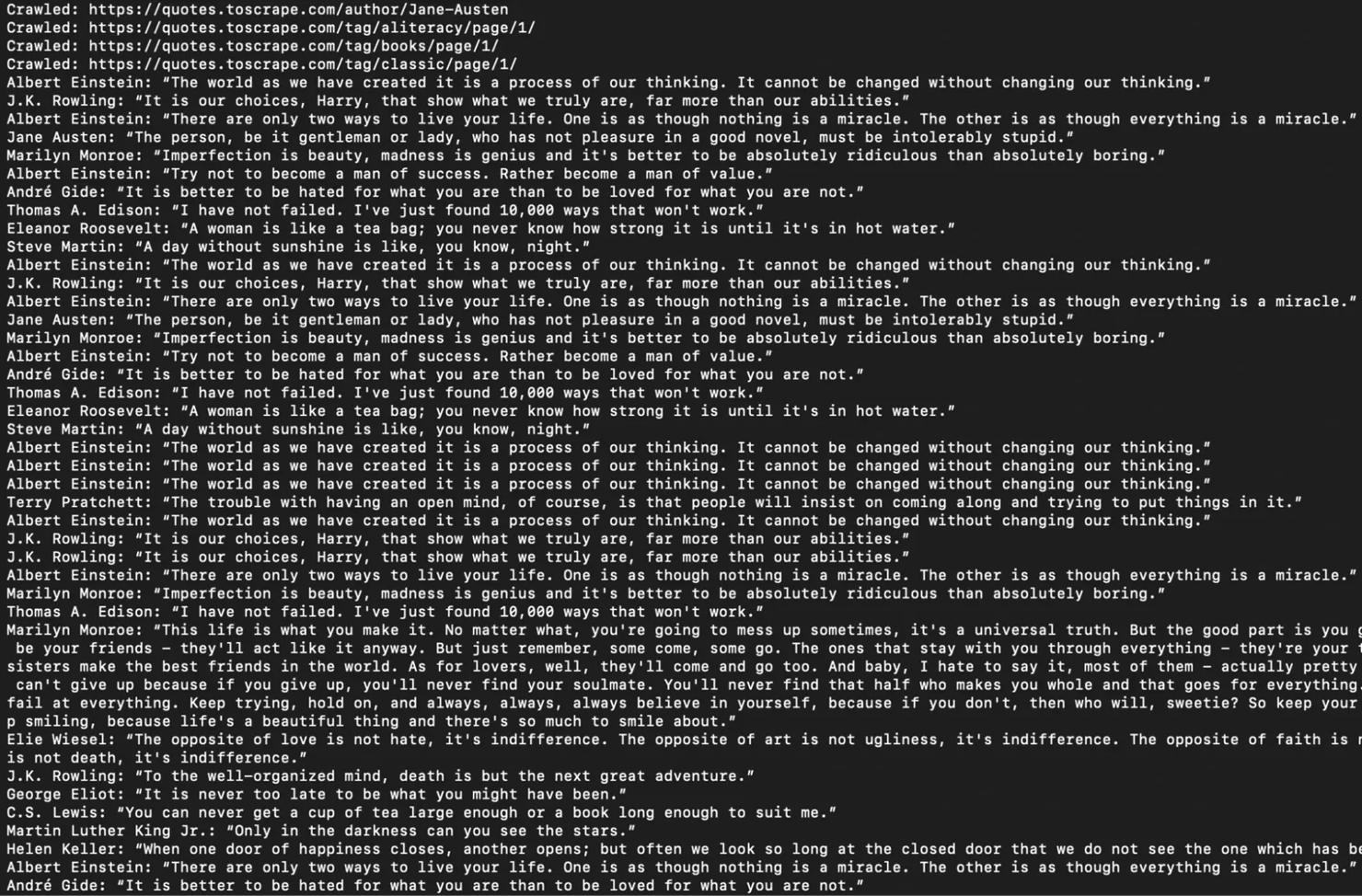
You'll notice some quotes appear more than once in the output. That's because the same quotes show up across multiple pages on that site, including the homepage, tag pages, author pages.
The crawler visits each separately and collects from each one. If you need a clean unique dataset, you can add deduplication on the results, but for understanding how a crawler works, this output shows exactly what it should.
Link extraction, filtering, and URL management
Link extraction is where most crawlers start making mistakes. A page can contain hundreds of links, and not all of them are worth following. Good filtering is what separates a focused crawler from one that wanders into irrelevant territory or loops forever.
Extracting links
Extracting links is straightforward with Beautiful Soup. This snippet assumes soup is already a parsed Beautiful Soup object and base_url is the URL of the current page, as set up in the crawler above:
This handles absolute URLs (https://example.com/page), relative URLs (/page, ../page), and protocol-relative URLs (//example.com/page). What it won't catch is links generated by JavaScript, which we'll cover in the JavaScript rendering section.
URL normalization
URL normalization prevents the same page from being crawled multiple times under slightly different URLs. Common issues include trailing slashes (https://example.com/about vs. https://example.com/about/), fragment identifiers (#section should be stripped since they don't change the server response), and tracking query parameters like ?ref=newsletter that don't affect page content but create unique URL strings.
A simple normalization function:
When you run that in a Jupyter notebook like Google Colab, you’ll get the output below.
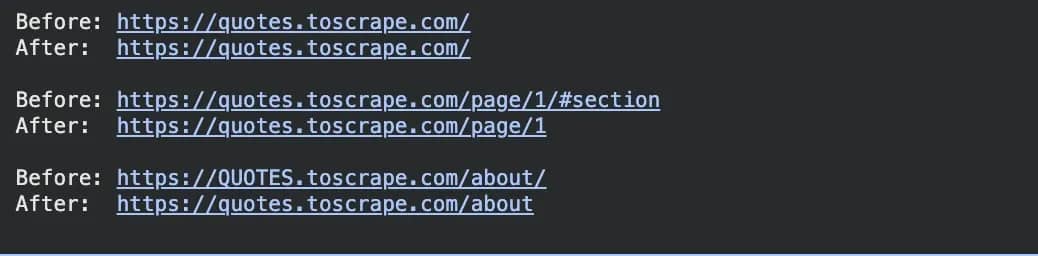
Three things are happening here. The trailing slash gets stripped, the #section fragment gets removed since it doesn't change the actual page content, and the uppercase domain gets lowercased. All three are the same problem: slightly different URLs that point to the exact same page, which without normalization the crawler would visit twice.
Filtering strategies
Not every link a crawler finds is worth following. Without filtering, your crawler will waste time fetching PDFs, images, login pages, and external sites that have nothing to do with what you're collecting.
Common filters include:
- Domain filtering. Keeps the crawler within the target site by ensuring each link’s domain matches the one you started from.
- Path-based filtering. Lets you restrict crawling to specific sections of a site. For example, if you only care about blog posts, you can require that the URL contains /blog/ before adding it to the queue.
- File extension filtering. Skips binary files such as images and documents. These cannot be parsed as HTML and would otherwise cause errors.
Here's what file extension filtering looks like in practice:
The function takes a URL, extracts the path, and checks whether it ends with any of the extensions in SKIP_EXTENSIONS. If it does, it returns False and that URL never makes it into the queue. If it doesn't match any of them, it returns True and the crawler proceeds normally.
Managing the crawl frontier
The crawl frontier is just a term for the queue of URLs your crawler still needs to visit.
Every time the crawler finds a new link it hasn't seen before, that link gets added to the frontier. And when it finishes a page, it pulls the next URL out. Managing the frontier well is what separates a crawler that stays focused from one that spirals out of control.
The basic crawler uses a FIFO queue, which stands for first in, first out. That means URLs get visited in the same order they were discovered. In practice this gives you breadth-first crawling: the crawler fully explores all the links on the homepage before going deeper into any of them.
For most use cases this is the right default because it gives you broad coverage quickly rather than going very deep into one corner of a site before seeing the rest.
For large-scale crawls, the visited set starts to become a memory problem. A Python set holding 10 million URLs can take several hundred megabytes of RAM. A Bloom filter solves this by using a fixed, much smaller amount of memory regardless of how many URLs you've seen.
The trade-off is a small probability of false positives, meaning it might occasionally think it has seen a URL it hasn't, but for most crawling projects that's an acceptable trade-off. The pybloom-live library is the standard Python implementation if you ever need to go that route.
Handling pagination
Most sites don't put all their content on a single page. A product catalog might have hundreds of paginated pages, a news archive might go back years, and a job board might have thousands of listings spread across dozens of pages. If your crawler only visits the first page and stops, you're missing most of the data.
Pagination comes in a few different forms. Query parameter pagination adds a page number to the URL, like ?page=2 or ?offset=20. Path-based pagination bakes it into the URL structure, like /listings/page/2/. And "next" button navigation just has a clickable link that takes you to the next page, wherever that might be.
The most reliable way to handle all of these is to look for the "next page" link directly in the HTML rather than trying to guess or reconstruct the URL pattern yourself.
Here's a full working example using Quotes to Scrape:
When you run this you'll see the crawler follow the Next button through 5 pages automatically, printing each URL as it goes: /page/2/, /page/3/, and so on.
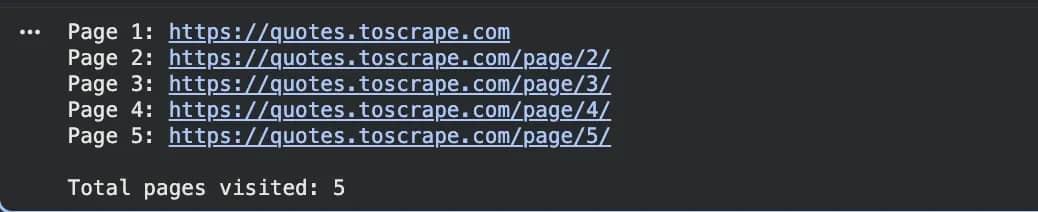
The get_next_page function first looks for a <li class="next"> element, which is how Quotes to Scrape and many other sites mark their pagination. If that exists, it grabs the link inside it. If not, it falls back to rel="next" on an anchor tag. If neither exists, it returns None and the while loop ends.
One thing worth paying attention to: pagination structure varies by site and you can't assume every site uses the same pattern. Some other sites loop the pagination back to page 1 once you've hit the last page, so always check whether the next page URL is already in your visited set before following it.
Before writing your pagination logic, right-click the Next button in your browser, hit Inspect, and see exactly how it's marked up. Getting that wrong means your crawler silently stops after the first page with no error, which is easy to miss.
Scaling with Scrapy: When a script isn't enough
At some point, a hand-rolled crawler hits its limits. If you're dealing with thousands of URLs per run, need reliable retry logic, want structured data storage, or are maintaining a crawler long-term, the scaffolding you'd need to build around a basic script starts to resemble a framework. Scrapy is that framework.
Scrapy is a full crawling and scraping framework built specifically for Python. Unlike the basic crawler we built earlier, which sends one request at a time and waits for each response before moving on, Scrapy handles multiple requests concurrently without you having to write any async code.
It also comes with built-in middleware for retrying failed requests, handling cookies and redirects, throttling request rates, and a structured way to store and export data. If you're trying to decide which to use, our Scrapy vs. BeautifulSoup guide breaks down when each approach makes sense.
Setting up a Scrapy project
Scrapy has its own command-line tool that handles project setup for you. First, install Scrapy:
Then create a new project. This creates a folder called mycrawler with everything you need already set up inside it:
Your project folder will look like this:
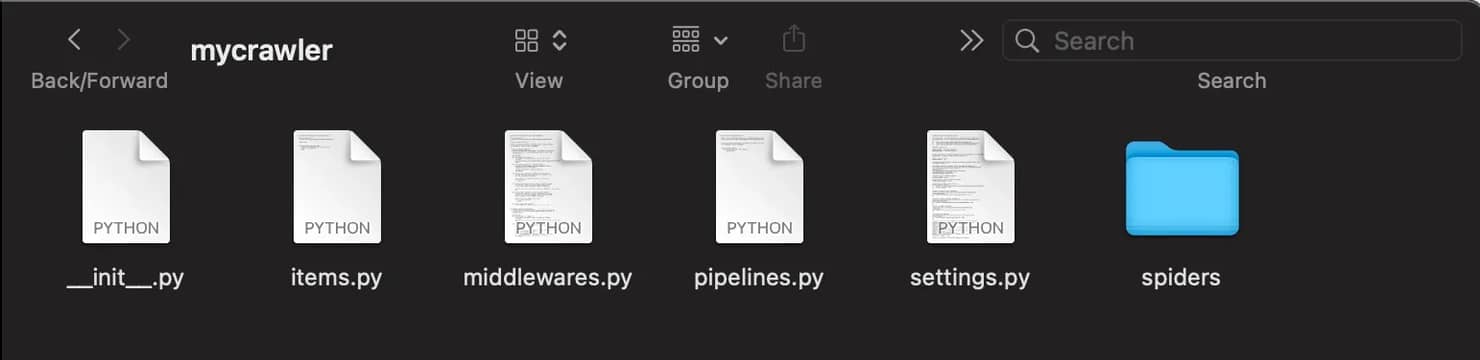
With this file tree:
You'll spend most of your time in the spiders/ folder, which is where your crawling logic lives. The file named settings.py is where you configure things like request delays and pipelines. The file named pipelines.py is where you process and store the data your spider collects.
Now generate a spider. The command below creates a spider file inside spiders/ pre-configured for the domain you specify:
A basic Scrapy spider
A spider is the part of Scrapy that does the actual crawling. It defines where to start, how to parse each page, and what data to collect. Every Scrapy project can have multiple spiders, each targeting a different site or a different part of the same site.
Open mycrawler/spiders/example_spider.py and replace its contents with this:
To run it, go back to your terminal and make sure you're inside the mycrawler folder, then run:
Scrapy will crawl the site and save the results to output.json automatically.
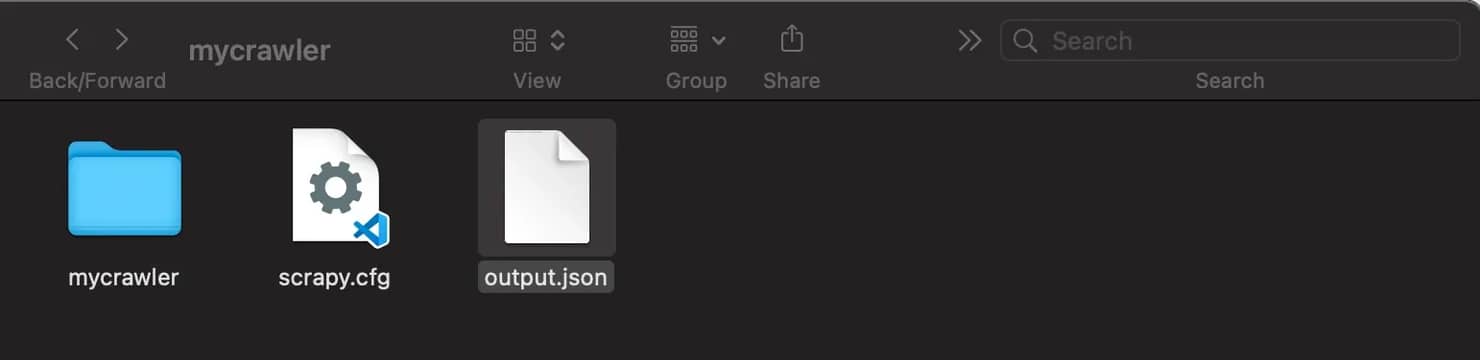
The name attribute is how you refer to the spider when running it from the terminal. The allowed_domains setting keeps the crawler within the target site, similar to how base_domain worked in the basic crawler. The start_urls is where the crawl begins.
The parse method is called automatically for every page Scrapy fetches. The response.css() method uses CSS selectors to extract data from the HTML, so response.css("title::text").get() retrieves the page title. The response.follow() method resolves URLs automatically, which removes the need for urljoin as in the basic crawler.
Yielding a dictionary sends the extracted data to Scrapy's pipeline. Yielding a new request instructs Scrapy to fetch another page.
CrawlSpider and LinkExtractor
The basic spider works fine, but you'll notice the parse method is doing two things at once: extracting data and manually following links.
On a large site with many different URL types, that gets messy fast. CrawlSpider solves this by letting you define rules that tell Scrapy which links to follow and which ones to extract data from, separately.
Instead of writing response.follow() calls all over your spider, you define a set of Rule objects. Each rule uses a LinkExtractor to match URLs by pattern, and optionally assigns a callback to handle the matched pages:
One important note from the Scrapy docs: when a Rule has a callback, Scrapy won't follow links from those pages by default. If you need both data extraction and further link following from the same page type, set follow=True explicitly on that rule. LinkExtractor supports allow and deny as regex patterns, restrict_css and restrict_xpaths to scope extraction to specific parts of the page, and handles deduplication automatically.
Data extraction and storage pipelines
A crawler without storage is just a URL counter. Once you're collecting data, you need somewhere to put it. Enters Items and Pipelines.
Scrapy Items
You've seen the spider yielding plain Python dictionaries so far. That works for simple cases, but as your crawler grows it becomes easy to mistype field names or yield inconsistent data. Items are Scrapy's way of giving your data a defined structure, like a schema, so those mistakes get caught early.
Inside the automatically generated items.py file in your Scrapy project, define your item structure like this:
Each scrapy.Field() is just a slot for a value. Your spider then yields ProductItem objects instead of plain dicts, and Scrapy knows exactly what fields to expect.
Pipelines
Every item your spider yields passes through the pipeline before it gets saved. This is where you clean data, validate it, or write it to a database.
Inside the automatically generated pipelines.py file in your Scrapy project, you can add a validation pipeline like this. It drops any item missing a price, so incomplete data never makes it into your dataset:
And here's a storage pipeline that writes each item to a SQLite database:
The open_spider method runs once when the crawl starts and sets up the database connection. The process_item method runs for every yielded item. The close_spider method runs when the crawl finishes and closes the connection cleanly.
To activate your pipelines, open mycrawler/settings.py and add:
The numbers control execution order, so lower numbers runs first. Validation should always run before storage so you're not writing incomplete data to the database.
If you don't need a custom pipeline and just want the data in a file, Scrapy's built-in feed exports handle that with a single flag on the run command:
This is usually enough for smaller projects, and you can always move to a proper storage pipeline later when the data grows.
Crawling JavaScript-rendered pages
Everything we've built so far works by fetching HTML from a server and parsing it. That works well for most sites, but modern web development has made it increasingly common for pages to arrive mostly empty and then fill in their content using JavaScript after the page loads.
Sites built this way are called Single Page Applications, or SPAs. Think of websites like Twitter, LinkedIn, or any dashboard-style app where the page feels like it's "loading in" after you open it.
When your crawler fetches one of these pages, it gets the same empty shell the browser gets before JavaScript runs. The data you're looking for simply isn't there yet. You can confirm this yourself: right-click any page in your browser, select View Page Source, and look for the content you want. If it's not there, the page is likely JavaScript-rendered.
How you handle it depends on the site and how much infrastructure you want to manage.
API interception
API interception is the most efficient approach when it works. Modern sites often load data by calling internal APIs. You can find these calls in the browser's developer tools under the Network tab, filtered to XHR or Fetch requests. If the data you want is available via an API endpoint that returns JSON, call it directly:
This is faster, more reliable, and returns clean structured data. Always worth checking before reaching for a headless browser.
Playwright
When you need a full browser, Playwright is the modern choice. It's faster than Selenium for most crawling use cases and has better async support.
Install Playwright and the required browser binaries:
Once installed, you can launch a headless browser, navigate to a dynamic page, wait for content to render, and extract the final HTML:
For Scrapy integration, scrapy-playwright is the most actively maintained option.

Skip the infrastructure headache
Decodo's Web Data API renders JavaScript-heavy pages, rotates proxies, and handles CAPTCHA and anti-bot challenges so you can get data from a single API call.
Handling common crawler errors
Even a well-built crawler will run into errors at scale. Knowing what each error means is half the battle.
403 Forbidden means the server understood your request and rejected it. Usually this is because the site has detected automated traffic. The fix is updating your request headers to look more like a browser, rotating IPs, or switching to residential proxies.
404 Not Found means the page doesn't exist. This is useful data for SEO audits (broken links) but not worth retrying. Log it and move on.
429 Too Many Requests means you've hit the site's rate limit. Back off, increase delays between requests, and distribute requests across more IPs.
503 Service Unavailable is usually a temporary server issue. Retry with exponential backoff: wait 1 second, then 2, then 4, then 8, before giving up.
SSL errors typically mean there's a certificate mismatch or your HTTPS proxy configuration is wrong. Check your proxy setup if this appears unexpectedly in a working crawler.
Empty responses or unexpected redirects to login pages often indicate the site is serving a different page to traffic it considers suspicious. Check whether you're getting CAPTCHA pages or JavaScript-only error responses. If so, residential proxies or a managed rendering service are the right fix.
In Scrapy, configure retry behavior in settings.py:
For retry patterns in the Requests library specifically, see the Python Requests retry guide.
Performance optimization
A slow crawler is often not actually slow at the HTTP request level. It's slow because it's doing redundant work, blocking on I/O, or making too many requests to the same server at the same time. These settings address each of those problems.
Concurrency
By default, your crawler visits one page at a time, waits for the response, then moves to the next. That's fine for a handful of URLs but painful at scale, because most of the time your script is just sitting idle waiting for the network. Concurrency fixes this by sending multiple requests at once so the waiting happens in parallel.
Scrapy handles concurrency natively through its asynchronous architecture. You can control it inside your project’s settings.py file:
For a custom async crawler without Scrapy, aiohttp is the right library. It lets you fire off multiple requests at once without threads:
The asyncio.gather function runs all the fetch tasks concurrently and waits for all of them to finish. The return_exceptions=True flag means a failed request returns an exception object instead of crashing the whole batch.
Caching during development
Every time you tweak your parser and re-run the crawler during development, you hit the same pages again. That wastes time and adds unnecessary load to the target servers. Scrapy’s HTTP cache stores responses locally, so repeated runs read from disk instead of making new network requests.
To enable caching, add the following settings to your project’s settings.py file:
Turn this off before production runs. Cached responses won't reflect changes on the target site, so you'd be collecting stale data without knowing it.
Persisting crawl state
Long crawls get interrupted. Without state persistence, you start over from the beginning every time. Scrapy's jobdir setting saves the request queue and deduplication state to disk so you can resume where you left off.
To enable crawl state persistence, add the following to your project’s settings.py file:
With this set, Scrapy stores the request queue and duplication filter to disk between runs. If a long crawl gets interrupted, you pick up from where it stopped rather than starting over.
Scaling beyond a single machine
A single machine running Scrapy can handle a lot. With the right concurrency settings, a well-optimized Scrapy spider can crawl several hundred pages per second.
But for very large crawls, or crawls that need to run continuously across many domains, distributed architectures become necessary.
Scrapy-Redis
Scrapy-Redis replaces Scrapy’s in-memory request queue with a Redis-backed queue. This allows multiple spider instances, even across different machines, to share the same queue without duplicating work.
First, install the package:
After installation, configure your Scrapy project to use Redis as the scheduler. Add the following settings to your project’s settings.py file:
With this configuration, you can spin up additional worker processes on separate machines and they'll automatically pull from the shared queue. Scrapy-Redis also pushes scraped items into a Redis queue, which means your data processing pipeline can scale independently from your crawling workers.
Cloud deployment
For containerized deployments, Docker is the standard approach. A minimal Scrapy Dockerfile:
Kubernetes handles orchestration when you're running multiple crawler containers and need to scale based on queue depth. AWS Lambda works for lightweight, infrequent crawls but has execution time limits that make it impractical for sustained crawling. For anything serious, a containerized deployment on a VM or Kubernetes cluster is more reliable.
Build vs. buy
At some point, managing crawler infrastructure, proxy rotation, JavaScript rendering, and anti-bot handling in-house costs more in engineering time than it saves. That's when a managed scraping solution like Decodo's Web Data API starts making more sense than building and maintaining it yourself.
Responsible crawling best practices
A crawler that ignores the impact it has on target servers will eventually get blocked, or worse, cause actual harm to the sites it's crawling. Beyond the ethical dimension, responsible crawling is also practical: a blocked crawler collects nothing.
Respecting robots.txt
robots.txt is a file at the root of a domain that tells crawlers which paths they can and cannot access. Scrapy respects it by default.
You can control this behavior in your project’s settings.py file:
The file format looks like this:
The Crawl-delay directive tells crawlers how many seconds to wait between requests.
Rate limiting
Avoid overwhelming target servers. A reasonable starting point is one request per second per domain, with slight randomization to prevent predictable traffic patterns.
You can configure this in your project’s settings.py file:
AutoThrottle is particularly useful because it adjusts delays dynamically. If the target server starts slowing down, AutoThrottle backs off automatically.
User-Agent strings
Set a descriptive User-Agent header that identifies your crawler. This is both courteous and practical, since it helps site administrators understand who is making requests.
Configure it in your project’s settings.py file:
Some site operators will reach out before blocking if your crawler is clearly identified and has contact information attached.
Integrating proxies and handling blocks
Even with all the right practices in place, some sites will block your crawler. IP-based rate limiting, anti-bot fingerprinting, and CAPTCHA challenges are standard on heavily crawled targets. Proxies are how you work around this reliably.
Why proxies matter for crawling
Without proxies, all your requests come from the same IP address. Even with careful rate limiting, a crawler sending thousands of requests from one IP over several hours will trigger detection systems on most major sites. The traffic pattern is simply too different from organic user behavior.
Proxies solve this by distributing requests across a pool of different IP addresses. From the target site's perspective, the traffic looks like it's coming from many different users rather than a single automated source.
Which proxy type to use
Proxy type
Best for
Detection risk
Cost
For most crawling use cases, residential proxies offer the best balance. They use real IP addresses from consumer ISPs, which makes them much harder to distinguish from organic traffic. Decodo's residential proxy pool covers 195+ locations with 115M+ IPs.
Adding proxies to Requests
If you're building a crawler with the Requests library instead of Scrapy, proxy configuration happens directly in your request call. You define a proxies dictionary and pass it to requests.get() or requests.post():
Rotating proxies in Scrapy
You can rotate proxies in Scrapy by creating a custom downloader middleware that assigns a random proxy to each outgoing request.
Create or update your project’s middlewares.py file with the following middleware:
Debugging and monitoring your crawler
A crawler running in production needs visibility. Without it, you won't know whether it's collecting data correctly, hitting walls, or silently failing.
Silent failures are the worst kind because your crawler keeps running, no errors in the logs, but the data coming out is incomplete or wrong. Good monitoring catches that before your downstream systems do.
Scrapy's built-in stats
Scrapy automatically logs a stats summary at the end of every run. You don't need to set anything up, it's there by default. Here's what a typical output looks like:
A high ratio of 403s or 429s relative to 200s means you're getting blocked. A large gap between scheduler/enqueued and item_scraped_count means pages are being fetched but data isn't being extracted, which is usually a selector issue.
Custom logging
The built-in stats give you a summary after the fact. Custom logging gives you visibility while the crawl is running. Adding a few key log lines to your spider makes it much easier to spot problems as they happen:
The warning log fires any time a page comes back with an unexpected status code, so you can see exactly which URLs are being blocked or returning errors in real time rather than waiting for the end-of-run summary.
Monitoring at scale
For crawlers running continuously or distributed across multiple machines, end-of-run stats aren't enough. You need real-time visibility into what's happening across all your workers.
The simplest approach is pushing Scrapy's stats to a time-series database like InfluxDB or exposing them via StatsD, which lets you visualize them in a tool like Grafana. This gives you live dashboards showing request rates, block rates, and item throughput across your entire fleet.
If you're using Scrapy-Redis, the Redis queue depth is one of the most useful metrics to watch. A queue that keeps growing means your crawlers are finding links faster than they can process them and you need more workers. A queue that drains to zero and stays there means the crawl has either finished or stalled completely, and you need to check whether your spiders are still running.
Final thoughts
A Python web crawler is, at its core, a loop: fetch a page, extract links, add them to a queue, repeat.
The complexity comes from everything built on top of that loop: handling errors gracefully, managing URL deduplication at scale, staying within rate limits, dealing with JavaScript-rendered content, and eventually distributing the work across multiple machines.
The tooling for all of this in Python is mature. Requests and Beautiful Soup get you to a working crawler in under an hour. Scrapy handles the production concerns that start to matter at scale. And when the infrastructure overhead of managing proxies, rendering, and anti-bot systems outweighs the value of maintaining it yourself, managed services take that off your plate.
The decision at each stage is the same: build what gives you a real advantage, and use existing tools for everything else.

Try residential proxies
Forget about CAPTCHAs, IP blocks, and other obstacles with a global pool of 115M+ residential IPs.
About the author

Justinas Tamasevicius
Director of Engineering
Justinas Tamaševičius is Director of Engineering with over two decades of expertise in software development. What started as a self-taught passion during his school years has evolved into a distinguished career spanning backend engineering, system architecture, and infrastructure development.
Connect with Justinas via LinkedIn.
All information on Decodo Blog is provided on an as is basis and for informational purposes only. We make no representation and disclaim all liability with respect to your use of any information contained on Decodo Blog or any third-party websites that may belinked therein.